

Are you wondering if you can connect your Bluetooth headphones to your Xbox One? If you’ve ever tried to enjoy your favorite games or movies without disturbing others, using headphones is a game-changer.
But Xbox One has some quirks when it comes to Bluetooth audio. Don’t worry—this article will clear up the confusion and show you exactly what works, what doesn’t, and the best ways to get crystal-clear sound. Keep reading to find out how you can level up your audio experience with your Xbox One.
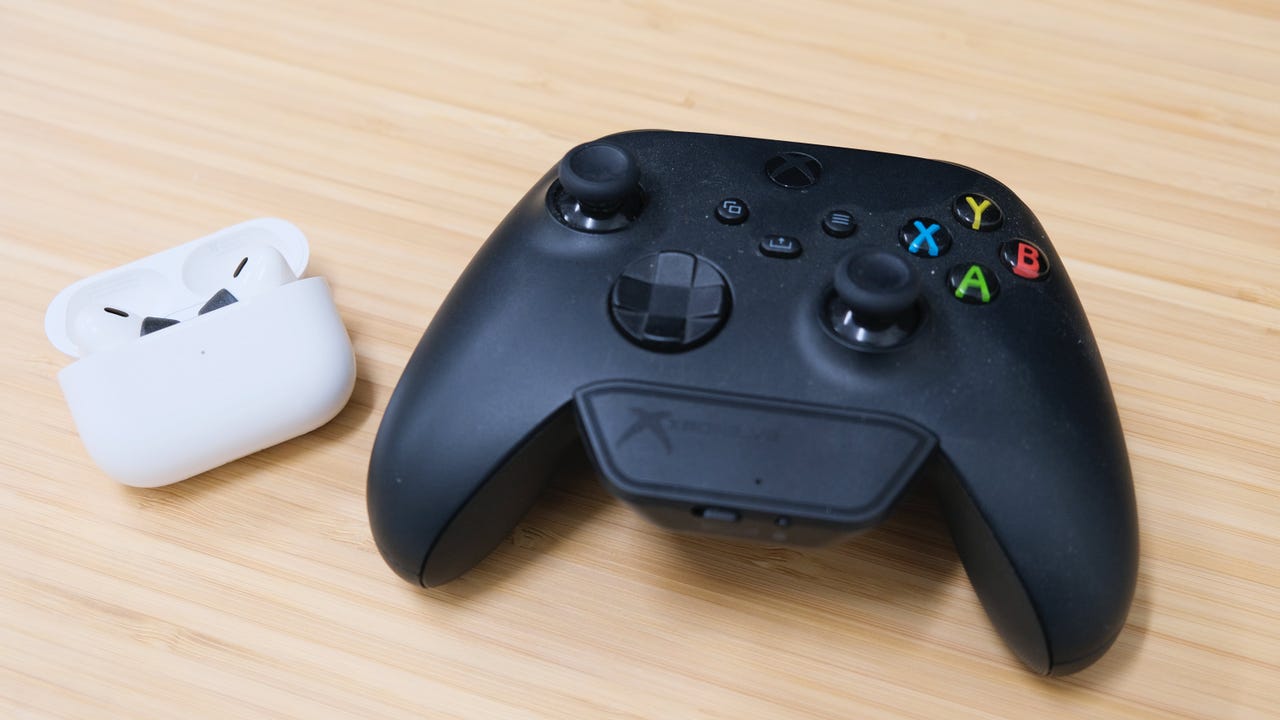
Credit: www.zdnet.com
Bluetooth Compatibility With Xbox One
Connecting Bluetooth headphones to an Xbox One is a common question. Many gamers want to use their favorite wireless headphones for better sound. Understanding the Bluetooth compatibility with Xbox One helps clarify what is possible. Xbox One does not support direct Bluetooth audio connections like phones or PCs. This means you cannot simply pair your Bluetooth headphones with the console.
There are other wireless options available for Xbox One users. Knowing the limitations of Bluetooth on this console can save time and effort. Let’s explore the wireless choices and the Bluetooth restrictions on Xbox One.
Xbox One Wireless Options
Xbox One has its own wireless technology for audio. The console supports Xbox Wireless, a special connection for headsets. Many Xbox headsets use this for better sound and lower delay. You can also connect wired headphones using the controller’s headphone jack. Some third-party adapters allow wireless audio but not through Bluetooth.
Limitations Of Bluetooth On Xbox One
Xbox One does not support Bluetooth audio devices natively. You cannot pair Bluetooth headphones directly to the console. Bluetooth on Xbox One is mainly for connecting controllers, not audio. Using Bluetooth headphones requires extra devices like transmitters. These devices connect to the Xbox and send audio to Bluetooth headphones. This setup can cause audio lag or lower sound quality.

Credit: help.jlab.com
Connecting Bluetooth Headphones
Connecting Bluetooth headphones to Xbox One is not direct. The console does not support Bluetooth audio devices by default. You need extra tools to make the connection work. Using Bluetooth adapters is a common way to connect your headphones.
This method lets you enjoy wireless sound without buying special Xbox headsets. The process is simple and works with most Bluetooth headphones.
Using Bluetooth Adapters
Bluetooth adapters act as a bridge between your Xbox One and headphones. You plug the adapter into the Xbox controller or console. It sends audio signals to your Bluetooth headphones.
Adapters come in many types. Some connect via the headphone jack on the controller. Others use USB ports on the console. Choose one that fits your setup and headphones.
Pairing Process Steps
Turn on your Bluetooth adapter and set it to pairing mode. This usually involves pressing a button on the adapter.
Switch on your Bluetooth headphones and activate their pairing mode too. Both devices should find each other.
Once paired, the adapter will send Xbox audio to your headphones. Adjust the volume on your controller or headphones for the best sound.
Alternative Audio Solutions
Connecting Bluetooth headphones directly to Xbox One is not supported. This limitation means users need other ways to enjoy game audio through headphones. Fortunately, there are several alternative audio solutions that offer good sound quality and ease of use.
These options allow you to listen privately and communicate clearly during gameplay. Each method has its own setup and benefits. Choose the one that fits your gear and gaming style best.
Wired Headphones
Wired headphones connect easily to the Xbox One controller. Most Xbox controllers have a 3.5mm headphone jack. Plug your headphones directly into the controller for instant audio. This method offers low latency and clear sound. It also supports chat audio, so you can talk with friends while playing. No extra devices or apps are needed.
Xbox Wireless Headsets
Xbox Wireless Headsets connect directly to the console without cables. They use Xbox Wireless technology, which is different from Bluetooth. These headsets provide high-quality sound and a stable connection. They also include built-in microphones for chat. Some models offer features like surround sound and noise cancellation. Setup is simple and fast.
Using The Xbox App For Audio
The Xbox app on your smartphone or tablet can route game audio to your headphones. Connect your Bluetooth headphones to your mobile device. Launch the Xbox app and start streaming your console’s audio. This method works well for private listening. It also supports voice chat through the app. The sound quality depends on your network speed.
Troubleshooting Connection Issues
Connecting Bluetooth headphones to Xbox One can sometimes cause issues. Troubleshooting helps fix these problems fast. Understanding common problems and ways to improve audio quality makes the process easier.
Common Problems And Fixes
Bluetooth headphones do not connect directly to Xbox One. The console does not support most Bluetooth audio devices. Use a Bluetooth transmitter attached to the controller or console. Check if the transmitter is compatible with Xbox One.
Headphones may show no sound or delay. Restart Xbox One and headphones. Re-pair the devices through the transmitter. Ensure batteries are charged. Update your Xbox One software to the latest version.
Sometimes, the audio is too low or cuts out. Move closer to the transmitter. Remove objects blocking the signal. Reduce other wireless devices nearby that cause interference.
Improving Audio Quality
Use a high-quality Bluetooth transmitter with aptX support. It reduces audio lag and improves sound clarity. Adjust the headphone volume through both Xbox One and the headphone controls.
Try to keep the transmitter and headphones within 10 feet. Avoid walls and metal objects between them. Regularly update your headphones’ firmware if possible.
For the best experience, consider using official Xbox wireless headsets. They connect directly and offer better sound quality without lag.
Best Bluetooth Headphones For Xbox One
Choosing the best Bluetooth headphones for Xbox One can improve your gaming experience. Xbox One does not support all Bluetooth headphones directly. Some models connect easily with little setup. Others need extra accessories or adapters.
Here, find top Bluetooth headphones that work well with Xbox One. Understand key features to consider before buying. This helps pick headphones that fit your needs and budget.
Top Models Compatible With Xbox
SteelSeries Arctis 9X offers direct Xbox One connection. It provides clear sound and comfort. Turtle Beach Stealth 700 Gen 2 works smoothly with Xbox One. It has good battery life and strong audio. Astro A50 has excellent sound quality but costs more. Corsair HS75 XB Wireless connects without dongles. It delivers rich sound and noise cancellation.
Features To Look For
Wireless range matters for freedom of movement. Comfort is key for long gaming sessions. Good battery life avoids frequent charging. Clear microphone quality helps in team chats. Sound quality boosts game immersion. Compatibility with Xbox One ensures easy setup. Noise cancellation blocks outside sounds.

Credit: www.liftingitalia.com
Frequently Asked Questions
Can I Use Bluetooth Headphones With Xbox One?
No, Xbox One does not support direct Bluetooth audio connections. Use Xbox-compatible wireless headsets or connect wired headphones through the controller.
How To Connect Wireless Headphones To Xbox One?
You must use an Xbox wireless headset or a headset with an Xbox Wireless Adapter. Standard Bluetooth headsets won’t connect directly.
Are There Adapters For Bluetooth Headphones On Xbox One?
Yes, some third-party Bluetooth transmitters can connect headphones to Xbox One. However, audio latency and compatibility issues may occur.
Can I Use Wired Headphones With Xbox One?
Yes, you can plug wired headphones into the Xbox One controller’s 3. 5mm jack for audio and chat functionality.
Conclusion
Connecting Bluetooth headphones directly to Xbox One is not straightforward. The console does not support most Bluetooth audio devices. You can use special adapters or Xbox-compatible headsets instead. These options give better sound and less delay. Always check compatibility before buying a headset.
Playing with good audio makes games more fun. Now you know the basics for using headphones with Xbox One. Choose the best option for your needs and enjoy your gaming sessions.
As an Amazon Associate, I earn from qualifying purchases.

