

Struggling to connect your Sony headphones to your iPhone? You’re not alone.
Pairing these devices might seem tricky at first, but once you know the simple steps, it becomes effortless. Imagine enjoying your favorite music or podcasts with crystal-clear sound, without any hassle. In this guide, you’ll discover exactly how to pair your Sony headphones to your iPhone quickly and easily.
Keep reading—you’ll be listening in no time.
Prepare Your Sony Headphones
Getting your Sony headphones ready is the first step to pair them with your iPhone. Proper preparation ensures a smooth connection and better sound quality.
Follow simple steps to make sure your headphones are ready. This will save time and avoid frustration during pairing.
Charge The Headphones
Check the battery level of your Sony headphones. Low battery can cause pairing problems.
Use the original charger or a compatible USB cable. Plug it into a power source and charge fully before pairing.
Charging usually takes about 2 hours. A full charge gives enough power to connect and use the headphones without interruption.
Activate Pairing Mode
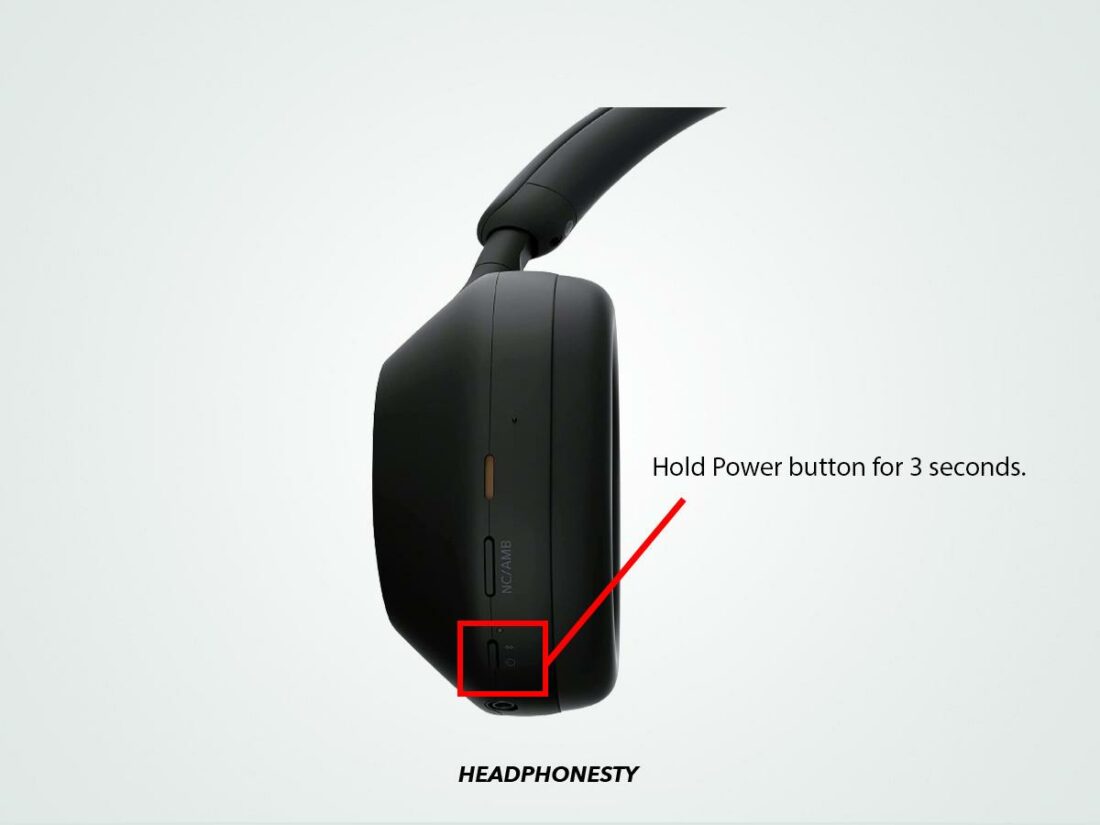
Turn on your Sony headphones by pressing the power button. Hold the button longer to enter pairing mode.
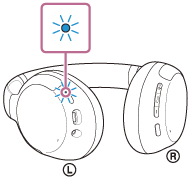
Watch for the indicator light. It should blink blue and red or flash blue rapidly.
This blinking means the headphones are ready to connect to your iPhone. Keep them close to the phone to improve connection speed.
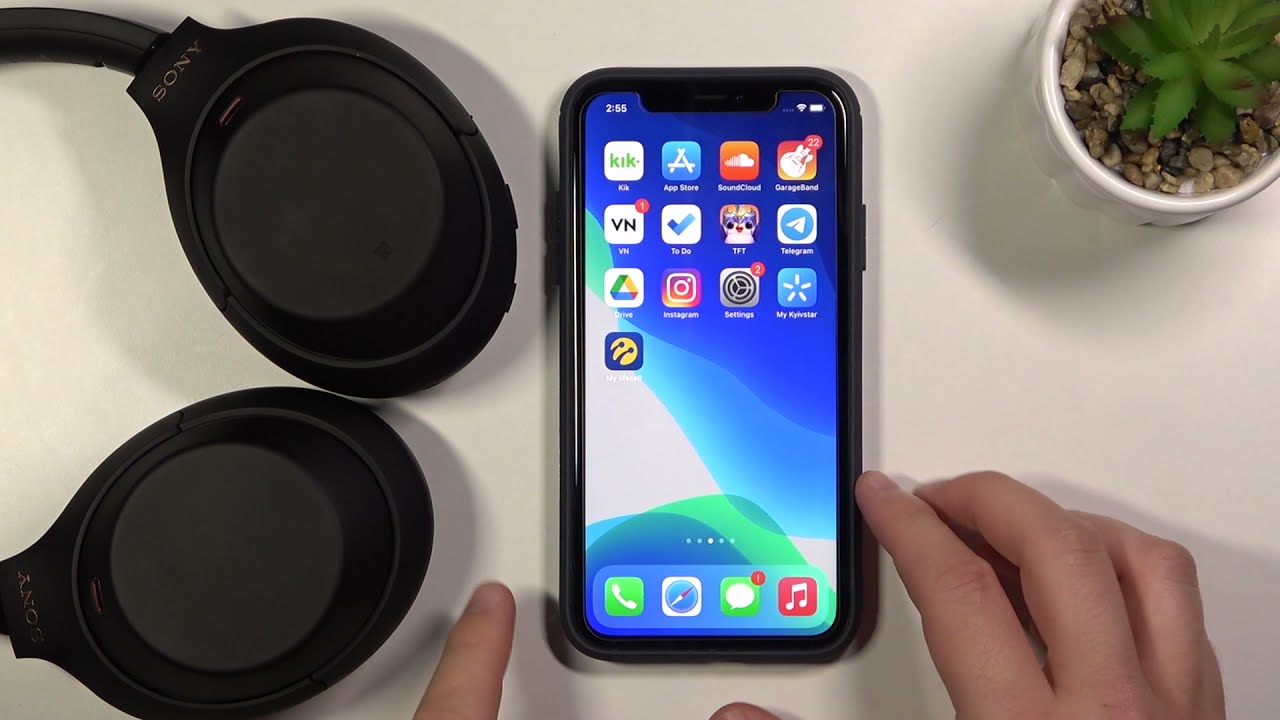
Credit: www.thorfamilylaw.com
Enable Bluetooth On Iphone
To connect Sony headphones to an iPhone, Bluetooth must be enabled first. Bluetooth allows wireless devices to communicate. Without turning it on, your iPhone cannot find or connect to your headphones.
Turning on Bluetooth is simple and quick. It takes just a few taps to enable it in the iPhone settings. This step is essential for pairing and enjoying your Sony headphones.
Access Settings
Start by unlocking your iPhone. Look for the Settings app, a gray icon with gears. Tap on it to open the settings menu. This is where you control your iPhone’s features and connections.
Turn On Bluetooth
Inside Settings, find the Bluetooth option. It usually appears near the top of the list. Tap on Bluetooth to open its menu. You will see a switch; slide it to the right to turn Bluetooth on. The switch will turn green, showing it is active. Your iPhone is now ready to pair with your Sony headphones.
Connect Headphones To Iphone
Connecting your Sony headphones to an iPhone is simple and quick. This allows you to enjoy clear sound and wireless freedom. Follow these steps to pair your headphones smoothly.
Search For Devices
First, open the Settings app on your iPhone. Tap on Bluetooth to open the Bluetooth menu. Make sure Bluetooth is turned on. Your iPhone will start searching for nearby devices automatically. Keep your Sony headphones close to the phone. Put the headphones in pairing mode by pressing and holding the power button until the light flashes.
Select Your Sony Headphones
Look at the list of available devices on your iPhone screen. Find the name of your Sony headphones in the list. Tap on the headphones name to select it. This tells your iPhone which device to connect to. Wait a moment while the iPhone tries to connect.
Confirm Pairing
A confirmation message may appear on the iPhone screen. Tap “Pair” to approve the connection. Your Sony headphones will connect to the iPhone. You will see “Connected” next to the device name. Now, your headphones are ready to use with your iPhone.
Credit: helpguide.sony.net
Troubleshoot Connection Issues
Sometimes Sony headphones do not connect to an iPhone. This can be frustrating. Troubleshooting helps fix common connection problems. Follow these simple steps to solve issues quickly.
Restart Devices
Restart your iPhone and headphones. Turn off both devices. Wait for about 30 seconds. Turn them back on. This refreshes the system and clears minor glitches. Try pairing again after restarting.
Reset Headphones
Resetting the headphones can fix stubborn problems. Find the reset button or use the manual instructions. Hold the button for several seconds. The headphones will turn off and reset. Pair them with your iPhone again after the reset.
Update Firmware
Old firmware can cause connection errors. Check for updates on the Sony Headphones Connect app. Connect your headphones to the app. Follow the instructions to update the firmware. Updated software improves performance and fixes bugs.
Manage Paired Devices
Managing paired devices on your iPhone helps keep your Bluetooth connections organized. You can rename your Sony headphones for easy recognition. Also, disconnect or forget devices that you no longer use. These steps make your audio experience smoother.
Rename Headphones
Open the Settings app on your iPhone. Tap on Bluetooth and find your Sony headphones in the device list. Tap the “i” icon next to them. Select “Name” and type a new name. Tap Done to save the change. This helps you spot your headphones quickly.
Disconnect Or Forget Device
Go to Settings and open Bluetooth settings. Find your Sony headphones and tap the “i” icon. Choose “Disconnect” to stop the current connection. To remove the device completely, tap “Forget This Device.” Confirm your choice. This frees up space for new devices.
Optimize Audio Experience
Optimizing your audio experience enhances every sound you hear through Sony headphones. It makes music clearer, voices sharper, and noise reduction better. Simple adjustments can change how you enjoy audio on your iPhone.
Adjust Volume And Sound Settings
Start by setting the volume to a comfortable level. Avoid very high volumes to protect your hearing. Use the iPhone’s built-in sound settings to balance bass and treble. Go to Settings > Sounds & Haptics to find these options. Adjust the equalizer to match your music style. These small changes improve sound quality significantly.
Use Sony Headphones App
Download the Sony Headphones Connect app from the App Store. The app offers sound customization tools not available on the iPhone. Use it to control noise cancellation and ambient sound modes. You can also adjust the equalizer in more detail. The app updates the headphone firmware for better performance. It creates a tailored sound experience for every user.
Credit: www.sietesetenta.com.ar
Frequently Asked Questions
How Do I Connect Sony Headphones To My Iphone?
Turn on Bluetooth on your iPhone. Press and hold the Sony headphones’ power button until the indicator blinks. Select your headphones from the Bluetooth list on your iPhone to pair and connect.
Why Won’t My Iphone Find Sony Headphones?
Ensure your headphones are in pairing mode. Turn off and on Bluetooth on your iPhone. Restart your headphones and keep them close to your iPhone during pairing.
Can I Pair Multiple Sony Headphones With One Iphone?
Yes, you can pair multiple Sony headphones but only connect one at a time. Switch between devices through your iPhone’s Bluetooth settings easily.
How To Reset Sony Headphones For Iphone Pairing?
Turn off headphones, then press and hold the power and volume buttons together for 7 seconds. This resets the headphones, allowing fresh pairing with your iPhone.
Conclusion
Pairing Sony headphones to an iPhone is quick and simple. Just follow the steps carefully. Make sure Bluetooth is on and headphones are in pairing mode. Your iPhone will find the headphones fast. Tap the name to connect. Once connected, enjoy clear sound and hands-free calls.
This process works for most Sony models. Keep your devices close for a smooth connection. Now, you can listen to music or take calls easily. No need to worry about cables or settings anymore. Enjoy your wireless experience with ease and comfort.
As an Amazon Associate, I earn from qualifying purchases.

