

Are you struggling with your Spypoint camera not working the way it should? Sometimes, a quick reset can fix common issues and get your device back to capturing those important moments.
In this guide, you’ll discover simple, step-by-step instructions to reset your Spypoint camera easily. Whether your photos aren’t saving, the camera won’t connect, or it’s just acting strange, this article will help you solve the problem fast. Keep reading to learn how to bring your Spypoint camera back to life without any hassle.
Reasons To Reset Your Spypoint Camera
Resetting your Spypoint camera can solve many problems. It helps the device work properly again. Sometimes, the camera may freeze or stop reacting. A reset clears errors and restores normal function.
Resetting can also improve battery life and performance. It removes settings that might cause trouble. This step is important before contacting support or replacing the camera.
Common Issues Requiring Reset
The camera may not turn on or respond to commands. It can freeze during use or fail to take pictures. Sometimes, photos do not save or the memory card is not recognized.
Connection problems with the app or Wi-Fi can also need a reset. Settings may get mixed up or forgotten. A reset fixes these glitches quickly and easily.
When To Perform A Reset
Try a reset after basic troubleshooting fails. For example, after changing batteries or updating the software. If the camera still acts strange or stops working, reset it.
Reset before moving the camera to a new location. Also, reset if you plan to sell or give the camera away. This clears your personal data and settings safely.
Credit: www.youtube.com
Types Of Resets For Spypoint Cameras
Spypoint cameras offer different reset options for various situations. These resets help fix issues, refresh settings, or clear errors. Understanding the types of resets is key to keeping your camera working smoothly.
Each reset type serves a unique purpose. Choose the right one based on the problem you face. This guide explains the three main reset types for Spypoint cameras.
Soft Reset
A soft reset is a simple restart of the camera. It clears temporary glitches without deleting data. To do this, turn off the camera, wait a few seconds, then turn it back on. This reset often fixes minor issues quickly.
Hard Reset
A hard reset is more thorough than a soft reset. It forces the camera to reboot and clears more persistent errors. Hold the power button for about 10 seconds until the camera restarts. Use this reset if the camera is frozen or unresponsive.
Factory Reset
Factory reset returns the camera to its original settings. It deletes all user data and preferences. Use this reset only if other resets fail or before selling the camera. Access this option through the camera’s menu or settings screen.
Steps To Perform A Soft Reset
Performing a soft reset on your Spypoint camera can solve many minor issues. It clears temporary bugs without deleting your settings or files. Follow these simple steps to reset your camera quickly. This process helps keep your device working smoothly.
Power Cycling The Camera
First, turn off the camera using the power button. Wait for about 10 seconds before turning it back on. This brief pause allows the device to clear its memory. Power cycling often fixes small glitches and connection problems. Check if the camera works properly after restarting.
Using The Reset Button
Locate the reset button on your Spypoint camera. It is usually a small pinhole on the device. Use a paperclip or a similar tool to press and hold the button. Hold it for 5 to 10 seconds, then release. The camera will restart automatically. This method resets the device without affecting your saved data.
Steps To Perform A Hard Reset
Performing a hard reset on your Spypoint camera can fix many common problems. It helps clear errors and restore settings to default. This process is simple and does not require special tools. Follow these clear steps to reset your camera properly.
Removing And Reinstalling The Battery
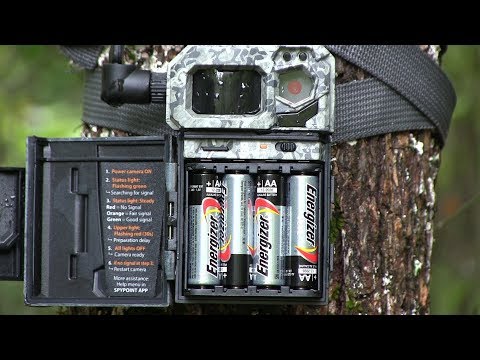
First, open the battery compartment carefully. Take out all the batteries from your camera. Wait for about 30 seconds to let the camera fully power down. After that, put the batteries back in the same order. Close the compartment tightly. Turn on the camera to check if it works correctly.
Resetting Via Camera Menu
Turn on your Spypoint camera and access the main menu. Look for the “Settings” or “Setup” option. Scroll down to find the “Reset” or “Factory Reset” choice. Select this option and confirm your action. The camera will restart and return to default settings. This method keeps your device ready for new settings.
Performing A Factory Reset
Performing a factory reset on your Spypoint camera can solve many issues. It clears all settings and restores the camera to its original state. This process helps fix errors and improve performance. Follow the steps below to complete the reset properly.
Accessing Factory Reset Options
Turn on your Spypoint camera first. Use the menu button to open settings. Scroll through the options until you find “Factory Reset” or “Reset Camera.”
Select this option with the OK button. The camera may ask you to confirm the reset. Confirm by selecting “Yes” or “OK.” The camera then starts the reset process.
Restoring Default Settings
After the reset, the camera restarts automatically. All your personal settings will be erased. The camera returns to the factory default state.
You must set up the camera again. Adjust the date, time, and other preferences. This ensures your camera works correctly after the reset.
Tips To Avoid Future Issues
Resetting your Spypoint camera can fix many problems. Taking steps to avoid future issues helps keep your camera working well. Simple habits can extend your camera’s life and improve its performance.
Regular Maintenance
Clean the camera lens and sensors regularly. Dirt and dust can block the view and cause errors. Check the battery contacts for corrosion. Replace old batteries promptly to avoid power failures. Store your camera in a dry place to prevent moisture damage. Inspect the camera housing for cracks or damage after heavy use.
Firmware Updates
Keep your camera’s firmware up to date. Updates fix bugs and add new features. Visit the Spypoint website to download the latest firmware. Follow the instructions carefully to avoid errors during updates. Regular updates help your camera run smoothly and reduce crashes.
Troubleshooting Common Reset Problems
Resetting your Spypoint camera usually fixes many problems quickly. But sometimes, issues remain even after a reset. This section helps you solve common reset problems. Follow these tips to get your camera working again.
Understanding common issues can save time and frustration. Keep your camera ready for use by troubleshooting effectively.
Camera Not Responding
The camera may not react to reset commands. Check if the battery is charged and placed correctly. Weak or dead batteries often stop the camera from working. Remove the battery and reinsert it to reset power.
Try pressing the reset button firmly for a few seconds. Sometimes, dust or dirt can block the button. Clean the area gently to ensure the button works well. If the camera still does not respond, test with a new battery.
Reset Fails To Resolve Issue
Resetting does not fix all problems. Persistent errors might need a different approach. Check the camera’s memory card for damage or full storage. Clear or replace the memory card if needed.
Make sure the camera’s firmware is up to date. Outdated software can cause glitches. Visit the Spypoint website to download the latest updates. Follow the update steps carefully to avoid errors.
If problems continue, contact Spypoint support for help. They can guide you through advanced fixes or repairs.
Credit: spypoint.info

Credit: www.rate.org.sz
Frequently Asked Questions
How Do I Reset My Spypoint Camera To Factory Settings?
To reset your Spypoint camera to factory settings, open the camera menu. Navigate to “Settings,” then select “Reset” or “Factory Reset. ” Confirm the reset action. This restores original settings and clears custom configurations, ensuring the camera functions as new.
Why Is My Spypoint Camera Not Resetting Properly?
If your Spypoint camera won’t reset, check the battery level first. Low power can prevent resets. Ensure the SD card is inserted correctly. Try removing and reinserting the batteries. If the issue persists, update the firmware or contact Spypoint support.
How Often Should I Reset My Spypoint Camera?
Reset your Spypoint camera only when necessary, such as after firmware updates or troubleshooting errors. Frequent resets are not required and may erase important settings. Regular maintenance and proper use reduce the need for resets, ensuring reliable performance.
Can Resetting Spypoint Camera Fix Connection Issues?
Yes, resetting your Spypoint camera can resolve connection issues. It clears any network errors or corrupted settings. After reset, reconfigure Wi-Fi or cellular settings for proper connectivity. This often restores remote access and data transmission functionality.
Conclusion
Resetting your Spypoint camera is quick and simple. Follow the steps carefully for best results. This helps fix common issues and improves performance. Keep your camera updated and maintained for longer use. Regular resets can prevent many problems. Try it yourself and see the difference.
Your camera will work smoothly again. Easy, fast, and effective.
As an Amazon Associate, I earn from qualifying purchases.
