

Are you struggling to connect your camera to your Alpine ILX-F309? You’re not alone.
Getting your camera set up right can make a huge difference in your driving experience, giving you clear views and added safety. In this guide, you’ll discover simple, step-by-step instructions to get your camera working perfectly with your Alpine system.
By the end, you’ll feel confident and ready to enjoy every feature your setup has to offer. Keep reading to unlock the full potential of your Alpine ILX-F309 and never miss a moment on the road again.
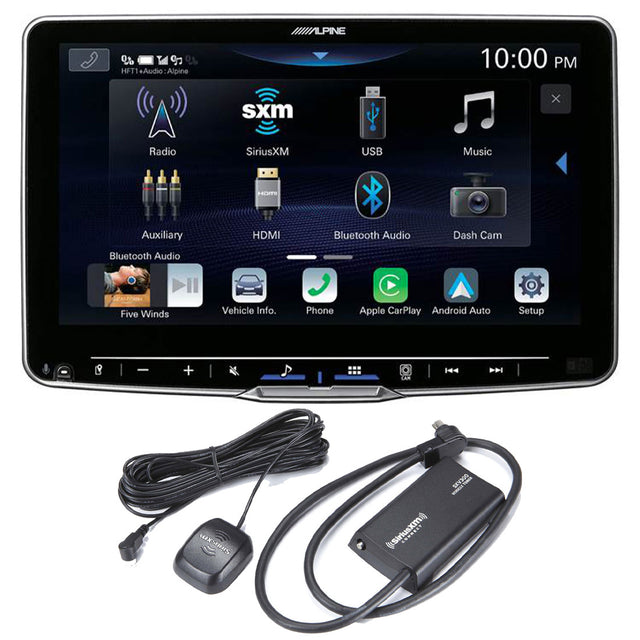
Credit: gibbyselectronicsupermarket.ca
Preparing Your Equipment
Before connecting your camera to the Alpine ILX-F309, preparing your equipment is key. This step saves time and avoids frustration during installation. Proper preparation ensures a smooth and secure connection. Follow the steps below to get ready.
Gathering Necessary Tools
Start by collecting all tools needed for the job. You will need a screwdriver, wire strippers, and electrical tape. Keep a multimeter nearby to check connections. Having these tools ready makes the process faster and safer. Avoid searching for tools mid-installation.
Checking Camera Compatibility
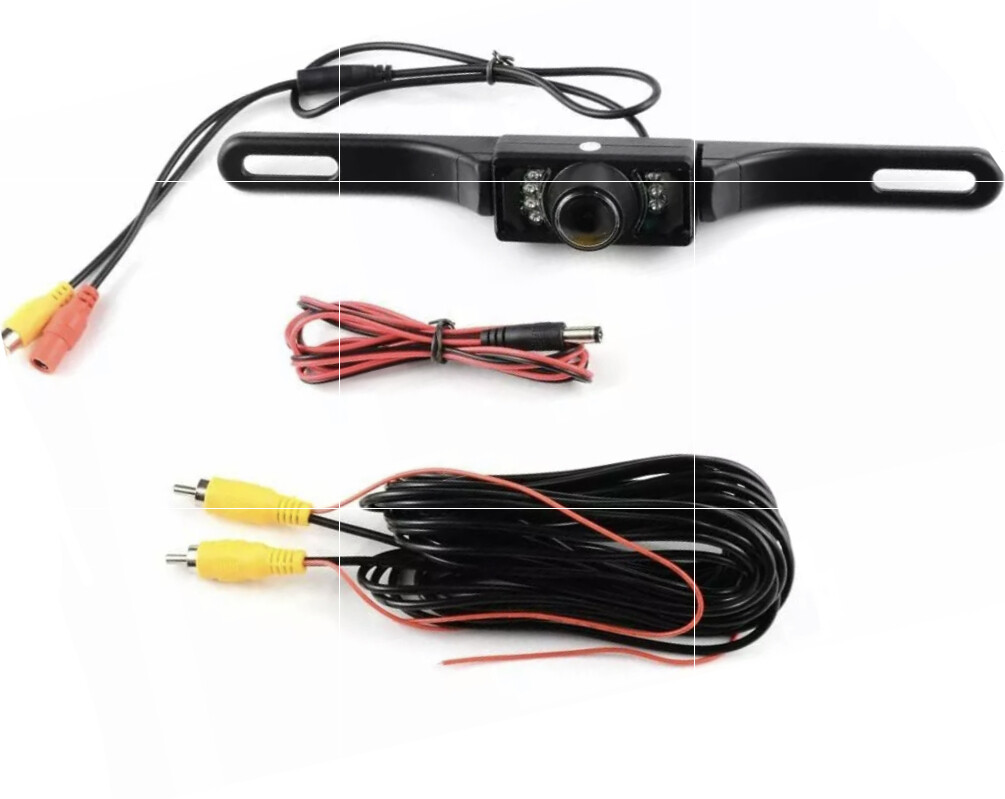
Verify if your camera works with the Alpine ILX-F309. Check the camera’s video output type. The ILX-F309 supports a composite video input. Make sure your camera uses this format. Using an incompatible camera can cause no video or poor image quality.
Credit: www.ebay.com
Locating Connection Ports
Locating the connection ports on your Alpine ILX-F309 is the first step to connecting a camera. Knowing where these ports are helps you set up quickly. It also ensures the camera works without issues.
The Alpine ILX-F309 has specific inputs designed for camera connections. Recognizing these ports avoids confusion during installation. This section explains how to find and identify them easily.
Finding Camera Input On Alpine Ilx-f309
The camera input on the Alpine ILX-F309 is usually at the back. Look for a yellow RCA video input port. It is often labeled “Camera” or “Rear Camera In.”
This port is different from other audio or video inputs. It accepts a video signal from your backup or front camera. Use a flashlight if the port is hard to see.
Identifying Camera Cable Types
Camera cables come in different types, but most use RCA connectors. The video cable has a yellow tip, matching the camera input port. Power cables are separate and often red or black.
Check your camera’s manual to confirm cable types. Some cameras use a single cable for video and power. Others require separate connections. Knowing this prevents connection errors.
Wiring The Camera
Wiring the camera to the Alpine ILX-F309 is a key step. It ensures your rearview camera works correctly with the display unit. Correct wiring avoids signal loss and power issues. This guide breaks down the wiring process into clear parts. Follow each step carefully for the best results.
Connecting Power Wires
Start by identifying the camera’s power wires. Usually, these are red for positive and black for negative. Connect the red wire to a 12V power source. This source often comes from the reverse light circuit. It powers the camera only when the car is in reverse. Avoid connecting to constant power to save battery life.
Connecting Video Signal Cable
The video signal cable sends the camera image to the Alpine unit. It usually has a yellow RCA connector. Plug this connector into the video input on the back of the ILX-F309. Make sure the connection is tight to prevent signal loss. Route the cable safely through the vehicle to avoid damage.
Securing Ground Connection
Grounding is crucial for camera performance. Connect the black wire to a clean metal surface on the car chassis. This connection completes the electrical circuit. Use a screw or bolt to attach the ground wire securely. Check for any paint or rust that may block the connection.
Configuring The Alpine Ilx-f309
Configuring the Alpine Ilx-F309 is an important step to connect your camera properly. It ensures the camera works well with the system. The settings help display clear images and improve safety while driving. Follow the steps below to set up your camera with ease.
Accessing Camera Settings
Start by turning on the Alpine Ilx-F309. Tap the home button to open the main menu. Find the “Settings” icon and select it. Scroll down to locate the “Camera” option. Tap on it to enter the camera settings menu. Here, you can adjust all camera-related options.
Enabling Camera Display
Inside the camera settings, look for “Camera Display.” Toggle the switch to enable the camera view. This allows the screen to show images from the connected camera. The display activates automatically when you shift to reverse. Check that the camera view appears clearly on the screen.
Adjusting Image Settings
Image settings improve visibility and quality. Find options such as brightness, contrast, and color. Adjust each setting to your liking for a clear image. Make small changes and test the display. Proper image settings help you see obstacles better and drive safely.
Testing The Camera Connection
Testing the camera connection on the Alpine ILX-F309 ensures your system works properly. This step confirms the camera feed shows clearly on the screen. It also helps identify any problems early. Follow simple steps to verify the setup and fix issues.
Powering On The System
Start by turning on your Alpine ILX-F309. Connect the camera power cable to the system. Make sure the car ignition is on to supply power. Wait a few seconds for the screen to activate. The system should detect the camera automatically.
Verifying Camera Feed
Shift the car into reverse gear. The camera feed should appear on the Alpine screen. Check the image for clarity and proper angle. The screen should display a clear view behind your car. Adjust the camera if the image is blurry or off-center.
Troubleshooting Common Issues
No image? Check all cable connections again. Make sure the camera cable plugs are secure. Inspect the camera lens for dirt or damage. Restart the system and try reversing once more. If the problem continues, consult the user manual or contact support.
Tips For Optimal Camera Performance
To get the best from your camera connected to the Alpine ILX-F309, follow simple tips. These help keep the camera clear and the images sharp. Good camera performance means safer driving and better views.
Small steps can improve how well your camera works. Check the position, keep the lens clean, and update the system regularly. These easy actions will keep your camera ready for the road.
Positioning The Camera
Place the camera where it has a clear view of the road. Avoid areas blocked by car parts or dirt. Make sure it is steady and does not shake while driving. A good angle helps capture wide and clear images.
Maintaining Clean Lens
Wipe the camera lens often with a soft cloth. Dirt, dust, and water spots blur the picture. Do not use harsh chemicals. A clean lens shows sharp and bright images every time.
Regular System Updates
Keep your Alpine ILX-F309 software up to date. Updates fix bugs and improve camera functions. Check for updates in the settings menu. Updated software helps the camera work smoothly and safely.

Credit: www.ubuy.do
Frequently Asked Questions
How Do I Connect A Camera To Alpine Ilx-f309?
To connect a camera, plug the camera’s video cable into the Alpine ILX-F309’s rear camera input. Then, enable the camera option in the head unit’s settings menu for proper functionality.
What Type Of Camera Works With Alpine Ilx-f309?
The Alpine ILX-F309 supports most standard RCA video cameras, especially rearview backup cameras. Ensure the camera outputs a composite video signal compatible with the unit.
Can I Connect Multiple Cameras To Alpine Ilx-f309?
No, the Alpine ILX-F309 supports only one camera input. To use multiple cameras, you need an external video switcher or a compatible camera system.
How Do I Enable The Camera Display On Alpine Ilx-f309?
Go to the settings menu, select camera settings, and turn on the rear camera option. This activates the camera display when reversing.
Conclusion
Connecting your camera to the Alpine ILX-F309 is simple and quick. Follow the steps carefully to avoid any issues. Use the right cables and check the camera settings. Test the connection before driving to ensure it works well. A clear view helps you stay safe on the road.
Keep your system updated for the best performance. Enjoy better driving with your connected camera and Alpine unit.
As an Amazon Associate, I earn from qualifying purchases.
