Are you wondering if you can enjoy Xbox Cloud Gaming without a controller? Maybe you don’t have one handy, or you prefer using your keyboard or touchscreen.
The good news is, you’re not stuck waiting to play. You’ll discover exactly how you can jump into your favorite games without a controller and what options are available to make your gaming experience smooth and fun. Keep reading to unlock the secrets to hassle-free Xbox Cloud Gaming!
Credit: support.xbox.com
Xbox Cloud Gaming Basics
Xbox Cloud Gaming lets you play games over the internet without a console. It streams games directly to your device. This means you can enjoy Xbox games anywhere with a good internet connection.
This section explains the basics of Xbox Cloud Gaming. It covers what the service is and which devices you can use. Understanding these points helps you get started quickly.
What Is Xbox Cloud Gaming
Xbox Cloud Gaming is a service by Microsoft. It streams Xbox games from the cloud to your device. You do not need to download or install games. Just connect to the internet and start playing.
The games run on powerful servers. Your device only shows the video and sends your controls back. This lowers the need for strong hardware on your side.
Supported Devices And Platforms
You can use Xbox Cloud Gaming on many devices. This includes Windows PCs, Android phones, and iPhones. Tablets and some smart TVs also work.
Supported web browsers include Chrome, Edge, and Safari. You do not need a special app for all devices. Just open the browser and sign in to play.
Some devices may need a controller. Others can use touch controls or keyboard and mouse. The variety of options makes gaming accessible to more people.
Controller Requirements
Playing Xbox Cloud Gaming requires some form of input to control games. A controller usually provides the best experience. It helps you move, jump, and interact smoothly. Without a controller, playing can become difficult or even impossible in many games.
Some devices have touch controls, but they don’t work with all games. Knowing the controller requirements can help you prepare and avoid frustration.
Why Controllers Are Recommended
Controllers give precise control over the game. They allow quick reactions and better gameplay. Many games are designed with controllers in mind.
Using a controller also reduces input lag. This means your actions happen faster on screen. Controllers make long gaming sessions more comfortable.
Types Of Compatible Controllers
Xbox Wireless Controllers work best with Xbox Cloud Gaming. They connect easily via Bluetooth or USB.
Some third-party controllers also work well. Look for those with Xbox or Xbox-compatible labels.
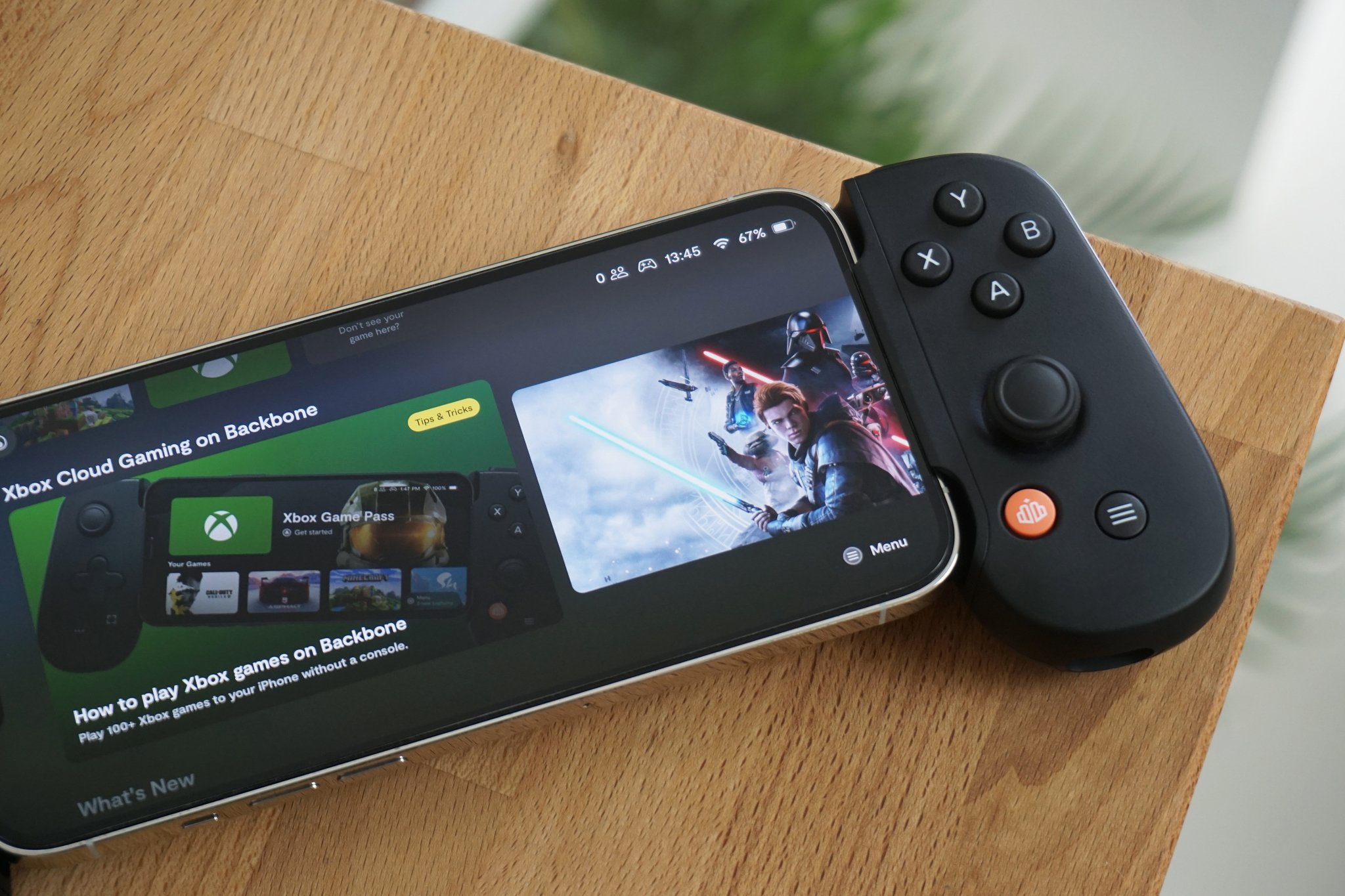
Smartphone and tablet touch controls are limited. They only support certain games and actions.
Playing Without A Controller
Playing Xbox Cloud Gaming without a controller is possible and offers flexibility. Many gamers want to play but may not have a controller nearby. The good news is Xbox Cloud Gaming supports other input methods. These options let you enjoy games on different devices easily.
Using Touch Controls
Touch controls work well on phones and tablets. The screen shows virtual buttons and joysticks. You can tap or swipe to move and interact. Touch controls are simple and quick to use. Some games work better than others with touch input. It is a good option if you do not have a controller.
Keyboard And Mouse Support
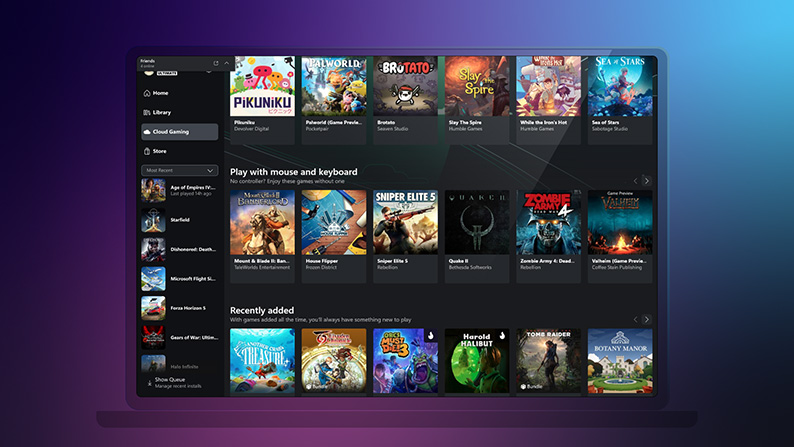
Xbox Cloud Gaming supports keyboard and mouse on some devices. This option is ideal for laptops and desktop computers. You can use the keyboard for movement and actions. The mouse helps with aiming and selecting. Not all games support this input type. Check game compatibility before playing.
Alternative Input Methods
Other input devices can connect to Xbox Cloud Gaming. These include adaptive controllers for accessibility. Some third-party controllers work through Bluetooth or USB. Voice commands may assist in navigation on some platforms. These alternatives help players with different needs or preferences.
Limitations And Challenges
Playing Xbox Cloud Gaming without a controller has its limits. The experience changes in many ways. Some games may not work well. Performance can drop. The overall feel is different. These challenges affect how much fun you have.
Game Compatibility Issues
Not all games support touch or keyboard controls. Many titles need a controller to play properly. Some game features may be missing or hard to use. This limits the number of games you can enjoy without a controller.
Input Lag And Performance
Playing without a controller can cause input delays. Touch controls or keyboard inputs may be slower. This lag affects fast-paced games the most. Performance issues can make gameplay frustrating or unfair.
User Experience Differences
The feel of the game changes without a controller. Controls on screen or keyboard may feel clunky. The precision of a controller is hard to match. This can make the game less enjoyable and harder to play.
Setup Tips For Controller-free Play
Playing Xbox Cloud Gaming without a controller is possible and can be simple. Setting up your device for controller-free play helps improve your gaming experience. Follow these tips to get started smoothly.
Configuring Keyboard And Mouse
Many Xbox Cloud games support keyboard and mouse input. Connect your keyboard and mouse to your device before launching the game. Adjust settings in the game menu to customize key bindings. This makes controls easier and fits your play style. Test your setup with simple games first to check responsiveness.
Optimizing Touch Controls
Touch controls work well on mobile devices and tablets. Enable touch mode in the Xbox Cloud Gaming app or browser settings. Customize the layout by moving buttons to comfortable spots on the screen. Use gestures like swipes and taps for smoother gameplay. Keep your screen clean for better touch accuracy.
Troubleshooting Common Issues
Sometimes, controls may not respond correctly. Restart your device and the Xbox Cloud Gaming app to fix minor bugs. Check your internet connection for stability and speed. Update your device’s software and browser for best compatibility. Reconnect your keyboard, mouse, or touch settings if input lags or stops. Clear cache and cookies to solve loading problems.
Credit: www.windowscentral.com
Best Games For Controller-free Gaming
Playing Xbox Cloud Gaming without a controller works best with certain games. Some games are easy to play using just a keyboard and mouse or touch controls. These games do not need complex button combos or fast reactions.
Choosing the right games can make your experience smooth and fun. Many games focus on simple controls and clear objectives. This lets you enjoy the game fully without a controller.
Genres That Work Well
Turn-based games are great for controller-free play. You can take your time to plan moves. Puzzle games also work well. They need simple clicks or taps to solve challenges. Strategy games fit this style too. Managing resources and planning is easier without fast controls. Adventure games with point-and-click mechanics are good options. They rely on exploration and story, not quick reflexes.
Popular Titles To Try
“Stardew Valley” is a popular farming and life game. It uses simple mouse or touch controls. “Slay the Spire” offers turn-based card battles. You just click to choose cards. “Minecraft” in creative mode lets you build freely. It is easy to control without a controller. “Among Us” is a social game that uses simple taps or clicks. These games work well on Xbox Cloud Gaming without a controller.
Future Of Controller-free Gaming
The future of controller-free gaming looks promising. More players want to enjoy games without holding a physical controller. This change could make gaming more accessible and fun for everyone. The technology behind cloud gaming grows fast. It supports new ways to play and interact with games.
Developers and companies work hard to improve the gaming experience. They explore options like touch controls, voice commands, and motion sensors. These tools allow gamers to play in different ways. As technology evolves, controller-free gaming will become easier and more common.
Upcoming Features And Updates
Xbox Cloud Gaming plans to add new control methods. Touchscreen controls will improve for mobile and tablet users. Voice control options may expand to allow game navigation and actions. Gesture recognition might also become part of the gaming experience. These updates aim to reduce the need for a traditional controller. Players can expect smoother and more natural ways to play games.
Industry Trends
The gaming industry moves towards more flexible control systems. More devices support cloud gaming, making controllers less necessary. Many companies invest in AI to enhance voice and motion controls. Accessibility features gain priority to help more players join. The rise of smart TVs and mobile devices supports controller-free play. These trends show a future where gaming adapts to player needs.

Credit: www.youtube.com
Frequently Asked Questions
Can I Use Touchscreen For Xbox Cloud Gaming?
Yes, you can use a touchscreen on supported devices for Xbox Cloud Gaming. It allows basic navigation and gameplay without a controller.
Is A Controller Necessary For Xbox Cloud Gaming?
While a controller enhances the experience, it’s not always necessary. Some games support keyboard, mouse, or touchscreen controls.
Can I Play Xbox Cloud Gaming On Pc Without Controller?
Yes, you can play Xbox Cloud Gaming on PC without a controller using keyboard and mouse controls for compatible games.
Which Devices Support Xbox Cloud Gaming Without A Controller?
Devices like smartphones, tablets, and PCs support Xbox Cloud Gaming without a controller through touchscreen or keyboard inputs.
Conclusion
Playing Xbox Cloud Gaming without a controller is possible but has limits. Touch controls work on some devices but may feel less precise. Using a keyboard or mouse can help on computers. Some games need a controller to play well.
Choosing the right device and setup improves your experience. Try different options to see what fits you best. Enjoy gaming in your own way, no matter the tools you use.
As an Amazon Associate, I earn from qualifying purchases.