Are you ready to take your gaming experience to the next level? Knowing how to use a gaming controller can make all the difference between just playing and truly mastering your favorite games.
Whether you’re new to controllers or want to improve your skills, this guide will show you simple steps to get comfortable and confident. By the end, you’ll control every move with ease and enjoy your games like never before. Let’s dive in and unlock your full gaming potential!
Credit: www.playturbx.com
Choosing The Right Controller
Choosing the right gaming controller makes a big difference in your play experience. It affects comfort, control, and how well you play games. Picking the best controller depends on your needs and the device you use. Consider how you want to connect, how it feels, and if it works with your games.
Wired Vs Wireless Controllers
Wired controllers connect with a cable. They offer stable and fast response times. No need to worry about batteries running out. Wireless controllers use Bluetooth or other signals. They give more freedom to move around. But they may have slight delays or need charging.
Compatibility With Devices
Not all controllers work with every device. Some work best with consoles like Xbox or PlayStation. Others are made for PCs or mobile phones. Check if the controller matches your device before buying. This avoids problems with connection or controls.
Ergonomics And Design
A good controller fits well in your hands. It should feel comfortable during long play sessions. Buttons and sticks must be easy to reach and press. Look for a shape that suits your hand size. A well-designed controller reduces hand strain and improves control.
Setting Up Your Controller
Setting up your gaming controller is the first step to enjoying your games comfortably. A proper setup ensures the controller works smoothly with your device. Follow these easy steps to get started quickly and without hassle.
Connecting To Your Console Or Pc
Most controllers connect using USB cables or Bluetooth. For wired controllers, plug the USB into your console or PC. For wireless, turn on the controller and enable Bluetooth on your device. Look for the controller name in the Bluetooth list and select it. Wait for the connection to complete before playing.
Installing Necessary Drivers
Some controllers need drivers to work properly on a PC. Drivers help your computer recognize the controller. Usually, the system installs drivers automatically after connection. If not, visit the controller maker’s website. Download and install the latest drivers manually. Restart your PC if needed to finish the setup.
Customizing Button Layouts
Many games and devices allow changing button functions. Open the settings or controller menu in your game or console. Choose the option to customize buttons or remap controls. Change button actions to match your playing style. Save your layout for easy use every time you play.
Basic Controller Functions
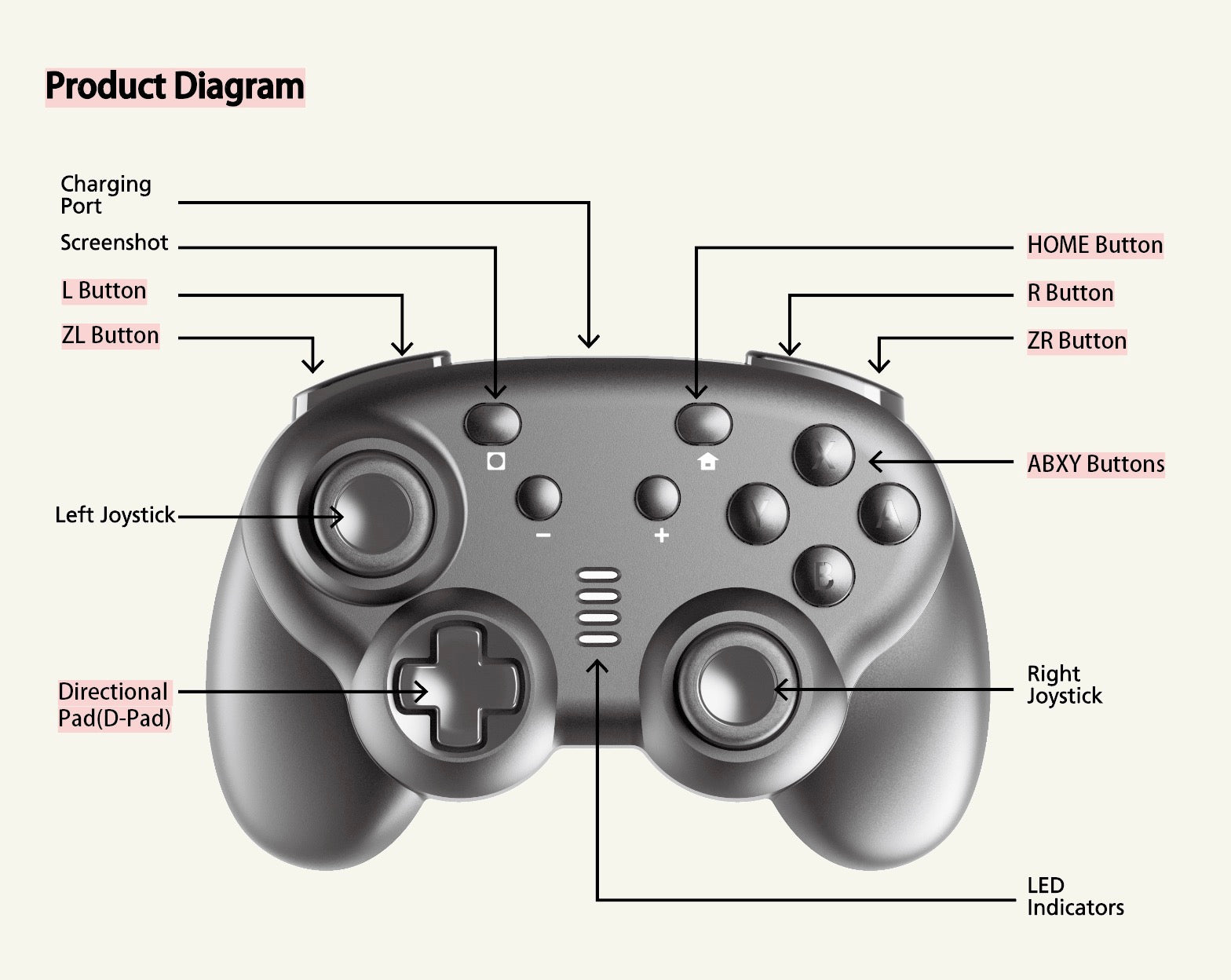
Understanding the basic functions of a gaming controller is key to playing well. Controllers have many parts, each with a specific job. Knowing these parts helps you react faster and enjoy games more.
Controllers usually include buttons, joysticks, a directional pad, triggers, and bumpers. Each part controls different actions in the game. Learning their roles makes gaming easier and more fun.
Button Types And Uses
Buttons on a controller come in various shapes and sizes. The main buttons often include A, B, X, and Y or shapes like circle and square. These buttons perform actions like jumping, shooting, or selecting options.
Other buttons include Start, Select, or Menu. These control the game’s pause, settings, or inventory. Buttons respond quickly to presses, which is important during fast gameplay.
Joystick And D-pad Controls
Joysticks are small sticks you move in different directions. They control character movement or camera angles. The left joystick usually moves your character, while the right one controls the view.
The D-pad, or directional pad, is a flat button with four arrows. It offers precise movement in up, down, left, and right directions. Some games use the D-pad for menu navigation or extra controls.
Trigger And Bumper Functions
Triggers sit at the back of the controller and press down like car pedals. They often control actions such as aiming or accelerating. Triggers can sense how hard you press, adding control depth.
Bumpers are smaller buttons above the triggers. They usually perform quick actions like switching weapons or items. Both triggers and bumpers enhance gameplay by offering more control options.
Credit: www.microsoft.com
Improving Gameplay With Your Controller
Improving gameplay with your controller makes gaming more fun and effective. Small changes can boost your control and reaction time. Understanding your controller’s settings helps you play better and enjoy more.
Adjusting Sensitivity Settings
Sensitivity controls how fast the game reacts to your movements. Lower sensitivity means slower, precise moves. Higher sensitivity allows quick turns and fast aiming. Find a balance that fits your style. Test different levels to see what feels right. Adjust settings in the game or controller menu.
Using Vibration And Feedback
Vibration gives physical feedback during gameplay. It helps you feel hits, explosions, or other actions. Turn vibration on to get more immersion. You can also adjust vibration strength. Too strong can distract, too weak may not help. Use feedback to sense in-game events without looking.
Mastering Combo Moves
Combo moves are sequences of button presses. They perform special attacks or actions. Practice combos slowly at first. Learn the timing for each button press. Use combos to defeat enemies faster or perform tricks. Repetition builds muscle memory. Start simple, then try more complex combos.
Troubleshooting Common Issues
Troubleshooting common issues with your gaming controller helps keep your play smooth. Many problems happen often but have simple fixes. Knowing what to check saves time and frustration.
Connection Problems
Controllers may fail to connect to your device. Check if Bluetooth is on for wireless controllers. Try restarting the controller and the console or PC. Use a USB cable to test if wireless connection fails. Remove other Bluetooth devices that may cause interference. Update your device software to ensure compatibility.
Unresponsive Buttons
Buttons might not work due to dirt or hardware issues. Clean around the buttons with a soft cloth. Press each button several times to loosen stuck parts. Restart the controller to reset its functions. Check if button mapping is correct in your game settings. Replace the controller if buttons remain unresponsive.
Battery And Charging Tips
Low battery causes controllers to lag or turn off. Use the original charger and cable for best results. Avoid overcharging by unplugging when fully charged. Keep charging ports clean and dry. If battery drains quickly, consider replacing it. Charging regularly keeps your controller ready for play.

Credit: www.youtube.com
Advanced Tips For Beginners
Using a gaming controller can feel simple at first, but there are ways to improve your skills quickly. These advanced tips help beginners play better and enjoy their games more. Focus on small tricks that make a big difference.
Using Macros And Shortcuts
Macros save time by automating button presses. You can program a sequence to one button. This reduces stress on your fingers during complex moves. Shortcuts help you react faster in games. Learn to set up macros in your controller’s software. Practice using them in easy games before trying hard ones.
Playing Multiplayer Games
Multiplayer games need teamwork and quick responses. Use your controller’s features like vibration to feel the game better. Communicate clearly with teammates using voice chat or text. Learn the controls for switching weapons or tools fast. Stay calm and focused to improve your chances of winning.
Maintaining Your Controller
Keep your controller clean to avoid sticky buttons. Use a soft cloth and mild cleaner regularly. Check the battery level before long sessions to avoid interruptions. Store your controller in a safe place to prevent damage. Regular care helps your controller last longer and work well.
Frequently Asked Questions
How Do I Connect A Gaming Controller To My Pc?
To connect a gaming controller to your PC, use a USB cable or Bluetooth. Enable pairing mode on the controller. Then, go to your PC’s Bluetooth settings and select the controller. Drivers usually install automatically for smooth setup.
Can I Customize Button Mapping On A Gaming Controller?
Yes, most gaming controllers allow button mapping customization. Use the controller’s software or in-game settings to reassign buttons. This improves gameplay comfort and control. Custom mapping helps tailor your gaming experience to your preferences.
Which Games Support Gaming Controllers On Pc?
Many PC games support gaming controllers, especially action, racing, and sports genres. Popular titles like FIFA, Fortnite, and Rocket League offer controller compatibility. Check the game’s settings or official website for controller support details.
How To Troubleshoot A Non-responsive Gaming Controller?
First, check if the controller is charged or has fresh batteries. Reconnect the controller to your device. Update drivers or firmware if needed. Restart your device and test the controller on another game or device to identify issues.
Conclusion
Using a gaming controller can make playing games more fun and easy. Practice helps you get better and feel comfortable. Each controller has unique buttons and features to explore. Take your time to learn the basics first. Soon, playing will feel natural and enjoyable.
Remember, the goal is to have fun and enjoy your games. Keep trying, and you will improve step by step. Gaming controllers open new ways to play and enjoy games. Simple skills lead to better gaming experiences.
As an Amazon Associate, I earn from qualifying purchases.