Are you wondering if you can use your PS5 controller to play Xbox Cloud Gaming? It’s a question many gamers have, especially if you want to enjoy Xbox games without buying a new controller.
Imagine being able to jump into your favorite Xbox titles using the controller you already love. You’ll discover whether your PS5 controller works with Xbox Cloud Gaming and how to set it up if it does. Keep reading to unlock a smoother, more flexible gaming experience right now.
Xbox Cloud Gaming Basics
Xbox Cloud Gaming lets you play Xbox games on many devices without a console. It streams games from Microsoft’s servers to your screen. This means you do not need a powerful computer or Xbox to enjoy Xbox games. You just need a good internet connection and a supported device.
This service makes gaming more flexible and accessible. You can play anytime, anywhere. Understanding the basics helps you know what devices and controllers work best. This way, you get the best experience possible.
What Is Xbox Cloud Gaming
Xbox Cloud Gaming is a service by Microsoft. It streams Xbox games over the internet to your device. You play games in real-time without downloading them. This saves storage space and lets you try games quickly.
The service supports many popular Xbox titles. It works with Xbox Game Pass Ultimate subscription. Games run on powerful servers, so you get good graphics and smooth play. It is like having an Xbox console in the cloud.
Supported Devices And Controllers
Xbox Cloud Gaming works on many devices. You can use Windows PCs, Android phones, tablets, and Apple devices. Web browsers like Edge, Chrome, and Safari support it too.
Controllers improve gameplay, but you can also use touch controls on phones. Xbox controllers are the best match. Some other controllers work well, including some third-party options.
The PS5 DualSense controller can connect to some devices. But compatibility may vary. Some features may not work fully with Xbox Cloud Gaming. Testing your setup is a good idea before long play sessions.
Ps5 Controller Features
The PS5 controller brings many new features. It offers a fresh gaming experience. Its design and tech make it stand out. Understanding these features helps in knowing its use with Xbox Cloud Gaming.
Design And Compatibility
The PS5 controller has a sleek, modern look. It fits well in hands, making long play easier. Buttons respond quickly to touch. The controller works well with PS5 games.
It also connects to other devices. Some games outside PlayStation accept it. But not all systems support every function. Compatibility varies with each platform and game.
Connectivity Options
This controller can connect using Bluetooth. It also uses a USB-C cable for wired play. Bluetooth lets you play without wires. Wired connection reduces lag and charges the controller.
Pairing the controller is simple. Devices find it quickly via Bluetooth settings. USB-C works with many modern gadgets. These options make the PS5 controller flexible.
Connecting Ps5 Controller To Xbox Cloud Gaming
Connecting a PS5 controller to Xbox Cloud Gaming offers a flexible way to enjoy your favorite games. It lets you use the controller you already own. This connection works on different devices like Windows PCs, smartphones, and tablets. Two main methods make this possible: Bluetooth and wired connection. Both options have simple steps to follow.
Using Bluetooth Connection
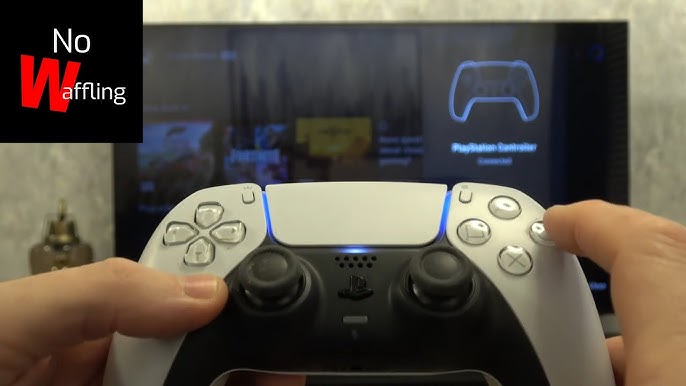
Start by turning on the PS5 controller. Hold the PlayStation and Create buttons together. The light bar will flash quickly. This means the controller is in pairing mode. On your device, open Bluetooth settings. Look for “Wireless Controller” and select it. The controller will connect after a few seconds. Open your browser or Xbox app and start Xbox Cloud Gaming. Your PS5 controller should work right away.
Wired Connection Setup
Use a USB-C to USB-A cable or USB-C to USB-C, depending on your device. Plug the cable into the PS5 controller and your device. The device will detect the controller automatically. No extra setup is needed. Launch Xbox Cloud Gaming on your device. The controller will be ready to use instantly. This method is stable and has no input lag.
Credit: www.youtube.com
Performance And Compatibility
Using a PS5 controller for Xbox Cloud Gaming can be a practical choice. Understanding its performance and compatibility helps you get the best experience. Some features work well, while others need tweaking for smooth play.
Button Mapping And Input Response
The PS5 controller connects easily to many devices. Xbox Cloud Gaming recognizes most buttons right away. Some buttons may differ from Xbox controllers. This can cause confusion in fast games. Custom button mapping tools can fix this issue. Input response is generally quick and accurate. Lag is rare but may appear on weak connections. Overall, the controller offers solid performance for streaming games.
Known Issues And Workarounds
Some users report problems with button layout mismatches. The PS button might not open the Xbox menu. Audio controls may not work as expected. Restarting the controller or reconnecting helps resolve these glitches. Using third-party software can improve button mapping. Updates to the Xbox app may fix compatibility over time. Testing your setup before serious gaming is a good idea.
Alternative Controllers For Xbox Cloud Gaming
Playing Xbox Cloud Gaming can be more fun with the right controller. Not every controller works perfectly, so choosing the best one matters. Many players want to know about options beyond the PS5 controller.
Different controllers offer unique features and comfort. Some connect easily, while others need extra setup. Understanding the alternatives helps you enjoy games smoothly.
Official Xbox Controllers
Official Xbox controllers are the easiest choice for Xbox Cloud Gaming. They connect quickly and work without issues. These controllers have buttons and triggers designed for Xbox games.
You can use Xbox Series X|S controllers or the Xbox One controller. Both support Bluetooth, making wireless play simple. Official controllers offer great response time and comfort for long sessions.
Third-party Options
Third-party controllers provide more variety and sometimes lower prices. Brands like Razer, PowerA, and 8BitDo make compatible controllers. Many support Bluetooth or USB connections for Xbox Cloud Gaming.
These controllers may have different shapes and extra buttons. Some offer customization for game controls. Make sure to check compatibility before buying to avoid connection problems.

Credit: www.amazon.com
Tips For Best Gaming Experience
Playing Xbox Cloud Gaming with a PS5 controller can be fun and smooth. Some simple tips help you enjoy the best experience. These tips focus on your internet and controller settings. Small changes can make your gaming much better.
Optimizing Network Connection
A strong internet connection is key to smooth gameplay. Use a wired connection if possible. It is more stable than Wi-Fi. If you use Wi-Fi, stay close to the router. Avoid many devices using the same network. This reduces lag and disconnections. Test your speed before playing. Aim for at least 10 Mbps download speed. Lower speeds can cause delays and poor quality.
Controller Settings And Customization
Make sure your PS5 controller is fully charged. Connect it to your device using Bluetooth or a USB cable. USB gives less delay and better response. Customize button layouts in the Xbox app if needed. Adjust sensitivity and vibration settings. This helps you play comfortably. Check for firmware updates for your controller. Updated software fixes bugs and improves performance.

Credit: www.amazon.com
Frequently Asked Questions
Can I Use A Ps5 Controller With Xbox Cloud Gaming?
Yes, you can use a PS5 controller with Xbox Cloud Gaming. Simply connect it via Bluetooth or USB. The service supports most controllers, including PS5 DualSense, for a smooth gaming experience.
Does Xbox Cloud Gaming Support Dualsense Features?
No, Xbox Cloud Gaming does not support unique DualSense features like adaptive triggers or haptic feedback. The controller works, but advanced PS5-specific functions are disabled during cloud gaming.
How To Connect Ps5 Controller To Xbox Cloud Gaming?
To connect, enable Bluetooth on your device and pair the PS5 controller. Alternatively, use a USB cable for a wired connection. After pairing, launch Xbox Cloud Gaming and start playing with the controller.
Are There Any Input Lag Issues With Ps5 Controller?
Input lag is minimal when using a PS5 controller with Xbox Cloud Gaming. A stable internet connection and direct USB connection reduce latency for a better gaming experience.
Conclusion
Playing Xbox Cloud Gaming with a PS5 controller is possible with some setup. You need to connect the controller properly to your device. Some games might work better than others. It’s a good option if you want to use your PS5 controller on Xbox Cloud Gaming.
Just remember to check compatibility and connection steps. Enjoy gaming with the controller you prefer. Simple and easy.
As an Amazon Associate, I earn from qualifying purchases.