

Are you worried about apps and websites secretly tracking your activity on your iPhone? You’re not alone.
These hidden trackers can invade your privacy and slow down your device. But here’s the good news: you have the power to stop them. You’ll learn simple, effective steps to find and delete trackers on your iPhone. By the end, your phone will be more secure, faster, and truly yours again.
Keep reading to take back control of your privacy now.
Credit: discussions.apple.com
Identify Trackers On Iphone
Identifying trackers on your iPhone is the first step to protect your privacy. Trackers collect data about your habits and activities without your clear permission. Finding these trackers helps you control what information apps and websites access. Use simple methods to spot and manage trackers effectively.
Check App Permissions
Review the permissions each app has on your iPhone. Go to Settings, then Privacy, and tap each category like Location, Camera, or Microphone. See which apps have access to sensitive data. Disable permissions that seem unnecessary for the app’s function. This limits trackers from gathering your personal information.
Review Safari Tracking Settings
Safari is a common place where trackers appear while browsing. Open Settings and select Safari. Look for options like “Prevent Cross-Site Tracking” and turn them on. This stops websites from following your activities across different sites. Clearing your browsing history and website data also removes trackers stored by websites.
Analyze Network Activity
Network activity can reveal hidden trackers sending data from your phone. Use apps like a network monitor to check outgoing connections. Watch for unusual or repeated requests to unknown servers. Detecting these helps identify apps or processes that track your usage without clear consent. Take action by disabling or uninstalling suspicious apps.
Manage App Permissions
Managing app permissions on your iPhone helps reduce tracking. Apps often request access to data and sensors that are not always necessary. Controlling these permissions limits how much information apps can collect about you. This step is important to keep your privacy intact and improve your phone’s security.
Limit Location Access
Many apps ask for your location to provide services. Some apps need location only while using the app. You can set location access to “Never,” “Ask Next Time,” or “While Using.” Choose the option that gives the least access. This stops apps from tracking your location constantly.
Control Camera And Microphone Usage
Apps may want to use your camera or microphone. You can allow or deny this access anytime. Check which apps have permission in your settings. Disable access for apps that do not need to record or take pictures. This prevents apps from listening or watching without your knowledge.
Restrict Background App Refresh
Background app refresh lets apps update data even when not in use. This can lead to more data collection. Turn off background refresh for apps that don’t need it. This limits apps running in the background and tracking your activity. It also helps save battery life.
Clear Safari Trackers
Clearing Safari trackers helps protect your privacy on iPhone. Safari saves data that websites use to follow your activity. Removing these trackers keeps your browsing safe and private. You can also stop trackers from collecting your data in the first place. Here are simple steps to clear Safari trackers effectively.
Enable Prevent Cross-site Tracking
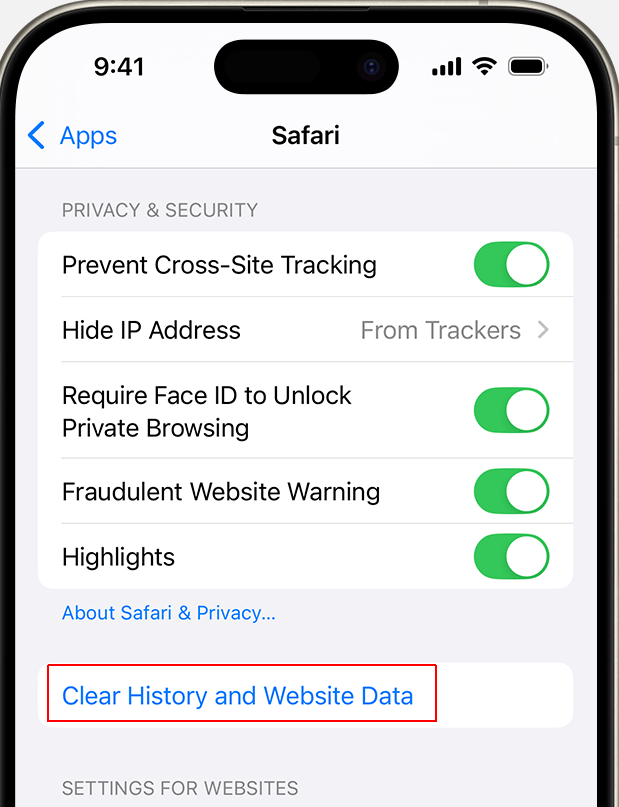
Go to Settings on your iPhone and find Safari. Scroll down to the Privacy & Security section. Turn on the option called Prevent Cross-Site Tracking. This stops websites from sharing your data across different sites. It limits how much trackers can follow you online.
Clear Browsing Data
Open Settings and tap Safari again. Choose Clear History and Website Data. This removes cookies, trackers, and your browsing history. It frees up space and resets your online activity. Clearing data regularly helps keep trackers away.
Use Private Browsing Mode
Open Safari and tap the tabs icon. Select Private to start a new private window. In this mode, Safari does not save your history or trackers. Private browsing stops most trackers from saving data on your device. Use it for extra privacy during web sessions.
Credit: cookie-script.com
Use Privacy-focused Apps
Using privacy-focused apps helps protect your iPhone from trackers. These apps stop companies from watching your online actions. They give you control over your personal data. This section covers three types of apps that boost privacy on your device.
Install Tracker Blockers
Tracker blockers stop hidden trackers on websites and apps. They block scripts that follow your behavior. Many blockers work as Safari extensions or standalone apps. Installing one reduces ads and protects your browsing history. These apps keep your info safe without slowing your phone.
Use Vpn Services
VPNs hide your IP address and encrypt internet traffic. This prevents trackers from linking your device to your activity. A good VPN protects your data on public Wi-Fi and other networks. It also helps avoid location-based tracking. Choose a VPN with a no-logs policy for better privacy.
Opt For Secure Browsers
Secure browsers limit data collection while you browse the web. They block trackers and offer private browsing modes. Many secure browsers include built-in ad blockers and anti-fingerprinting tools. Using them helps keep your search history and online habits hidden. Switching to a privacy-focused browser improves your iPhone’s security.
Adjust System Privacy Settings
Adjusting system privacy settings is an important step to remove trackers on your iPhone. These settings help control what data apps and services can collect. You can limit tracking and protect your personal information easily.
By changing a few options, you reduce how much your activity is monitored. These controls give you more privacy and less unwanted ads or data sharing.
Limit Ad Tracking
Go to Settings and tap on Privacy. Find the Advertising section. Turn on “Limit Ad Tracking.” This stops apps from using your data to show targeted ads. It helps reduce ads based on your habits.
Manage Analytics Sharing
Open Settings and tap Privacy again. Select Analytics & Improvements. Turn off options like “Share iPhone Analytics.” This limits data sent to Apple for analysis. It reduces how much information is shared without your consent.
Update Ios Regularly
Keep your iPhone software up to date. New iOS versions include privacy fixes and better controls. Go to Settings, tap General, then Software Update. Install updates to protect your device from new tracking methods.
Monitor And Remove Suspicious Apps
Tracking apps can collect your data without clear permission. Monitoring and removing suspicious apps protects your privacy. It also keeps your iPhone running smoothly. Check your apps regularly for anything strange. Pay attention to apps you don’t remember installing.
Identify Unfamiliar Apps
Open your iPhone’s home screen. Look for apps you don’t recognize. Some trackers hide behind strange names or icons. Check your settings under “General” and “iPhone Storage” for a full list. Take note of any app you can’t explain.
Delete Potential Trackers
Tap and hold the suspicious app’s icon. Choose “Remove App” and then “Delete App.” This removes the app and its data. Deleting unknown apps stops trackers from collecting your info. If unsure, it’s safer to delete and reinstall trusted apps.
Review App Store Reviews
Before downloading new apps, read their reviews. Look for complaints about privacy or suspicious behavior. Reviews often reveal if an app tracks users secretly. Choose apps with good ratings and clear privacy policies. This reduces the risk of adding trackers to your device.
Credit: www.macrumors.com
Frequently Asked Questions
How Can I Find Trackers On My Iphone?
Go to Settings, tap Privacy, then Tracking. Here, you see apps requesting to track you. Review and disable tracking permissions for unwanted apps.
What Steps Delete Trackers From Iphone Apps?
In Settings, go to Privacy > Tracking. Toggle off “Allow Apps to Request to Track. ” This stops apps from tracking and collecting your data.
Does Clearing Browser Data Remove Iphone Trackers?
Yes, clearing Safari’s history and website data removes trackers. Go to Settings > Safari > Clear History and Website Data to protect your privacy.
How To Block Trackers Using Iphone’s Built-in Features?
Enable “Prevent Cross-Site Tracking” in Settings > Safari > Privacy & Security. This blocks trackers that follow your activity across websites.
Conclusion
Deleting trackers on your iPhone helps protect your privacy and data. You can control what information apps and websites collect from you. Regularly check your settings to stay safe online. Small actions make a big difference in keeping your phone secure.
Stay aware and take charge of your digital footprint today.
As an Amazon Associate, I earn from qualifying purchases.
