

Is your Acer laptop running slow, glitching, or just not working the way it used to? Sometimes, the best solution is to reset it back to factory settings.
This simple step can clear out problems, erase unwanted files, and give your laptop a fresh start—just like when you first bought it. In this guide, you’ll learn exactly how to reset your Acer laptop safely and quickly. By the end, you’ll feel confident knowing your device is clean, fast, and ready to use again.
Keep reading to discover the easy steps that will bring your laptop back to life.
Credit: www.easeus.com
Prepare For Reset
Preparing your Acer laptop for a factory reset is important. This step ensures you do not lose valuable data and avoid any issues during the reset process. Take a few moments to get everything ready before starting the reset.
Backup Important Files
Save your personal files in a safe place. Use an external hard drive, USB stick, or cloud storage. Copy documents, photos, videos, and any other files you want to keep. This prevents permanent loss after the reset.
Charge Your Laptop
Make sure your laptop battery is full or plug it into a power source. A reset can take time and should not stop because of low battery. Continuous power keeps the process smooth and safe.
Note Down Essential Information
Write down important details like your Wi-Fi password and software keys. You may need to enter them again after the reset. Keep this information handy to avoid trouble later.
Access Recovery Options
Accessing recovery options is the first step to reset your Acer laptop to factory settings. These options help restore your computer to its original state. You can choose different ways to enter recovery mode. Each method depends on your laptop model and current system condition.
Use Acer Recovery Management
Acer Recovery Management is a tool built into many Acer laptops. It helps you restore your system without extra software. To open it, click the Start menu and type “Acer Recovery Management.” Select the app from the list.
Inside the tool, choose “Restore” and then “Reset your PC.” Follow the instructions on the screen to complete the process. This method is simple and keeps your laptop’s software original.
Boot From Recovery Partition
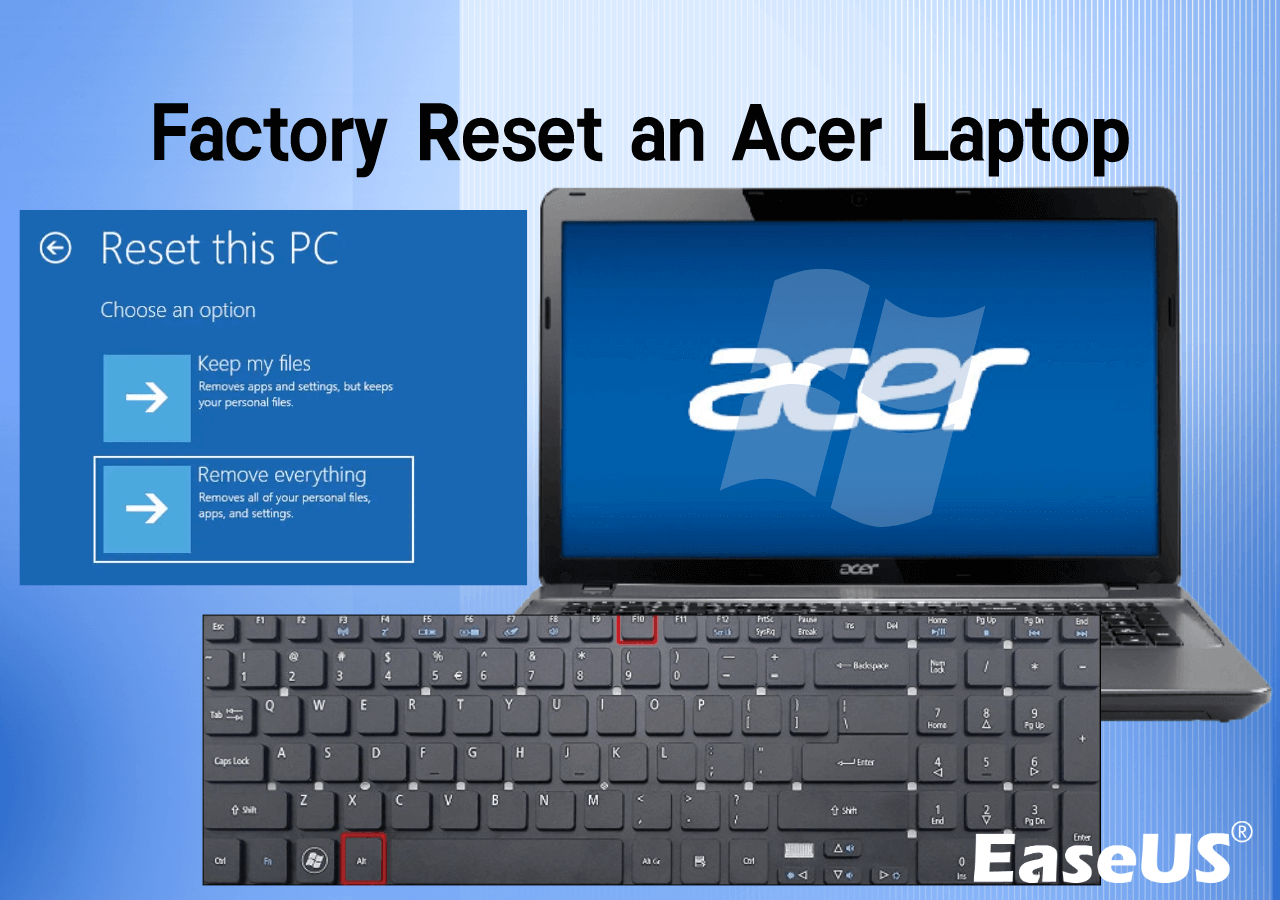
Many Acer laptops have a hidden recovery partition. It stores the files needed to reset your device. To access this, restart your laptop and press the Alt + F10 keys repeatedly during startup.
The recovery environment will load. Choose “Troubleshoot,” then “Reset this PC.” This option does not require Windows to start normally. It is useful if your system is not booting correctly.
Use Windows Settings
Windows Settings also provide an easy way to reset your laptop. Click the Start menu and select the gear icon to open Settings. Go to “Update & Security” and click “Recovery.”
Under “Reset this PC,” click “Get started.” Choose whether to keep your files or remove everything. Follow the steps to restore your laptop to factory settings. This method works best if Windows runs smoothly.
Perform Factory Reset
Performing a factory reset on your Acer laptop restores it to its original state. This process removes all personal files, apps, and settings. It helps fix system problems or prepares the laptop for a new user. Follow the steps carefully to complete the reset safely and correctly.
Follow On-screen Instructions
Start the reset by accessing the recovery options. Your laptop will guide you through the process. Read each instruction carefully. Confirm your choices by clicking the correct buttons. This ensures the reset proceeds without errors.
Choose Reset Type
You will see options to keep or remove files. Select the option that suits your needs. To erase everything, choose the full reset option. This deletes all your data and apps. Choose wisely, as this step cannot be undone.
Wait For Process Completion
The reset may take some time. Do not turn off or unplug your laptop. The screen may go blank or restart during the process. Wait patiently until the laptop shows the setup screen. This means the reset is complete.
Troubleshoot Reset Issues
Resetting your Acer laptop to factory settings can sometimes run into problems. These issues can stop the reset process or cause errors. Knowing how to fix these troubles helps you get your laptop back to normal quickly. This section explains common problems and simple ways to solve them.
Recovery Partition Missing
The recovery partition holds files needed for reset. If it is missing, the reset cannot start. This may happen after deleting files or reinstalling Windows. Check if the recovery partition exists using disk management tools.
If missing, use a USB recovery drive. You can create one on another Acer laptop or download it from Acer’s website. This tool helps restore your laptop to factory settings without the recovery partition.
Reset Stuck Or Fails
Sometimes, the reset process freezes or stops working. This can occur due to corrupted system files or hardware issues. Try restarting your laptop first. If that does not work, run a system file check using Command Prompt.
Make sure your laptop is plugged into power during reset. Low battery can cause failure. If the problem continues, consider using recovery media or reinstalling Windows manually.
Use Acer Support Tools
Acer provides special tools to help with reset problems. Acer Care Center offers system diagnostics and recovery options. It can fix errors and prepare your laptop for reset.
Another tool is Acer Recovery Management. This software guides you through the reset process and repairs issues. Download these tools from Acer’s official site if they are not pre-installed.
Set Up After Reset
After resetting your Acer laptop to factory settings, the next step is to set it up for daily use. This process restores your laptop’s functionality and personalizes it to your needs. Follow these steps carefully to get your device running smoothly again.
Complete Windows Setup
Start by following the on-screen instructions to set up Windows. Choose your language, region, and keyboard layout. Connect to Wi-Fi to activate Windows and download updates. Create or sign in with a Microsoft account to sync your settings.
Reinstall Drivers And Software
Install all necessary drivers to ensure hardware works correctly. Visit Acer’s official website and download drivers specific to your laptop model. Next, reinstall your essential software programs for work or entertainment.
Restore Backup Files
Retrieve your personal files from backups. Use external drives or cloud storage where you saved your data. Copy your documents, photos, and other important files back to the laptop’s folders.
:max_bytes(150000):strip_icc()/A1-FactoryResetanAcerLaptop-annotated-677d89d492fc4744ba8c8ed26c6cdd13.jpg)
Credit: www.lifewire.com
Credit: www.youtube.com
Frequently Asked Questions
How Do I Reset My Acer Laptop To Factory Settings?
To reset your Acer laptop, go to Settings > Update & Security > Recovery. Click “Reset this PC” and choose “Remove everything” to restore factory settings.
Will Resetting Delete All My Acer Laptop Files?
Yes, resetting to factory settings deletes all personal files and apps. Backup your important data before starting the reset process.
Can I Reset My Acer Laptop Without A Password?
If you forget your password, you can reset through the recovery partition. Use the Acer Recovery Management tool accessible during startup.
How Long Does Acer Factory Reset Usually Take?
The reset process typically takes 30 to 60 minutes. Time depends on your laptop’s speed and data volume.
Conclusion
Resetting your Acer laptop to factory settings can fix many problems. It also helps improve speed and remove unwanted files. Follow the steps carefully to avoid data loss. Back up important files before starting the reset. After resetting, your laptop will be clean and ready to use again.
This process is simple and does not need advanced skills. Keep this guide handy for future reference. A fresh start can make your laptop work like new.
As an Amazon Associate, I earn from qualifying purchases.

