

Are you struggling to connect your Sony headphones to your iPhone? You’re not alone.
Sometimes, pairing these two devices can feel confusing or tricky. But don’t worry—this guide will walk you through simple, clear steps to get your headphones working perfectly with your iPhone. By the end, you’ll enjoy crystal-clear sound without any hassle.
Keep reading, and let’s make your listening experience smooth and easy.
Credit: helpguide.sony.net
Prepare Your Devices
Before connecting your Sony headphones to your iPhone, both devices must be ready. This step makes pairing smooth and fast. Preparing devices avoids connection problems and saves time.
Start by checking the battery level of your headphones. A low battery can stop the connection process. Next, make sure the Bluetooth feature on your iPhone is turned on. This allows your phone to find and link with your headphones.
Charge Your Headphones
Plug your Sony headphones into a power source using the provided charger. Let them charge fully for the best performance. A full battery ensures the headphones stay on during pairing.
Most Sony headphones have a light indicator. It shows when charging is complete. Avoid pairing if the battery is very low. This can cause interruptions or failed connections.
Enable Bluetooth On Iphone
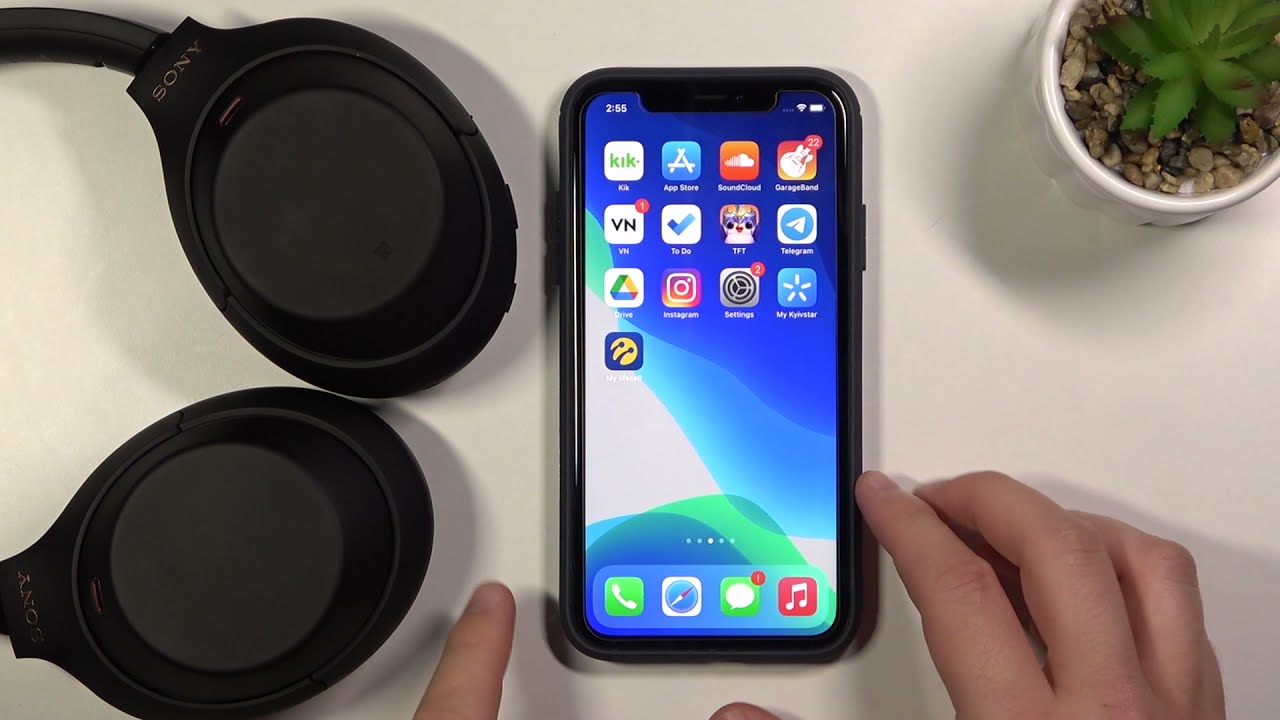
Open the Settings app on your iPhone. Tap on the Bluetooth option. Slide the Bluetooth switch to the On position. Your iPhone will start searching for nearby devices.
Keep this screen open to see your headphones appear in the list. Do not close the Settings app while pairing. This helps your phone connect quickly and easily.
Credit: institutoalanadesa.com.br
Pairing Sony Headphones With Iphone
Pairing Sony headphones with an iPhone is simple and fast. This connection lets you listen to music, take calls, and enjoy clear sound without wires. Follow these steps to pair your devices and start using your headphones.
Activate Pairing Mode On Headphones
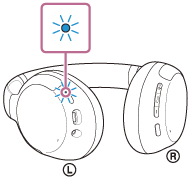
Turn on your Sony headphones. Press and hold the power button for a few seconds. Keep holding until the indicator light flashes, showing the headphones are in pairing mode.
Locate Headphones On Iphone Bluetooth List
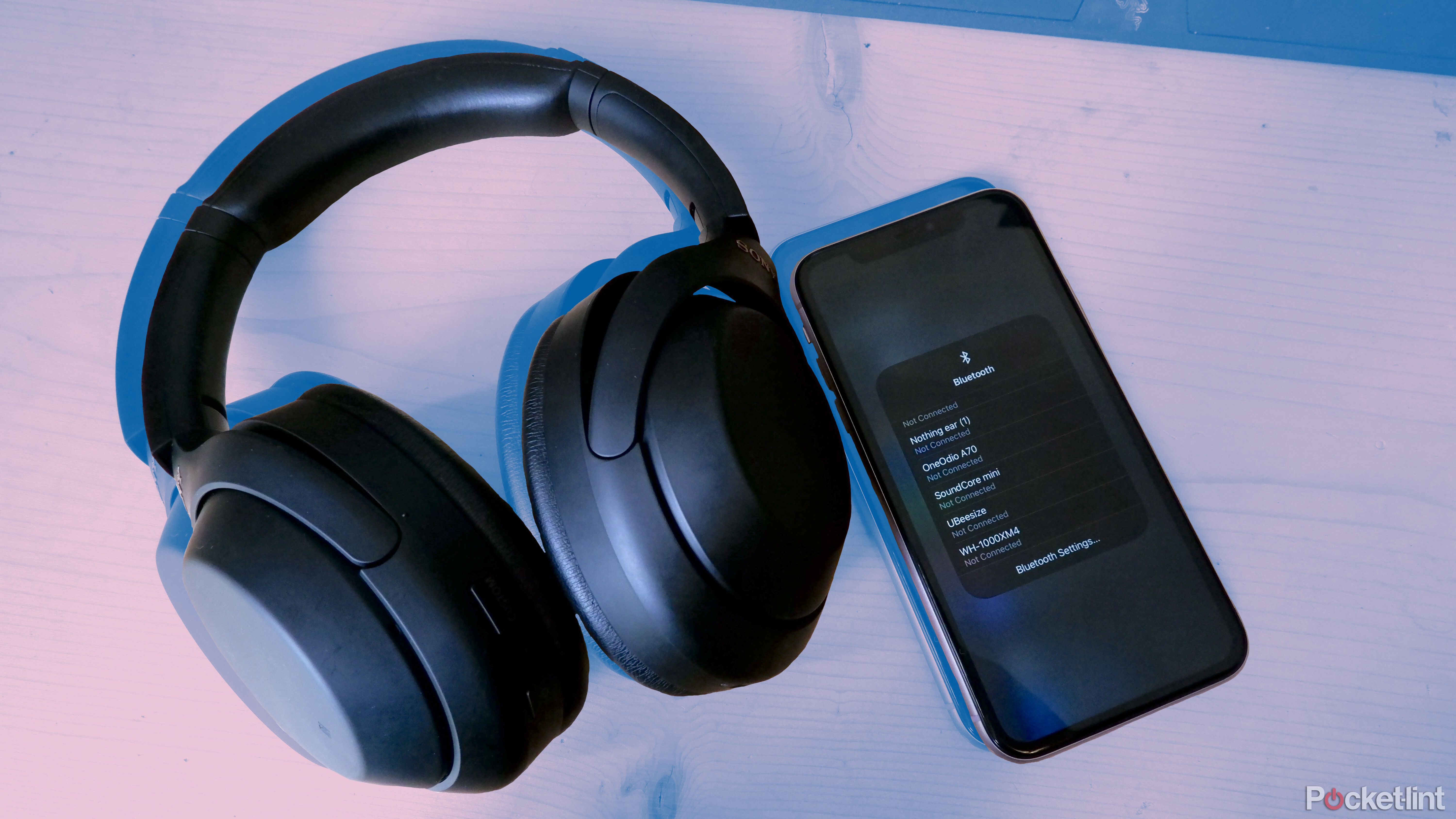
Open the Settings app on your iPhone. Tap on Bluetooth and make sure it is turned on. Look for your Sony headphones name in the list of available devices.
Complete The Pairing Process
Tap your headphones name on the iPhone screen. Wait for the connection to establish. A message will appear confirming the devices are paired and ready to use.
Troubleshoot Connection Issues
Sometimes, Sony headphones may not connect to your iPhone right away. Connection problems can be frustrating. Troubleshooting helps fix common issues quickly. Follow these simple steps to solve connection problems and enjoy your music again.
Reset Bluetooth Settings
Resetting Bluetooth can clear old connections and errors. Open the Settings app on your iPhone. Tap “Bluetooth” and turn it off for a few seconds. Turn Bluetooth back on and try pairing your headphones again. This refreshes the connection and often solves pairing problems.
Restart Devices
Restarting your iPhone and headphones can fix many glitches. Turn off your iPhone completely, then turn it back on. Power off your Sony headphones and switch them on after a few seconds. Restarting resets temporary bugs that block connections.
Update Firmware And Ios
Outdated software can cause connection issues. Check if your Sony headphones have new firmware updates. Use the Sony Headphones Connect app to update the firmware. Also, keep your iPhone’s iOS up to date. Go to Settings, then General, and tap Software Update. Updated software improves compatibility and fixes bugs.
Optimize Audio Experience
Optimizing your audio experience with Sony headphones and an iPhone makes listening more enjoyable. Clear sound and balanced audio bring music and calls to life. Small changes can improve sound quality and comfort.
Adjust Volume And Sound Settings
Start by setting the volume to a safe, comfortable level. Avoid very high volumes to protect your ears.
Go to iPhone Settings and tap “Sounds & Haptics.” Slide the volume bar to adjust sound output.
Use the iPhone’s equalizer (EQ) to change bass, treble, and midrange. This helps match sound to your preference.
Try different EQ presets like “Bass Booster” or “Vocal Booster” for varied music styles.
Use Sony Headphones App Features
Download the Sony Headphones Connect app from the App Store. It offers extra sound controls for your headphones.
Use the app’s Adaptive Sound Control to change noise cancellation based on your activity.
Customize the equalizer within the app for a detailed sound profile.
The app also helps update headphone firmware for better performance.
Maintain Your Headphones
Maintaining your Sony headphones helps them last longer and perform better. Clean headphones avoid sound problems and stay comfortable. Taking care of the battery keeps your device ready to use. Proper maintenance saves money by preventing repairs and replacements.
Regular Cleaning Tips
Use a soft cloth to wipe the headphones gently. Avoid water or harsh chemicals that damage the materials. Clean ear pads with a dry brush to remove dust and dirt. Keep charging ports free of debris for good connection. Store headphones in a case to protect from dust and drops.
Battery Care Advice
Charge your headphones before battery gets completely empty. Avoid overcharging by unplugging once fully charged. Use the original charger for best results. Keep headphones away from extreme heat or cold. Turn off headphones when not in use to save battery life.
Credit: www.pocket-lint.com
Frequently Asked Questions
How Do I Pair Sony Headphones With Iphone?
Turn on Bluetooth on your iPhone. Press and hold the Sony headphones’ power button until the indicator flashes. Select your headphones from the iPhone’s Bluetooth menu to complete pairing.
Why Won’t My Sony Headphones Connect To Iphone?
Ensure headphones are in pairing mode. Check if Bluetooth is enabled on your iPhone. Restart both devices and try pairing again to fix connection issues.
Can I Use Sony Headphones With Iphone Without An App?
Yes, Sony headphones connect via Bluetooth without needing an app. However, the Sony Headphones Connect app offers extra features and settings for customization.
How To Reset Sony Headphones For Iphone Connection?
Turn off headphones, then press and hold the power button for 7 seconds. This resets the headphones and clears previous pairings, allowing fresh connection with your iPhone.
Conclusion
Connecting Sony headphones to your iPhone is simple and quick. Just follow the steps carefully to avoid any trouble. Once paired, enjoy clear sound and hands-free calls. Keep your headphones charged for the best experience. Remember to update your devices for smooth pairing.
This guide helps you stay connected without fuss. Now, enjoy music and calls with ease every day.
As an Amazon Associate, I earn from qualifying purchases.

