

Are you ready to enjoy crystal-clear sound without the hassle of wires? Connecting your Sony Bluetooth headphones might seem tricky at first, but it’s easier than you think.
Whether you want to listen to music, take calls, or watch videos, getting your headphones paired quickly will make all the difference. In this guide, you’ll find simple, step-by-step instructions that anyone can follow. Keep reading to discover how to connect your Sony Bluetooth headphones smoothly and start enjoying your favorite sounds right away.
Prepare Your Headphones
Before connecting your Sony Bluetooth headphones, start by preparing them properly. This step ensures a smooth and quick pairing process. Your headphones need enough power and must be turned on correctly. Follow these simple steps to get ready.
Charge The Battery
Check your headphones’ battery level. Connect the charging cable to the headphones and a power source. Let them charge fully before use. A full battery helps avoid interruptions during connection.
Power On The Device
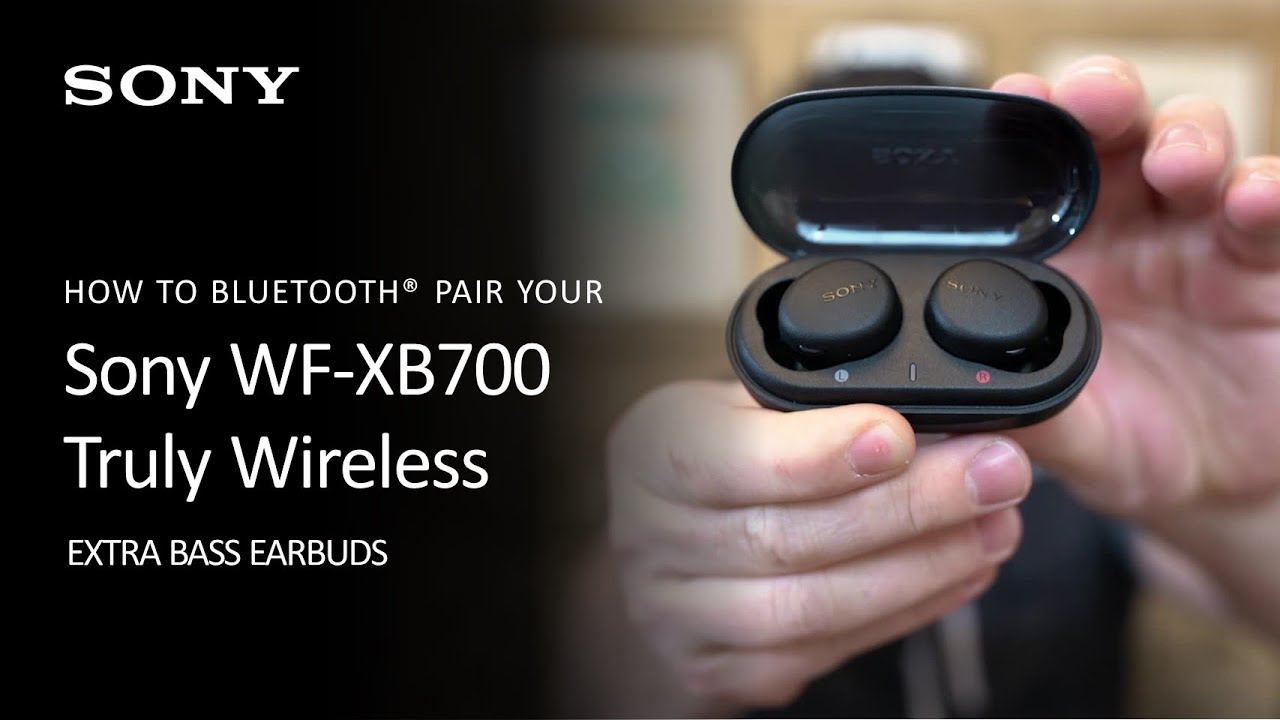
Press and hold the power button on your headphones. Wait for the indicator light to blink or hear a sound. This confirms your device is on and ready to pair. Your headphones are now prepared for Bluetooth connection.
Credit: www.youtube.com
Activate Pairing Mode
Activating pairing mode is the first step to connect your Sony Bluetooth headphones. This mode allows your headphones to find other devices nearby. You must turn it on before you can link your headphones to a phone, tablet, or computer.
Pairing mode makes your headphones visible to other devices. It helps establish a strong and clear connection. Follow the steps below to activate it easily.
Locate The Pairing Button
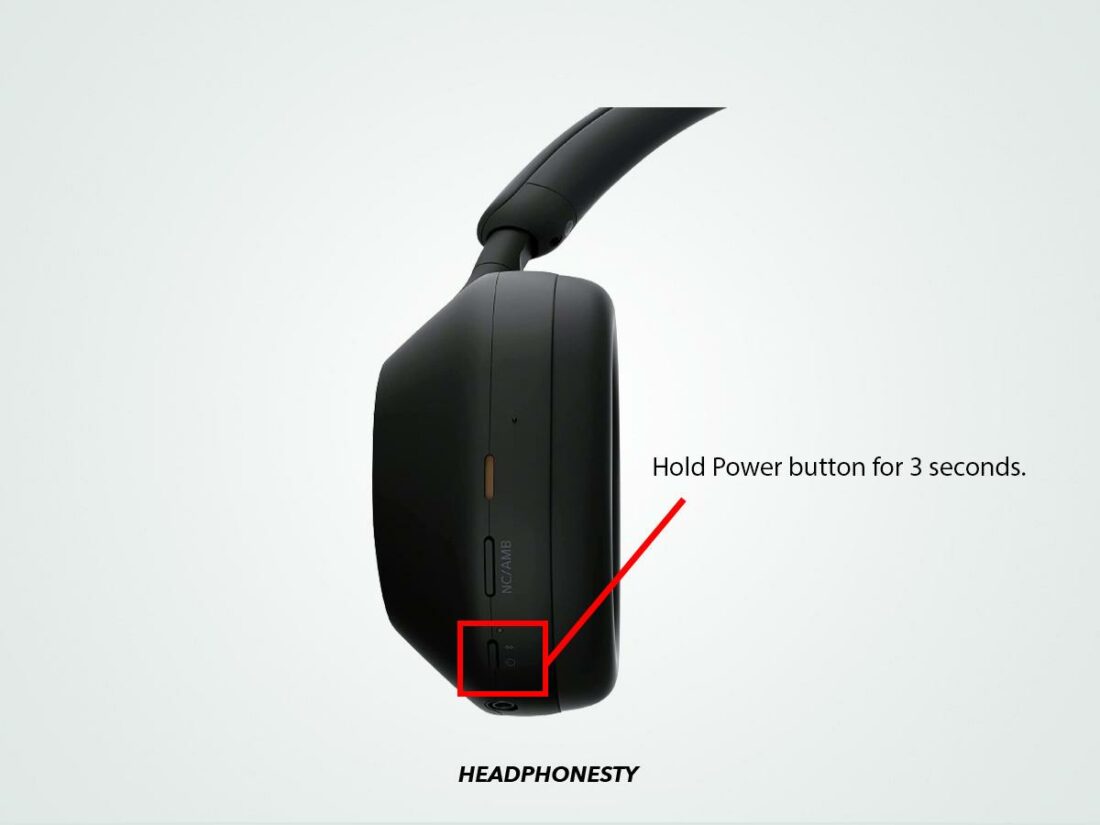
Find the pairing button on your Sony headphones. It is usually the power button or a dedicated Bluetooth button. Check the side or bottom of the headphones for a small button. Sometimes it has a Bluetooth symbol.
If you cannot find it, look in the user manual. The button must be pressed to start pairing mode. Knowing its location saves time and frustration.
Enter Pairing Mode
Press and hold the pairing button for about 3 to 5 seconds. You will hear a sound or see a blinking light. This indicates that the headphones are in pairing mode. The blinking light usually flashes blue or red.
Keep the headphones close to your device. Open the Bluetooth settings on your device and select your Sony headphones. Now, the connection can begin smoothly.
Enable Bluetooth On Your Device
To connect your Sony Bluetooth headphones, enabling Bluetooth on your device is the first step. This allows your device to search and pair with the headphones. The process is simple and quick.
Follow clear steps to find and turn on Bluetooth. This prepares your device to link with your headphones easily.
Access Bluetooth Settings
Open the settings menu on your device. This is where you control wireless connections. Look for the Bluetooth option. It is usually under “Connections” or “Wireless & Networks.”
Tap on Bluetooth to open its settings page. Here, you can see if Bluetooth is off or on. You can also view paired devices and available ones.
Turn On Bluetooth
Switch the Bluetooth toggle to “On” or “Enable.” Your device will start searching for nearby Bluetooth devices. Keep your Sony headphones nearby in pairing mode.
Once Bluetooth is on, your device becomes visible for a short time. This helps your headphones find and connect to your device quickly.
Find And Select Headphones
Connecting your Sony Bluetooth headphones starts with finding and selecting them on your device. This step lets your device see your headphones and get ready to pair. Follow simple actions to find your headphones in the list of available devices. This makes the connection process smooth and quick.
Scan For Devices
Turn on Bluetooth on your phone or computer. Open the Bluetooth settings menu. Choose the option to scan or search for new devices. Your device will look for nearby Bluetooth gadgets. Keep your Sony headphones in pairing mode to make them visible. Wait a few seconds as your device scans the area. Your headphones should appear in the list of found devices.
Choose Your Sony Headphones
Look for your Sony headphones’ name on the device list. Select the exact name that matches your model. Tap or click on the name to start pairing. Your device may ask for a confirmation or code. Confirm the request to connect. After a few moments, the device will link to your headphones. You will see a message that the connection is successful.
Confirm And Complete Connection
After pairing your Sony Bluetooth headphones with your device, confirming and completing the connection is vital. This step ensures your headphones work properly and deliver clear sound. Following a simple process helps avoid connection issues and lets you enjoy your audio quickly.
Enter Passcode If Needed
Some Sony headphones ask for a passcode to connect. Usually, the default code is 0000 or 1234. Enter this code on your device when prompted. This step protects your headphones from unwanted connections. If no code appears, the connection proceeds automatically.
Check Connection Status
After pairing, check if your headphones show as connected on your device. Look for a Bluetooth icon or the headphone name. Some models beep or light up to confirm connection. Testing audio by playing music can also confirm if the connection works well.
Troubleshoot Common Issues
Connecting Sony Bluetooth headphones usually goes smoothly. Sometimes, problems occur that stop them from pairing or working well. Troubleshooting these common issues helps fix most problems quickly.
Try simple steps first to save time and avoid frustration. This section shows easy ways to solve pairing problems and reset your headphones. Follow the instructions carefully for the best results.
Fix Pairing Problems
Start by turning off your headphones and the device. Wait a few seconds, then turn both back on. Make sure your headphones are in pairing mode. Check your device’s Bluetooth is on and searching.
Remove old Bluetooth connections from your device. This clears space for a new connection. Try pairing again by selecting your Sony headphones from the list. Keep your device close to the headphones during this process.
Interference can cause issues. Move away from other electronics or Wi-Fi routers. Restart your device if it still does not connect. This often solves small glitches in Bluetooth settings.
Reset Your Headphones
Resetting your headphones returns them to factory settings. This clears all saved connections and settings. It often fixes stubborn pairing issues.
To reset, turn off the headphones. Hold the power button for about 7 seconds. The indicator light will flash, showing the reset is complete. After this, pair your headphones again with your device.
If your model has a different reset method, check the user manual. Resetting is a simple step to refresh your headphones’ software. It helps resolve many connection problems fast.
Optimize Bluetooth Performance
Optimizing Bluetooth performance helps your Sony headphones work better. It keeps the sound clear and connection strong. Small steps can improve your listening experience a lot.
Here are two key tips to get the best Bluetooth connection with your headphones.
Keep Firmware Updated
Firmware is the software inside your headphones. Updates fix bugs and add new features. Check for updates often using the Sony Headphones Connect app. Updated firmware improves connection stability and sound quality. It also helps your headphones work well with new devices.
Manage Device Distance
Bluetooth works best when devices are close. Keep your phone or player within 10 meters of your headphones. Walls and metal objects can block signals. Avoid placing your device in pockets or bags while listening. Clear space helps avoid dropouts and delays in sound.
Credit: www.acquetech.com

Credit: totalplumbingfl.com
Frequently Asked Questions
How Do I Pair Sony Bluetooth Headphones?
Turn on your Sony headphones and enable pairing mode. Open Bluetooth settings on your device, select your headphones, and connect. Wait for confirmation sound or light indicating a successful connection.
Why Won’t My Sony Bluetooth Headphones Connect?
Ensure your headphones are charged and in pairing mode. Check your device’s Bluetooth is on and within range. Restart both devices if needed and try connecting again.
Can I Connect Sony Headphones To Multiple Devices?
Most Sony Bluetooth headphones support multi-device pairing. You can switch between two devices but may need to manually reconnect. Check your model’s manual for specific multi-device support details.
How To Reset Sony Bluetooth Headphones?
Press and hold the power button or follow the model-specific reset steps in the manual. Resetting clears previous connections and resolves pairing issues.
Conclusion
Connecting your Sony Bluetooth headphones is simple and quick. Just follow the steps carefully for the best results. Keep your devices close to each other during pairing. Make sure Bluetooth is turned on and your headphones are in pairing mode.
Once connected, enjoy clear sound without wires. Remember to charge your headphones regularly to avoid interruptions. Troubleshoot by restarting devices if problems occur. Enjoy hands-free music, calls, and more with ease. Now, you can use your Sony Bluetooth headphones anytime, anywhere.
As an Amazon Associate, I earn from qualifying purchases.

