

Have you ever wanted to save something important on your Acer laptop screen but didn’t know how? Taking a screenshot is one of the easiest ways to capture exactly what you see.
Whether it’s a funny message, an important document, or a tricky error message, knowing how to take a screenshot can save you time and frustration. You’ll discover simple, step-by-step methods to capture your screen quickly and effortlessly. By the end, you’ll feel confident using your Acer laptop like a pro.
Ready to unlock this handy skill? Keep reading!
Credit: www.pdfgear.com
Screenshot Methods On Acer Laptops
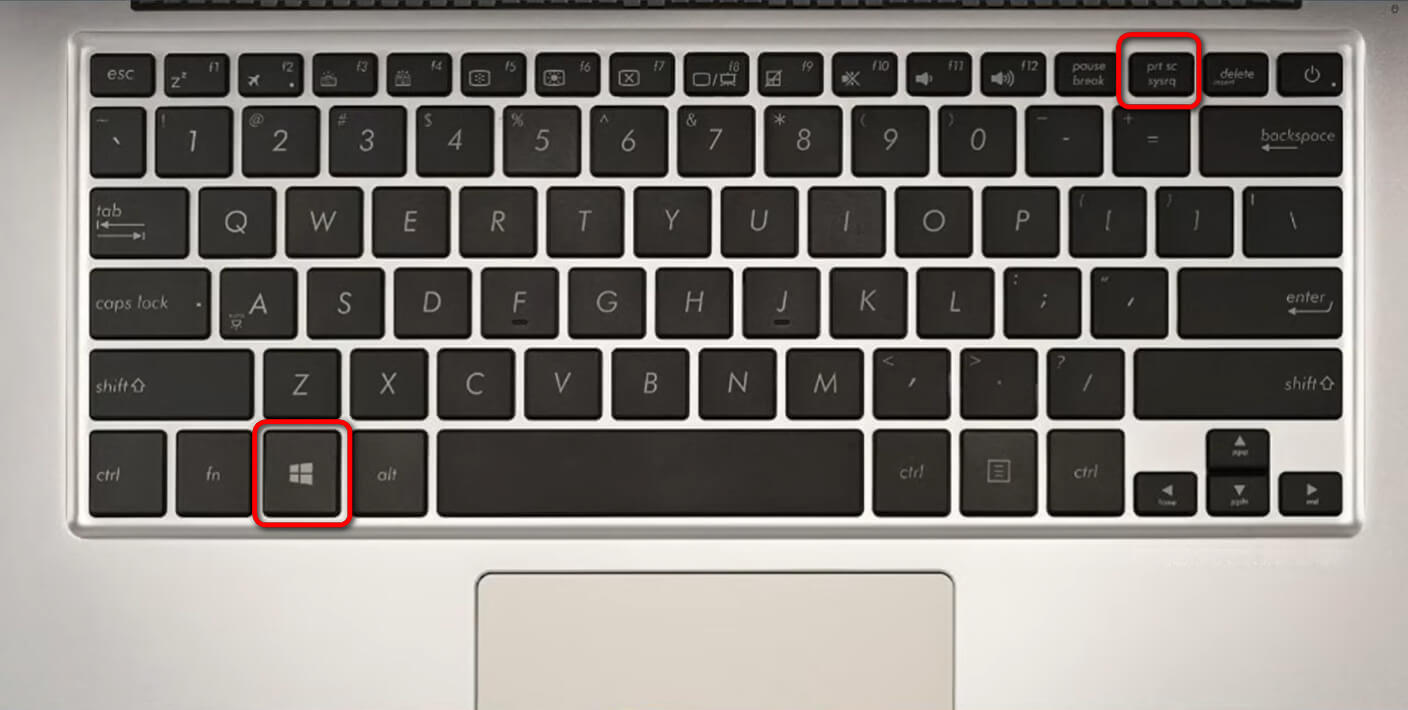
The Print Screen (PrtSc) key captures the whole screen. Press it once, then open Paint or Word. Press Ctrl + V to paste the screenshot. Save the file with a name you like.
The Snipping Tool lets you select a screen area. Open it from the Start menu. Click New, drag to select the area, and save the image. Perfect for quick, custom screenshots.
Snip & Sketch is a newer tool on Acer laptops. Press Windows + Shift + S to open it. Select a shape to capture your screen part. The screenshot copies to the clipboard for easy pasting.
| Keyboard Shortcut | Action |
|---|---|
| PrtSc | Capture entire screen |
| Alt + PrtSc | Capture active window only |
| Windows + PrtSc | Save full screen to Pictures folder |
| Windows + Shift + S | Open Snip & Sketch for custom capture |
:max_bytes(150000):strip_icc()/A1-ScreenshotonanAcerLaptop-annotated-94fac10127934711888db26ef9a7c4b7.jpg)
Credit: www.lifewire.com
Saving And Editing Screenshots
Screenshots are usually saved in the Pictures folder inside the Screenshots subfolder. This makes it easy to find them later. Sometimes, screenshots go directly to the Clipboard, so you must paste them into apps like Paint or Word.
Basic editing tools like crop, resize, and draw are often available in the default photo viewer or Paint. These tools help you change the screenshot quickly without extra software.
Third-party apps, such as Lightshot or Greenshot, offer more options. You can add text, arrows, or blur parts of the screenshot. These apps can save time and give more control over your images.
Troubleshooting Screenshot Issues
Print Screen Key Not Working can happen if the keyboard driver is outdated. Try restarting your laptop first. Check if the Fn key needs to be pressed with Print Screen. Some Acer laptops require this combo. Also, make sure no other program blocks the key.
Screenshot Not Saving might be caused by the clipboard not working properly. Open Paint or Word, then press Ctrl + V to paste the screenshot. If nothing appears, try restarting the computer. Check if you have enough storage space. Screenshots usually save in the Pictures folder under Screenshots.
Alternative Capture Options include using the Snipping Tool or Snip & Sketch. These tools let you capture parts of the screen easily. Press Windows + Shift + S to open Snip & Sketch. You can also try third-party screenshot apps if needed.
Tips For Better Screenshots
Capturing specific windows helps focus on what matters. Press Alt + PrtScn to capture the active window only. This saves time by avoiding extra editing later. Paste the screenshot in Paint or Word to save or edit it.
Timed screenshots allow setting a delay before the capture. Use the Snipping Tool or Snip & Sketch app. Set the timer for 3-10 seconds. This helps capture menus or tooltips that disappear quickly.
Using external devices can improve screenshot quality. Connect a second monitor for better view. Use a smartphone camera for quick captures of the screen. Sometimes, external keyboards have dedicated screenshot keys for easier use.

Credit: www.wikihow.com
Frequently Asked Questions
How Do I Screenshot On An Acer Laptop Quickly?
Press the “PrtSc” key to capture the entire screen. Paste it into Paint or Word to save. Use “Alt + PrtSc” for the active window screenshot.
Can I Use Windows Snipping Tool On Acer Laptops?
Yes, Acer laptops support Windows Snipping Tool. Open it via Start menu, select the type of screenshot, and save or share easily. It offers more flexibility than the PrtSc key.
How To Take A Screenshot On Acer Laptop Without Print Screen?
Use the Snip & Sketch tool by pressing “Windows + Shift + S”. Select your capture area and it copies automatically to the clipboard.
Is There A Shortcut For Full-screen Capture On Acer Laptops?
Pressing “Windows key + PrtSc” captures the full screen. The image saves automatically in the Screenshots folder inside Pictures.
Conclusion
Taking a screenshot on your Acer laptop is quick and simple. Use the Print Screen key or Snipping Tool to capture what you need. Screenshots help save important information or share your screen with others. Practice these steps a few times to feel comfortable.
Now, you can easily capture anything on your screen without stress. Keep this guide handy for future use. Happy screenshotting!
As an Amazon Associate, I earn from qualifying purchases.

