

Have you ever found yourself struggling to right click on your laptop touchpad? It might seem simple on a regular mouse, but on a touchpad, it can be tricky if you don’t know the right moves.
Knowing how to right click easily can save you time and frustration, letting you access important menus and options quickly. You’ll discover clear, step-by-step ways to right click on any laptop touchpad. By the end, you’ll feel confident and ready to work faster on your device.
Keep reading to unlock these simple tricks!

Credit: community.frame.work
Right Click Basics
Right click is a way to open extra options on your laptop. It works like a small menu that helps you do more things quickly. On a laptop touchpad, you can do a right click by pressing the bottom right corner of the touchpad or tapping with two fingers at the same time. This action is different from a normal click, which selects items.
The right click helps with tasks like copying, pasting, or opening files in new windows. It shows a list of choices related to what you clicked. This makes it easier to use your laptop without needing to go to the top menu every time.
:max_bytes(150000):strip_icc()/002_how-to-copy-and-paste-on-a-laptop-5218238-a771930e89454441a87fe45a3b1cc93a.jpg)
Credit: www.lifewire.com
Using Two-finger Tap
To enable the two-finger tap, open your laptop’s touchpad settings. Find the option called “Two-Finger Tap” or “Right-Click”. Click the box to turn it on. Some laptops may require you to update the touchpad driver first.
Performing the two-finger tap is simple. Place two fingers on the touchpad. Tap gently once with both fingers at the same time. This action works like a right-click on a mouse. It opens menus or extra options for the item you tap.
Bottom-right Corner Click
Find the bottom-right corner of the laptop touchpad. This area acts like the right-click button on a mouse. Place your finger gently there.
Press down on the bottom-right corner. You should feel a slight click or tap. This action opens a menu with extra options.
Make sure your finger stays still while clicking. Moving too much may stop the click from working. Try a quick, firm press for best results.
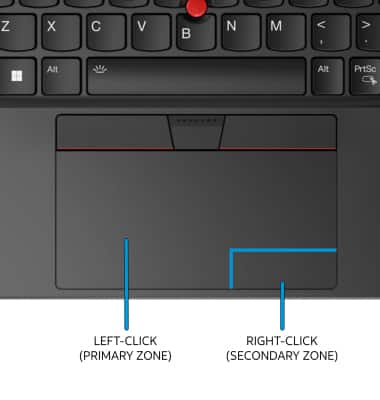
Credit: www.att.com
Using Physical Buttons
Most laptops have two buttons below the touchpad. These are the left and right click buttons. The right button is usually on the bottom right side of the touchpad. It looks like a small, separate area or a line.
Use the right button to open menus or see more options. Press it gently with one finger. This is the easiest way to right click on a laptop.
Customizing Touchpad Settings
To open touchpad settings, click the Start menu and select Settings. Then, go to Devices and choose Touchpad. Here, options for right-click actions can be found.
You can change the right-click button to work by tapping with two fingers or pressing the lower-right corner of the touchpad. Some laptops let you swap the right and left click buttons.
Adjusting these options helps make right-clicking easier. Try different settings to find what feels best for you.
Troubleshooting Tips
Right click not working on a laptop touchpad can be due to several reasons. Sometimes, the touchpad settings are not set to enable right-click. Check the touchpad driver to see if it is updated and working properly.
Touchpad sensitivity might be too low or high, causing right-click issues. Adjust sensitivity in the control panel or settings app. Also, some laptops require a specific two-finger tap or pressing a corner of the touchpad to perform a right-click.
Physical damage or dirt on the touchpad can stop it from working correctly. Clean the touchpad gently with a soft cloth. Restarting the laptop may fix temporary glitches affecting the right-click.
| Common Issue | Solution |
|---|---|
| Right click disabled in settings | Enable right-click in touchpad settings |
| Outdated or missing driver | Update or reinstall touchpad driver |
| Incorrect touchpad sensitivity | Adjust sensitivity to moderate level |
| Physical dirt or damage | Clean touchpad or check for damage |
| Temporary software glitch | Restart the laptop |
Alternative Methods
Keyboard shortcuts provide a quick way to right-click without using the touchpad. Pressing Shift + F10 or the Menu key on your keyboard often opens the right-click menu. This works in most Windows programs and saves time.
Using an external mouse is another simple option. Plugging in a USB or Bluetooth mouse gives a clear right-click button. This is helpful if the touchpad feels tricky or slow. It also works for laptops without a built-in right-click function.
Frequently Asked Questions
How Do You Right Click On A Laptop Touchpad?
To right click, tap with two fingers simultaneously on the touchpad. Alternatively, press the bottom-right corner if your touchpad supports it. This action opens context menus like a mouse’s right-click button.
Can I Enable Right Click On All Laptop Touchpads?
Most laptops support right click by default. If it’s disabled, enable it via touchpad settings in the control panel or system preferences. Driver updates can also restore right-click functionality if missing.
What If My Touchpad Doesn’t Support Two-finger Tap?
If two-finger tap isn’t supported, use the dedicated right-click button below the touchpad. Some laptops allow pressing the lower-right corner of the touchpad as a right-click. Check your laptop manual for specific instructions.
How To Customize Right Click Sensitivity On A Laptop?
Go to your touchpad settings in the control panel or system preferences. Adjust sensitivity or enable gestures like two-finger tap for right click. Customizing improves accuracy and user experience based on your preferences.
Conclusion
Right-clicking on a laptop touchpad is simple and quick. Just tap with two fingers or press the lower right corner. These methods work on most laptops. Remember, settings may differ, so check your device if it feels different. Practice a little to get comfortable.
Soon, right-clicking will feel natural and easy. This skill helps you access more options on your laptop. Keep trying, and you will use your touchpad like a pro.
As an Amazon Associate, I earn from qualifying purchases.

