

Are you struggling to connect your Bose headphones to your laptop? You’re not alone.
Sometimes, getting that perfect sound experience feels tricky when the connection isn’t working right. Imagine enjoying crystal-clear audio without any hassle, whether you’re working, watching movies, or gaming. In this guide, you’ll discover simple, step-by-step tips to connect your Bose headphones quickly and easily.
Keep reading, and you’ll be ready to enjoy your favorite sounds in no time.
Prepare Your Bose Headphones
Make sure the Bose headphones are fully charged before pairing. A full battery helps avoid interruptions during connection.
To charge, connect the headphones to a power source using the USB cable that came with them. The charging light will turn on.
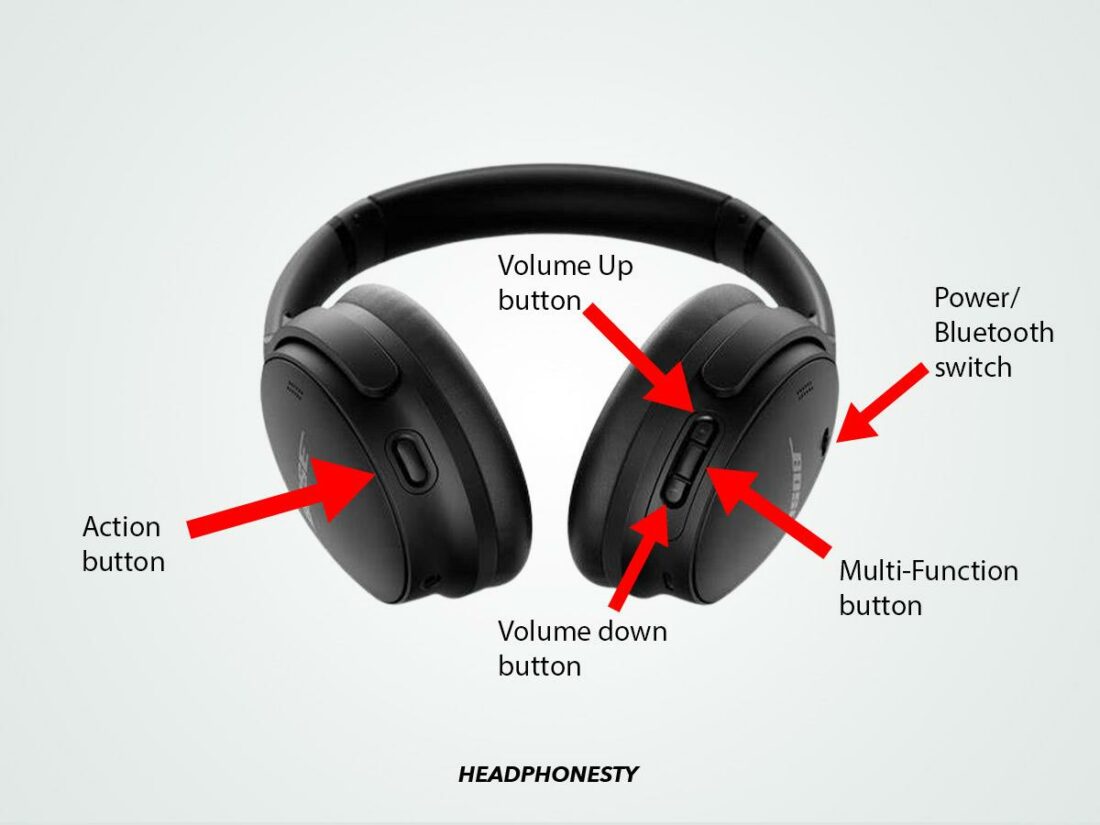
Next, turn on Bluetooth pairing mode. Press and hold the power button until the Bluetooth light blinks. This means the headphones are ready to pair.
Keep the headphones close to your laptop for a strong connection. Stay patient if the pairing takes a few moments.

Credit: www.youtube.com
Enable Bluetooth On Your Laptop
To connect your Bose headphones, start by opening the Bluetooth settings on your laptop. On Windows, click the Start menu, then select Settings. Next, choose Devices and find Bluetooth & other devices. On Mac, click the Apple menu, select System Preferences, then click Bluetooth.
Make sure the Bluetooth toggle is set to On. This step allows your laptop to search for nearby devices. If Bluetooth is off, your laptop won’t find your headphones.
Keep the Bluetooth window open to see your Bose headphones appear in the list of available devices.
Pair Bose Headphones With Laptop
Turn on the laptop’s Bluetooth. Open the settings menu. Find the Bluetooth section and click “Scan for Devices”.
Wait for the laptop to find your Bose headphones. Their name will appear in the list. Click on the Bose headphones to select them.
A prompt will ask to confirm pairing. Click “Pair” or “Connect”. Wait a few seconds. The laptop will show a message when the connection is successful.
Credit: polimexparcel.com
Troubleshoot Connection Issues
Restart both your laptop and Bose headphones. This helps clear small bugs that block connection. Turn off the headphones and laptop. Wait about 10 seconds. Then turn them back on. This step often fixes many issues fast.
Try to remove the headphones from your laptop’s Bluetooth list. Then pair them again. Open Bluetooth settings on your laptop. Find Bose headphones in the device list. Click “Remove” or “Forget”. Next, put headphones in pairing mode and connect again. This resets the connection.
| Step | How to Update Bluetooth Drivers |
|---|---|
| 1 | Open Device Manager on your laptop. |
| 2 | Find Bluetooth and expand the list. |
| 3 | Right-click your Bluetooth adapter and select “Update driver”. |
| 4 | Choose “Search automatically for updated driver software”. |
| 5 | Follow the instructions to install any updates. |
Optimize Audio Settings
Open the sound settings on your laptop. Select Bose headphones as the default playback device. This ensures all sounds go through your headphones.
Adjust the volume to a comfortable level. Avoid very high volume to protect your ears. Use the sound settings to change the balance and bass if needed. This improves sound quality for music and videos.
Credit: www.youtube.com
Frequently Asked Questions
How Do I Pair Bose Headphones With My Laptop?
Turn on Bluetooth on your laptop and Bose headphones. Put headphones in pairing mode. Select Bose headphones from the laptop’s Bluetooth menu to connect.
Why Won’t My Bose Headphones Connect To My Laptop?
Check if Bluetooth is enabled on both devices. Ensure headphones are in pairing mode. Restart devices if needed and try reconnecting. Update Bluetooth drivers if issues persist.
Can I Use Bose Headphones Wired With My Laptop?
Yes, connect your Bose headphones to your laptop using the included audio cable. This bypasses Bluetooth and provides a stable wired connection.
How To Fix Audio Delay With Bose Headphones On Laptop?
Ensure your laptop’s Bluetooth drivers are updated. Use the headphones in wired mode for zero latency. Reduce distance between devices to improve audio sync.
Conclusion
Connecting Bose headphones to your laptop is simple and quick. Just follow the steps carefully for a smooth pairing experience. Make sure Bluetooth is on and your headphones are in pairing mode. Once connected, enjoy clear sound for work or fun.
If problems come up, try restarting devices or checking settings. Now, you can listen to music or join calls with ease. Keep this guide handy for future use. Enjoy your Bose headphones with your laptop anytime you want.
As an Amazon Associate, I earn from qualifying purchases.

