

Are you struggling to connect your Bose earbuds to your laptop? You’re not alone.
Whether you want to enjoy crystal-clear sound during work calls or dive into your favorite music without distractions, getting your earbuds connected smoothly is key. In this guide, you’ll discover simple, step-by-step tips to make the connection quick and hassle-free.
Stick with me, and you’ll be listening wirelessly in no time. Ready to unlock the full potential of your Bose earbuds with your laptop? Let’s get started.

Credit: www.youtube.com
Prepare Your Bose Earbuds
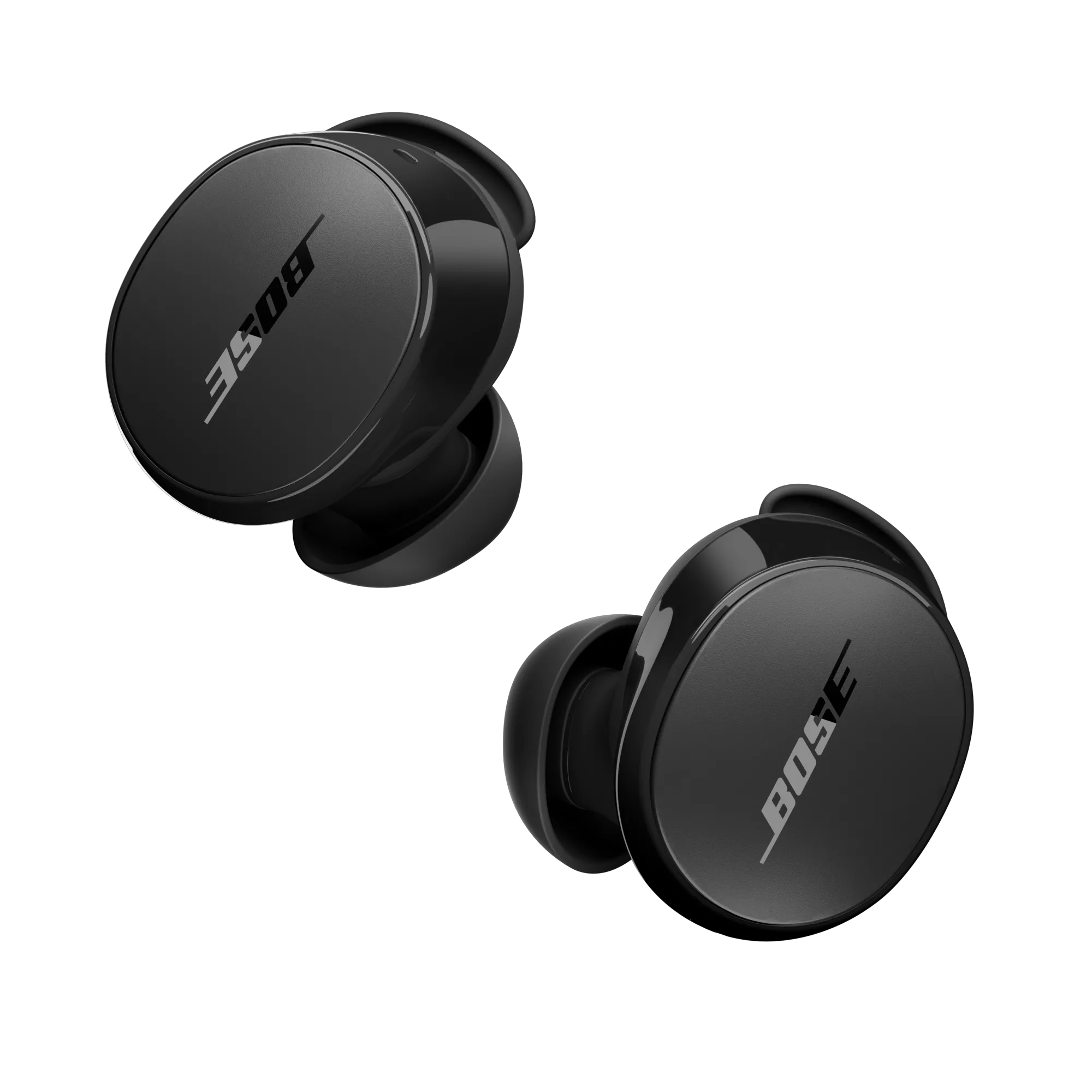
Charge the earbuds fully before starting. Place them in the charging case and connect it to power. A full charge helps avoid interruptions during use. The earbuds usually show a light when charging. Wait until the light shows they are ready.
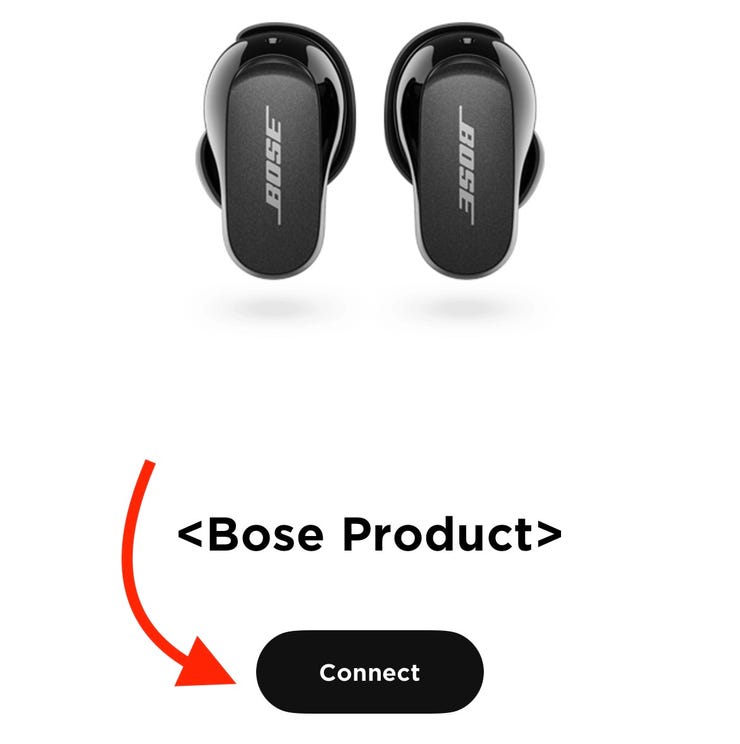
Activate pairing mode to connect the earbuds to your laptop. Take the earbuds out of the case. Press and hold the button on the case or earbuds. A blinking light means pairing mode is on. This makes the earbuds visible to your laptop’s Bluetooth.
Credit: kl-elektro.cz
Enable Bluetooth On Your Laptop
First, open the Start menu on your laptop. Find and click on Settings. Then, select Devices or Bluetooth & other devices. Look for the Bluetooth option in the list.
Make sure the Bluetooth switch is turned on. It might say Off or On. Click to change it to On. The laptop will start searching for nearby devices automatically.
Keep your Bose earbuds ready. Turn them on and put them in pairing mode. Your laptop should soon show the earbuds in the list of devices. Click on the earbuds’ name to connect.
Pair Bose Earbuds With Laptop
Start by opening the Bluetooth settings on your laptop. Click on “Search for Devices” or “Add Bluetooth or other device”. Your laptop will scan for nearby devices. Make sure your Bose earbuds are turned on and in pairing mode. This helps the laptop find them quickly.
From the list of devices, find and select your Bose earbuds. Their name usually starts with “Bose” followed by the model number. Clicking on the name starts the connection process. Wait for the laptop to connect.
Once the laptop asks, confirm the pairing. This may involve clicking “Pair” or “Connect”. After a few seconds, your earbuds will be ready to use. You can now listen to music or take calls.
Troubleshoot Connection Issues
Reset Bluetooth on Laptop: Turn off Bluetooth on your laptop. Wait for 10 seconds. Turn it back on. This can fix small connection problems. It refreshes the Bluetooth system.
Restart Earbuds: Turn off your Bose earbuds. Wait for 5 seconds. Turn them back on. Restarting helps clear any temporary bugs. It can make the earbuds connect again smoothly.
Update Bluetooth Drivers: Open Device Manager on your laptop. Find Bluetooth and click to expand it. Right-click your Bluetooth device and choose “Update driver.” Select “Search automatically.” Updated drivers help fix bugs and improve connection.
Optimize Audio Settings
First, open the sound settings on your laptop. Find the Playback Devices list. Select your Bose earbuds from the list. Click Set as Default to make them the main audio device. This ensures all sounds play through your earbuds.
Next, adjust the sound levels for the best experience. Use the volume slider to set a comfortable sound. Avoid very high volume to protect your ears. Test the sound by playing music or a video.
Credit: support.bose.com
Frequently Asked Questions
How Do I Pair Bose Earbuds With My Laptop?
Turn on Bluetooth on your laptop and put Bose earbuds in pairing mode. Find your earbuds in the laptop’s Bluetooth list, then click “Connect. ” Once paired, audio will play through the earbuds automatically.
Why Won’t My Laptop Find Bose Earbuds?
Ensure earbuds are in pairing mode and Bluetooth is enabled on your laptop. Restart both devices if needed. Also, remove old Bluetooth connections to avoid interference.
Can I Use Bose Earbuds Wired With My Laptop?
Most Bose earbuds are wireless but some models support wired use via a USB or audio cable. Check your specific model’s compatibility for wired connections.
How To Fix Audio Delay With Bose Earbuds On Laptop?
Update your laptop’s Bluetooth drivers and keep earbuds firmware updated. Use the earbuds close to the laptop and avoid interference for minimal delay.
Conclusion
Connecting Bose earbuds to your laptop is simple and quick. Just follow the steps carefully, and you will enjoy clear sound. Make sure your earbuds are charged and in pairing mode. Open your laptop’s Bluetooth settings and find your Bose earbuds on the list.
Click to connect, and you are ready to listen. This easy process works with most laptops and Bose models. Enjoy music, calls, and videos without wires or hassle. Practice a few times, and it will become second nature. Stay connected and enjoy great sound anywhere.
As an Amazon Associate, I earn from qualifying purchases.

