

Are you struggling to connect your Bose headphones to your laptop? You’re not alone.
Getting your favorite headphones paired correctly can make a huge difference in your listening experience. Imagine enjoying crystal-clear sound without any annoying interruptions or delays. In this guide, you’ll learn simple, step-by-step instructions to pair your Bose headphones quickly and easily.
By the end, you’ll be ready to dive into your music, movies, or calls with flawless audio. Keep reading to make your headphones work perfectly with your laptop today.
Prepare Your Bose Headphones
Start by charging your Bose headphones fully. A full charge ensures they don’t turn off during pairing. Use the original charger or cable for best results. Charging usually takes a few hours.
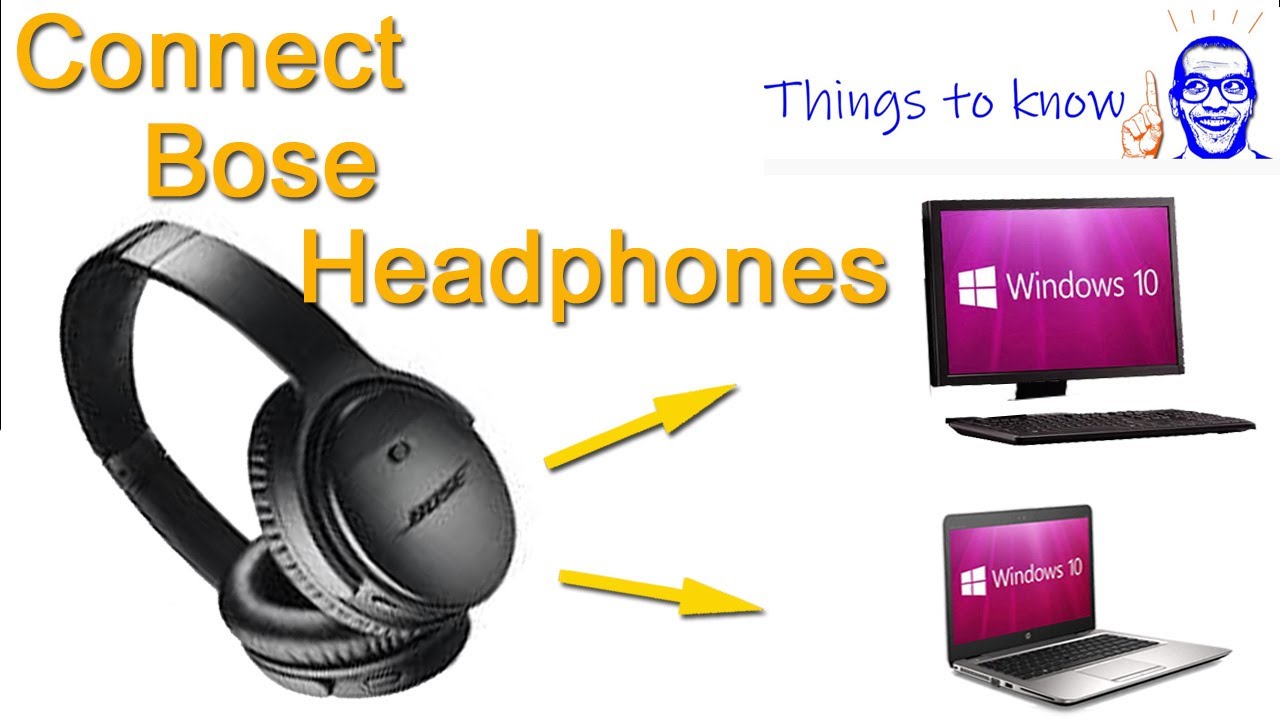
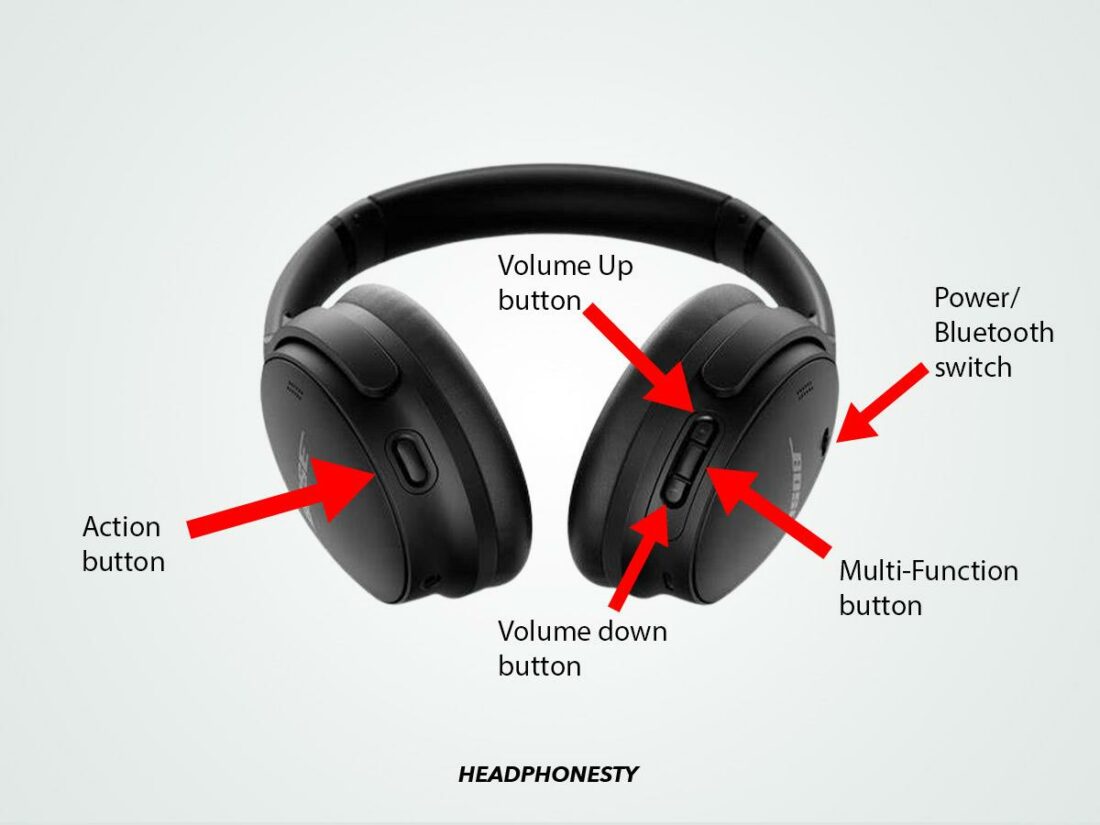
Next, turn on Bluetooth pairing mode. Press and hold the power button until the LED light blinks blue. This means the headphones are ready to connect. Pairing mode stays active for a few minutes.
Keep the headphones close to your laptop. This helps the devices find each other quickly. Avoid moving away until pairing is complete.
Credit: www.youtube.com
Enable Bluetooth On Your Laptop
To pair Bose headphones with your laptop, start by turning on Bluetooth. Open the Settings menu on your laptop. Find the Bluetooth & devices option and click it.
Look for a switch to turn Bluetooth on. Make sure it is enabled. This will allow your laptop to find nearby devices.
Once Bluetooth is on, your laptop will start searching for devices. Keep your Bose headphones in pairing mode. They should appear on the list of available devices.
Select your Bose headphones from the list to connect. Wait for a confirmation message or sound. Your headphones are now ready to use with your laptop.
Connect Headphones To Laptop
Start by opening the Bluetooth settings on your laptop. Click on “Add Bluetooth or other device” to search for available devices. Your laptop will scan for nearby Bluetooth devices.
Find your Bose headphones in the list. They usually show up as “Bose QuietComfort” or a similar name. Select your Bose headphones to start pairing.
A prompt will appear asking to confirm the pairing request. Click “Yes” or “Pair” to confirm the pairing request. Wait a few seconds for the connection to complete.
:max_bytes(150000):strip_icc()/006-how-to-connect-bose-headphones-to-a-pc-f0a2640c1de544d780eb9385f1301fdf.jpg)
Credit: www.lifewire.com
Troubleshoot Connection Issues
Restart your laptop and Bose headphones. This can fix many connection problems. Turn both devices off, wait for a few seconds, then turn them back on. Try pairing again.
Update Bluetooth drivers on your laptop. Outdated drivers may cause connection issues. Go to your laptop’s device manager, find Bluetooth, and check for updates. Installing the latest drivers helps improve compatibility.
Reset your Bose headphones to clear old settings. This can solve pairing problems. Hold the power button for about 10 seconds until you see a light flash. After resetting, try pairing the headphones with your laptop again.
Optimize Audio Settings
Start by opening the sound settings on your laptop. Look for the Playback tab to see connected devices. Find your Bose headphones in the list and click on them. Then, click Set Default to make them the main sound device.
Adjust the volume slider to a comfortable level. Test the sound by playing music or a video. You can also click on Properties to change sound preferences like balance and enhancements. Make sure the sound quality is clear and loud enough.
Maintain Your Bose Headphones
Keep your Bose headphones working well by updating the firmware often. Firmware updates fix bugs and add new features. Connect your headphones to the Bose app or computer to check for updates. This helps the headphones stay compatible with your laptop and other devices.
Store your headphones in a clean, dry place. Avoid leaving them in hot or very cold spots. Handle them gently to prevent damage. Use the carrying case that comes with the headphones to protect them from scratches and drops. Proper care extends the life of your headphones.
Credit: www.dalpozzo.com.br
Frequently Asked Questions
How Do I Connect Bose Headphones To My Laptop?
Turn on Bluetooth on your laptop and Bose headphones. Search for devices on your laptop and select your Bose headphones from the list. Follow on-screen prompts to complete pairing.
Why Won’t My Bose Headphones Pair With My Laptop?
Ensure your headphones are in pairing mode and Bluetooth is enabled on your laptop. Restart both devices and try again. Update Bluetooth drivers if problems persist.
Can I Use Bose Headphones With Any Laptop Brand?
Yes, Bose headphones work with most laptops supporting Bluetooth. Compatibility depends on your laptop’s Bluetooth version and operating system. Check your laptop’s Bluetooth settings for confirmation.
How To Fix Bose Headphones Not Showing On Laptop Bluetooth?
Make sure headphones are in pairing mode and close to the laptop. Restart Bluetooth on the laptop and headphones. Remove old Bluetooth connections if needed.
Conclusion
Pairing Bose headphones to your laptop is simple and quick. Just follow the steps carefully. Make sure your headphones are charged and in pairing mode. Check your laptop’s Bluetooth settings to find the headphones. Once connected, enjoy clear sound without wires.
This process works for most Bose headphone models. Remember to keep your devices close for a strong connection. You can now listen to music, watch videos, or join calls easily. Stay patient if it doesn’t connect right away. Practice makes it easier next time.
Enjoy your wireless audio experience!
As an Amazon Associate, I earn from qualifying purchases.

