

Is your Toshiba laptop running slow, full of clutter, or facing software issues? Resetting it to factory settings can be the quickest way to bring it back to its original speed and performance.
But how do you do this without losing important data or getting stuck in complicated steps? You’ll discover simple, clear instructions to reset your Toshiba laptop safely and easily. Keep reading, and you’ll have your laptop running like new in no time.
Credit: www.drivereasy.com
Prepare Your Laptop
Backup important data before resetting. Save photos, documents, and files to an external drive or cloud storage. This keeps your files safe and easy to restore later.
Charge your battery fully or keep the laptop plugged in. A power cut during reset can cause serious problems.
Close running applications to avoid errors. Save your work and exit all programs to ensure the reset process runs smoothly.
Credit: www.aiseesoft.com
Access Recovery Options
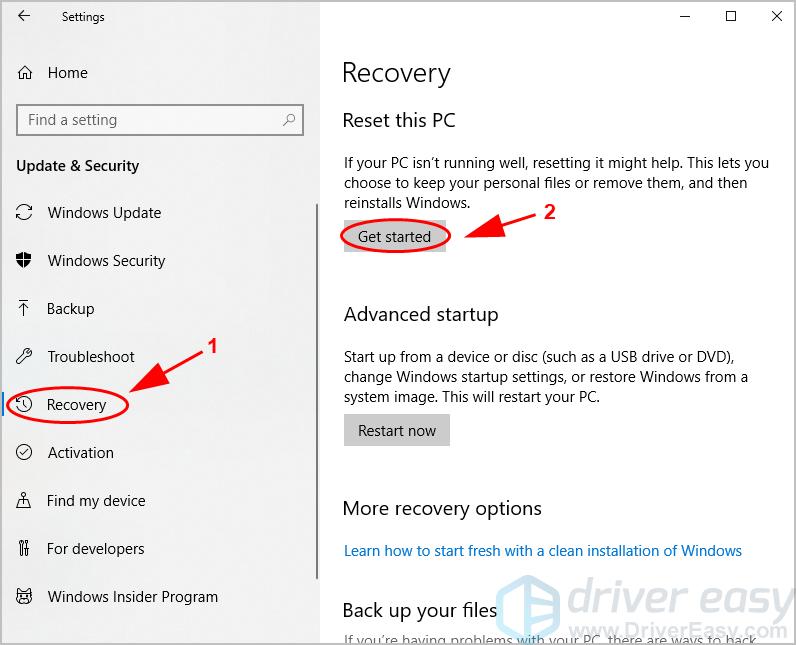
To reset your Toshiba laptop, start by opening Windows Settings. Click on Update & Security, then select Recovery. Under Reset this PC, click Get started. Choose to keep files or remove everything. Follow the on-screen steps to complete the reset.
The recovery partition lets you restore your laptop without extra media. Restart the laptop and press 0 (zero) key repeatedly as it boots. This opens the Toshiba Recovery Wizard. Follow instructions to reset to factory settings. Ensure your laptop is plugged in during this process.
Recovery media is a USB or DVD created earlier. Insert the media and restart the laptop. Press the key to enter boot menu (usually F12). Select the recovery media to boot. Follow the on-screen wizard to reset your laptop safely.
Reset Through Windows Settings
First, open the Start menu and click Settings. Find and select Update & Security. On the left, choose Recovery. Under Reset this PC, click Get started. This opens the Recovery menu.
Select Remove everything to erase all files and apps. Or choose Keep my files to save personal data but remove apps and settings.
Next, pick how to remove data. Choose Just remove my files for a quick reset. Choose Remove files and clean the drive for a thorough reset. The second option takes longer but is safer for selling or giving away the laptop.
Credit: www.youtube.com
Reset Using Recovery Partition
First, restart your Toshiba laptop. As it boots, press the 0 (zero) key repeatedly. This opens the Recovery Mode. If this doesn’t work, try pressing F8 during startup.
Next, the Toshiba Recovery Wizard will appear. Follow the simple on-screen steps. Choose “Recovery of Factory Default Software” to proceed. This option restores your laptop to original settings.
Finally, start the factory reset process. Confirm your choice when prompted. The laptop will erase all files and reset itself. This may take some time. Keep your laptop plugged in to avoid interruptions.
Reset Using Recovery Media
First, create a Recovery USB or DVD using your Toshiba laptop. Use a blank USB drive or DVD with enough space. Find the recovery media creation tool on your laptop. Follow the steps to copy the recovery files onto the USB or DVD. This will prepare the recovery media for resetting.
Next, boot from the recovery media. Insert the USB or DVD into the laptop. Restart the laptop and press the correct key to enter the boot menu. Choose the USB or DVD as the boot device. The laptop will start from the recovery media.
Finally, follow the on-screen instructions. Choose the option to reset the laptop to factory settings. Confirm your choices carefully. The system will erase all files and restore original settings. This process may take some time. Wait until it finishes and the laptop restarts.
After Reset Steps
Start by following the on-screen instructions to set up Windows. Choose your language, time zone, and keyboard layout. Connect to Wi-Fi to continue.
Next, reinstall drivers and software. Visit the Toshiba website to download the latest drivers for your model. Install essential programs like antivirus and browsers for safe use.
Finally, restore backed-up files. Use an external drive or cloud storage to copy your important documents, photos, and videos back to the laptop. Check files to make sure everything is there.
Troubleshooting Reset Issues
Recovery partition not found means the laptop cannot find the files needed to reset. This may happen if the partition was deleted or damaged. Check if your Toshiba laptop has a hidden recovery partition using disk management tools. If missing, you might need a recovery USB or DVD from Toshiba.
Reset fails to complete can occur due to corrupted system files or hardware issues. Restart the laptop and try again. Disconnect all external devices. Running a system scan or repair might help fix errors blocking the reset.
Contacting Toshiba Support is best if problems continue. They can provide recovery media or guide you through advanced steps. Have your laptop model and serial number ready for faster help.
Frequently Asked Questions
How Do I Start Resetting My Toshiba Laptop?
To reset your Toshiba laptop, first back up important files. Then, restart the laptop and press F8 repeatedly to access the recovery menu. Choose “Repair Your Computer,” then select “Toshiba Recovery Wizard” to begin the factory reset process.
Can I Reset My Toshiba Laptop Without A Recovery Disk?
Yes, most Toshiba laptops have a built-in recovery partition. You can access it by pressing F8 during startup and selecting the recovery option. This allows you to reset your laptop to factory settings without needing a recovery disk.
Will Resetting Erase All My Files On Toshiba Laptop?
Yes, resetting your Toshiba laptop to factory settings will delete all personal files and installed programs. Make sure to back up important data before starting the reset to avoid losing essential information.
How Long Does A Toshiba Factory Reset Take?
A factory reset on a Toshiba laptop typically takes between 30 minutes to an hour. The duration depends on your system’s speed and the amount of data being erased.
Conclusion
Resetting your Toshiba laptop to factory settings can solve many issues. It clears unwanted files and restores original software. Always back up important data before starting the reset process. Follow each step carefully to avoid mistakes. This process helps your laptop run smoother and faster.
Keep your device updated after the reset for better performance. Now, you can enjoy a fresh start with your Toshiba laptop. Simple and effective.
As an Amazon Associate, I earn from qualifying purchases.

