

A smashed laptop screen can feel like a disaster. You might think your device is ruined or that fixing it will cost a fortune.
But what if you could save your laptop without breaking the bank? In this guide, you’ll learn simple, step-by-step ways to repair your cracked screen quickly and safely. Whether you want to try it yourself or understand what a technician will do, this article will give you clear answers.
Keep reading to take control and bring your laptop back to life.
Credit: www.youtube.com
Assess The Damage
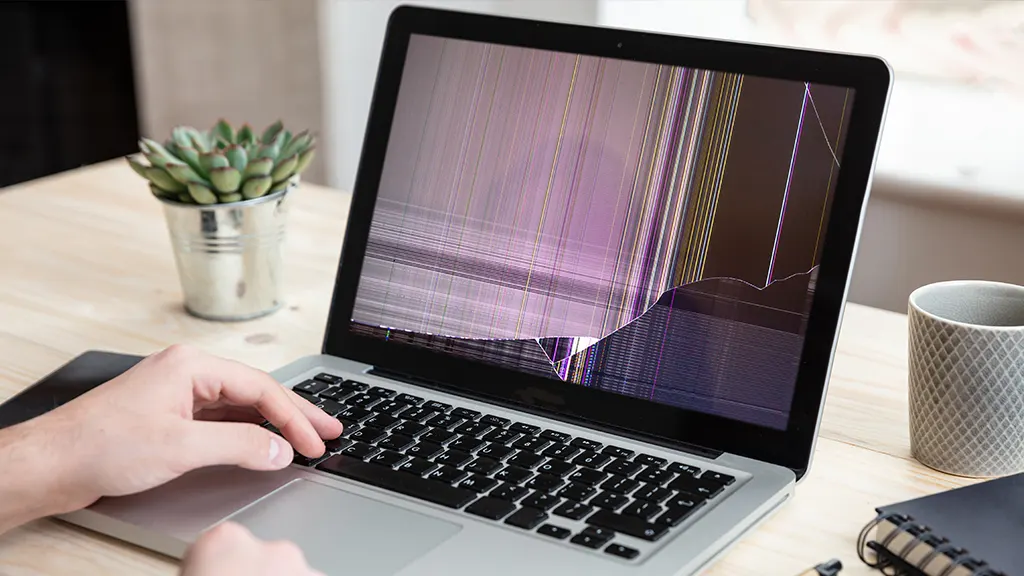
Start by looking closely for cracks on the laptop screen. Check the edges and the center carefully. Some cracks may be small, while others could be large and obvious. Take note of any discoloration or black spots, which often show deeper damage.
Next, test if the screen still works. Turn on the laptop and see if the display lights up. Look for flickering, lines, or no display at all. These signs help to know if the damage is only on the surface or inside the screen.
| Damage Type | Signs | What it Means |
|---|---|---|
| External Damage | Visible cracks, scratches | Screen glass is broken but display may work |
| Internal Damage | No display, flickering, black spots | LCD or internal parts are damaged |
Credit: www.asurion.com
Gather Repair Tools
To fix a smashed laptop screen, start by gathering the right tools. You will need a small Phillips screwdriver to open the laptop case. A plastic pry tool helps to safely remove the screen bezel without damage. Have a clean cloth ready to wipe dust and fingerprints. Use a new replacement screen that matches your laptop model exactly.
Safety is very important. Make sure the laptop is unplugged from power. Remove the battery if possible to avoid electric shock. Work in a clean, dry area with good light. Avoid touching the screen surface with sharp or dirty tools. Keep small screws in a safe place.
Remove The Broken Screen
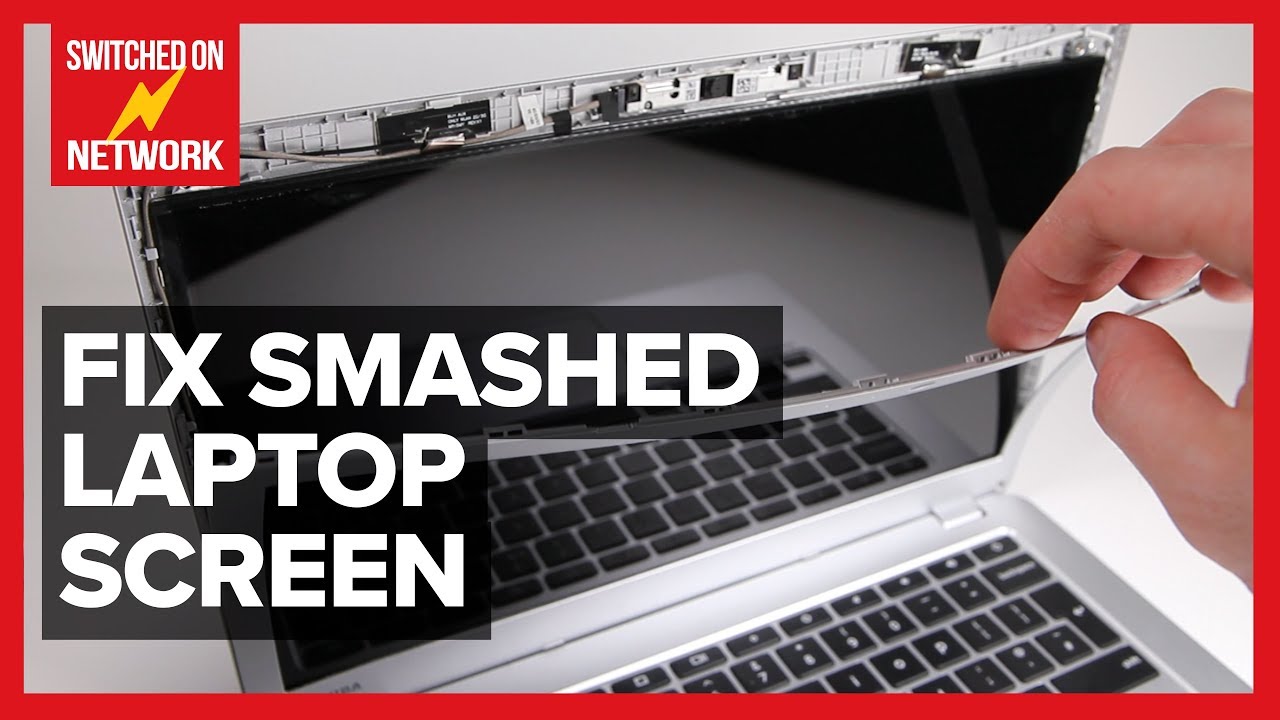
First, power down the laptop and unplug it from any power source. This step is very important for safety. Next, gently detach the screen bezel. The bezel is the frame around the screen. Use a plastic tool or your fingers to carefully pry it off. Be patient to avoid breaking the plastic clips.
After removing the bezel, find the screen cables connecting the screen to the laptop. These cables send power and data to the screen. Disconnect them by gently pulling on the connectors. Avoid pulling on the wires directly to prevent damage.

Credit: www.youtube.com
Choose A Replacement Screen
Start by finding the exact model number of your laptop. This helps to get a compatible screen. Check the laptop’s bottom or inside the battery slot for the model.
Compare different sellers for price and screen quality. Some screens may look cheaper but have poor display or touch response. Look for reviews or ratings to help decide.
| Screen Feature | What to Check |
|---|---|
| Size | Match the screen size exactly |
| Resolution | Ensure it matches your laptop’s resolution |
| Connector Type | Check the connector matches your laptop’s port |
| Screen Type | LCD, LED, or touchscreen – pick the same type |
Install The New Screen
Start by connecting the cables gently to the new screen. Make sure each cable fits snugly into its slot without forcing it. Loose or damaged cables can cause the screen not to work.
Next, secure the screen in place using the screws or clips that came with it. This keeps the screen steady and prevents movement.
Then, carefully snap the bezel back onto the laptop. The bezel holds the screen and protects the edges. Press evenly around the edges until it clicks into place.
Take your time during each step. Rushing may cause damage or poor connections.
Test The New Screen
After installing the new screen, turn on the laptop carefully. Watch for any images or lights on the display. If the screen stays black, check if the screen cable is securely connected. Sometimes cables come loose during installation.
Look for flickers, lines, or spots on the screen. These may mean the screen is damaged or not connected well. Try adjusting the screen angle to see if the display changes.
| Issue | Possible Cause | What to Do |
|---|---|---|
| Screen stays black | Loose cable or bad connection | Reconnect the screen cable firmly |
| Flickering or lines on screen | Faulty screen or cable | Check connections or replace screen |
| Dim or no backlight | Backlight problem or inverter issue | Test with a flashlight or replace parts |
Prevent Future Damage
Using a protective case can help keep your laptop safe from drops and scratches. These cases add a layer of protection around the device, which absorbs shocks. Choose a case that fits your laptop size well for the best defense.
Always handle your laptop with care. Avoid holding it by the screen or carrying it with one hand. Place it gently on tables and avoid stacking heavy items on top. These simple habits reduce the risk of screen damage.
Frequently Asked Questions
How Much Does It Cost To Fix A Smashed Laptop Screen?
The cost to fix a smashed laptop screen varies between $100 and $300. It depends on your laptop model and screen size. Labor charges and parts availability also affect the price. Getting a professional repair estimate is recommended.
Can I Replace A Smashed Laptop Screen Myself?
Yes, you can replace a smashed laptop screen yourself if you have technical skills. You need proper tools, a replacement screen, and a repair guide. However, improper handling may cause further damage. Consider professional help if unsure.
How Long Does It Take To Fix A Smashed Laptop Screen?
Fixing a smashed laptop screen usually takes 1 to 3 hours. The time depends on the screen type and repair method. Professionals may complete it faster than DIY repairs. Scheduling repairs in advance helps reduce wait times.
What Causes A Laptop Screen To Smash Easily?
Laptop screens smash easily due to impact, pressure, or accidental drops. Thin glass and delicate LCD layers are vulnerable. Poor handling, tight carrying cases, and sudden impacts increase the risk. Using a protective case can reduce damage chances.
Conclusion
Fixing a smashed laptop screen can save time and money. Follow the steps carefully to avoid mistakes. Use the right tools and parts for better results. Take your time and work in a clean space. If the damage is severe, consider professional help.
Regular care helps prevent future screen issues. Now you know how to fix your laptop screen safely. Keep your device working like new. Simple actions make a big difference.
As an Amazon Associate, I earn from qualifying purchases.

