

Do you ever need to capture something important on your Acer laptop screen but don’t know how? Taking a screenshot is easier than you think, and it can save you time and frustration.
Whether you want to save a funny moment, keep important information, or share your screen with others, knowing how to take a screenshot on your Acer laptop is a must-have skill. Stick with me, and I’ll show you simple, step-by-step methods that anyone can follow.
By the end, you’ll be snapping screenshots like a pro—no tech skills required!
Built-in Screenshot Tools
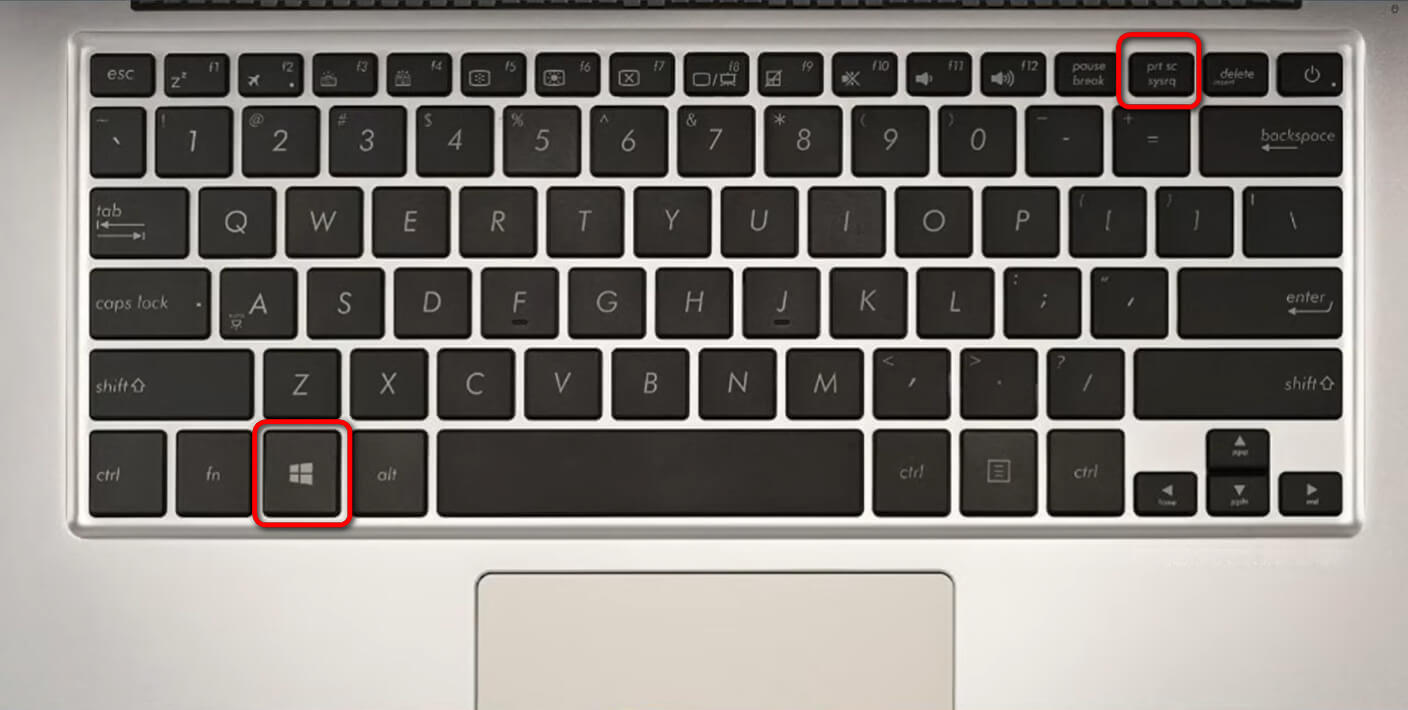
The Print Screen (PrtSc) key on an Acer laptop captures the whole screen. Press it once to copy the screen image. Then, open Paint or any editor and press Ctrl + V to paste. Save the image as a file.
The Snipping Tool lets you take quick screenshots of parts of your screen. Open it from the Start menu. Click New, then drag to select the area. You can save or copy the snip easily.
Snip & Sketch is a newer tool with more options. Use Windows + Shift + S to open it. Choose from rectangular, freeform, window, or full screen snips. The snip copies to the clipboard and shows a notification. Click it to edit or save.

Credit: www.wikihow.com
Keyboard Shortcuts
Press PrtSc (Print Screen) key to capture the whole screen. The screenshot saves to the clipboard. Open Paint or Word, then press Ctrl + V to paste and save the image.
To capture only the active window, hold Alt and press PrtSc. This copies just the current window to the clipboard. Paste it where you want.
For a partial screenshot, press Windows + Shift + S. The screen dims, letting you drag and select the area. The image copies to the clipboard for easy pasting.
Saving And Editing Screenshots
Screenshots on Acer laptops usually save automatically in the “Pictures” folder. Inside, find a subfolder named “Screenshots.” This folder holds all your captured images.
Basic editing lets you crop, resize, or draw on screenshots. Use the built-in “Paint” or “Photos” app. These tools are simple and easy for quick changes.
For more options, try third-party editors like “Snagit” or “Lightshot.” They offer advanced features such as adding text, arrows, or highlights. These tools help make your screenshots clearer and more useful.
Credit: www.pdfgear.com
Using External Apps
Popular screenshot apps for Acer laptops include Lightshot, Greenshot, and Snagit. These tools offer easy ways to capture, edit, and save screenshots quickly. Many apps have features like adding text, arrows, or highlighting parts of the image.
Advantages of external tools include more editing options and better file management. They can capture full screens, windows, or selected areas with just a few clicks. Some apps also allow direct sharing to email or social media.
How to install and use these apps is simple. Download the app from its official website. Open the file and follow the instructions to install. After installation, launch the app and use the keyboard shortcuts or buttons to take screenshots.
Troubleshooting Tips
Print Screen not working can happen if the keyboard drivers are outdated. Try updating the drivers from Acer’s website. Sometimes, pressing Fn + PrtSc keys together works better. Check if the Print Screen button is disabled in your keyboard settings.
Screenshot delay issues may occur due to background apps slowing the system. Closing unnecessary programs can help speed up the process. Use the Snipping Tool or Snip & Sketch for better timing control. Setting a screenshot timer of 1-3 seconds can fix delay problems.
Improving screenshot quality means capturing at the screen’s full resolution. Avoid resizing or compressing screenshots after saving. Use PNG format for clearer images instead of JPEG. Adjusting the display settings to the highest resolution also helps.
:max_bytes(150000):strip_icc()/A1-ScreenshotonanAcerLaptop-annotated-94fac10127934711888db26ef9a7c4b7.jpg)
Credit: www.lifewire.com
Frequently Asked Questions
How Do I Screenshot On An Acer Laptop Keyboard?
Press the “PrtSc” key to capture the whole screen. Paste it into Paint or Word using Ctrl+V. Save the image as needed.
Can I Screenshot A Specific Area On Acer Laptops?
Yes, use Windows + Shift + S keys together. This opens Snip & Sketch for selecting a screen area. The screenshot copies to clipboard.
Where Are Screenshots Saved On Acer Laptops?
Screenshots taken with Windows + PrtSc keys save automatically. Find them in the Pictures > Screenshots folder. Manual captures need pasting and saving.
How To Screenshot On Acer Laptop Without Print Screen?
Use Snipping Tool from the Start menu. Choose the snip type and capture the screen part. Save or copy the screenshot easily.
Conclusion
Taking screenshots on your Acer laptop is simple and quick. You can use keyboard shortcuts or built-in tools. Each method helps you save important information or share your screen easily. Practice a few times to find what works best for you.
Keep this guide handy whenever you need to capture your screen. Now, you can take screenshots without any hassle or confusion.
As an Amazon Associate, I earn from qualifying purchases.

