

Have you ever wanted to capture exactly what’s on your HP laptop screen quickly and easily? Whether you need to save an important document, share a funny moment, or keep a handy reference, knowing how to take a screenshot is a game-changer.
In this guide, you’ll discover simple, step-by-step methods to screenshot on your HP laptop without any hassle. Stick around, and by the end, you’ll be snapping perfect screenshots like a pro every time.

Credit: www.wikihow.com
Screenshot Basics On Hp Laptops
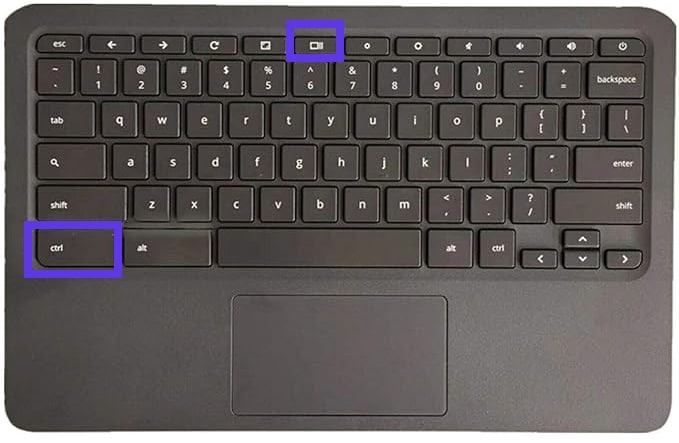
The Print Screen (PrtSc) key is the easiest way to take a screenshot on HP laptops. Pressing this key copies the entire screen to the clipboard. You can then paste it into apps like Paint or Word by pressing Ctrl + V.
To capture only the active window, press Alt + PrtSc. This copies just the window you are using. Paste it into an editor to save or edit.
Some HP laptops can save screenshots automatically. Press Windows + PrtSc. The screen will dim briefly. The image saves in the Pictures > Screenshots folder. This method skips the paste step.
Credit: videoconverter.wondershare.com
Using Snipping Tool On Hp
To open the Snipping Tool on your HP laptop, type “Snipping Tool” in the search bar. Click the app to start it. The tool is easy to use and helps capture parts of your screen.
You can choose from different snip modes: Free-form, Rectangular, Window, and Full-screen. Each mode lets you capture your screen in a different way. For example, Rectangular snip lets you draw a box around what you want to save.
After taking a snip, you can edit it using the built-in tools. Use the pen, highlighter, or eraser to mark your screenshot. Finally, save the snip by clicking the save icon or pressing Ctrl + S. Choose the folder and file type to keep your screenshot safe.
Snip & Sketch App Features
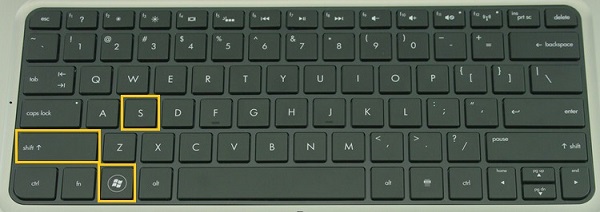
Snip & Sketch is a useful app for taking screenshots on HP laptops. To open it, press Windows key + Shift + S. The screen will dim, and a small menu appears at the top. Choose from rectangular, freeform, window, or full-screen snip.
Quick shortcuts make capturing easy. Press PrtScn to copy the whole screen. Press Windows + PrtScn to save the screenshot automatically to your Pictures folder.
After taking a screenshot, the app lets you annotate using a pen, pencil, or highlighter. You can also erase marks and crop the image. When done, share your screenshot by clicking the share icon or saving it to your device.
Credit: www.fonepaw.com
Third-party Screenshot Tools
Several free apps help capture screenshots on HP laptops. Popular choices include Lightshot, Greenshot, and Snagit. These tools offer more features than the built-in options.
Advanced features often include easy editing, annotation, and quick sharing. Some apps let you capture scrolling windows or record your screen.
To install, visit the official website of the app. Download the setup file and run it. Follow simple steps to complete the installation. Most apps work on Windows 10 and 11.
Troubleshooting Screenshot Issues
Keyboard not responding can happen if keys are stuck or damaged. Try pressing the Fn key with the PrtSc key. Restart your laptop to refresh the system. Make sure the keyboard drivers are up to date. If the problem stays, use an external keyboard as a test.
Screenshots not saving often means the default save location is missing or full. Check your Pictures folder or the Clipboard for the screenshot. Use Windows + PrtSc to save images automatically. Clear space on your hard drive if it is full.
Alternative methods include using the Snipping Tool or Snip & Sketch. These apps let you select the screen area to capture. Press Windows + Shift + S to open Snip & Sketch quickly. Another option is using third-party screenshot software for more features.
Frequently Asked Questions
How Do I Take A Screenshot On An Hp Laptop?
Press the “PrtSc” (Print Screen) key to capture the entire screen. Paste it into Paint or Word using Ctrl + V. Save your screenshot as an image file.
What Is The Shortcut For Partial Screenshots On Hp Laptops?
Press “Windows + Shift + S” to open the Snip & Sketch tool. Select the area to capture. The screenshot copies to the clipboard for pasting.
Where Are Screenshots Saved On Hp Laptops?
Screenshots taken with “Windows + PrtSc” save automatically in the Pictures > Screenshots folder. Manually captured screenshots need saving from clipboard apps.
Can I Use Snipping Tool On Hp Laptops?
Yes, the Snipping Tool is pre-installed on HP laptops. Open it from the Start menu to capture freeform, rectangular, window, or full-screen snips.
Conclusion
Capturing a screenshot on your HP laptop is simple and quick. Just follow the steps shared above. You can save images of anything on your screen in seconds. No need for extra tools or apps. Practice a few times to get comfortable.
Screenshots help share information easily with others. Keep these methods in mind for future use. Now, you can capture your screen anytime you want. Try it out and see how easy it is!
As an Amazon Associate, I earn from qualifying purchases.

