

Want to capture exactly what’s on your Surface Laptop screen quickly and easily? Whether you need to save important information, share a funny moment, or keep a copy of something for later, knowing how to take a screenshot can save you time and hassle.
In this guide, you’ll discover simple steps to snap perfect screenshots every time—no tech skills required. Ready to become a screenshot pro? Let’s dive in and make your Surface Laptop work even smarter for you.
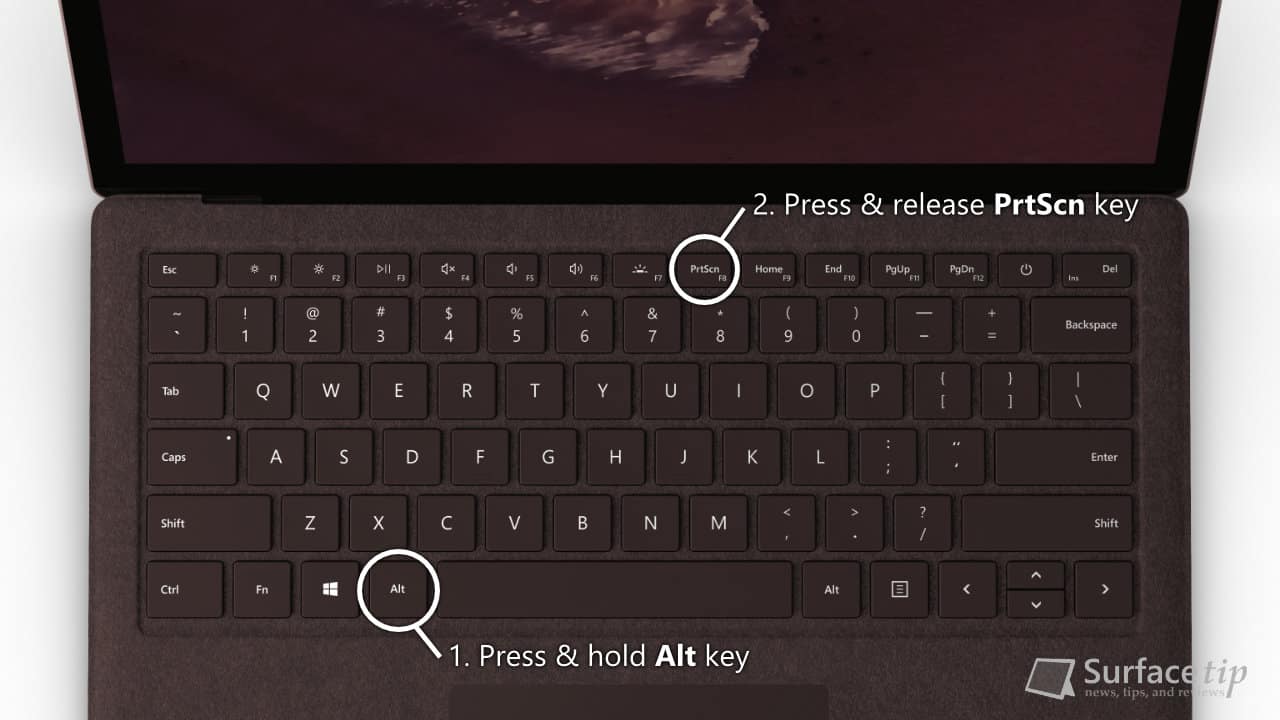
Credit: surfacetip.com
Screenshot Methods On Surface Laptop
Keyboard shortcuts offer a quick way to take screenshots. Press Windows + PrtScn to capture the whole screen. The image saves in the Pictures folder. To capture only the active window, press Alt + PrtScn. You can paste the screenshot directly into apps like Paint or Word.
The Snipping Tool lets you draw a shape around what you want to capture. Open the tool, choose the snip type, and select the area. The screenshot opens in a window where you can save or edit it.
Snip & Sketch is a newer app. Press Windows + Shift + S to open it. Select the screen part to capture. The image copies to the clipboard, ready to paste or save.
Using the Surface Pen adds ease. Double-click the pen’s top button to open Snip & Sketch. Draw on the screen to capture. This method is handy for quick notes or drawings on screenshots.
Saving And Editing Screenshots
Screenshots taken on a Surface Laptop are usually saved automatically in the “Pictures” folder. Inside, look for the “Screenshots” subfolder. This folder holds all the images you capture. Finding them is easy through File Explorer.
Basic editing tools let you crop, highlight, or draw on your screenshots. Use the built-in Photos app or Snip & Sketch for quick edits. Simple changes like adding text or arrows help explain your screenshot better.
Sharing your screenshots is simple. You can attach them to emails or upload to social media. Use the Share button in the Photos app for fast sharing. Screenshots can also be copied and pasted into documents or chats.
Troubleshooting Screenshot Issues
Some common problems with screenshots include the keyboard shortcuts not working. Check if the Windows key and Volume Down buttons are pressed together correctly. Try using the PrtScn key or Fn + PrtScn if the first method fails.
Sometimes, outdated drivers cause screenshot issues. Visit the Device Manager and update the keyboard and display drivers. This can fix many problems.
Make sure your Surface Laptop has the latest Windows updates. Updates often fix bugs that stop screenshots from working.
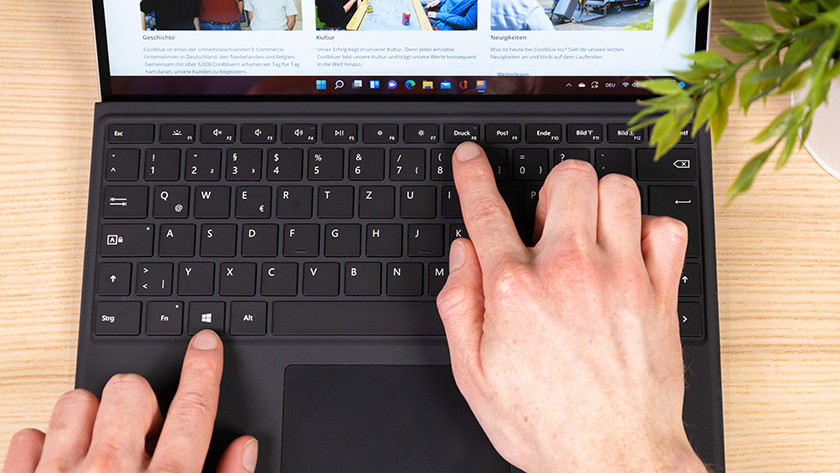
Credit: www.coolblue.de
Tips For Efficient Screenshots
Customizing shortcut keys lets you take screenshots faster. You can change keys to ones easier for you to press. This helps save time and makes capturing screens simple. Check Surface Laptop settings to set your favorite keys.
Using third-party apps gives more tools for screenshots. Some apps allow editing, cropping, and adding text right after capture. Apps like Snagit or Greenshot help organize and improve your images.
Organizing captured screenshots keeps files easy to find. Create folders by date or topic. Rename screenshots with clear names. This saves effort when searching for a picture later.
:max_bytes(150000):strip_icc()/microsoftsurfacebook3screenshot2-f06f82b9e8534ee08c78c21eabdc5e9d.jpg)
Credit: www.lifewire.com
Frequently Asked Questions
How Do I Screenshot On A Surface Laptop Keyboard?
Press the Windows key + Volume Down button simultaneously. The screen will dim briefly, confirming the screenshot is saved. Find the image in the “Screenshots” folder inside your “Pictures” library.
Can I Screenshot Only A Portion On Surface Laptop?
Yes, press Windows + Shift + S keys together. Your screen dims, and a cursor appears. Select the area to capture. The screenshot copies to the clipboard for pasting or saving.
Where Are Surface Laptop Screenshots Saved Automatically?
Screenshots taken with Windows + Volume Down save to “Pictures” > “Screenshots” folder. Snip & Sketch or Snipping Tool copies to clipboard, requiring manual saving. Check these locations based on your capture method.
Is There A Built-in App To Screenshot On Surface Laptop?
Yes, use the Snipping Tool or Snip & Sketch app. They allow free-form, window, or full-screen captures. Both apps offer annotation and easy saving options for screenshots.
Conclusion
Taking a screenshot on your Surface Laptop is simple and quick. Use the keyboard shortcuts or built-in tools to capture your screen. Save and share your images easily. Practice a few times to remember the steps. Screenshots help you save important information fast.
Keep this guide handy for future use. Now, capturing your screen will not be a problem. Try it out and see how easy it can be.
As an Amazon Associate, I earn from qualifying purchases.

