

Wondering how to figure out what monitor you have? It can be tricky when you need to know the exact model for upgrades, repairs, or just to understand its features.
But don’t worry—you’re in the right place. This guide will help you quickly identify your monitor without any technical hassle. By the end, you’ll have all the info you need at your fingertips. Ready to find out more? Let’s dive in!
Check Monitor Labels
Checking the labels on your monitor is a quick way to learn about it. These labels hold key information. They help identify the exact model and who made it. This section guides you through what to look for on these labels.
Look For Model Number
The model number is usually a mix of letters and numbers. It is often found on the back or bottom of the monitor. This number tells you the specific type of monitor. You can use it to search for details online. Knowing the model helps find manuals, specs, and reviews easily.
Find Manufacturer Details
Manufacturer details include the brand name and logo. This information is often near the model number. It tells you who made the monitor. Sometimes, there is a website or contact info. This helps if you need support or want more info about your monitor.

Credit: theiideacompany.com
Use System Settings
Using system settings is a simple way to find out what monitor you have. Your computer stores details about connected displays. These details include the monitor model and resolution. Checking system settings is quick and does not need extra tools.
Access Display Settings On Windows
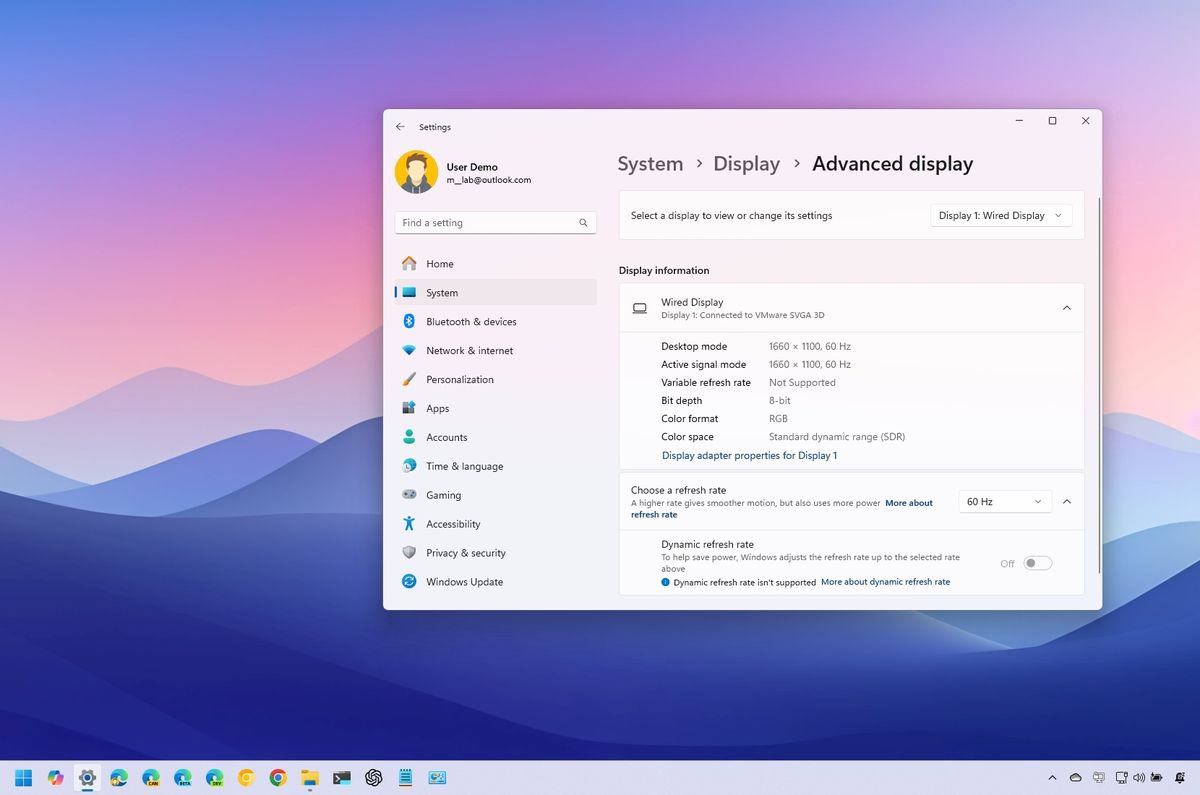
Start by right-clicking on the desktop. Choose “Display settings” from the menu. Scroll down to find “Advanced display settings.” Click on it. Here, you will see the monitor’s name and details. The model number is often listed under “Display information.”
This method works on Windows 10 and 11. You can also check the resolution and refresh rate. These details help confirm the monitor’s identity.
Check Display Info On Mac
Click the Apple icon in the top-left corner. Select “About This Mac” from the dropdown. Then, click the “Displays” tab. You will see the monitor’s model and resolution here.
Mac shows information for built-in and external monitors. This tool helps you learn about your screen without extra software.
Use Third-party Tools
Using third-party tools can make identifying your monitor easier. These tools gather detailed information about your screen. You do not need to open your computer or check the manual. Most tools are free and simple to use.
Monitor Identification Software
Monitor identification software scans your system to find monitor details. It shows the model, manufacturer, and resolution. Some popular options include Monitor Asset Manager and HWiNFO. These programs display clear, easy-to-read reports. They work well on Windows and Mac systems.
You can download these tools online and install them quickly. After running the program, it lists all connected monitors. You learn the exact model and features without guesswork. This saves time and helps with troubleshooting or upgrades.
Hardware Diagnostic Apps
Hardware diagnostic apps check your computer’s devices, including monitors. They provide detailed info about your screen’s hardware and settings. Tools like Speccy and AIDA64 offer comprehensive diagnostics. They also show temperature, connection type, and driver status.
These apps help you understand your monitor’s condition and performance. They can detect problems like outdated drivers or incorrect settings. Using diagnostic apps keeps your monitor running smoothly. You get peace of mind with clear, accurate data.
Credit: www.windowscentral.com
Inspect Physical Features
To figure out what monitor you have, start by inspecting its physical features. This step helps identify key details about your screen. Look closely at its size, resolution, and the ports on the back or sides. These clues provide useful information about your monitor’s model and capabilities.
Screen Size And Resolution
Measure the screen diagonally from one corner to the opposite corner. This size is usually given in inches. Common sizes range from 19 to 32 inches. Check the screen resolution by turning on your computer. The resolution is the number of pixels the screen can display horizontally and vertically. Typical resolutions include 1920×1080 or 2560×1440. These numbers tell you how sharp the picture will be.
Port Types And Layout
Look at the ports on the back or sides of your monitor. Identify if it has HDMI, DisplayPort, VGA, or DVI connections. The number and type of ports vary between models. Some monitors have USB ports or audio jacks too. The layout and types of ports can help you find the exact model or brand. Take a photo or note down the ports for easy reference.
Search Online With Details
Searching online with details helps identify your monitor quickly. You can use specific information found on your monitor to find its exact model and features. This method saves time and gives accurate results.
Use Serial Number
The serial number is a unique code on your monitor. Usually, it is on a sticker at the back or bottom. Enter this number into the manufacturer’s website or search engines. This step can lead you directly to your monitor’s model and specs. Serial numbers reduce confusion between similar models.
Compare Images And Specs
Look for pictures of monitors that look like yours. Compare their size, buttons, and design. Check the specifications such as screen size, resolution, and ports. Match these details to your monitor’s features. This comparison helps confirm your monitor’s identity without technical tools.
Ask For Professional Help
Sometimes, finding out what monitor you have can be tricky. Professional help can make this easier. Experts know how to identify your monitor fast and accurately. They can also guide you on features and specs you might miss. This saves time and avoids confusion.
Contact Manufacturer Support
Calling or emailing the monitor’s manufacturer is a smart step. They keep records of all their products and models. Provide them with any numbers or labels on the monitor. They can quickly tell you the exact model and details. Support teams often help with questions about warranty and updates too.
Visit Tech Service Centers
Local tech centers have specialists who work with monitors daily. Bring your monitor or its information to them. They can check physical features and internal settings. These experts often use tools to scan for model numbers. Their experience helps identify even rare or old monitors. Service centers also offer repair and maintenance tips.

Credit: nstechblog.com
Frequently Asked Questions
How Can I Identify My Monitor Model Quickly?
Check the back or bottom of your monitor for a label. It usually shows the model number and brand. You can also find this information in your computer’s display settings or by using system information tools.
Where Do I Find Monitor Details In Windows Settings?
Go to Settings > System > Display > Advanced display settings. Here, you’ll see the monitor name and resolution details. This helps confirm your monitor’s model and specs without physically checking the device.
Can I Use Third-party Software To Identify My Monitor?
Yes, tools like Speccy or HWiNFO can detect your monitor model and specs. These apps provide detailed hardware info, including monitor manufacturer, model number, and display capabilities.
What Information Is Crucial For Identifying A Monitor?
The key details include the model number, manufacturer, screen size, and resolution. These factors help you understand your monitor’s capabilities and compatibility with your system.
Conclusion
Knowing your monitor model helps with updates and troubleshooting. Check labels, settings, or use system tools to find details. Writing down or saving this info saves time later. It also helps when buying accessories or replacements. Take a few minutes now to identify your monitor clearly.
This small step makes future tech tasks easier and faster. Keep your monitor info handy for smooth computer use. Simple actions lead to better device management every day.
As an Amazon Associate, I earn from qualifying purchases.

