

Is your computer monitor stuck in power save mode, leaving you staring at a blank screen when you need to get things done? You’re not alone, and the good news is that getting your monitor back to normal is easier than you think.
Whether it’s a quick fix or a simple setting adjustment, this guide will walk you through the steps to wake up your screen fast. Keep reading, and you’ll have your monitor working like new in no time.
Credit: www.cgdirector.com
Causes Of Power Save Mode
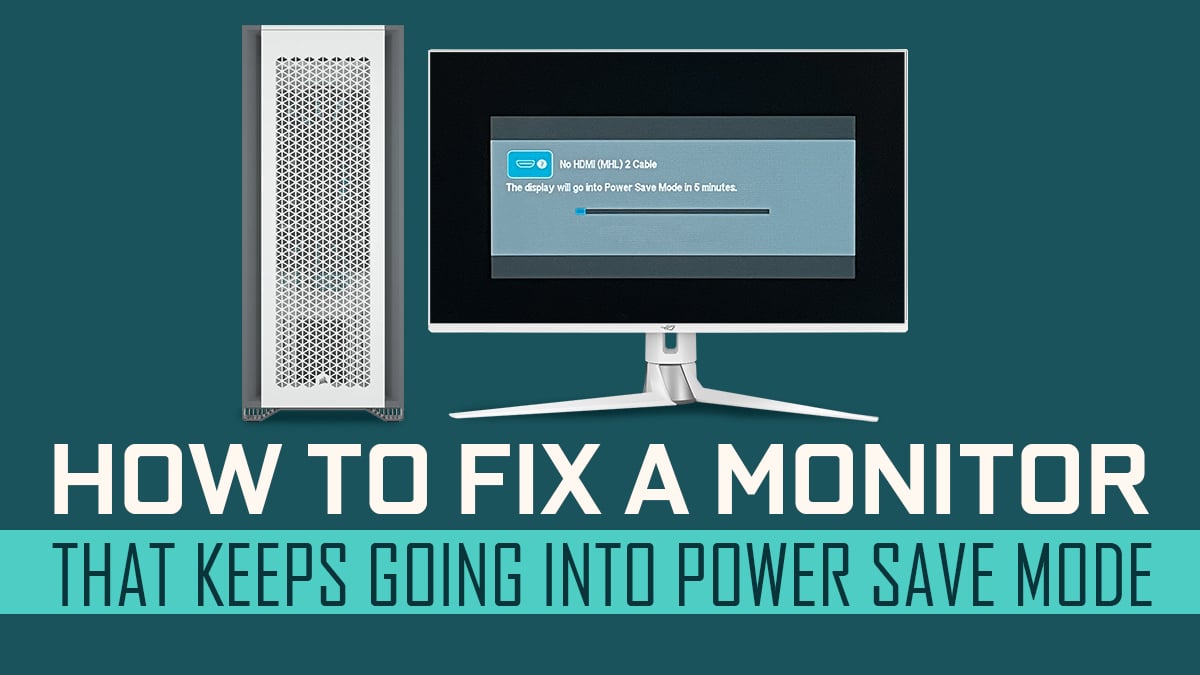
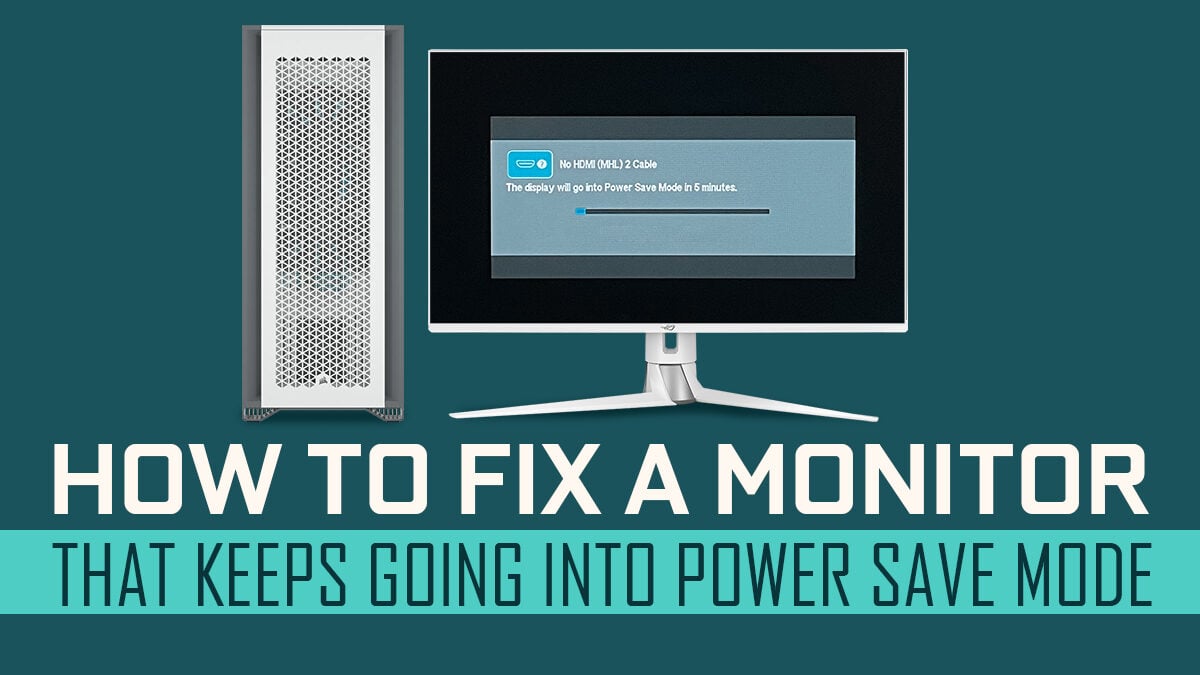
Power save mode on a computer monitor can be frustrating. It stops your screen from showing anything and seems like the monitor is off. Understanding why your monitor goes into this mode helps you fix the issue fast. Several common causes might trigger power save mode without warning.
Automatic Sleep Settings
Monitors have built-in sleep timers. These timers turn off the display after a set time of no activity. The computer’s power settings also control this. Sometimes, these settings are too short or active by mistake. Adjusting these timers can stop the monitor from entering power save mode too soon.
Loose Or Disconnected Cables
A loose or unplugged cable can cause the monitor to lose signal. Without a signal, the monitor thinks the computer is off. Check all cables between your monitor and computer. Make sure they are plugged in firmly and not damaged. A good connection keeps the screen active.
Graphics Card Issues
The graphics card sends video signals to the monitor. Problems with the graphics card can cut off this signal. Drivers that are outdated or corrupted often cause these problems. Restarting your computer or updating drivers can fix this. A healthy graphics card is key to a working display.
Monitor Firmware Glitches
Monitors have firmware to control their functions. Sometimes, this firmware has bugs that cause power save mode errors. Firmware updates from the manufacturer can fix these glitches. Check the monitor’s website for updates. Installing updates can improve the monitor’s performance and stability.
Credit: www.cgdirector.com
Basic Troubleshooting Steps
Basic troubleshooting steps help fix common monitor issues quickly. These steps are easy to follow and often restore your screen from power save mode. Start simple and check connections, restart devices, and try waking the screen.
Check Power And Video Connections
First, confirm the monitor is plugged into a power source. Check the power cable for damage or loose connections. Next, inspect the video cable connecting your monitor to the computer. Make sure it fits tightly on both ends. A loose or damaged cable can cause the screen to stay in power save mode.
Restart Your Computer And Monitor
Turn off your computer and monitor completely. Wait for about 30 seconds. Then, turn the monitor on first, followed by the computer. Restarting can clear errors and refresh the connection between devices. This simple step often solves the power save mode issue.
Use Keyboard Or Mouse To Wake Screen
Try moving your mouse or pressing any key on the keyboard. This action sends a signal to the computer and can wake the monitor from power save mode. Some monitors need this signal to turn the display back on. If this does not work, try pressing the power button on the monitor once.
Adjust Power Settings In Windows
Adjusting power settings in Windows can help fix your monitor stuck in power save mode. These settings control how your computer manages energy and screen activity. Changing them can stop the monitor from going into sleep or power save mode too soon. This guide shows simple steps to tweak these options for a better experience.
Modify Sleep And Display Timers
Open the Start menu and go to Settings. Select System, then click on Power & Sleep. Find the screen and sleep sections. Set the timers to a longer time or choose “Never” to prevent the monitor from turning off. This keeps your display active for longer periods.
Disable Hybrid Sleep
Hybrid sleep can cause power save issues. To disable it, open Control Panel and go to Power Options. Click on “Change plan settings” next to your active power plan. Then select “Change advanced power settings.” Find Sleep, expand it, and turn off Hybrid sleep. Save changes and close the window.
Update Power Plan Settings
Sometimes, default power plans may not fit your needs. Create a custom power plan by going to Power Options. Click on “Create a power plan” and follow the steps. Customize display and sleep settings to avoid unwanted power save mode. Activate your new plan for better control over your monitor’s behavior.
Fix Mac Power Save Mode
Fixing Mac power save mode helps your monitor wake up quickly. Sometimes, your Mac screen stays in power save mode even after moving the mouse or pressing keys. This issue can slow your work or cause frustration. The steps below guide you to fix this problem easily.
Change Energy Saver Preferences
Open System Preferences from the Apple menu. Click on Energy Saver. Adjust the slider for “Turn display off after” to a longer time. Uncheck “Put hard disks to sleep when possible.” Make sure “Prevent computer from sleeping automatically” is selected. This stops the Mac from going into power save mode too soon.
Reset System Management Controller
Shut down your Mac completely. Press and hold Shift + Control + Option keys and the power button. Hold these keys for 10 seconds, then release. Turn on your Mac normally. Resetting the SMC can fix power and display issues, including power save mode problems.
Check For Software Updates
Open System Preferences and click Software Update. Install any available updates for macOS. Updates often fix bugs and improve system functions. Keeping your Mac updated helps avoid power save mode glitches. Restart your Mac after installing updates.
Update Or Roll Back Display Drivers
Display drivers control how your computer shows images on the monitor. Outdated or faulty drivers often cause the monitor to stay in power save mode. Updating or rolling back these drivers can fix the problem. This section explains simple steps to check, reinstall, or roll back your display drivers.
Check For Latest Driver Updates
Open Device Manager by typing it in the search bar. Find “Display adapters” and click to expand. Right-click your graphics card and select “Update driver.” Choose “Search automatically for updated driver software.” Windows will look online for newer drivers. Install any updates it finds, then restart your computer.
Reinstall Graphics Drivers
Sometimes drivers get corrupted. Reinstalling can help. Go to Device Manager and right-click your graphics card. Select “Uninstall device” and confirm. Restart your PC. Windows will reinstall the driver automatically. This resets the driver to a clean state and may fix power save mode issues.
Roll Back To Previous Driver Version
New drivers may cause problems too. Rolling back can restore stability. Open Device Manager and right-click your graphics card. Select “Properties” and go to the “Driver” tab. Click “Roll Back Driver” if available. Follow the prompts and restart your computer. This returns your driver to the last working version.

Credit: www.youtube.com
Monitor-specific Solutions
Monitor-specific solutions help fix power save mode problems. These methods focus on settings and hardware related to your monitor.
Try these steps to check if your monitor itself causes the issue. This can save time and avoid unnecessary changes to your computer.
Reset Monitor To Factory Settings
Resetting the monitor clears any wrong settings. This can fix glitches causing power save mode. Find the reset option in the monitor’s menu. Use the buttons on the monitor to navigate. Select “Factory Reset” or “Reset All Settings.”
After reset, the monitor returns to default settings. This often solves display and power problems.
Check Monitor On-screen Display
Access the On-Screen Display (OSD) menu using monitor buttons. Look for power-saving settings or sleep mode options. Turn off or adjust these settings to stop power save mode. Check brightness and contrast settings too. Sometimes, very low brightness looks like the monitor is off.
OSD also shows input source. Make sure the input matches the connected cable.
Test With Different Monitor Or Cable
Try another monitor on your computer. This shows if your original monitor causes the problem. Use a different cable with your current monitor. Faulty cables can cause power save mode issues. Replace cables that look worn or damaged.
Testing helps find if the problem is with the monitor, cable, or computer.
Preventing Future Power Save Issues
Preventing future power save issues with your computer monitor helps keep your work smooth. It stops unwanted screen blackouts and saves time. Simple steps can reduce the chance of these problems happening again. Setting up your system for your needs is key. Regular care also plays a big role in avoiding power save mode troubles.
Customize Power Options For Your Workflow
Adjust your computer’s power settings to fit your daily tasks. Set the monitor to stay on longer during work hours. Choose sleep or screen off times that match your breaks. This stops the screen from going into power save mode too soon. Use the control panel or system settings to make these changes.
Keep Drivers And Firmware Updated
Monitor and graphics card drivers need regular updates. Updates fix bugs that cause power save issues. Check the manufacturer’s website for the latest versions. Install updates promptly to avoid screen problems. Firmware updates for the monitor itself can also help stability and performance.
Regular Maintenance And Cable Checks
Inspect cables for loose or damaged connections often. Faulty cables can trigger power save mode mistakenly. Clean the monitor and ports to prevent dust buildup. Dust can cause poor connections and screen issues. Regular care keeps your hardware working well and prevents errors.
Frequently Asked Questions
Why Is My Monitor Stuck In Power Save Mode?
Your monitor may be stuck due to loose cables, incorrect display settings, or outdated drivers. Check all connections, update your graphics driver, and adjust power settings to resolve this issue quickly.
How Do I Disable Power Save Mode On My Monitor?
Access your computer’s power settings and set the display sleep option to “Never. ” You can also adjust the monitor’s built-in menu to disable power-saving features manually.
Can A Faulty Cable Cause Power Save Mode Issues?
Yes, damaged or loose cables can trigger power save mode. Ensure HDMI, DisplayPort, or VGA cables are securely connected and in good condition to prevent this problem.
What Keyboard Shortcuts Wake A Monitor From Power Save Mode?
Pressing any key, moving the mouse, or using the power button usually wakes the monitor. If these don’t work, check your device’s power settings or restart your computer.
Conclusion
Getting your monitor out of power save mode is simple. Check the cable connections first. Press any key or move the mouse to wake it. Adjust your computer’s power settings to prevent future issues. Restart your device if the screen stays dark.
Keep your drivers updated for smooth performance. These steps help you see your screen again quickly. Stay patient and try each tip carefully. Your monitor will be active and ready soon.
As an Amazon Associate, I earn from qualifying purchases.

