

Looking to enjoy your PS4 games on a bigger, sharper screen without buying a new TV? Connecting your PS4 to a computer monitor is easier than you think.
Whether you want better graphics, less lag, or just a change of setup, this guide will show you exactly how to do it step-by-step. By the end, you’ll have your gaming system ready to go, and you’ll wonder why you didn’t switch sooner.
Ready to level up your gaming experience? Let’s dive in.
Credit: www.youtube.com
Check Monitor Compatibility
Before connecting your PS4 to a computer monitor, check if the monitor is compatible. This step avoids connection problems and poor display quality. Not all monitors work well with a PS4. Understanding your monitor’s ports and resolution helps ensure a smooth setup.
Identify Available Ports
Look at the back or side of your monitor. Find out which ports are available. Most monitors have HDMI, DisplayPort, or DVI ports. The PS4 uses an HDMI cable to connect. Your monitor must have an HDMI port or a way to convert signals to HDMI. Without the right port, the PS4 will not connect properly.
Verify Resolution Support
Check the maximum resolution your monitor supports. The PS4 outputs video in 720p, 1080p, or 4K, depending on the model. Your monitor should support at least 1080p for good image quality. Lower resolution monitors may show blurry or stretched images. Match the monitor’s resolution to the PS4’s output settings for the best experience.

Credit: www.wikihow.com
Gather Necessary Equipment
Before connecting your PS4 to a computer monitor, gather all the necessary equipment. Having the right tools makes the setup smooth and hassle-free. This step ensures the best picture and sound quality for your gaming experience.
Hdmi Cables And Adapters
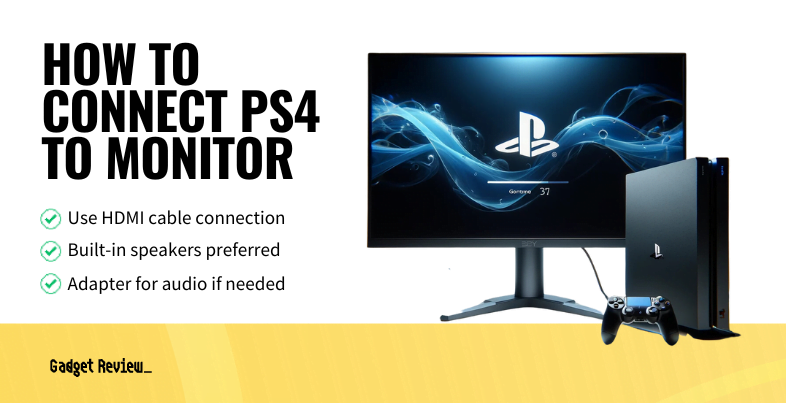
The PS4 uses an HDMI cable to send video and audio to a screen. Most computer monitors have an HDMI port, so a standard HDMI cable usually works. Check your monitor for HDMI input before buying cables.
Some older monitors lack HDMI ports. They might have DVI or VGA connections instead. In this case, use an HDMI to DVI or VGA adapter. Make sure the adapter supports audio if you want sound through the monitor. Otherwise, you will need a separate audio solution.
Audio Solutions
Many computer monitors do not have built-in speakers. You might not hear game sounds through the monitor alone. The PS4 sends audio through the HDMI cable by default.
To solve this, use external speakers or headphones. Connect them to the PS4 controller’s headphone jack. Another option is to use an optical audio cable if your PS4 and sound system support it. Choose the audio setup that fits your gaming space and preferences.
Connect The Ps4 To The Monitor
Connecting your PS4 to a computer monitor is simple. It lets you enjoy games with a crisp, clear picture. This guide explains how to link your console to the screen quickly and easily.
Follow the steps below to set up your PS4 with a monitor. No extra tools are needed unless your monitor lacks certain ports.
Plugging In The Hdmi Cable
Start by finding the HDMI port on your PS4. It is located on the back of the console. Next, take one end of the HDMI cable and plug it in firmly.
Look for the HDMI input on your monitor. Connect the other end of the cable there. Make sure both ends are secure to avoid loose signals.
Turn on the monitor and PS4. The screen should show your PS4’s home menu. If not, check the monitor’s input source. Select HDMI to display the console’s output.
Using Adapters If Needed
Some monitors do not have an HDMI port. They might use VGA, DVI, or DisplayPort instead. In this case, use an adapter to connect the PS4’s HDMI cable to the monitor.
Choose a high-quality adapter for the best picture. Plug the HDMI cable into the adapter’s input. Then connect the adapter to the monitor’s port.
Power on both devices and adjust the monitor’s input source. Select the port matching the adapter connection. Your PS4 image should appear clearly.
Set Up Audio Output
Setting up audio output is important when connecting your PS4 to a computer monitor. Most monitors do not have built-in speakers. This means you need to connect sound separately. Good audio makes games more fun and immersive.
You have options for audio output. You can use external speakers or headphones. Each option has its own setup process. Choose what fits your space and style.
Connecting External Speakers
To connect external speakers, check your monitor and PS4 ports. Use the audio out port on your PS4 controller or the HDMI audio output. Some monitors have a headphone jack or audio out port. Plug your speakers into these ports.
If your monitor lacks audio ports, use an HDMI audio extractor. This device splits audio from the HDMI signal. Connect the extractor to your PS4 and speakers. This way, you get clear sound from your speakers.
Using Headphones With Ps4
Using headphones is simple and private. Plug headphones into the PS4 controller’s headphone jack. The sound switches automatically. You can hear game sounds and chat audio clearly.
You can also use wireless headphones with a Bluetooth adapter. Connect the adapter to the PS4 USB port. Pair your headphones with the adapter. This setup gives you freedom to move around.
Adjust Display Settings
Adjusting display settings is important for a clear and smooth gaming experience on your monitor. It ensures the PS4 picture fits well and looks sharp. Proper settings reduce strain on your eyes and improve gameplay.
Follow the steps below to set the best display options for your PS4 and monitor.
Configuring Ps4 Video Output
Turn on your PS4 and go to the main menu. Open the Settings app. Select “Sound and Screen.” Click on “Video Output Settings.”
Choose the right resolution for your monitor. Common options are 720p, 1080p, or 4K. Select the resolution that matches your monitor’s native display. This gives you the best picture quality.
Set the RGB Range to “Full” for richer colors. You can also adjust the HDR settings if your monitor supports it. Save the changes before exiting the menu.
Optimizing Monitor Settings
Use your monitor’s on-screen menu to adjust brightness, contrast, and sharpness. Lower brightness to avoid eye strain during long gaming sessions.
Set the monitor to game mode if available. This reduces input lag and improves response time. Adjust the color temperature to a neutral or warm setting for natural colors.
Check the monitor’s refresh rate and set it to the highest supported value. A higher refresh rate creates smoother motion in games.
Credit: www.gadgetreview.com
Troubleshooting Tips
Connecting your PS4 to a computer monitor can sometimes bring small issues. Troubleshooting helps fix these problems quickly. This guide covers common problems and easy ways to solve them. Follow these tips for a smooth gaming experience.
No Signal On Monitor
Check if the HDMI cable is firmly plugged into both PS4 and monitor. Try another HDMI cable to rule out a faulty wire. Make sure the monitor is set to the correct HDMI input source. Restart the PS4 and monitor to refresh the connection. Sometimes, a loose connection causes the “No Signal” message.
Audio Issues
Most monitors do not have built-in speakers. Connect headphones or external speakers to the PS4 controller or audio output. Check the PS4 sound settings under “Sound and Screen” to confirm audio output is set correctly. If using HDMI audio, ensure the monitor supports audio over HDMI. Adjust volume levels on both the PS4 and external speakers.
Resolution Problems
The PS4 might send a resolution your monitor cannot display. Switch the PS4 to Safe Mode and select “Change Resolution” to set a compatible size. Try common resolutions like 1080p or 720p for better compatibility. Check the monitor’s supported resolutions in its manual or settings menu. Adjust the PS4 video output settings to match the monitor’s native resolution.
Frequently Asked Questions
How Do I Connect My Ps4 To A Computer Monitor?
Use an HDMI cable to connect the PS4’s HDMI out port to the monitor’s HDMI in port. Power on both devices. Adjust the monitor input source to HDMI. The PS4 display should appear on your monitor instantly.
Can I Use A Vga Monitor With Ps4?
Yes, but you need an HDMI to VGA adapter. Connect the PS4 to the adapter, then connect the adapter to the VGA monitor. Ensure the adapter supports audio if sound is needed, as VGA does not transmit audio signals.
How Do I Get Audio From Ps4 To Monitor?
If your monitor has built-in speakers and HDMI input, audio comes through HDMI. Otherwise, use the PS4’s optical audio out or connect headphones/controllers for sound. External speakers connected via the PS4 controller or optical output work well.
Why Is My Ps4 Not Displaying On The Monitor?
Check if the HDMI cable is properly connected and the monitor input is set correctly. Try using a different HDMI cable or port. Restart both devices. Also, verify the PS4 video output settings match your monitor’s resolution.
Conclusion
Connecting a PS4 to a computer monitor is simple and fast. Use an HDMI cable to link both devices. Adjust the monitor settings for the best picture quality. Remember to check the sound output since some monitors do not have speakers.
This setup lets you enjoy games without a TV. Try it out and see the difference yourself. Playing on a monitor can feel fresh and clear. Follow these steps, and you will be ready to play quickly.
As an Amazon Associate, I earn from qualifying purchases.

