

Are you tired of your Arduino Serial Monitor getting cluttered with old messages? It can be frustrating when you want a clear view of new data but see a messy screen instead.
Knowing how to clear the Serial Monitor quickly can save you time and help you focus on what really matters—your project’s results. You’ll discover simple, effective ways to clear your Serial Monitor so you can keep your workspace clean and your mind clear.
Let’s get started and make your Arduino experience smoother than ever!
Credit: www.theengineeringprojects.com
Why Clear Serial Monitor
Clearing the Serial Monitor in Arduino helps keep your workspace clean and organized. It makes reading data easier. A cluttered monitor can confuse you and slow down your work. Removing old data means you see only what matters now. This small step improves your coding experience significantly.
Improving Readability
Old data can make the Serial Monitor hard to read. Clearing it removes clutter and shows fresh data clearly. This helps you focus on new information without distraction. Clean screens are easier on the eyes and reduce mistakes.
Avoiding Data Overlap
Data overlap happens when new and old messages mix. This causes confusion and errors in understanding outputs. Clearing the monitor stops messages from blending together. It ensures each message stands alone and is easy to track.
Troubleshooting Benefits
Debugging code becomes easier with a clear Serial Monitor. You see only the latest errors and messages. This helps find problems faster and fixes bugs quickly. A clean monitor saves time and reduces frustration during testing.
Methods To Clear Serial Monitor
Clearing the Serial Monitor in Arduino helps keep your workspace clean. It removes old data and makes new information easier to read. Several methods exist to clear the Serial Monitor quickly and effectively.
Each method suits different needs and situations. Learn how to clear the Serial Monitor using simple tools and tricks.
Using Arduino Ide Controls
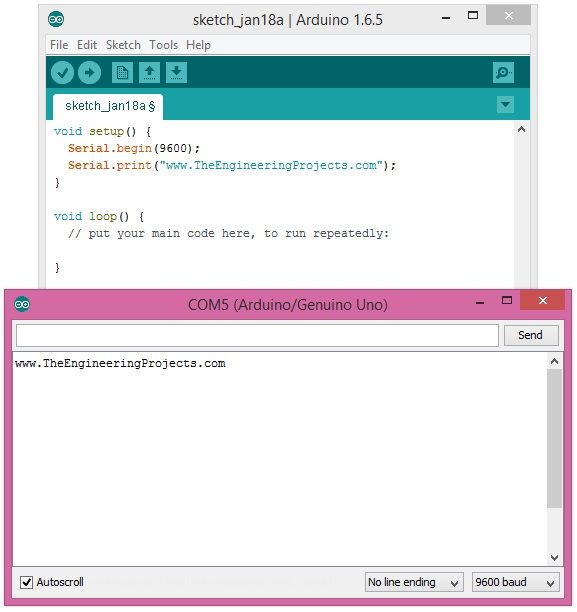
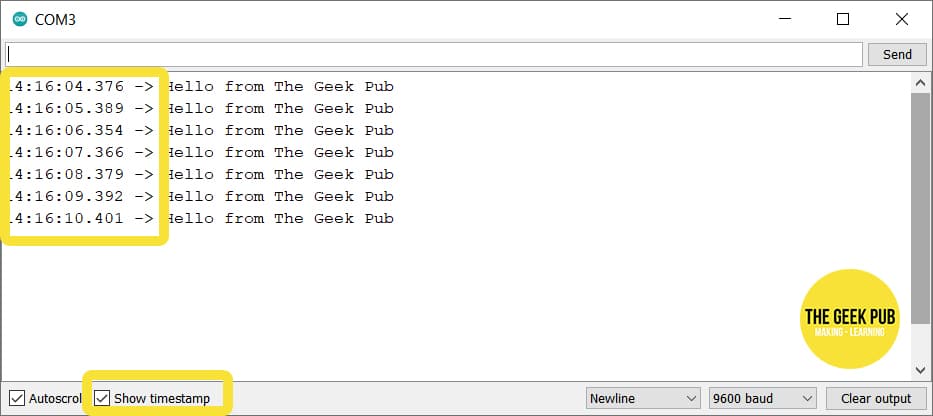
The Arduino IDE has built-in controls for the Serial Monitor. You can clear the screen by clicking the trash icon. This button is usually at the top-right corner of the Serial Monitor window. It clears all the data displayed instantly. This method is fast and easy to use.
Keyboard Shortcuts
Keyboard shortcuts offer a quick way to clear the Serial Monitor. Press Ctrl + Shift + M to open or close the Serial Monitor. Closing and reopening the window clears the screen. This method saves time and avoids using the mouse. It works well for users who like shortcuts.
Resetting The Board
Resetting the Arduino board also clears the Serial Monitor output. Press the reset button on the board to restart the program. This action stops current communication and clears old messages. The Serial Monitor shows fresh data after reset. Use this when you want to restart your code and clear the display together.
Code Techniques To Refresh Output
Refreshing the Serial Monitor output helps keep your Arduino projects clear and easy to read. Changing the display regularly shows the latest data without clutter. This section explores simple coding methods to refresh the Serial Monitor screen effectively.
These techniques make your output neat and update it smoothly. They work well for projects that show changing information or sensor readings.
Sending Clear Commands
One way to clear the Serial Monitor is by sending specific commands. Some terminals accept commands that erase the screen. For example, sending a form feed character (Serial.write(12);) can clear the display on some monitors.
This method depends on the terminal’s support. It is simple but may not work everywhere. Test it on your setup before relying on it.
Using Escape Sequences
Escape sequences control cursor movement and screen clearing. The sequence "33[2J" clears the screen in many terminals. Use Serial.print("33[2J"); to send this command.
Adding "33[H" moves the cursor to the home position. Together, these clear and reset the screen. This method works well for terminals supporting ANSI codes.
Implementing Screen Refresh Logic
Another approach is to overwrite the output instead of clearing. Use Serial.print("r") to return the cursor to the line start. Then print the new data.
This technique updates the current line without flicker. It suits simple displays and saves processing power. Combine it with timed updates for smooth results.
Third-party Tools For Serial Monitoring
Third-party tools offer a fresh way to view and manage Arduino serial data. They often provide better control than the default Arduino IDE serial monitor. These tools help clear the screen quickly and keep your data organized. Many developers prefer them for smoother debugging and testing.
Popular Alternatives To Arduino Ide
Several tools work well for Arduino serial monitoring. PuTTY is a common choice, known for its simplicity. Another option is CoolTerm, which supports multiple platforms. Serial Port Monitor offers detailed data analysis. These tools support clearing the display better than Arduino’s built-in monitor.
Features Supporting Clear Screen
Third-party tools include features to clear the serial monitor easily. Some have a clear screen button to remove all old data. Others let you set automatic clearing after a set time. This keeps the view clean and helps focus on new messages. Many also support saving logs before clearing.
Setup And Usage Tips
Install the tool and connect it to your Arduino’s serial port. Set the correct baud rate to match your Arduino sketch. Use the clear screen button or command to refresh the monitor. Check the tool’s settings for auto-clear options. Save important data before clearing to avoid loss.
Common Issues And Fixes
Clearing the Serial Monitor in Arduino can sometimes cause issues. These problems can stop your code from running smoothly. Understanding common issues helps fix them fast. This keeps your project on track and your output clear.
When Clear Doesn’t Work
Sometimes, the Serial Monitor does not clear as expected. This happens because the monitor stores previous data. Pressing the clear button may not remove all the information. Restarting the Serial Monitor often solves this problem. Closing and reopening the monitor refreshes the display. Another way is to reset the Arduino board. This resets the serial connection and clears the buffer.
Handling Buffer Overflow
The serial buffer has limited size. Sending too much data at once causes overflow. Overflow leads to lost or mixed data on the monitor. To avoid this, send data slowly and in small chunks. Use delay() between transmissions to control the flow. Also, check your code for infinite loops that flood the buffer. Clearing the buffer manually with code commands helps too.
Ensuring Serial Connection Stability
Unstable connections cause incomplete or delayed data display. Loose USB cables can interrupt the serial link. Use a good quality USB cable and secure connections. Avoid using USB hubs that may cause power drops. Ensure the correct COM port is selected in the Arduino IDE. Proper baud rate settings must match the Arduino code to maintain stability.
Credit: www.thegeekpub.com

Credit: startingelectronics.org
Frequently Asked Questions
How Do I Clear The Arduino Serial Monitor Screen?
To clear the Serial Monitor, simply close and reopen it. This resets the display and removes previous output, making the screen blank.
Can I Clear Serial Monitor Using Arduino Code?
No, Arduino code cannot directly clear the Serial Monitor. Clearing is controlled by the IDE interface, not the sketch.
Why Does The Serial Monitor Not Clear Automatically?
The Serial Monitor keeps previous output for reference. It doesn’t clear automatically to help you track data history during debugging.
Is There A Shortcut To Clear Serial Monitor Quickly?
No direct shortcut exists. The fastest way is closing and reopening the Serial Monitor window manually.
Conclusion
Clearing the Serial Monitor helps keep your Arduino work neat and clear. It makes reading new data easier and faster. You can clear the screen by closing and reopening the monitor or using simple commands in your code. These small steps save time and reduce confusion.
Practice this habit to improve your Arduino projects. Clean and clear displays make debugging simpler and more effective. Try these tips in your next Arduino session for better results.
As an Amazon Associate, I earn from qualifying purchases.

