

Have you ever wondered if your work computer is watching your every move? You might think your screen is just a window to your tasks, but what if someone is quietly tracking what you do?
Knowing if your work computer is being monitored isn’t just about privacy—it’s about understanding your rights and staying safe. You’ll discover clear signs to look for and simple steps to take. Keep reading, because what you don’t know could affect your job and peace of mind.

Credit: www.reddit.com
Unusual System Performance
Unusual system performance can be a sign that your work computer is being monitored. Monitoring software often uses your computer’s resources. This can cause your system to behave oddly or slow down. Watch for changes that seem sudden or unexplained. These may indicate hidden processes running in the background.
Slow Response Times
Your computer may take longer to open programs or files. Simple tasks might lag or freeze briefly. This slowdown happens because monitoring tools use CPU and memory. These tools run silently, affecting your system’s speed without clear warning. Notice if your computer becomes sluggish during normal use.
Unexpected Crashes
Programs or your entire system may crash without reason. Monitoring software can interfere with normal operations. Crashes might occur more often or at strange times. This instability suggests that unknown software is running in the background. Frequent crashes are a red flag to check for monitoring tools.
Suspicious Software Installations
Suspicious software installations can reveal if your work computer is being monitored. Watch for programs that you did not install. These may track your activity or collect your data without your knowledge. Monitoring software often runs quietly in the background. It might be hidden from the usual program list.
Unknown Programs
Check the list of installed programs regularly. Look for names that seem strange or unfamiliar. Monitoring tools often have generic or odd names. They might try to blend in with system programs. If you spot a new program you did not add, be cautious. Research the program online to see if others have reported it as monitoring software.
Hidden Background Processes
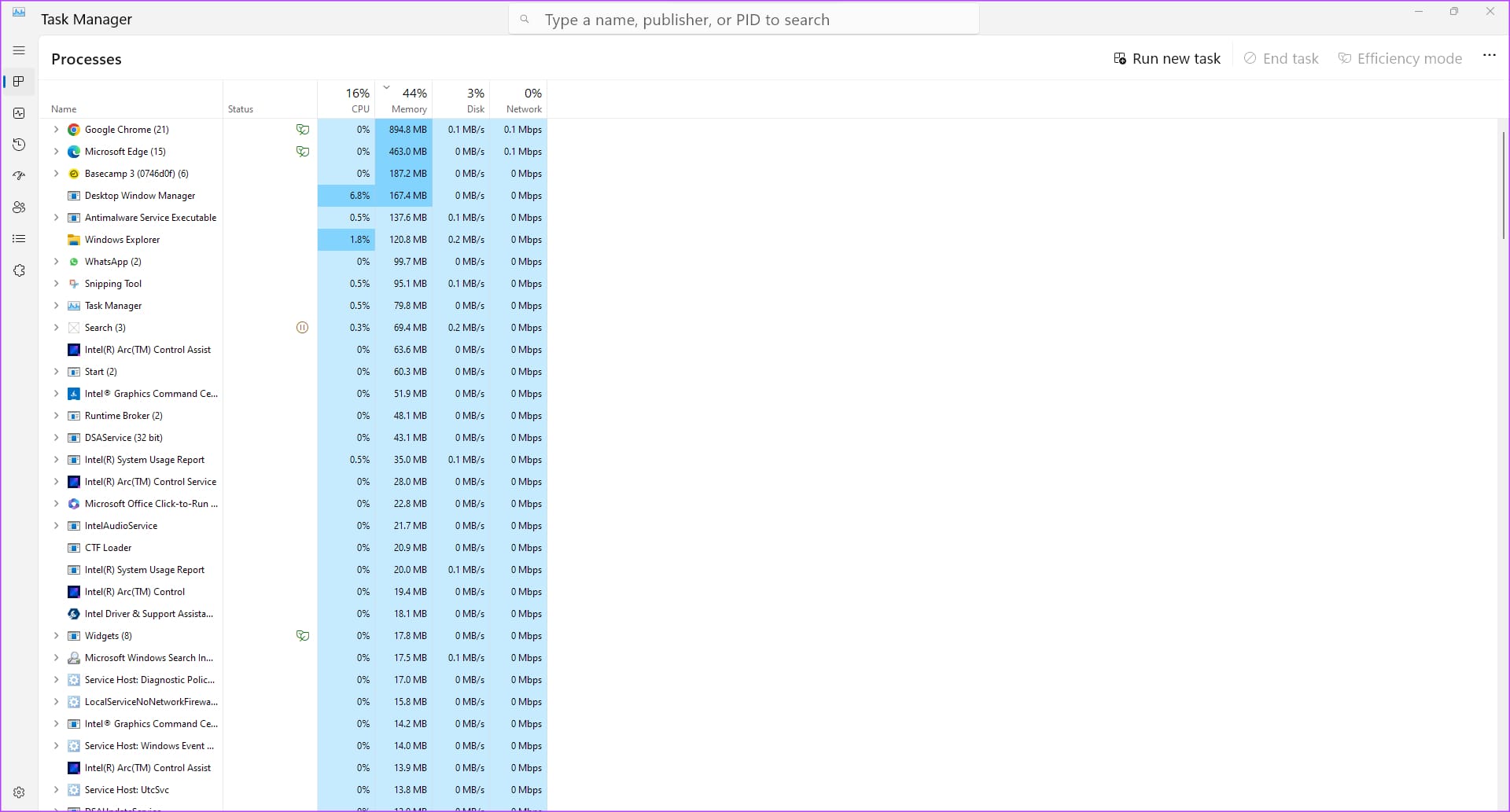
Some monitoring software runs as background processes. These processes do not show up as open windows. Use your task manager to view running processes. Look for processes with strange or random names. They may consume resources even when you are not using your computer. Suspicious background processes often restart if you close them.
Increased Network Activity
Increased network activity can be a sign that your work computer is being monitored. Monitoring software often sends data from your device to a remote server. This causes your network to work harder than usual. Watching your network activity helps detect unusual behavior.
High Data Usage
Check your data usage regularly. Monitoring tools can use a lot of data to send information. If your data spikes without your action, this could be a warning. Look for sudden jumps in data use during work hours. These spikes may mean your computer sends extra information.
Frequent Connections To Unknown Servers
Look at the servers your computer connects to. Unknown or suspicious servers can indicate monitoring. Monitoring software often contacts servers that you do not know. Use network tools to see these connections. Repeated contact with strange servers is a red flag.
Changes In Security Settings
Changes in security settings can signal that your work computer is being monitored. These settings protect your device and data. When they change without your knowledge, it may mean someone else controls your computer. Watch for sudden shifts in antivirus or firewall status. Also, check if privacy controls are altered. Such changes may reduce your protection and privacy.
Disabled Antivirus Or Firewall
Antivirus and firewall software guard your computer against threats. If these tools are suddenly off or disabled, it raises concern. Monitoring software may turn them off to avoid detection. Check your antivirus dashboard regularly. Look for alerts or notifications that show it is inactive. Also, verify your firewall status in the system settings. Any unexpected disablement should be investigated immediately.
Altered Privacy Controls
Privacy controls manage what information apps and programs can access. Changes here can expose your data to monitoring tools. Look for new permissions granted to unknown apps. Notice if your camera or microphone settings change without your input. These can be signs of spying or recording. Keep privacy settings locked and review them often. Be alert to any unusual adjustments.
Unusual Login Activity
Unusual login activity can reveal if your work computer is being watched. These signs show when someone accesses your device without your knowledge. Noticing strange login times or locations is a key warning. Monitoring software often logs every access attempt. Checking these details helps you spot hidden surveillance.
Logins At Odd Hours
Logins outside normal work hours may indicate monitoring. Night or early morning access is suspicious. Most employees do not use work computers late at night. Unexpected logins during these times can mean someone else is using your account. Check your login history regularly for strange times.
Multiple Access Points
Access from different devices or places raises red flags. Your work computer should only be logged into from trusted locations. Seeing logins from multiple IP addresses or devices means possible spying. Hackers or monitoring tools can use other access points to watch your activity. Track your access points to catch unusual logins fast.
Presence Of Monitoring Tools
Work computers may have tools that watch what you do. These monitoring tools can track your activity without clear notice. Knowing about these tools helps you understand your privacy level at work.
Some tools record your screen. Others log every key you press. Both methods collect data about your actions. Detecting their presence lets you stay aware and cautious.
Screen Recording Software
Screen recording software captures everything on your display. It takes videos or snapshots of your work. This software runs quietly in the background. It records your documents, emails, and chats.
You might notice your computer running slower. Or see new apps you don’t remember installing. Some screen recorders use a small icon in the system tray. Check for unknown icons or apps in the task manager.
Keyloggers
Keyloggers track every key you press on the keyboard. They record passwords, messages, and searches. These tools run hidden and are hard to detect.
Signs include unexpected slowdowns or strange files on your computer. Antivirus software can sometimes find keyloggers. Regularly scan your system for unusual programs or files.
Alerts From It Or Security Teams
Alerts from IT or security teams often signal that your work computer is monitored. These alerts help keep you aware of company rules and protect sensitive information. They come in different forms, such as notifications or direct messages. Knowing how to spot these alerts can help you understand monitoring practices better.
Policy Notifications
Policy notifications usually appear as pop-ups or emails. They remind you about the company’s computer use rules. These messages explain what is allowed and what is not. The goal is to keep everyone safe and follow legal guidelines. Reading these notifications carefully can help you avoid mistakes.
Direct Warnings
Direct warnings come from IT or security staff. These alerts may follow suspicious activity on your device. They can be phone calls, emails, or in-person talks. The warnings tell you to stop certain actions or inform you about monitoring. Taking these warnings seriously is important for your job and security.

Credit: www.virtualvocations.com
Credit: www.guidingtech.com
Frequently Asked Questions
How Can I Tell If My Work Computer Is Monitored?
Check for unusual software or processes running. Look for monitoring tools or remote access apps. Notice slow performance or unexpected pop-ups. Review company policies about monitoring. These signs often indicate workplace surveillance on your device.
What Software Is Used To Monitor Work Computers?
Common monitoring tools include keyloggers, screen recorders, and remote access software. Employers use these to track activity, productivity, and data security. Examples are Teramind, ActivTrak, and Hubstaff. Knowing these tools helps identify if your computer is monitored.
Is It Legal For Employers To Monitor Work Computers?
Yes, employers can legally monitor work computers if they notify employees. Monitoring policies must comply with local laws and privacy regulations. Transparency and consent are important. Always review your company’s monitoring policy for clarity.
Can Monitoring Software Affect Computer Performance?
Yes, monitoring software can slow down your computer. It runs in the background, using CPU and memory resources. This may cause lag or longer load times. If your work computer feels sluggish, monitoring software could be a reason.
Conclusion
Knowing if your work computer is monitored helps protect your privacy. Watch for unusual activity or software you did not install. Stay aware of company policies about computer use. Use strong passwords and avoid personal tasks on work devices. Trust your instincts if something feels off.
Staying informed keeps you safer and more confident at work. Keep these tips in mind to stay in control.
As an Amazon Associate, I earn from qualifying purchases.

