

Have you ever noticed blurry trails or ghost-like shadows following moving images on your monitor? This annoying effect, known as ghosting, can make your screen look fuzzy and strain your eyes.
But don’t worry—getting rid of ghosting is easier than you think. You’ll discover simple, effective ways to fix ghosting on your monitor so you can enjoy crisp, clear visuals every time you sit down to work or play. Keep reading, and you’ll soon see your screen in a whole new light.

Credit: www.corsair.com
Causes Of Monitor Ghosting
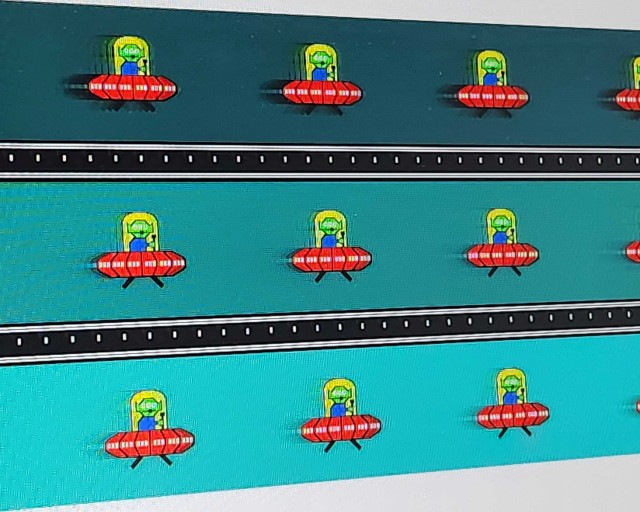
Monitor ghosting happens when moving images leave a trail behind. This effect reduces screen clarity and can be distracting. Several factors cause ghosting, mostly related to how the monitor processes images. Understanding these causes helps fix or reduce the problem effectively.
Slow Response Time
Response time measures how fast pixels change color. Slow response times cause pixels to lag behind the image. This delay creates a blurry trail or ghosting effect on moving objects. Monitors with faster response times show clearer, sharper motion.
Overdrive Settings
Overdrive is a feature that speeds up pixel changes. Incorrect overdrive settings may cause inverse ghosting or extra trails. Too high or too low overdrive can worsen ghosting instead of fixing it. Adjusting these settings carefully can improve image quality.
Cable And Connection Issues
Poor cables or loose connections can affect image signals. Signal delays or interference may cause ghosting on the screen. Using high-quality cables and checking connections often reduces this problem. Always ensure cables fit securely and are free from damage.
Monitor Quality Factors
Cheap or old monitors often have worse ghosting problems. Screen technology and panel type impact how pixels respond. IPS and OLED panels usually handle motion better than older LCDs. Investing in a good-quality monitor helps minimize ghosting naturally.
Quick Fixes For Ghosting
Ghosting on a monitor can be frustrating. It makes images look blurry or leave trails behind moving objects. Fixing ghosting often does not need complex steps. Some quick settings changes can improve your screen’s clarity fast. These quick fixes help most users reduce or remove ghosting.
Adjusting Refresh Rate
The refresh rate is how many times your screen updates per second. A low refresh rate can cause ghosting. Check your monitor settings to find the refresh rate option. Increase it to the highest value your monitor supports. A higher refresh rate refreshes the screen faster. This reduces ghosting and makes motion smoother.
Changing Overdrive Settings
Overdrive controls how fast pixels change color on your monitor. Many monitors have an overdrive option in the menu. Try increasing overdrive slightly to speed up pixel response. Be careful not to set it too high. Too much overdrive can cause inverse ghosting or artifacts. Adjust it in small steps to find the best balance.
Using High-quality Cables
Poor cables can cause signal issues that lead to ghosting. Use good quality HDMI or DisplayPort cables. Avoid cheap or damaged cables that may affect image quality. A stable connection sends clear signals to your monitor. This reduces delays and image trails on the screen.
Updating Graphics Drivers
Old or faulty graphics drivers can cause display problems like ghosting. Check your computer’s graphics card manufacturer website for driver updates. Install the latest drivers to fix bugs and improve performance. Updated drivers help your monitor work correctly with your system. This can reduce or remove ghosting issues.
Advanced Troubleshooting Steps
Advanced troubleshooting helps fix ghosting issues that basic steps cannot solve. It digs deeper into settings, devices, and hardware. This approach often reveals hidden problems affecting your monitor’s display quality.
Try these steps carefully. They improve your chances to remove ghosting and enjoy clearer images.
Calibrating Monitor Settings
Adjust your monitor’s refresh rate to a higher value. This reduces ghosting by refreshing pixels faster. Lower response time settings also help. Check your monitor’s menu for these options.
Reset brightness and contrast to default. Then tweak them slowly to find the best balance. Disable motion blur or overdrive features if your monitor has them. These can sometimes cause ghosting effects.
Testing With Different Devices
Connect your monitor to another computer or laptop. See if ghosting appears on the new device. This step shows if the problem is with your monitor or the original device.
Try different cables like HDMI, DisplayPort, or DVI. Faulty cables can cause display issues. Testing with new cables ensures the connection is clean and stable.
Replacing Faulty Hardware
Inspect your monitor for any physical damage or defects. Cracks or pressure spots can cause ghosting. If your monitor is old, internal components may fail over time.
Consider professional repair or replacement if ghosting persists. Faulty graphics cards or monitor panels often need swapping. Upgrading hardware can restore your screen’s clarity.
Credit: beebom.com
Preventing Ghosting In The Future
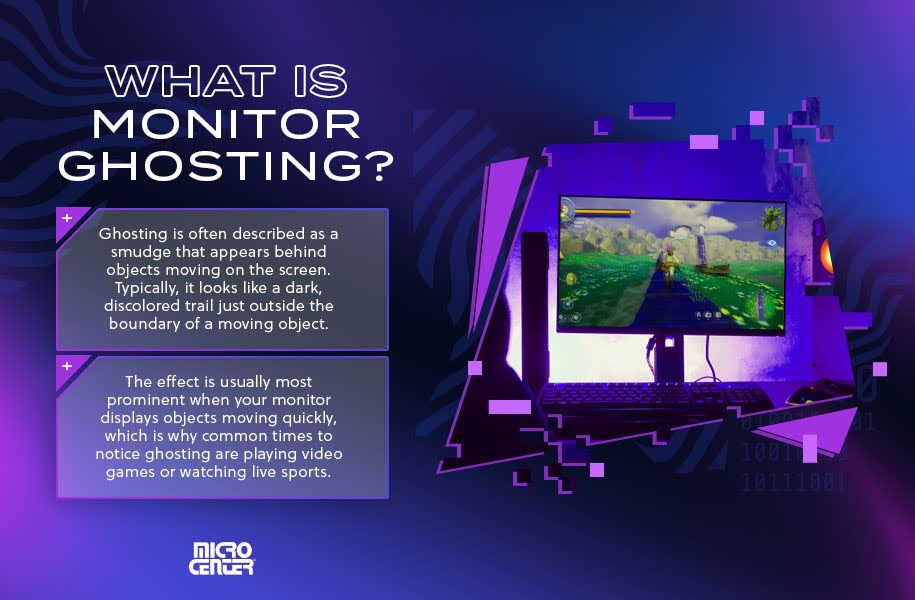
Preventing ghosting on your monitor helps keep images sharp and clear. Ghosting happens when pixels do not change fast enough. This creates blurry trails behind moving objects. Taking steps to avoid ghosting improves your viewing experience. Here are practical ways to stop ghosting before it starts.
Choosing Monitors With Low Response Time
Response time shows how fast pixels change color. Lower response time means less ghosting. Look for monitors with response times below 5 milliseconds. These monitors handle fast motion smoothly. Choosing the right monitor reduces ghosting significantly.
Regular Maintenance Tips
Clean your monitor screen often using a soft cloth. Dust and dirt can affect display quality. Update your monitor’s drivers to keep it running well. Check cables for damage or loose connections. Proper care extends your monitor’s life and prevents ghosting.
Optimal Usage Practices
Avoid running your monitor at very high brightness or contrast. Extreme settings can cause image retention and ghosting. Use recommended display settings for your model. Give your monitor breaks during long use. This prevents overheating and pixel fatigue.
Credit: www.microcenter.com
Frequently Asked Questions
What Causes Ghosting On A Monitor Screen?
Ghosting is caused by slow pixel response times and image persistence. It often occurs with LCD or LED monitors when pixels don’t change colors quickly enough, leaving behind trails or shadows of moving images.
How Can I Fix Ghosting On My Monitor?
To fix ghosting, adjust your monitor’s refresh rate and response time settings. Also, update your graphics drivers and reduce motion blur settings in your display options.
Does Changing The Refresh Rate Reduce Ghosting?
Yes, increasing the refresh rate can reduce ghosting. Higher refresh rates refresh the screen more frequently, minimizing image trails and improving overall motion clarity.
Can Using A Different Cable Improve Ghosting Issues?
Using high-quality cables like DisplayPort or HDMI can improve signal transmission. Poor cables may cause display issues, including ghosting, so upgrading cables sometimes helps.
Conclusion
Ghosting on your monitor can be frustrating to see. Fixing it often takes just a few simple steps. Adjust the settings, check cables, and clean your screen well. Sometimes, a small change makes a big difference. Keep your monitor updated and use the right refresh rate.
These tips help your screen look clear and sharp again. Enjoy a better viewing experience without annoying ghosting effects. Your eyes will thank you.
As an Amazon Associate, I earn from qualifying purchases.

