

Are you looking to get more out of your iMac by using it as a monitor for your PC? It might sound tricky, but with the right steps, you can easily turn your iMac into a second screen and boost your productivity.
Imagine having extra screen space without buying a new monitor—sounds great, right? You’ll discover simple, clear instructions to make this happen. Keep reading, and by the end, you’ll know exactly how to connect your devices and unlock new possibilities for your workspace.
Check Imac Compatibility
Before using an iMac as a monitor for your PC, check its compatibility. Not all iMac models support this feature. Confirming compatibility saves time and avoids frustration. This step ensures your setup will work smoothly.
Learn how to identify if your iMac supports Target Display Mode. Also, find out your iMac’s model and year to check compatibility.
Identify Target Display Mode Support
Target Display Mode lets certain iMacs act as external monitors. Only some iMacs have this feature. Usually, models from 2009 to 2014 support it. You need to verify if your iMac can enter this mode. Check Apple’s official guide or your iMac’s manual. Without this mode, your iMac cannot work as a PC monitor.
Determine Imac Model And Year
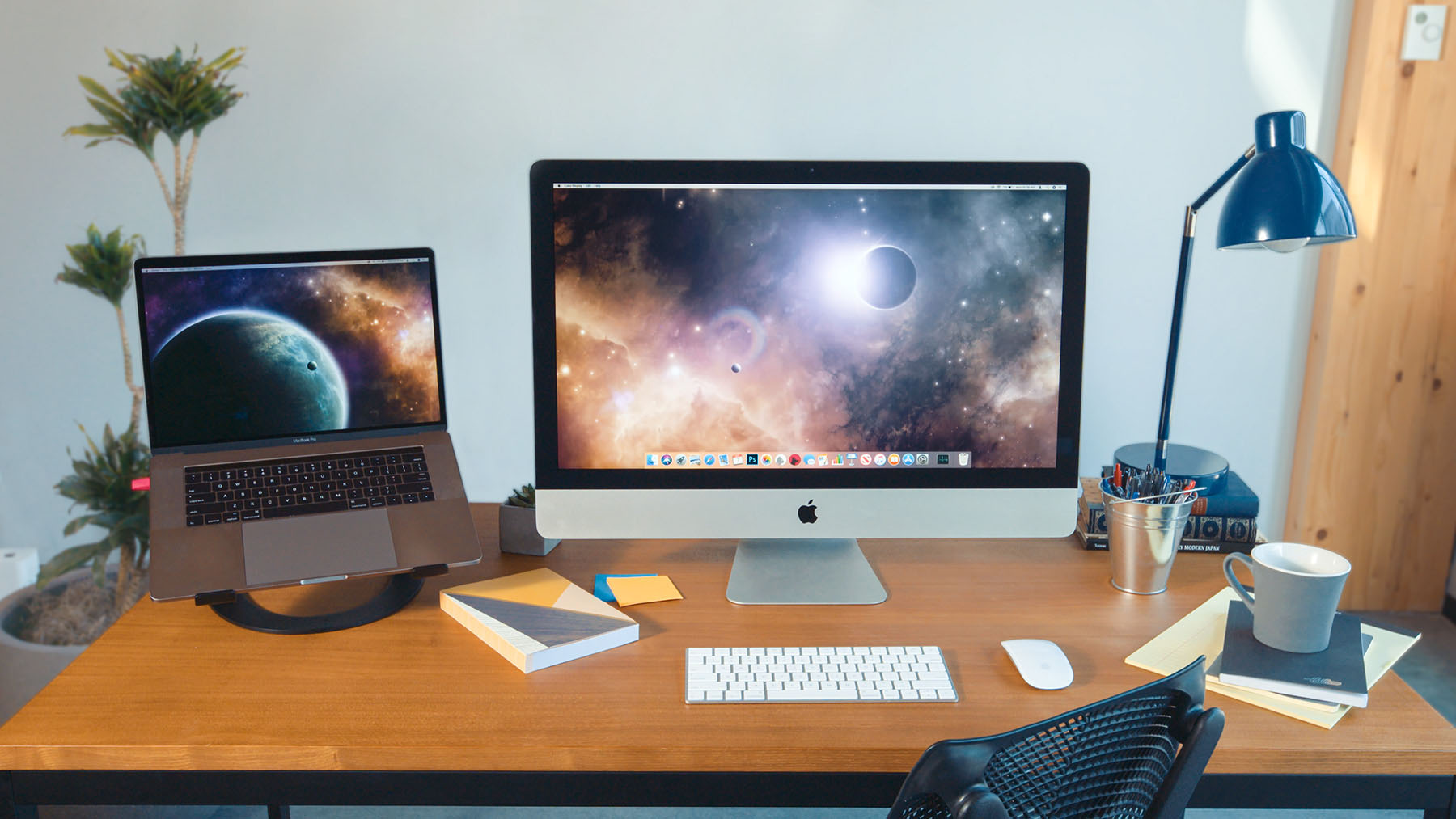
Finding your iMac’s model and year helps check compatibility. Click the Apple menu in the top-left corner. Select “About This Mac” to see the model and year. Write down this information. Use it to confirm if your iMac supports Target Display Mode. Older or newer iMacs might not be compatible.
Credit: astropad.com
Gather Required Cables And Adapters
Gathering the right cables and adapters is the first step to use an iMac as a monitor for your PC. This part is very important. Without the correct tools, the connection will not work. You need to know what type of cables and adapters fit your devices.
Choose The Right Cable Type
Start by checking the ports on your iMac and PC. Common cables include Thunderbolt, Mini DisplayPort, HDMI, and USB-C. iMacs often use Thunderbolt or Mini DisplayPort for video input. Your PC might use HDMI or DisplayPort. Pick a cable that matches both devices. Using the wrong cable will stop the iMac from showing your PC’s screen.
Select Compatible Adapters
Sometimes, cables alone do not fit. You might need adapters to connect different ports. For example, a USB-C to Mini DisplayPort adapter helps if your PC uses USB-C but your iMac has Mini DisplayPort. Make sure the adapter supports video signals, not just charging or data transfer. Choose adapters from trusted brands to avoid connection issues. Check the specifications carefully before buying.
Prepare Your Pc For Connection
Preparing your PC for connection is a key step before using your iMac as a monitor. This process ensures your computer works smoothly with the iMac. Proper preparation saves time and avoids common problems. Follow these steps carefully to get the best display experience.
Check Video Output Ports
Start by identifying the video output ports on your PC. Common ports include HDMI, DisplayPort, DVI, and VGA. Your PC must have a compatible output to connect to the iMac. Some older iMacs use Thunderbolt or Mini DisplayPort for input. Check your iMac model to confirm which port it supports. Use the right cable or adapter to connect both devices correctly.
Configure Display Settings
After connecting, adjust your PC’s display settings. Open the display settings menu on your PC. Set the iMac as a secondary or extended display. Choose the correct resolution to match the iMac screen. Adjust brightness and color settings for the best picture. Save these changes to ensure the display works properly. Proper settings help avoid blurry or stretched images.
Connect Imac To Pc
Using an iMac as a monitor for your PC can save space and reduce costs. The process requires a few simple steps and the right cable. This guide helps you connect your iMac to your PC easily.
Before starting, check your iMac model supports Target Display Mode. Only certain iMacs from 2009 to 2014 can work as an external display.
Enable Target Display Mode On Imac
First, turn on your iMac and log into your account. Press Command + F2 on your iMac keyboard. This activates Target Display Mode.
You should see the iMac screen change, ready to show your PC display. If nothing happens, check your iMac keyboard or try Command + Fn + F2.
Plug In The Cable And Verify Connection
Use a Thunderbolt or Mini DisplayPort cable. Connect one end to your PC’s video output. Plug the other end into your iMac’s Thunderbolt or Mini DisplayPort.
After connecting, your iMac should display your PC screen. If it does not, check your PC display settings. Select the iMac as a second monitor.
Adjust Display Preferences
Adjusting display preferences is key for using your iMac as a monitor for your PC. Proper settings ensure clear visuals and smooth performance. You can control resolution, scaling, and how multiple screens work together. This step improves your viewing experience and helps avoid eye strain.
Set Resolution And Scaling
Start by setting the right resolution on your PC. The resolution controls how sharp images and text appear. Match the iMac’s native resolution for the best clarity. You can find this option in the Display Settings of your PC.
Scaling changes the size of text and icons. It makes things bigger or smaller on the screen. Adjust scaling to make items easy to see without blurring. Choose a scaling level that feels comfortable for your eyes.
Manage Multiple Displays
Using your iMac as a second screen means managing multiple displays. Decide if you want to extend or mirror your desktop. Extending lets you use the iMac as extra space for apps. Mirroring shows the same screen on both computers.
Arrange the displays in the settings so the mouse moves smoothly. Drag the screen icons to match their physical positions. This setup makes moving between screens feel natural and easy.
Troubleshoot Common Issues
Troubleshooting common issues helps you use your iMac as a PC monitor smoothly. Some problems may stop the connection or reduce performance. Knowing how to fix these issues saves time and frustration.
No Signal On Imac Screen
The iMac may show a black screen or no signal message. Check the cable connections. Make sure both ends are plugged in firmly. Restart both your PC and iMac. Confirm the iMac is in Target Display Mode by pressing Command + F2. If it still does not work, try a different cable or port.
Audio Problems
Audio may not play through the iMac speakers. The iMac usually does not receive audio from the PC via Target Display Mode. Use separate speakers or headphones connected to your PC. Check your PC’s sound settings. Set the correct output device for audio playback.
Cable And Adapter Compatibility
Not all cables and adapters work with iMac as a monitor. Use a Thunderbolt or Mini DisplayPort cable that matches your iMac model. Some newer PCs require adapters to connect to the iMac. Choose adapters that support video output. Avoid cheap or unverified adapters to prevent connection issues.
Alternative Methods To Use Imac As Monitor
Using an iMac as a monitor for a PC is not always straightforward. Some iMac models do not support Target Display Mode. Luckily, there are other ways to use your iMac screen with a PC. These alternative methods do not require special cables or technical setups. They offer flexible options for different needs and budgets.
Screen Sharing Software
Screen sharing software lets you view your PC screen on the iMac over a network. Programs like TeamViewer, AnyDesk, or Chrome Remote Desktop work well. You install the software on both devices and connect them through the internet or local Wi-Fi.
This method does not need extra hardware. It is easy to set up and works with any iMac model. The display quality depends on your network speed. It is best for tasks that do not need fast refresh rates, like browsing or document editing.
Third-party Hardware Solutions
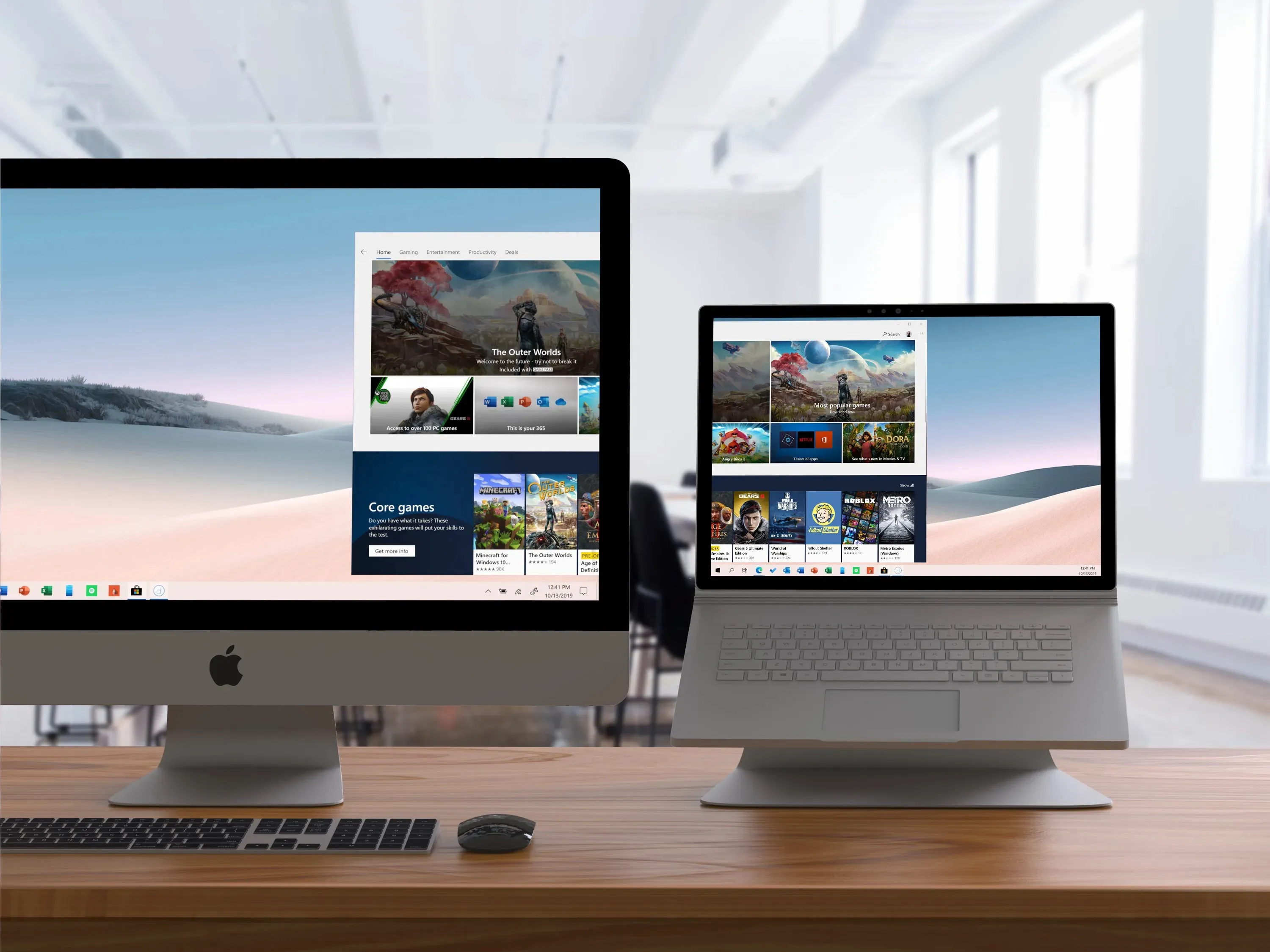
Some companies offer hardware devices that turn your iMac into a monitor. These devices connect to your PC’s video output and send the signal to the iMac via USB or Thunderbolt. This setup mimics the Target Display Mode feature.
Hardware solutions provide better video quality and lower delay than software. They are more suitable for gaming or video editing. Keep in mind these devices can be costly and may require additional drivers or software.

Credit: www.duetdisplay.com
Credit: iboysoft.com
Frequently Asked Questions
Can I Use Any Imac Model As A Pc Monitor?
Not all iMacs support Target Display Mode. Only iMacs from 2009 to mid-2014 with macOS High Sierra or earlier can be used as monitors.
What Cables Are Needed To Connect Imac To Pc?
You’ll need a Mini DisplayPort or Thunderbolt cable to connect compatible iMacs to your PC. Ensure your PC has a matching port or adapter.
Does Using Imac As A Monitor Affect Display Quality?
When using Target Display Mode, the iMac displays at its native resolution. The quality depends on your PC’s output and the cable used.
Can I Use Imac’s Speakers When Connected To Pc?
Yes, when in Target Display Mode, iMac’s built-in speakers work as usual, allowing audio output from your PC through the iMac.
Conclusion
Using an iMac as a monitor for your PC can save space and money. The setup is simple if you follow the right steps. Make sure your devices support the needed connections. Test the display to confirm everything works well.
This method offers a clear and sharp screen for your PC. Give it a try and enjoy a bigger view without extra costs. You can improve your workspace with this easy solution.
As an Amazon Associate, I earn from qualifying purchases.

