

Are you tired of scrolling endlessly on your wide, horizontal screen? Setting up a vertical monitor could be the game-changer you need.
It helps you see more content at once, boosts your productivity, and even reduces neck strain. But if you’re unsure how to make the switch, don’t worry—you’re in the right place. In this guide, you’ll learn exactly how to set up your vertical monitor quickly and easily.
By the end, you’ll wonder how you ever worked without it. Ready to transform your workspace? Let’s dive in.
Benefits Of A Vertical Monitor
Using a vertical monitor can change how you work and read on your computer. This setup offers many benefits that improve your daily tasks. It helps you see more content at once and makes your workspace neater.
Vertical monitors are useful for many types of work. They fit better with some activities than the usual horizontal screens. Let’s explore the main benefits of using a vertical monitor.
Improved Reading And Coding
Vertical monitors show more lines of text. This helps with reading long articles or documents. Coders find it easier to view more code at once. It reduces the need to scroll up and down. This saves time and keeps focus.
Enhanced Multitasking
Vertical screens make multitasking smoother. You can stack windows on top of each other. This layout helps you switch tasks quickly. It also keeps different apps visible at the same time. Your workflow becomes faster and less confusing.
Better Space Utilization
Vertical monitors use desk space more efficiently. They fit well in narrow or small areas. This frees up room for other items on your desk. The screen height matches your natural eye movement. It creates a cleaner and more organized workspace.

Credit: spacetup.com
Choosing The Right Monitor
Choosing the right monitor is key for a good vertical setup. It affects how clear and comfortable your screen looks. Picking the right features saves time and effort later. Consider size, stand, and ports carefully. These details help you work better and reduce strain.
Screen Size And Resolution
Screen size matters for vertical use. A 24 to 27-inch screen usually fits well. Bigger screens can feel too tall when rotated. Resolution impacts clarity. Aim for at least 1080p for sharp text. Higher resolutions like 1440p improve detail and space.
Adjustable Stand Features
An adjustable stand makes vertical setup easy. Look for stands that tilt, swivel, and pivot. Pivoting lets you rotate the screen smoothly to vertical. Height adjustment helps match eye level. This reduces neck and eye strain during long use.
Connectivity Options
Check the ports before buying. HDMI and DisplayPort are common and reliable. USB-C ports offer power and video in one cable. Extra USB ports on the monitor add convenience. Good connectivity means fewer cables and easier setup.
Preparing Your Workspace
Preparing your workspace is the first step to setting up a vertical monitor. A well-organized space helps improve focus and comfort. Small changes make a big difference in productivity. Let’s explore how to get your desk ready for the new setup.
Desk Space Assessment
Measure your desk to see if it fits a vertical monitor. Check the width and depth to allow easy movement. Keep at least a few inches of free space around the screen. Clear clutter and unnecessary items to make room. This helps prevent distractions and keeps the area tidy.
Ergonomic Considerations
Place the monitor at eye level to avoid neck strain. Your eyes should align with the top third of the screen. Use a sturdy monitor stand or adjustable arm for proper height. Sit at a comfortable distance, about an arm’s length away. Maintain good posture to reduce back and shoulder pain.
Cable Management Tips
Organize cables to keep your desk neat and safe. Use cable clips or ties to bundle wires together. Route cables along the desk edge or behind furniture. Avoid tangling and damage by labeling each cable. Clean cable management improves workspace aesthetics and functionality.
Mounting Options
Choosing the right mounting option is key for a vertical monitor setup. It affects comfort, desk space, and viewing angles. Several mounting methods fit different needs and spaces. This guide covers popular options for easy installation and use.
Using A Monitor Stand
A monitor stand is simple and flexible. It holds your screen upright without wall drilling. Many stands allow height and tilt adjustments. This helps to find the best angle for your eyes. Stands come with a base or clamp to secure the monitor. They are easy to move and reposition as needed.
Installing A Wall Mount
Wall mounts save desk space by attaching the monitor to the wall. They keep your desk clean and organized. Wall mounts come with adjustable arms for tilt and rotation. This lets you position the screen perfectly vertical. Installing requires drilling holes and using screws. Make sure the wall can support the monitor’s weight.
Dual Monitor Setup
Dual setups improve productivity by using two vertical monitors side by side. Use stands or mounts designed for dual screens. They keep both monitors aligned and stable. This setup helps with coding, writing, and data work. Adjust both monitors to the same height for comfort. Space between screens should be minimal but enough to avoid neck strain.
Adjusting Display Settings
Adjusting display settings is essential after setting up a vertical monitor. Proper settings improve readability and reduce eye strain. Small changes can make a big difference in comfort and productivity.
Changing Screen Orientation
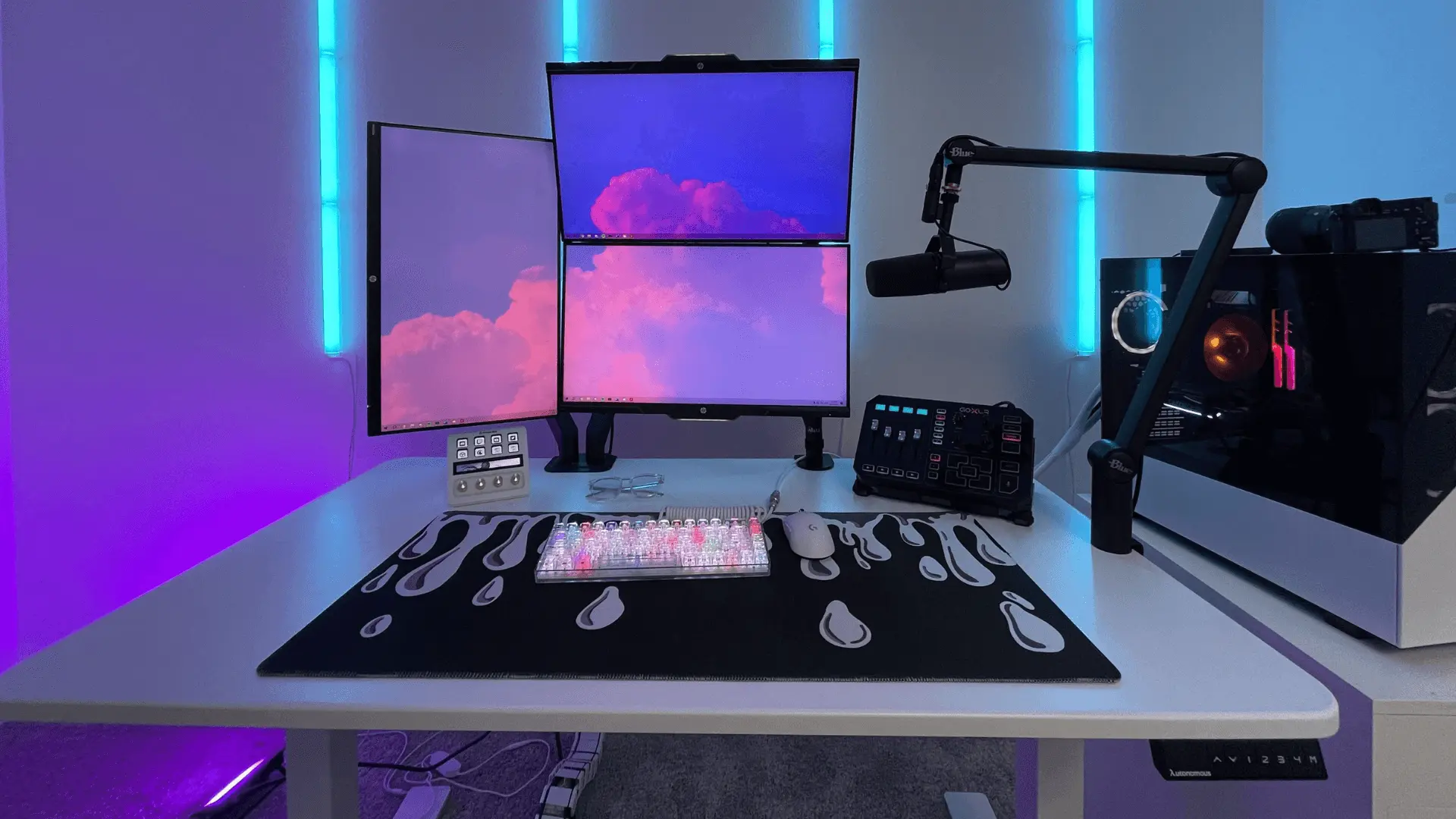
Start by changing the screen orientation to portrait mode. On Windows, right-click the desktop and select “Display settings.” Find the “Orientation” dropdown and choose “Portrait.” On Mac, go to “System Preferences,” then “Displays,” and select “Rotation.”
This step rotates your display correctly for vertical use. It ensures text and images appear upright and easy to read.
Calibrating Resolution And Scaling
Set the resolution to match your monitor’s native specs. This keeps images sharp and clear. In “Display settings,” find the resolution dropdown and pick the recommended option.
Adjust scaling to make text and icons comfortable to see. Try 100% or 125% scaling depending on your screen size. This helps avoid tiny or overly large content.
Optimizing Brightness And Contrast
Brightness should be bright enough to avoid strain but not too harsh. Use your monitor’s buttons or software controls to adjust.
Set contrast to make text and colors distinct. Good contrast improves visibility and reduces eye fatigue during long work sessions.
Credit: www.autonomous.ai
Software Tools For Vertical Monitors
Setting up a vertical monitor improves your workspace and boosts efficiency. Using the right software tools enhances this setup. These tools help organize your screen and make daily tasks easier. They allow better control over windows and shortcuts on a vertical display.
Screen Splitting Apps
Screen splitting apps divide your vertical monitor into sections. They help you view multiple windows without overlap. This setup saves time and reduces clutter. Apps like FancyZones and Divvy offer simple ways to manage screen space. They let you drag windows into preset zones quickly. This keeps your workspace neat and easy to navigate.
Productivity Enhancers
Productivity tools improve how you use your vertical monitor. Apps like Todoist or Notion keep tasks and notes visible. They fit well on tall screens, so you see more content. Clipboard managers store copied items for quick access. These tools reduce the need to switch between programs. They make your workflow smoother and more focused.
Customizing Keyboard Shortcuts
Keyboard shortcuts speed up your work on a vertical monitor. Customize shortcuts to open apps or move windows easily. Programs like AutoHotkey or Keyboard Maestro help create custom commands. This reduces mouse use and saves time. Personalized shortcuts match how you work best, improving comfort and speed.
Troubleshooting Common Issues
Setting up a vertical monitor can improve productivity and comfort. Sometimes, issues occur during setup. These problems can be fixed with simple steps. Knowing common issues helps you solve them fast. Below are key troubles you might face and how to fix them.
Display Not Rotating
Sometimes, the screen stays in landscape mode. Check your display settings first. On Windows, right-click the desktop and select “Display settings.” Look for the “Display orientation” option. Choose “Portrait” or “Portrait (flipped).” Apply the changes. On Mac, open “System Preferences,” then “Displays.” Select “Rotation” and pick 90 or 270 degrees.
If rotation options are missing, update your graphics driver. Visit your video card’s website to download the latest driver. Restart your computer after updating. Also, some monitors have physical buttons to rotate the display. Check your monitor’s manual for details.
Resolution Problems
Resolution may not match the vertical screen size. This causes blurry or stretched images. Adjust resolution in display settings. Pick the recommended resolution for your monitor. On Windows, go to “Display settings” and find “Display resolution.” On Mac, open “System Preferences,” then “Displays.” Select “Scaled” and choose the correct resolution.
Wrong resolution might cause black bars or cut-off edges. Try different resolutions until the display fits well. Updating your graphics driver also helps fix resolution issues. Avoid very low or very high resolutions that the monitor does not support.
Hardware Compatibility
Not all monitors support vertical orientation. Check your monitor’s specifications before setup. Some older models may lack rotation features. Also, your computer’s graphics card needs to support screen rotation.
If your hardware does not support vertical mode, consider upgrading. Use adapters or docking stations compatible with vertical monitors. Check cables and connections for damage. Loose or damaged cables can cause display problems. Secure all connections firmly.
Credit: www.popsci.com
Maintaining Your Vertical Monitor
Setting up a vertical monitor is just the start. Maintaining it keeps the display clear and the device working well. Good care helps you avoid issues and enjoy your monitor longer. Follow simple steps to keep your vertical monitor in top shape.
Regular Cleaning Tips
Dust and dirt reduce screen clarity. Use a soft, dry microfiber cloth to clean the screen gently. Avoid harsh chemicals or sprays directly on the monitor. For stubborn spots, lightly dampen the cloth with water. Clean the monitor weekly for the best results.
Firmware Updates
Monitor firmware controls how it works. Check the manufacturer’s website for updates. Install updates to fix bugs and improve performance. Use a stable internet connection during updates. Keep the monitor connected to power to avoid interruptions.
Extending Monitor Lifespan
Adjust brightness to a comfortable level. High brightness can shorten the monitor’s life. Turn off the monitor when not in use. Avoid long periods of static images to prevent screen burn-in. Place the monitor in a cool, dry area away from direct sunlight.
Frequently Asked Questions
How Do I Physically Rotate A Monitor Vertically?
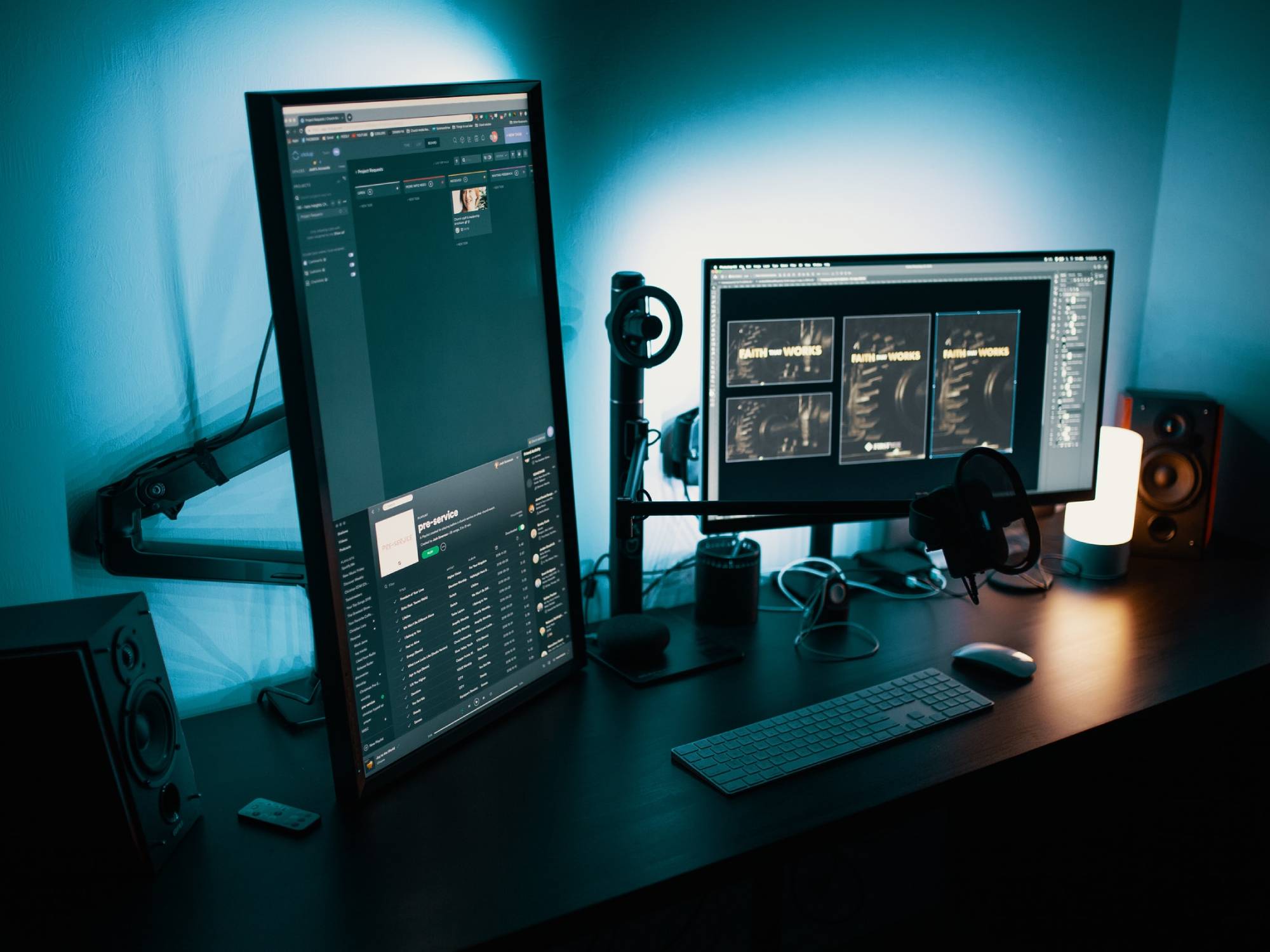
To rotate a monitor vertically, first check if your stand supports pivot. If not, use a VESA mount or adjustable arm. Gently rotate the screen 90 degrees clockwise or counterclockwise. Secure the monitor to prevent wobbling or falling.
How To Change Display Settings For A Vertical Monitor?
Open your computer’s display settings. Select the monitor you want to adjust. Find the “Orientation” option and choose “Portrait. ” Apply the changes to switch your screen to vertical mode.
Can All Monitors Be Used Vertically?
Most modern monitors support vertical orientation, especially those with VESA mounts. Check your monitor’s manual or specifications to confirm if it can safely rotate without damage.
What Are The Benefits Of Using A Vertical Monitor?
Vertical monitors improve reading, coding, and document editing by showing more lines. They reduce scrolling and enhance productivity. They also save desk space and improve multitasking.
Conclusion
Setting up a vertical monitor is easier than it seems. Just follow the simple steps carefully. Adjust your screen settings for the best view. A vertical monitor can improve reading and coding tasks. It saves desk space and helps you stay organized.
Try it out and see how it fits your work style. Small changes can make a big difference in comfort and efficiency. Give your setup a fresh look today.
As an Amazon Associate, I earn from qualifying purchases.

