

Are you wondering whether you should turn on FreeSync on your monitor? You’re not alone.
Many gamers and everyday users ask this question because it promises smoother visuals and fewer screen tears. But is it really worth enabling? You’ll discover what FreeSync does, how it affects your experience, and whether it’s the right choice for your setup.
By the end, you’ll have a clear answer tailored just for you. Keep reading to unlock the full potential of your monitor.
What Is Freesync
FreeSync is a technology designed to improve your monitor’s display during gaming or video playback. It helps make images look smooth and clear by syncing your graphics card and monitor.
This synchronization reduces screen tearing and stuttering, common problems when frames do not match between devices. FreeSync makes visuals more pleasant and easier to watch for longer periods.
Basic Functionality
FreeSync works by matching the refresh rate of your monitor to the frame rate of your graphics card. This match stops the monitor from showing parts of multiple frames at once. The result is smoother motion and less blur in fast-moving scenes.
The technology adapts in real time as the frame rate changes. It keeps the display smooth even if the graphics card’s output varies during gameplay or video streaming.
Compatible Devices
FreeSync mainly works with AMD graphics cards and compatible monitors. Many modern monitors include FreeSync support, but it is important to check before buying.
Some newer NVIDIA graphics cards also support FreeSync, but compatibility can vary. It is best to verify your graphics card and monitor support to get the full benefit of FreeSync technology.

Credit: www.shoshitamam.com
How Freesync Improves Gaming
FreeSync makes gaming feel better and look smoother. It helps fix common problems that can spoil gameplay. This technology changes how your monitor and graphics card work together. The result is a clearer, more enjoyable gaming experience.
FreeSync adapts the monitor’s refresh rate to match the game’s frame rate. This keeps images sharp and fluid. It reduces distractions and lets you focus on playing. Here are the key ways FreeSync improves gaming.
Reducing Screen Tearing
Screen tearing happens when parts of two frames show at once. It makes the image look broken or split. FreeSync stops this by syncing the monitor with the graphics card. The picture stays whole and stable during fast movements. This keeps the game looking smooth and clean.
Smoother Frame Rates
Games do not always run at a steady frame rate. This can cause stutter or choppy visuals. FreeSync adjusts the monitor’s refresh rate to match the frames per second. It helps the game run more smoothly. You will see less flicker and more fluid motion.
Lower Input Lag
Input lag is the delay between your action and the game’s response. High input lag can make games feel slow and unresponsive. FreeSync reduces this delay by syncing frames more efficiently. This makes controls feel faster and gameplay more precise.
When To Enable Freesync
Knowing when to enable FreeSync improves your monitor’s performance. It helps reduce screen tearing and stuttering during gameplay. But not every situation needs FreeSync. Understanding the right moments to turn it on matters.
This guide explains key points for using FreeSync well. It covers matching your GPU and monitor and how game types affect your choice.
Matching Gpu And Monitor
FreeSync works best with compatible graphics cards. AMD GPUs support FreeSync natively. Some newer Nvidia cards also work with FreeSync monitors. Check your GPU model before enabling FreeSync. A mismatch can cause issues or no benefit at all. Your monitor’s FreeSync range is important too. It defines the frame rates where FreeSync works smoothly. Keep your game’s frame rate inside this range for best results.
Game Type Considerations
Fast-paced games often benefit most from FreeSync. Action and racing games show clear improvements. They reduce screen tearing and make motion smoother. For slower or turn-based games, FreeSync is less crucial. These games have stable frame rates and less motion. Enabling FreeSync might not make a big difference. Also, some games have built-in frame rate limits. If your game limits frames below FreeSync’s range, enable it with care. Test your setup to see what feels best.
Credit: www.youtube.com
Potential Drawbacks Of Freesync
FreeSync offers smoother gameplay and less screen tearing. Yet, it has some drawbacks to consider. These issues might affect your experience depending on your setup and needs.
Possible Compatibility Issues
FreeSync works best with specific AMD graphics cards. Some Nvidia cards may not support it fully. Your monitor must also support FreeSync for it to work properly.
Using FreeSync with unsupported hardware may cause flickering or blank screens. Some games might not run smoothly if FreeSync is active. Check your hardware before enabling FreeSync to avoid problems.
Performance Impact
Turning on FreeSync can slightly reduce your system’s performance. It may add a small delay in input response. This delay might be noticeable in fast-paced games.
FreeSync focuses on smooth visuals, not raw speed. Some gamers prefer to turn it off for maximum frame rates. Balance smoothness and performance based on your game style.
How To Enable Freesync
Enabling FreeSync on your monitor can improve your gaming and video experience. It helps reduce screen tearing and stuttering for smoother visuals. Turning it on is simple but requires a few steps.
First, you need to adjust settings on your monitor. Then, you must configure your graphics card to support FreeSync. Follow these steps carefully to enjoy a better display experience.
Monitor Settings
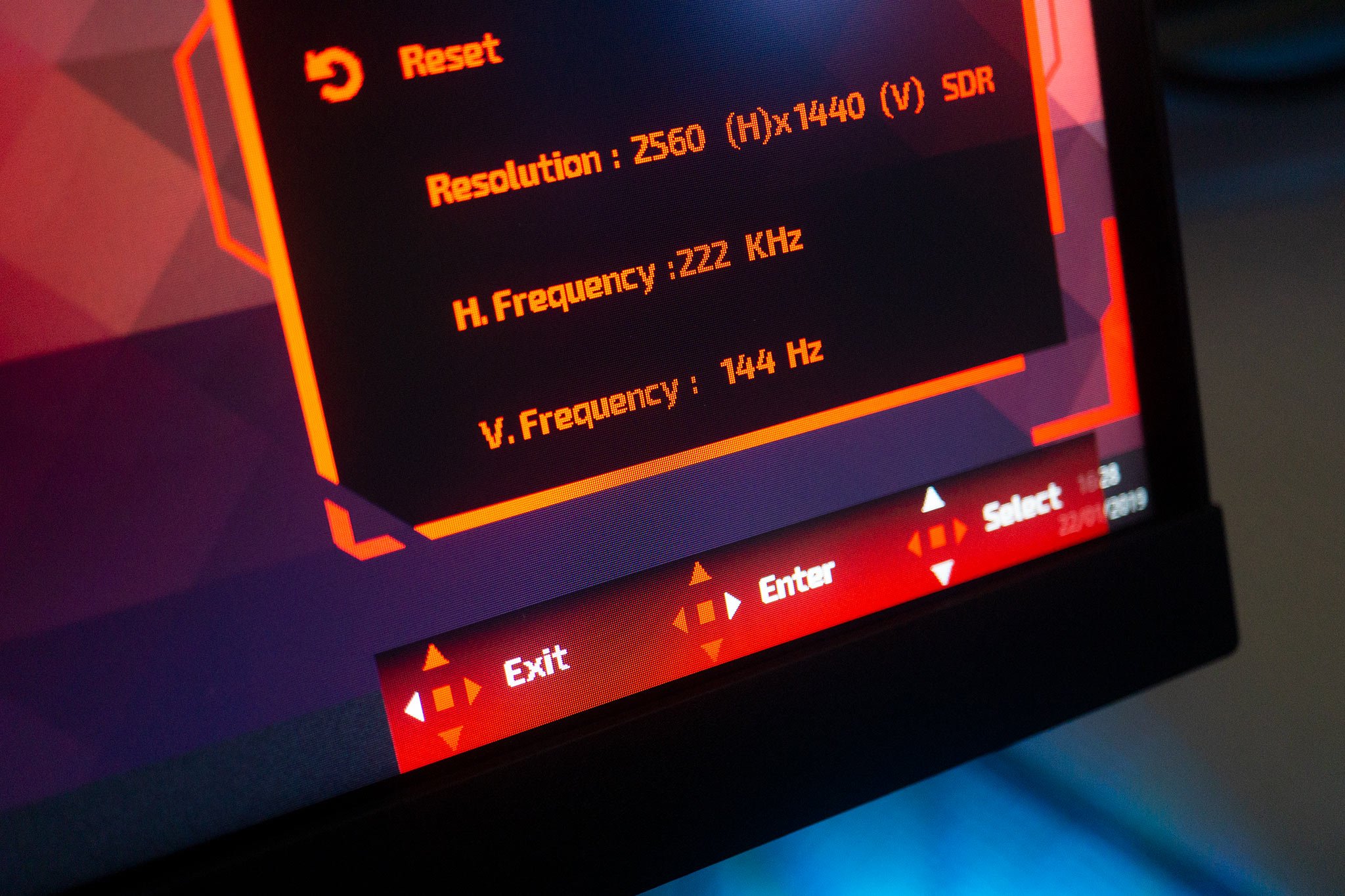
Start by turning on your monitor. Open the monitor’s on-screen menu using the buttons on the side or bottom. Look for the FreeSync option in the settings menu. It may be under “Display,” “Gaming,” or “Adaptive Sync.”
Use the navigation buttons to select FreeSync and turn it on. Some monitors call it Adaptive Sync, so enable that if you don’t see FreeSync. After enabling, exit the menu and save changes if needed.
Graphics Card Configuration
Next, open your computer’s graphics card software. For AMD cards, this is the Radeon Settings or Adrenalin software. For NVIDIA cards, FreeSync support is limited but works with G-Sync Compatible mode.
In AMD Radeon Settings, go to the “Display” section. Find the FreeSync toggle and switch it on. For NVIDIA users, open the NVIDIA Control Panel. Select “Set up G-SYNC” and enable it for your FreeSync monitor.
After enabling FreeSync or G-SYNC Compatible mode, restart your PC. This ensures changes take effect. Your games and videos should now run smoother with less tearing and stutter.
Credit: www.windowscentral.com
Alternatives To Freesync
FreeSync is popular, but it is not the only option for smoother gaming. There are other technologies that help reduce screen tearing and stutter. These alternatives work in different ways and may suit your setup better.
G-sync Overview
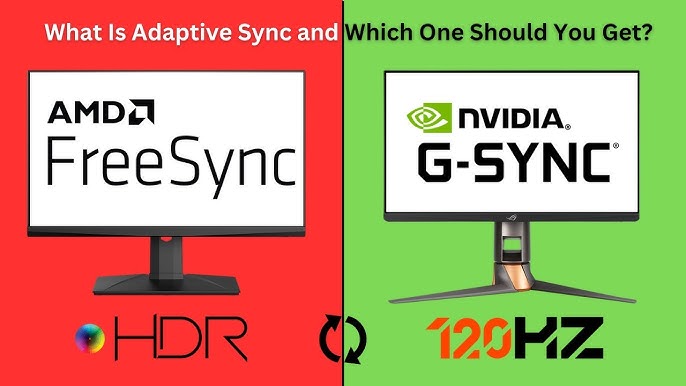
G-Sync is Nvidia’s answer to FreeSync. It works with Nvidia graphics cards only. G-Sync uses a special module in the monitor to control refresh rates. This keeps the display in sync with the GPU. Games look smoother and feel more responsive. G-Sync monitors often cost more due to this extra hardware.
V-sync Comparison
V-Sync is a basic technology found in most games and monitors. It caps the frame rate to the monitor’s refresh rate. This helps stop tearing but can cause input lag. V-Sync does not adjust refresh rates dynamically like FreeSync or G-Sync. It is simple but less effective for fast-paced gaming.
Frequently Asked Questions
What Is Freesync And How Does It Work?
FreeSync is a technology that synchronizes your GPU and monitor refresh rates. This reduces screen tearing and stuttering during gaming or video playback. It provides smoother visuals and improves overall gaming experience by matching frame rates dynamically.
Should I Enable Freesync For Gaming?
Yes, enabling FreeSync during gaming helps prevent screen tearing and input lag. It ensures smoother gameplay, especially in fast-paced games. However, make sure your monitor and GPU support FreeSync for the best results.
Can Freesync Cause Any Display Issues?
FreeSync rarely causes issues but may sometimes lead to flickering or black screens. These problems usually occur with incompatible hardware or outdated drivers. Updating your GPU drivers and ensuring compatibility can help avoid such issues.
Is Freesync Better Than V-sync?
FreeSync generally offers better performance and less input lag than V-Sync. It dynamically adjusts refresh rates, while V-Sync caps frame rates, which may cause stuttering. FreeSync provides smoother visuals without sacrificing responsiveness.
Conclusion
Turning on FreeSync can improve your monitor’s display smoothness. It helps reduce screen tearing and stuttering during games. FreeSync works best with compatible graphics cards and games. You might notice better visuals and less distraction. Some users prefer keeping it off for other tasks.
Test it yourself to see what feels right. Clear, smooth images often make gaming more fun. Your choice depends on your setup and needs. Give it a try and decide what works best for you.
As an Amazon Associate, I earn from qualifying purchases.

