

Have you ever set up your Moultrie camera, only to miss that perfect shot because the image was blurry or unclear? That’s where the Motion Freeze feature comes in.
Imagine capturing sharp, clear pictures of fast-moving animals or unexpected moments without any hassle. If you want to make sure your wildlife photos are crisp and detailed every time, understanding how Motion Freeze works is key. Keep reading to discover how this feature can transform your trail camera experience and help you get the best shots possible.
Motion Freeze Feature
The Motion Freeze feature on Moultrie cameras helps capture clear images of moving animals. It reduces blurriness caused by motion. This makes photos sharper and more detailed. Wildlife watchers and hunters appreciate this feature for better tracking and identification.
How Motion Freeze Works
Motion Freeze uses a fast shutter speed to stop motion in photos. The camera quickly captures the image when movement is detected. This prevents the subject from appearing blurry. The technology adjusts settings automatically for the best clarity. It works well in both day and night conditions.
Benefits Of Motion Freeze
Motion Freeze improves photo quality significantly. It helps capture sharp images of fast-moving animals. This makes it easier to study animal behavior. Photos are more useful for wildlife monitoring and research. It also saves time by reducing the need for retakes. Users get better results with less effort.

Credit: www.youtube.com
Setting Up Motion Freeze
Setting up Motion Freeze on your Moultrie camera helps capture clear images of moving animals. This feature reduces blur by quickly freezing motion in photos. Proper setup ensures sharp, detailed pictures even in low light or fast action.
Accessing Motion Freeze Settings
Start by turning on your Moultrie camera. Go to the main menu using the arrow buttons. Find the “Settings” option and select it. Look for “Motion Freeze” in the list. Click on it to open the Motion Freeze settings. Here, you can turn the feature on or off.
Adjusting Sensitivity Levels
Inside the Motion Freeze menu, find the sensitivity option. Sensitivity controls how the camera detects motion. Choose a lower setting to avoid false triggers. Pick a higher setting to catch even small movements. Test different levels to see what works best for your area. Save your settings before exiting the menu.
Motion Freeze In Different Lighting
Motion Freeze on Moultrie cameras helps capture clear images of moving animals. It works differently based on lighting conditions. Understanding its performance in various light helps you get better photos. The camera adjusts settings to freeze motion in both day and night environments.
Daytime Performance
During the day, natural light is strong. Motion Freeze uses fast shutter speed to capture sharp images. It reduces blur caused by moving animals. Colors appear bright and natural. The camera reacts quickly to motion, snapping clear shots every time. It works well even in bright sunlight or shade.
Nighttime Performance
At night, lighting is low or absent. Motion Freeze switches to infrared flash to capture images. It uses a slower shutter speed but balances it with flash light. This helps reduce blur while keeping images clear. Night photos have less color and more shadows. Still, the camera freezes animal movement effectively in darkness.
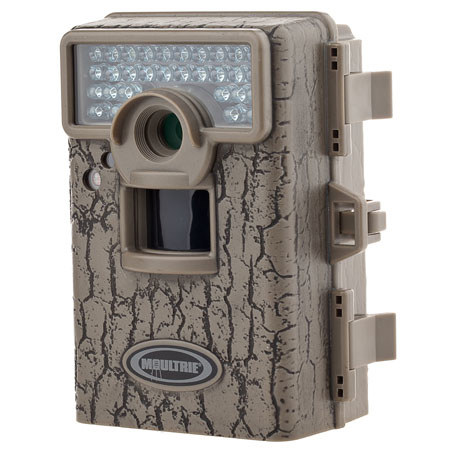
Credit: www.adorama.com
Common Issues And Fixes
Motion Freeze on Moultrie cameras can cause frustration. It happens when the camera stops capturing moving objects clearly. This section covers common issues and easy fixes. Understanding these helps improve your camera’s performance quickly.
Troubleshooting Motion Freeze
Start by checking the battery level. Low power often causes the camera to freeze. Replace old batteries with fresh ones. Next, clean the lens and motion sensor. Dirt can block the sensor’s view and cause freezing.
Reset the camera to default settings. This step clears any software glitches. Make sure the firmware is up to date. Visit the Moultrie website to download updates. If freezing continues, test the camera in a different location.
Optimizing Camera Placement
Place the camera where it has a clear view of the area. Avoid dense trees or thick brush. These can block the motion sensor and cause freeze issues. Position the camera at a height between 3 and 5 feet for best results.
Avoid pointing the camera directly at the sun. Bright light can confuse the sensor. Also, avoid areas with frequent moving branches. Wind moves branches and triggers false motion. This can overload the camera and cause freezing.
Comparing Motion Freeze With Other Features
Comparing Motion Freeze with other features on Moultrie cameras helps understand its value. This feature focuses on capturing clear images of moving objects. It works differently than other common camera functions. Knowing these differences helps users choose the right setting for their needs.
Motion Detection Vs. Motion Freeze
Motion detection triggers the camera to take photos or videos when movement occurs. It is useful for general monitoring. Motion Freeze, on the other hand, captures sharp, clear images of fast-moving animals. It reduces blur that motion detection alone cannot prevent. Motion Freeze is best for action shots. Motion detection works well for basic alerts and recordings.
Using Time Lapse With Motion Freeze
Time lapse records images at set intervals, creating a fast video of slow changes. Combining time lapse with Motion Freeze adds clear frames of moving subjects. It helps capture detailed activity over time. This combo is useful for observing wildlife without missing fast moments. Users get both smooth time flow and sharp action shots.
Tips For Maximizing Motion Freeze
Maximizing the Motion Freeze feature on your Moultrie camera helps capture sharp images of moving wildlife. This feature stops motion blur by using a fast shutter speed. To get the best shots, follow these simple tips. They help you use your camera more effectively and improve photo quality.
Best Practices
Place your camera where animals often pass. Keep the lens clean for clear images. Adjust the Motion Freeze setting to suit the light conditions. Use fresh batteries to avoid slow shutter speeds. Set the camera to take multiple shots quickly. This increases the chance of a clear photo. Avoid placing the camera where branches move a lot. Moving branches can trigger false shots and waste battery.
Maintaining Your Camera
Check your camera regularly for dirt and moisture. Clean the lens with a soft cloth. Replace batteries before they run low. Update the camera firmware to improve performance. Store the camera in a dry place when not in use. Check the camera’s trigger speed and reset if needed. Proper care keeps Motion Freeze working well and extends camera life.

Credit: cameratraps.co.za
Frequently Asked Questions
What Is Motion Freeze On Moultrie Camera?
Motion Freeze is a feature that captures still images when motion is detected. It helps reduce blurry photos by freezing the action instantly. This ensures clear and sharp wildlife or outdoor activity shots, improving your camera’s performance in capturing fast-moving subjects effectively.
How Does Motion Freeze Improve Photo Quality?
Motion Freeze stops motion blur by instantly capturing a still image. It freezes fast-moving objects, resulting in sharp and clear pictures. This feature is useful for wildlife photography where animals move quickly, ensuring you don’t miss important details due to motion blur.
Can Motion Freeze Be Turned Off On Moultrie Cameras?
Yes, you can disable Motion Freeze in the camera settings. However, turning it off may cause blurry images when capturing fast motion. It’s recommended to keep it enabled for best photo clarity, especially when monitoring wildlife or outdoor activities.
Does Motion Freeze Affect Battery Life?
Motion Freeze slightly increases battery usage because the camera processes images faster. However, the impact is minimal and balanced by the improved photo quality. Efficient battery management settings on Moultrie cameras help maintain good battery life despite this feature.
Conclusion
Motion Freeze on Moultrie Camera helps capture clear images. It stops moving objects to avoid blurry pictures. This feature works well in low light or fast action. You get sharper photos of animals or people. It makes your hunting or monitoring easier and more reliable.
Understanding Motion Freeze lets you use your camera better. Try it to see clearer, sharper images every time. Simple, effective, and helpful for all Moultrie users.
As an Amazon Associate, I earn from qualifying purchases.
