

Have you ever needed to capture something important on your HP laptop screen but didn’t know how? Whether it’s saving a crucial document, sharing a funny moment, or troubleshooting an issue, knowing how to take a screenshot quickly can save you time and frustration.
In this guide, you’ll learn simple, step-by-step methods to capture your screen like a pro. By the end, you’ll have the confidence to grab exactly what you need in just a few clicks. Ready to make your HP laptop work smarter for you?
Let’s dive in!

Credit: www.wikihow.com
Screenshot Methods On Hp Laptops
Taking a screenshot on an HP laptop is easy. Different methods fit different needs. Some ways capture the whole screen. Others let you select a part. This section shows simple screenshot methods on HP laptops. Each method uses built-in tools or keys.
Try these options to save images quickly. Screenshots help with work, study, or sharing information. Choose the best method for your task.
Using Print Screen Key
The Print Screen key is the fastest way. Press the “PrtSc” key to copy the full screen. The image goes to the clipboard. Paste it into Paint or Word to save.
Press “Alt + PrtSc” to capture only the active window. This method needs no special software. Simple and quick for basic screenshots.
Capturing With Snipping Tool
The Snipping Tool offers more control. Open the tool from the Start menu. Choose from free-form, rectangular, window, or full-screen snips.
Select the area to capture. Save the screenshot or copy it to the clipboard. Good for precise or edited shots.
Using Snip & Sketch
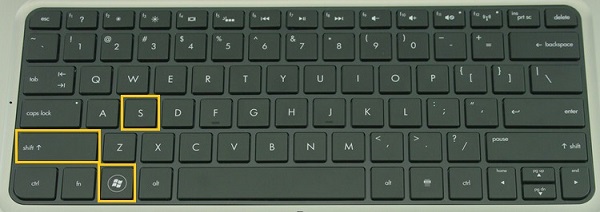
Snip & Sketch is a newer tool on Windows 10 and 11. Open it by pressing “Windows + Shift + S”. The screen dims, and a small menu appears.
Select the snip shape: rectangular, freeform, window, or full-screen. The screenshot copies to clipboard. Edit or save it in the app.
Keyboard Shortcuts For Screenshots
Several keyboard shortcuts save time. Press “Windows + PrtSc” to save a full screenshot automatically. The file goes to the Pictures folder.
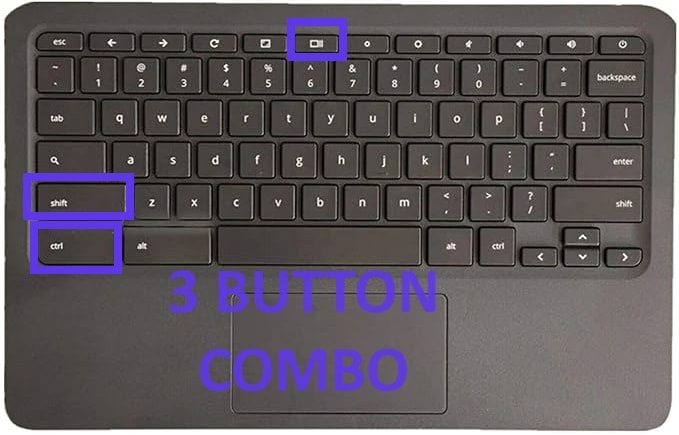
Use “Windows + Volume Down” on some HP tablets. It captures the screen and saves the image. These shortcuts speed up the screenshot process.
Credit: videoconverter.wondershare.com
Saving And Editing Screenshots
After capturing a screenshot on your HP laptop, saving and editing it is the next step. Screenshots hold important information. Keeping them organized helps you find them fast. Editing lets you highlight key points or remove unwanted parts. Simple tools make editing easy. These steps improve how your screenshots look and serve your needs.
Locating Saved Screenshots
Most HP laptops save screenshots automatically. They usually go to the “Pictures” folder. Inside, look for a folder named “Screenshots.” Open it to see your saved images. You can also check the desktop if you saved screenshots there. Knowing where to find your screenshots saves time and effort.
Basic Editing Tools
Windows has built-in editing tools like Paint and Photos. Open your screenshot with these apps to make changes. Crop to remove extra parts. Resize to fit your needs. Adjust brightness or contrast for better clarity. These tools are simple and ready to use on any HP laptop.
Annotating Your Screenshots
Adding notes or marks can explain your screenshot better. Use the “Snip & Sketch” app on Windows. It lets you draw, highlight, or add text easily. This helps point out details clearly. Annotated screenshots are useful for work, school, or sharing ideas.
Troubleshooting Screenshot Issues
Troubleshooting screenshot issues on an HP laptop is common. Screenshots may not work due to software or hardware problems. Understanding the cause helps fix the issue quickly.
Some tools like Print Screen or Snipping Tool might stop responding. Other times, third-party apps can interfere. Below are solutions to common screenshot problems.
Print Screen Not Working
Print Screen may not work if the keyboard driver is outdated. Update the keyboard driver through Device Manager. Check if the “Fn” key is stuck or needs pressing with Print Screen. Some HP laptops require pressing “Fn + PrtSc” together. Try restarting your laptop to clear temporary glitches. Disable any third-party software that blocks keyboard shortcuts.
Snipping Tool Problems
Snipping Tool might freeze or not open. Run the Windows troubleshooter to detect app issues. Reset the Snipping Tool app in Windows settings. Ensure your Windows is up to date with the latest patches. If Snipping Tool crashes, try using the Snip & Sketch app instead. Close other programs that might conflict with screen capture tools.
Alternative Screenshot Apps
Third-party screenshot apps can help if built-in tools fail. Lightshot and Greenshot are easy to use and free. These apps offer more features like editing and sharing screenshots. Download apps only from trusted sources to avoid malware. Test a few apps to find the one that fits your needs best.
Tips For Effective Screenshots
Taking clear and precise screenshots on your HP laptop can save time and improve communication. Knowing how to capture exactly what you need helps avoid extra editing. Use these tips to make your screenshots more useful and professional.
Capturing Specific Windows
Press Alt + PrtScn to capture only the active window. This method saves a clean image without the entire screen. It is perfect for focusing on one program or dialog box. Paste the screenshot into an editor or document immediately.
Selecting Custom Screen Areas
Use Windows + Shift + S to select a specific area of your screen. Your cursor changes to a crosshair for easy selection. Drag to highlight the part you want. The screenshot copies to your clipboard, ready for pasting or saving.
Using External Tools For Advanced Needs
Try tools like Snagit or Lightshot for extra features. These apps let you annotate, crop, or delay captures. They work well if you need more control than built-in options offer. Some tools also allow easy sharing or cloud saving.
Credit: www.fonepaw.com
Frequently Asked Questions
How Do I Take A Screenshot On An Hp Laptop?
Press the “PrtSc” (Print Screen) key on your HP laptop keyboard. The screenshot is copied to the clipboard. Paste it in Paint or Word using Ctrl + V, then save the file.
Can I Capture A Specific Area On Hp Laptop Screen?
Yes, press Windows + Shift + S keys together. Your screen will dim, allowing you to drag and select the area. The screenshot is copied to the clipboard for pasting.
How To Save A Screenshot Directly On Hp Laptop?
Press Windows + PrtSc keys simultaneously. The screen will dim briefly. The screenshot is automatically saved in the Pictures > Screenshots folder on your HP laptop.
What App Can I Use To Screenshot On Hp Laptop?
You can use the Snipping Tool or Snip & Sketch app. Both allow you to capture full or partial screenshots and save or edit them easily.
Conclusion
Taking a screenshot on your HP laptop is quick and simple. You can use keyboard shortcuts or built-in tools to save images fast. Screenshots help share information or save important moments on your screen. Practice these methods a few times to find which one fits you best.
Now, capturing your screen feels easy and clear every time. Keep these tips handy for whenever you need to take a screenshot on your HP laptop.
As an Amazon Associate, I earn from qualifying purchases.

