

Want to capture exactly what’s on your HP laptop screen but don’t know how? Taking a screenshot might sound simple, but if you’re unsure of the right keys or tools, it can quickly become frustrating.
This guide is made just for you. By the end, you’ll have easy, step-by-step methods to snap perfect screenshots in seconds. Ready to save, share, or keep important info right from your screen? Let’s dive in and make it happen—no tech headaches, just clear results.
Built-in Screenshot Methods
HP laptops have several built-in ways to take screenshots. These tools help you capture your screen quickly without extra software. Each method suits different needs. Some capture the whole screen, others just one window or a part of the screen.
These methods work on most HP laptops with Windows. They are easy to use and save time. Let’s explore the main built-in options for screenshots.
Using Print Screen Key
The Print Screen key is the fastest way to take a full screenshot. It is usually labeled as “PrtSc” or “PrtScn” on your keyboard. Pressing it copies the entire screen to the clipboard.
After pressing the key, open an image editor or document. Paste the screenshot using Ctrl + V. Save your image from there.
Some HP laptops use the Fn key with Print Screen. Press Fn + PrtSc if one key alone does not work.
Capturing Active Window
To capture only the active window, press Alt + Print Screen together. This copies the current window to the clipboard. No need to crop later.
Open an image editor or document and paste with Ctrl + V. Save your screenshot quickly.
This method helps focus on one app or window instead of the whole screen.
Using Snipping Tool
The Snipping Tool is a built-in app for flexible screenshots. Search “Snipping Tool” in the Start menu to open it. You can select a rectangle, freeform, window, or full screen snip.
After taking a snip, edit or annotate it directly in the tool. Save or copy the image easily.
Snipping Tool offers more control than Print Screen keys. It is perfect for custom or partial screenshots.
Credit: www.fonepaw.com
Keyboard Shortcuts For Quick Captures
Using keyboard shortcuts is the fastest way to take screenshots on your HP laptop. These shortcuts save time and effort. No need to open extra apps or menus. Just press a few keys, and you capture your screen instantly.
Each shortcut has a different function. Some capture the full screen. Others take a snapshot of the active window. Some let you select part of the screen. Knowing these shortcuts helps you work smoothly.
Windows Key + Print Screen
Press the Windows key and the Print Screen key together. The screen will dim briefly. This means the screenshot is taken. The image saves automatically in the Pictures folder. Look inside the “Screenshots” folder. This method captures the entire screen.
Alt + Print Screen
Hold the Alt key and press Print Screen. This captures only the active window on your screen. The screenshot copies to the clipboard. Open Paint or Word and press Ctrl + V to paste. Save the image manually. This shortcut is perfect for quick window captures.
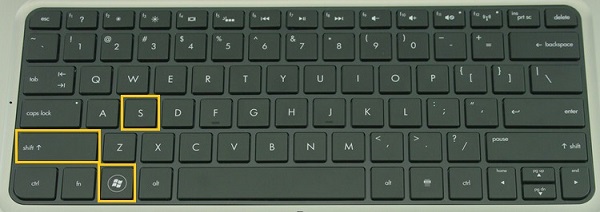
Windows Key + Shift + S
Press Windows key, Shift, and S at the same time. The screen will gray out, and a small menu appears. Choose a shape to capture: rectangular, freeform, window, or full screen. The screenshot copies to the clipboard. Paste it into any app to save or edit. This tool offers flexible screenshot options.
Using Hp Specific Software
Using software made for HP laptops can make taking screenshots easier. These tools come with helpful features designed just for your device. They allow quick access and simple ways to capture your screen without extra steps.
Let’s explore the options available with HP software and some trusted third-party tools.
Hp Support Assistant Features
HP Support Assistant helps keep your laptop in good shape. It includes a screenshot tool for fast captures. You can open it directly from the app and take a screenshot of the whole screen or a selected area.
This tool also saves images automatically, so you don’t have to search for them later. It is simple to use, even for beginners. The assistant also helps with updates and troubleshooting.
Third-party Screenshot Tools
Many other programs work well with HP laptops. Tools like Snagit, Greenshot, or Lightshot offer more screenshot options. These apps let you edit, annotate, and share images easily.
They usually have free versions with essential features and paid versions for extra tools. Using third-party software gives you control over how and where screenshots save. These apps run smoothly on HP laptops without causing slowdowns.
Editing And Saving Screenshots
After taking a screenshot on your HP laptop, the next step is editing and saving it. This process helps make your screenshot clearer and more useful. You can crop, highlight, or add text to your image. Saving it properly keeps your files organized and easy to find later.
Using Paint Or Photos App
Open the screenshot with Paint or the Photos app on your laptop. Both apps allow simple edits like cropping and drawing. In Paint, use the selection tool to crop unwanted parts. Use the brush or text tool to add notes or highlights. The Photos app offers quick filters and markup tools. Once editing is done, click save to keep your changes.
Organizing Screenshots
Create a special folder for your screenshots. Name it something clear like “My Screenshots” or “Screen Captures.” Save all screenshots there to avoid clutter. Use meaningful file names to find images faster. For example, use “meeting-notes-date” instead of random numbers. Regularly delete old or unused screenshots to save space.
Troubleshooting Screenshot Issues
Screenshots on an HP laptop are useful for saving information quickly. Sometimes, problems stop the screenshot process. Troubleshooting helps fix these common issues fast. This section covers two key problems and easy ways to solve them.
Print Screen Key Not Working
Check if the Print Screen key is physically stuck or damaged. Clean the key gently with a soft cloth. Try pressing the Fn key along with PrtSc. Some HP laptops need this combination to capture the screen.
Update your keyboard drivers using Device Manager. Outdated drivers can cause keys to stop working. Restart your laptop after updates for changes to apply. Test the key again in different apps like Paint or Word.
Use the Snipping Tool as an alternative. It works without the Print Screen key. Search for “Snipping Tool” in the Start menu and create screenshots easily.
Screenshot Not Saving
Check the default save folder for screenshots. Sometimes, screenshots save but the folder is unknown. Look in the Pictures > Screenshots folder or Documents folder. Use File Explorer to search for recent files by date.
Verify that your laptop has enough free storage space. Low disk space can block saving new files. Delete unneeded files or move them to an external drive.
Run a quick scan for malware or viruses. Some infections stop file saving. Use Windows Defender or trusted antivirus software for a scan.
Try saving the screenshot manually. Paste it into an app like Paint with Ctrl + V. Then save the image to your chosen folder. This method bypasses automatic saving problems.

Credit: www.wikihow.com

Credit: www.wikihow.com
Frequently Asked Questions
How Do I Take A Screenshot On An Hp Laptop?
Press the “PrtSc” key to capture the entire screen. Then, paste it into Paint or Word using Ctrl + V. Save the file as needed.
Can I Screenshot Only A Part Of My Hp Laptop Screen?
Yes, use Windows + Shift + S keys together. Select the screen area to capture. The image is copied to your clipboard for pasting.
Where Are Screenshots Saved On An Hp Laptop?
Screenshots taken with Windows + PrtSc keys save automatically. Find them in the “Pictures” folder under “Screenshots. ” Manual captures require pasting and saving.
How To Screenshot On Hp Laptop Without Print Screen Key?
Use Snipping Tool or Snip & Sketch apps. Open the app, select the capture mode, and save your screenshot easily.
Conclusion
Taking screenshots on an HP laptop is simple and quick. You can use keys like PrtSc, Windows + Shift + S, or Snipping Tool. Each method lets you save or edit your screen image easily. Practice a few times to see which way fits you best.
Capturing your screen helps share information or save important details fast. Now, you can capture anything on your HP laptop without trouble. Give it a try and see how it works for you!
As an Amazon Associate, I earn from qualifying purchases.

