

Are you ready to unlock the full power of your gaming laptop and enjoy stunning 4K visuals without any lag? Playing games in 4K can take your experience to the next level, but it also demands smart adjustments to keep everything running smoothly.
In this guide, you’ll discover simple and effective ways to optimize your laptop for 4K gaming. From tweaking settings to boosting performance, you’ll learn exactly what to do to make your games look amazing and play flawlessly. Keep reading—you’re just a few steps away from transforming your gaming sessions into a breathtaking 4K adventure.

Credit: www.hp.com
Choosing The Right Hardware
Choosing the right hardware is key to optimizing a gaming laptop for 4K. The hardware must handle high resolution without lag. Every part plays a role in smooth gameplay and sharp visuals. Focus on the graphics card, processor, memory, and storage. These components decide how well your laptop performs at 4K.
Selecting A Powerful Gpu
The graphics processing unit (GPU) is the heart of 4K gaming. It renders images and controls frame rates. A strong GPU supports detailed textures and high frame rates. Look for models with at least 6GB of VRAM. NVIDIA RTX or AMD Radeon series are good choices. This helps avoid stuttering and screen tearing during gameplay.
Importance Of Cpu Performance
The central processing unit (CPU) handles game logic and physics. A fast CPU prevents bottlenecks with the GPU. Choose a processor with multiple cores and high clock speed. Intel i7 or AMD Ryzen 7 are solid picks. The CPU also helps with background tasks while gaming. This leads to a smoother gaming experience overall.
Upgrading Ram And Storage
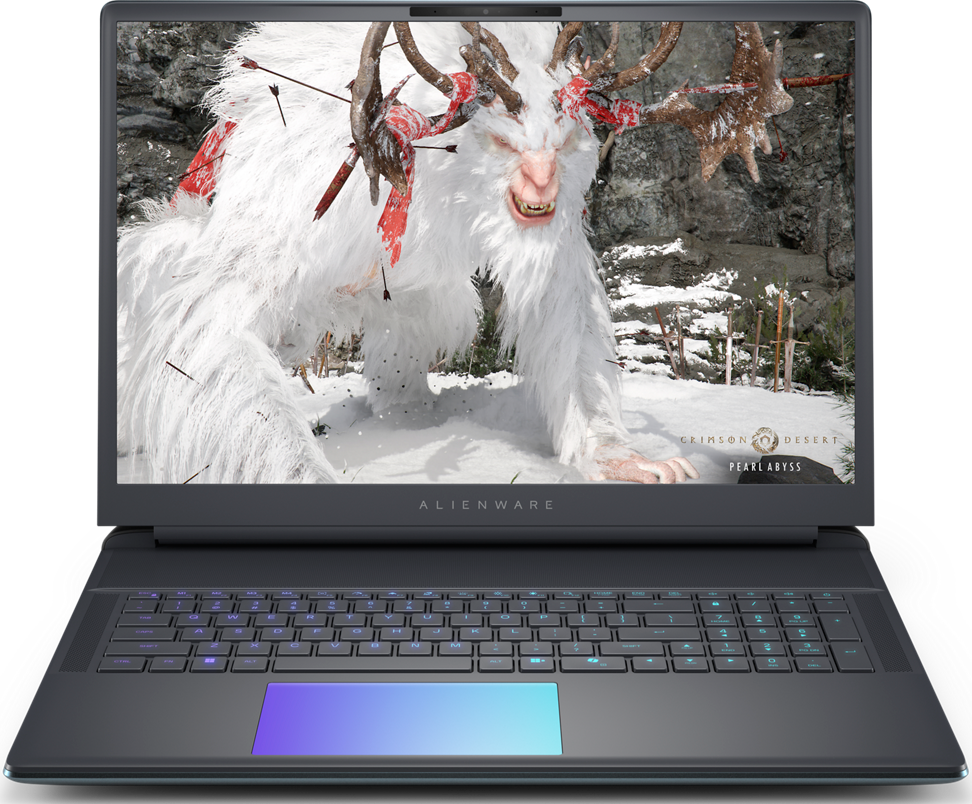
RAM stores temporary game data for quick access. At least 16GB of RAM supports smooth multitasking and game loading. More RAM helps with modern games that need extra memory. Storage speed also matters. Solid-state drives (SSD) load games faster than traditional hard drives. Larger storage space lets you keep more games and files on your laptop.
Credit: www.dell.com
Adjusting Display Settings
Adjusting display settings on a gaming laptop is key for the best 4K experience. Proper settings improve image quality and smooth gameplay. This section explains how to set resolution, refresh rate, color, brightness, and HDR. Follow simple steps to get clear, sharp, and vibrant visuals.
Configuring Resolution And Refresh Rate
Set the display resolution to 3840 x 2160 pixels for true 4K clarity. This sharpens game details and text. Choose a refresh rate that your laptop screen supports, usually 60Hz for 4K. A higher refresh rate makes gameplay smoother and reduces motion blur. Adjust these settings in the display options of your operating system or graphics card control panel.
Calibrating Color And Brightness
Proper color and brightness levels enhance game visuals. Adjust brightness so the screen is clear but not too bright. Set contrast to balance dark and light areas. Use built-in calibration tools or third-party apps to fine-tune colors. Aim for natural colors with no oversaturation or dullness. This makes games look realistic and enjoyable.
Using Hdr For Better Visuals
High Dynamic Range (HDR) adds depth to colors and brightness. Enable HDR in your laptop settings if supported. Games with HDR look more vivid and detailed. Bright areas shine and dark areas show more detail. HDR creates a lifelike gaming experience with richer visuals. Check that your game and laptop both support HDR for the best results.
Optimizing Software Settings
Optimizing software settings is key to enjoy smooth gaming on a 4K laptop. High resolution demands more from your system. Adjusting software helps balance performance and visuals. This section guides you through essential software tweaks. These steps improve frame rates and reduce lag for better gameplay.
Updating Graphics Drivers
Graphics drivers control how your laptop uses its GPU. New updates fix bugs and improve game support. Check the manufacturer’s website or use their app to update. Keeping drivers current ensures best performance at 4K resolution. Updated drivers often include optimizations for the latest games.
Tweaking In-game Settings
Lower some settings to boost frame rates without losing too much detail. Start with shadows, textures, and effects. Reduce them slightly to ease the GPU load. Use presets like medium or high instead of ultra. Adjust resolution scale if needed to improve smoothness. Test changes and find the best balance for your laptop.
Managing Background Processes
Background apps consume CPU and memory resources. Close unnecessary programs before gaming. Use Task Manager to see which apps use most resources. Disable auto-start apps to free up memory. This frees power for your game and reduces stutter. Keep your system lean for a better gaming experience.
Improving Cooling And Power
Optimizing a gaming laptop for 4K gaming requires focus on cooling and power. High-resolution gaming demands more from your laptop’s hardware. This can cause the system to heat up and slow down. Good cooling and power settings keep your laptop running smoothly. They help maintain strong performance and avoid damage.
Enhancing Laptop Cooling Solutions
Laptops often struggle with heat during intense gaming. Using a cooling pad can lower temperatures. These pads increase airflow around your laptop. Cleaning your laptop’s vents regularly removes dust. Dust blocks airflow and traps heat inside. Raising the laptop slightly helps air pass underneath. This simple step improves cooling significantly.
Using Power Plans For Performance
Adjusting your power plan can boost gaming performance. Choose the “High Performance” plan in your system settings. This plan allows the CPU and GPU to run at full speed. Avoid power-saving modes that limit hardware speed. Plugging in your laptop ensures it gets enough power. Battery mode often reduces performance to save energy.
Monitoring Temperatures And Throttling
Use software tools to watch your laptop’s temperatures. Programs like HWMonitor or MSI Afterburner show real-time data. High temperatures can cause throttling, which slows the CPU and GPU. Throttling protects your laptop but reduces gaming quality. Keep an eye on temps and cool your laptop if needed. Staying below 85°C helps maintain stable performance.
Leveraging External Accessories
Using external accessories can greatly improve your 4K gaming experience on a laptop. These tools help boost performance and provide better control. They also enhance visuals and reduce lag, making games smoother and more enjoyable.
Many laptops have limits on graphics power and input options. External accessories extend these limits, letting you play demanding games at high settings. Connecting the right devices can make your setup feel more like a desktop gaming rig.
Connecting External Gpus
External GPUs (eGPUs) add powerful graphics cards to your laptop. They connect through Thunderbolt 3 or USB-C ports. An eGPU helps run games at 4K with better frame rates.
Choose an eGPU with a strong graphics card that matches your needs. Make sure your laptop supports eGPU connections. Installing proper drivers is key to smooth operation.
Using High-quality Peripherals
High-quality keyboards and mice improve control and comfort. Mechanical keyboards offer better feedback and durability. Gaming mice with adjustable DPI settings help aim precisely.
A good headset improves sound clarity and communication. External monitors with high refresh rates reduce screen lag. These peripherals make your 4K gaming setup more responsive and immersive.
Optimizing Network For Online Gaming
Stable internet is vital for online 4K gaming. Use a wired Ethernet connection to reduce lag and packet loss. If using Wi-Fi, choose a 5GHz network for faster speeds.
Close background apps that use bandwidth. Some routers offer Quality of Service (QoS) settings to prioritize gaming traffic. A strong network connection keeps gameplay smooth and responsive.
Credit: www.avg.com
Troubleshooting Common Issues
Gaming laptops running 4K can face common problems that affect play. These issues reduce smoothness and cause discomfort. Knowing how to fix them helps keep the game steady and clear.
Fixing Frame Rate Drops
Frame rate drops make games look slow and choppy. Close apps running in the background to free up resources. Lower game settings like shadows and textures to reduce load. Update your graphics drivers to improve performance. Check for overheating, as it can slow your laptop.
Resolving Display Flickering
Screen flickering distracts and strains your eyes. Check your cable connections for damage or looseness. Adjust the refresh rate in your display settings to match the screen. Disable hardware acceleration in apps to stop flickering. Update your GPU driver to fix bugs.
Handling Overheating Problems
Overheating can cause shutdowns and damage. Use a cooling pad to improve airflow around your laptop. Clean dust from vents and fans regularly. Avoid using your laptop on soft surfaces that block air vents. Lower game settings to reduce heat production during play.
Frequently Asked Questions
How Can I Improve 4k Gaming Performance On My Laptop?
To boost 4K gaming, update your GPU drivers and optimize in-game settings. Lower graphics quality and disable unnecessary background apps for smoother gameplay.
What Settings Best Optimize 4k Resolution On Gaming Laptops?
Set your display to native 4K resolution. Adjust texture quality and shadows for balance. Enable V-Sync to reduce screen tearing and maintain frame rates.
Is Upgrading Laptop Hardware Necessary For 4k Gaming?
Upgrading RAM or storage helps, but the GPU and CPU matter most. A powerful GPU ensures smooth 4K gameplay. Consider external GPU options if needed.
How Does Cooling Affect 4k Gaming On Laptops?
Effective cooling prevents thermal throttling, improving performance and stability. Use cooling pads and keep vents clear for optimal airflow during intense 4K gaming sessions.
Conclusion
Optimizing your gaming laptop for 4K brings better visuals and smoother play. Adjust settings step by step for the best balance of quality and speed. Keep drivers updated and close unnecessary apps while gaming. Use cooling pads to prevent overheating during long sessions.
Small changes make a big difference in performance. Enjoy sharper graphics without slowing down your laptop. Simple tips can enhance your gaming experience instantly. Try these easy steps and see the improvement yourself.
As an Amazon Associate, I earn from qualifying purchases.

