

Are you struggling to type accents on your Spanish keyboard in Windows? You’re not alone.
Accents are essential in Spanish—they change meanings and make your writing clear and professional. But finding the right keys can be confusing, especially if you’re new to the layout. This guide will show you simple, quick ways to type accents easily.
By the end, you’ll feel confident typing every word correctly, saving time and avoiding frustration. Keep reading to unlock the secrets to typing accents like a pro!

Credit: www.youtube.com
Setting Up Spanish Keyboard
Setting up a Spanish keyboard on Windows lets you type accents easily. It changes your keyboard layout to Spanish. This helps with letters like ñ and accented vowels. Follow simple steps to add and switch the Spanish keyboard.
Adding Spanish Layout In Windows
Open the Start menu and select Settings. Click on Time & Language. Choose Language from the side menu. Select Add a language and find Spanish. Pick the Spanish version you want and click Next. Then click Install. Windows will download the Spanish keyboard layout. It will appear in your language list.
Switching Between Keyboards
Press the Windows key and Spacebar at the same time. This toggles between your installed keyboards. You can also click the language icon in the taskbar. Select Spanish from the list to switch. Now you can type with Spanish characters and accents.

Credit: www.wikihow.com
Typing Accents On Vowels
Typing accents on vowels is essential for writing correct Spanish. Accents change the meaning of words. They also guide pronunciation and stress. On a Spanish keyboard in Windows, typing accents is quick and simple. It helps to know the right keys to use.
Acute Accent (´)
The acute accent appears on vowels like á, é, í, ó, ú. To type it, press the apostrophe key (‘) first. Then press the vowel you want to accent. For example, press ‘ and then a to get á. This works for all five vowels. It places the accent directly above the vowel.
Diaeresis (¨)
The diaeresis appears on the letter ü. It shows that the u is pronounced separately. To type ü, press the double quote key (“) first. Then press the letter u. This adds the two dots above the u. Diaeresis is less common but very important in words like “pingüino.”
Using Special Characters
Using special characters on a Spanish keyboard in Windows is simple and fast. These characters are essential for writing correct Spanish. They include letters with accents and unique punctuation marks. Knowing how to type them improves your writing and makes it clear.
Tilde On N (ñ)
The letter ñ is common in Spanish words. Press the key right next to the L to get ñ. This key works without pressing Shift. For uppercase Ñ, press Shift and that key together. No extra steps needed.
Question And Exclamation Marks
Spanish uses inverted question and exclamation marks at the start of sentences. To type the inverted question mark (¿), press Alt Gr + the question mark key. For the inverted exclamation mark (¡), press Alt Gr + the number 1 key. These marks help show questions and excitement clearly.
Other Common Symbols
Spanish writing also uses accents on vowels and the diaeresis (ü). To type accented vowels (á, é, í, ó, ú), press the accent key (´) then the vowel. For ü, press Shift + the accent key, then U. These symbols keep your text accurate and easy to read.
Keyboard Shortcuts For Accents
Typing accents on a Spanish keyboard in Windows is easy with keyboard shortcuts. These shortcuts help you add accents quickly without changing settings. Knowing these tricks saves time and makes writing in Spanish smooth.
Alt Codes For Accents
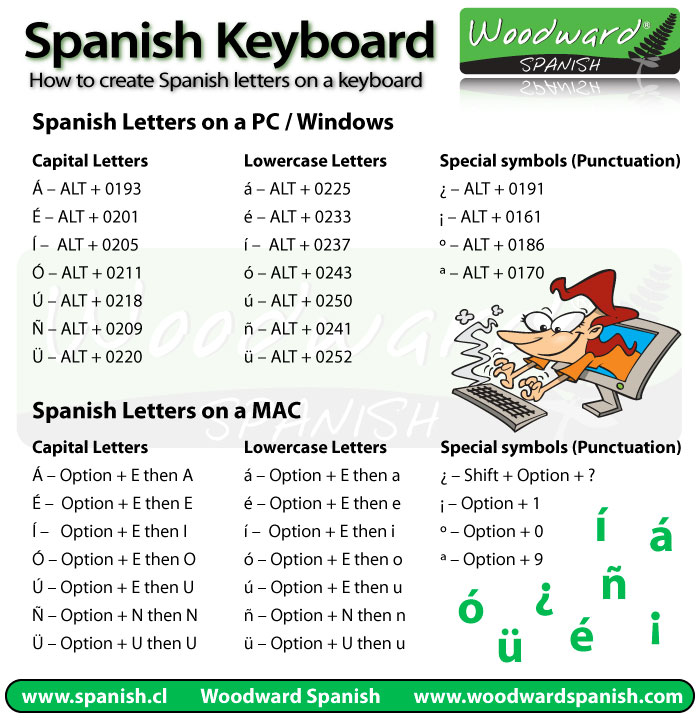
Alt codes are numbers you press while holding the Alt key. They create accented letters fast. For example, hold Alt and type 160 for á. Release the Alt key, and the accented letter appears.
Here are some common Alt codes:
- á = Alt + 160
- é = Alt + 130
- í = Alt + 161
- ó = Alt + 162
- ú = Alt + 163
- ñ = Alt + 164
- ü = Alt + 129
Using Alt codes works anywhere you type text on Windows. Practice them to type accents faster.
Using Dead Keys
Dead keys allow you to add accents by pressing two keys in sequence. First, press the accent key, then the letter to accent. The accent marks do not appear until you type the letter.
For example, press the apostrophe key (‘) then the letter a. It becomes á. The same works for other accents:
- ´ + e = é
- ´ + i = í
- ´ + o = ó
- ´ + u = ú
- ~ + n = ñ
- ¨ + u = ü
Dead keys are easy to use and perfect for quick accents on a Spanish keyboard. Try it yourself to get comfortable.
Troubleshooting Keyboard Issues
Troubleshooting keyboard issues helps keep your Spanish typing smooth. Problems with accents or special characters can slow your work. Fixing these issues quickly saves time and frustration.
Check a few settings and try simple solutions. Most problems have easy fixes. This guide helps you find the cause and correct it fast.
Common Problems And Fixes
Sometimes accents do not appear when typed. The keyboard may type wrong characters. Keys might not work at all.
Restart your computer first. Many issues clear up after rebooting. Check if the keyboard is clean and connected properly.
Try pressing the Alt key with numbers for accents. This method often works if direct keys fail. Update your keyboard driver from Windows settings.
Checking Language Settings
Wrong language settings block accent typing. Open Windows Settings and go to “Time & Language.” Select “Language” and see if Spanish is added.
Set Spanish as your default or add it alongside English. Make sure the keyboard layout matches the Spanish layout. Switch layouts using the language bar on the taskbar.
Remove any unwanted keyboard layouts to avoid confusion. This step ensures accents work as expected on your keyboard.
Credit: www.woodwardspanish.com
Tips For Faster Typing
Typing accents on a Spanish keyboard can slow you down at first. With practice, your fingers will move faster and more naturally. Learning quick methods helps you type without looking at the keyboard. Small habits make a big difference in speed and accuracy.
Practice Exercises
Start with simple exercises to get used to accent keys. Repeat typing words like “sí,” “día,” and “corazón.” Use short sentences with accents to build muscle memory. Set a timer and try to type faster each time. Consistent practice helps your brain remember key locations.
Using On-screen Keyboard
The On-Screen Keyboard shows you where accented keys are. It helps if you forget the key combinations. Open it by searching “On-Screen Keyboard” in Windows. Watch which keys produce accents as you type. This visual aid speeds up learning and reduces mistakes.
Frequently Asked Questions
How Do I Type Accents On A Spanish Keyboard In Windows?
To type accents, press the accent key (´) then the vowel. For example, press ´ then a to get á. This method works for á, é, í, ó, and ú on a Spanish keyboard in Windows.
Which Keys Produce Spanish Special Characters On Windows?
On a Spanish keyboard, special characters like ñ and ¿ have dedicated keys. The ñ is next to the L key. The ¿ is typed with Shift + the key next to the number 1.
Can I Use Alt Codes To Type Spanish Accents?
Yes, you can use Alt codes on Windows. Hold Alt and type the numeric code on the keypad. For example, Alt + 160 produces á. This method works anywhere on Windows.
How Do I Enable The Spanish Keyboard Layout In Windows?
Go to Settings > Time & Language > Language. Add Spanish and set it as your keyboard layout. This allows you to type accents and special characters easily.
Conclusion
Typing accents with a Spanish keyboard on Windows is simple. Just follow the steps carefully. Practice a little each day to get faster. This skill helps you write clearly in Spanish. It makes your messages and documents look right. Soon, typing accents will feel natural and easy.
Keep trying, and don’t get discouraged. Your Spanish writing will improve over time. Enjoy using your keyboard to express yourself fully.
As an Amazon Associate, I earn from qualifying purchases.

