

Is your on-screen keyboard suddenly lagging or responding slower than usual? It can be frustrating when every tap feels delayed, especially when you’re trying to type quickly or get things done.
You might wonder why this is happening and how to fix it. Don’t worry—understanding the reasons behind your slow on-screen keyboard can help you regain control and speed up your typing experience. Keep reading, and you’ll discover simple solutions that make your keyboard work smoothly again.
Credit: osxdaily.com
Common Causes Of Slow On-screen Keyboard
Slow on-screen keyboards can be frustrating. Several common causes affect their speed and responsiveness. Understanding these causes helps fix the problem quickly. Below are the main reasons your on-screen keyboard might be slow.
System Performance Issues
When your device runs many tasks, it slows down. Low memory and high CPU use reduce keyboard speed. Old hardware can also struggle to keep up. A slow system makes typing on-screen lag behind.
Software Conflicts
Different programs may clash with the keyboard app. Conflicts cause delays or freezing. Some apps may block keyboard functions. These issues slow down typing response time.
Outdated Drivers Or Os
Drivers connect hardware and software. Old drivers may not work well with the keyboard. An outdated operating system can cause bugs. Updating both improves keyboard speed and stability.
Background Applications
Apps running in the background use resources. They take memory and processing power from the keyboard. Too many background apps make the keyboard slow. Closing unnecessary apps can help speed it up.
Basic Troubleshooting Steps
Basic troubleshooting steps can often fix a slow on-screen keyboard. These steps are simple and quick to try. They help clear small issues that slow down your device. Follow these tips to improve your keyboard speed and typing experience.
Restart Your Device
Restarting your device refreshes its memory. It closes background tasks that may slow down the keyboard. Turn off your device, wait a few seconds, then turn it back on. This simple step often speeds up the keyboard immediately.
Close Unnecessary Apps
Many apps open at the same time can slow your device. Check for apps running in the background. Close any that you do not need right now. This frees up memory and processing power, helping your keyboard work faster.
Check For System Updates
System updates improve device performance and fix bugs. Check if your device has new updates available. Install any updates and restart your device. Updated software can solve keyboard lag and other issues.
Adjusting Keyboard Settings
Adjusting keyboard settings can fix a slow on-screen keyboard. Small changes in these settings improve speed and response. This helps you type faster and with less delay.
Disable Keyboard Animations
Animations can slow down your on-screen keyboard. Turn off animations to make the keyboard more responsive. This step reduces lag and speeds up typing.
Change Keyboard Layout
Some keyboard layouts need more processing power. Switching to a simpler layout can boost performance. Choose a layout that matches your typing style and device speed.
Modify Typing Speed Settings
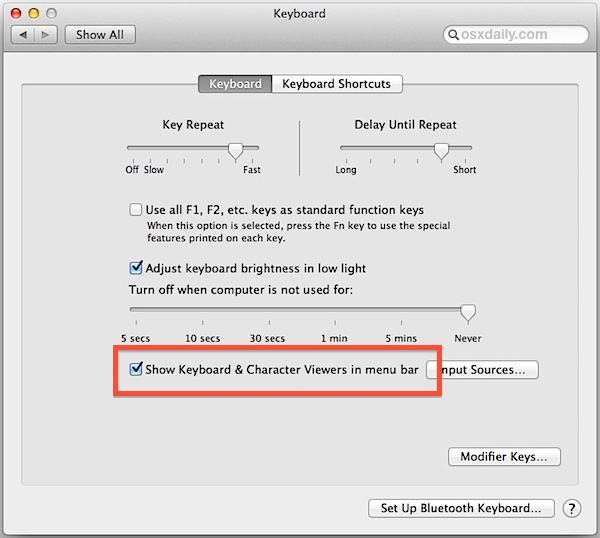
Typing speed settings affect how fast keys repeat when held. Lowering this speed can reduce delay and improve keyboard response. Adjust these settings to find a comfortable typing pace.
Clearing Cache And Temporary Files
Clearing cache and temporary files can improve your on-screen keyboard’s speed. These files build up over time and slow down the app. Removing them frees up space and helps the keyboard run smoothly. The process is simple and can fix lag or delay issues quickly.
Clear Keyboard App Cache
Go to your device settings and find the keyboard app. Tap on Storage or Apps to see cache options. Choose “Clear Cache” to remove temporary files. This does not delete your personal data or settings. After clearing, restart the keyboard app to check if it works faster.
Use Disk Cleanup Tools
Disk cleanup tools remove unnecessary files from your device. They clear system cache and temporary files that slow down apps. On Windows, use the built-in Disk Cleanup tool. On Mac, use storage management options. Running these tools regularly keeps your device and keyboard responsive.
Updating Drivers And Software
Updating drivers and software helps keep your on-screen keyboard working smoothly. Outdated drivers or system files can slow it down. Regular updates fix bugs and improve performance. They also add support for new features and devices.
Keeping your keyboard drivers and operating system up to date can solve many issues. It ensures your device runs efficiently without lag or delays. Follow simple steps to check and install these updates.
Update Keyboard Drivers
Keyboard drivers connect your device to the software. Old drivers may cause slow response on your on-screen keyboard. Open Device Manager on your PC. Find the keyboard section and right-click your device. Choose “Update driver” and follow the prompts. Windows will search for the latest driver online. Restart your computer after updating. This refreshes the driver and often improves speed.
Install Latest Os Updates
Operating system updates include important fixes and improvements. They can enhance keyboard performance and fix bugs. Open Settings on your computer. Go to “Update & Security” and click “Check for updates.” Download and install any available updates. Restart your device to apply changes. Regular OS updates keep your system stable and fast.
Advanced Fixes
Advanced fixes help solve slow on-screen keyboard problems beyond basic steps. These methods check your system for deeper issues. They ensure your keyboard runs smoothly and fast again.
Run System File Checker
System File Checker scans your computer for damaged files. Corrupted files can slow down your keyboard and other apps. Running this tool repairs missing or broken files. Open Command Prompt as admin and type sfc /scannow. Wait for the scan to finish. Restart your PC after the repair.
Scan For Malware
Malware often causes system slowdowns. It can affect your keyboard’s speed and response. Use trusted antivirus software to scan your device. Remove any threats found during the scan. A clean system helps your keyboard work better.
Reset Keyboard Settings
Wrong keyboard settings can make the on-screen keyboard slow. Resetting these settings can fix the problem. Go to Settings > Devices > Typing. Find the option to reset keyboard settings to default. This clears any changes that may cause lag. Restart your device to apply changes.
When To Seek Professional Help
Knowing when to seek professional help is important for fixing slow on-screen keyboard issues. Some problems need expert attention to avoid further damage or frustration.
Not all slowdowns are simple to fix. Professionals can diagnose complex issues quickly. They have tools and skills to solve hidden problems.
Persistent Performance Issues
When the on-screen keyboard stays slow after basic fixes, it signals a deeper problem. Repeated lag, freezes, or delays can disrupt your work. Persistent issues may indicate corrupted software or conflicts in your system. Professionals can identify these problems and apply proper solutions. They can also update or reinstall drivers and software safely.
Hardware-related Problems
Sometimes, hardware issues cause the keyboard to respond slowly. Faulty touchscreens, damaged sensors, or worn-out components affect performance. These problems are hard to detect without special tools. Experts can test and repair hardware parts accurately. They also know if parts need replacement to restore smooth keyboard use.
Credit: h30434.www3.hp.com
Credit: osxdaily.com
Frequently Asked Questions
Why Is My On Screen Keyboard Lagging On Windows?
On screen keyboard lag often happens due to outdated drivers or heavy CPU usage. Closing unnecessary apps and updating drivers can help. Also, check for Windows updates and restart your device to improve keyboard responsiveness.
How Can I Fix A Slow On Screen Keyboard?
To fix a slow on screen keyboard, clear background processes, update your operating system, and restart the device. Disabling unnecessary keyboard features and checking for malware can also enhance performance and reduce lag.
Does Antivirus Software Affect On Screen Keyboard Speed?
Yes, antivirus scans can slow down your on screen keyboard. Real-time scanning uses CPU resources, causing lag. Temporarily pausing scans or adjusting antivirus settings may improve keyboard speed without compromising security.
Can Too Many Apps Cause On Screen Keyboard Delays?
Running multiple apps uses more system resources, which can slow the on screen keyboard. Closing unused applications frees memory and CPU power, resulting in faster keyboard response times.
Conclusion
Slow on-screen keyboards can frustrate your work and daily tasks. Many causes exist, like software glitches or too many background apps. Fixing these issues often speeds up your keyboard response. Regular updates and system checks help maintain smooth performance. Remember, a fast keyboard improves typing ease and productivity.
Keep your device clean and avoid overload for best results. Simple steps can make your on-screen keyboard quick again. Don’t let slow typing hold you back. Act today to enjoy a better typing experience.
As an Amazon Associate, I earn from qualifying purchases.

