Thank you for clarifying. Here is a complete, in-depth article (1000+ words) on How to Reset Ford F150 Screen, covering all practical steps, different model years, troubleshooting, types of resets, common problems, and helpful tips. The article is structured for clarity and written in simple English, with thorough explanations for non-native readers.
—
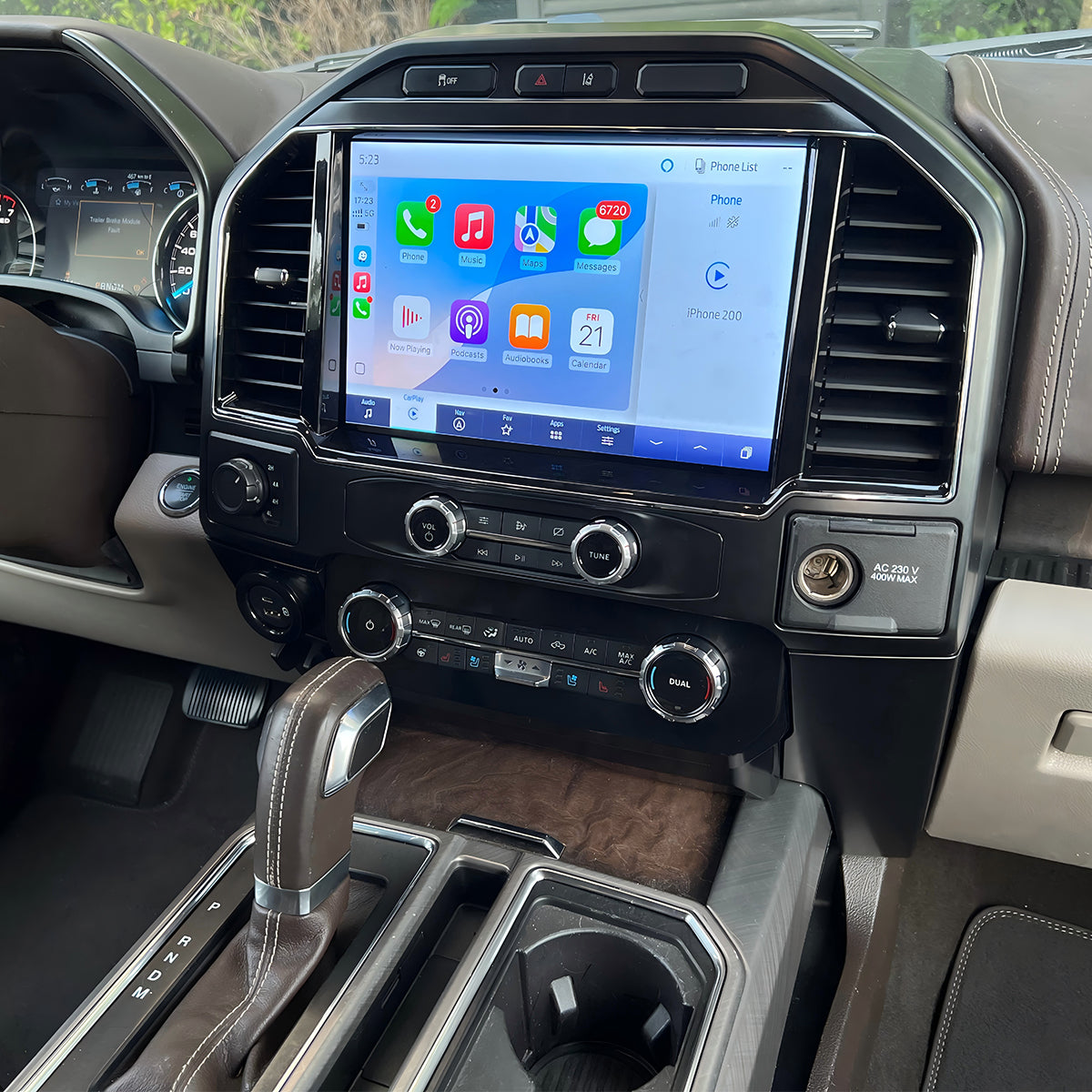
The Ford F150 comes with a modern touchscreen system. This screen controls music, navigation, phone calls, and other features. Sometimes, the screen can freeze, go black, or stop working correctly. When this happens, many drivers feel stressed or confused. But the good news is, you can often fix these problems by resetting the screen.
Resetting the Ford F150 screen is not difficult, but the steps can change depending on your truck’s model year and the type of screen you have. This guide will walk you through different reset methods, explain when to use them, and show you what to do if problems continue.
By the end, you’ll feel confident handling most screen issues on your own.
Types Of Ford F150 Screens
Before you start, it’s important to know what type of screen your truck has. Ford F150s mostly use three types:
1. Basic Display
This is a simple screen that shows time, radio, and temperature. It is not a touchscreen.
2. Sync 3 Touchscreen
This is the most common screen in recent F150s (2016 and newer). It controls audio, phone, navigation, and more.
3. Sync 4 Touchscreen
Found in 2021 and newer F150s. It is faster and has more features than SYNC 3.
Not sure which one you have? Look at the bottom of your screen when the truck starts. It usually shows “SYNC 3” or “SYNC 4. ” If you only see basic info and can’t touch the screen, you have the basic display.
When Should You Reset The Screen?
You do not need to reset the screen for every little problem. But you should try a reset if:
- The screen is frozen or not responding to touch.
- The display is black or blank but the truck is running.
- Apps (like navigation or music) are not working properly.
- Bluetooth or CarPlay/Android Auto will not connect.
- Settings keep changing or won’t save.
If your screen has cracks or physical damage, a reset will not help. In this case, you need a repair or replacement.

Credit: www.youtube.com
Simple Screen Reset (soft Reset)
For most problems, a soft reset is enough. This method does not erase your saved settings or data.
How to do a soft reset on SYNC 3 and SYNC 4:
- Turn the truck ON (engine running or in accessory mode).
- Press and hold the power button (audio volume knob) and the seek forward button (the right arrow under your screen) at the same time.
- Hold both buttons for about 10 seconds.
- The screen will turn off and restart. You will see the Ford logo as it reboots.
This method works for 2016 and newer F150s. For older models or basic screens, try turning the truck off, open the driver door, wait 1–2 minutes, and then restart the truck.
Helpful Tip:
If your screen freezes often, check if your system needs a software update. Sometimes, Ford releases updates to fix bugs.
Master Reset (factory Reset)
If a soft reset does not fix your problem, you may need a master reset. This process returns your screen to its original settings. All personal data will be erased, including Bluetooth devices, Wi-Fi networks, and saved addresses.
How to do a master reset:
- Go to your SYNC screen’s “Settings” menu.
- Select “General.”
- Scroll down and tap “Master Reset.”
- Confirm your choice. The screen will turn off and restart. It can take several minutes.
Important:
Before doing a master reset, make sure you know your important settings (Bluetooth, navigation favorites, etc. ), because you will need to enter them again.

Credit: www.reddit.com
Hard Reset (disconnecting The Battery)
If the screen does not respond at all (no power, completely black), you can try a hard reset by disconnecting the truck’s battery.
Steps:
- Turn off the truck and remove the key.
- Open the hood and use a wrench to loosen the negative (-) battery cable.
- Remove the cable and wait for 10–15 minutes.
- Reconnect the cable and tighten it securely.
- Close the hood and start the truck.
This reset can help clear deeper system glitches. Be aware that radio presets and clock settings may reset.
Caution:
If you are not comfortable working with the battery, ask for help from a professional or someone experienced.
Reset Steps For Different Model Years
The process can change based on your truck’s year:
- 2013–2014 F150 (with MyFord Touch):
Press and hold both the power button and the right seek button for 10 seconds to reset.
- 2015–2020 F150 (SYNC 3):
Use the soft reset (power + right seek buttons). Master reset is in the Settings > General menu.
- 2021+ F150 (SYNC 4):
The soft reset is usually the same. For Master Reset, go to Settings > General > Reset > Master Reset.
If your model is different, check your owner’s manual for exact steps.
Common Problems And Solutions
Screen Freezes Or Lags
Often caused by low system memory or too many apps running. Try a soft reset first. If the problem repeats, delete unused apps or perform a master reset.
Black Or Blank Screen
First, make sure the truck is running. Try a soft reset. If nothing works, check the fuse for the infotainment system (see your manual for location). Sometimes, the screen fails because of a blown fuse.
Bluetooth And Carplay Issues
If your phone won’t connect, delete the device from the SYNC system and reconnect it. Make sure your phone’s software is updated. If problems continue, try a master reset.
Navigation Or Audio Problems
If maps or music apps are missing or not working, check for SYNC software updates. Updates can be done by Wi-Fi (on SYNC 3 and 4) or by USB download from the Ford [official site](https://owner.ford.com/support.html).
Troubleshooting Table
Sometimes, it helps to compare different problems and solutions quickly.
| Problem | Quick Fix | Next Step if Not Fixed |
|---|---|---|
| Screen frozen | Soft reset | Master reset |
| Blank screen | Soft reset | Check fuse/disconnect battery |
| Bluetooth won’t connect | Delete device/re-pair | Master reset |
| Audio not working | Restart system | Check updates/master reset |
| Navigation errors | Check updates | Master reset |
Practical Tips Most People Miss
- Wait after a reset. After a soft or master reset, give the system a few minutes to fully reboot before trying to use apps or connect your phone.
- Update your SYNC system. Many screen problems come from outdated software. Connect your truck to Wi-Fi regularly, or check the Ford website for the latest updates. Updating can prevent many common bugs.
- Keep a list of your Bluetooth devices and favorite settings. This makes it easier to restore them after a master reset.
When To See A Professional
If your screen stays black, shows error messages, or restarts by itself often, the problem might be hardware, not software. Screens can fail due to water damage, electrical problems, or a faulty module. In these cases, visit a Ford dealer or trusted mechanic.
Credit: www.fordsync4.com
Frequently Asked Questions
Does resetting the screen erase my maps or apps?
Only a master reset erases personal data. A soft reset will not delete maps or apps.
Can I reset the screen while driving?
It’s not safe. Always reset when parked.
Is there a reset button on the F150 screen?
No, there’s no physical reset button. Use the methods above.
Final Advice
Resetting your Ford F150 screen can solve many common problems. Start with a multi-button soft reset, move to a master reset if needed, and only disconnect the battery if nothing else works. Stay patient, write down your favorite settings, and keep your SYNC system up to date.
With these steps, you can handle most screen issues without stress.
As an Amazon Associate, I earn from qualifying purchases.