
If you’re struggling with your BMW iDrive system and wondering how to reset it, you’re not alone. A simple reset can fix glitches, improve performance, and get your system running smoothly again.
In this guide, you’ll find easy, step-by-step instructions that anyone can follow—no tech skills needed. Keep reading, and you’ll have your iDrive back to perfect working order in no time.
Idrive System Basics
The iDrive system is the control center for many BMW functions. It manages navigation, entertainment, and vehicle settings. This system uses a central screen and a controller knob. Drivers can access many features without distraction.
Understanding the basics helps when troubleshooting or resetting the system. The iDrive system updates and resets can improve performance. Knowing common issues saves time and frustration.
What Is Idrive
iDrive is BMW’s main interface for car controls. It combines buttons, a rotary knob, and a screen. This setup controls media, navigation, and climate settings. The system aims to keep driving safe and simple. It replaces many separate buttons with one control unit.
iDrive adapts to newer BMW models with added features. Voice commands and touchscreens are often included. The system connects with smartphones for calls and music. It centralizes many car functions in one place.
Common Issues Requiring Reset
The iDrive system can sometimes freeze or lag. The screen may go black or show errors. Navigation might stop working or lose connection. Bluetooth may fail to pair or drop calls. These problems often need a system reset.
Resetting iDrive can fix software glitches and restore normal function. It can clear minor bugs without dealer visits. Power cycling the car sometimes helps but not always. A proper reset resets system memory and settings.
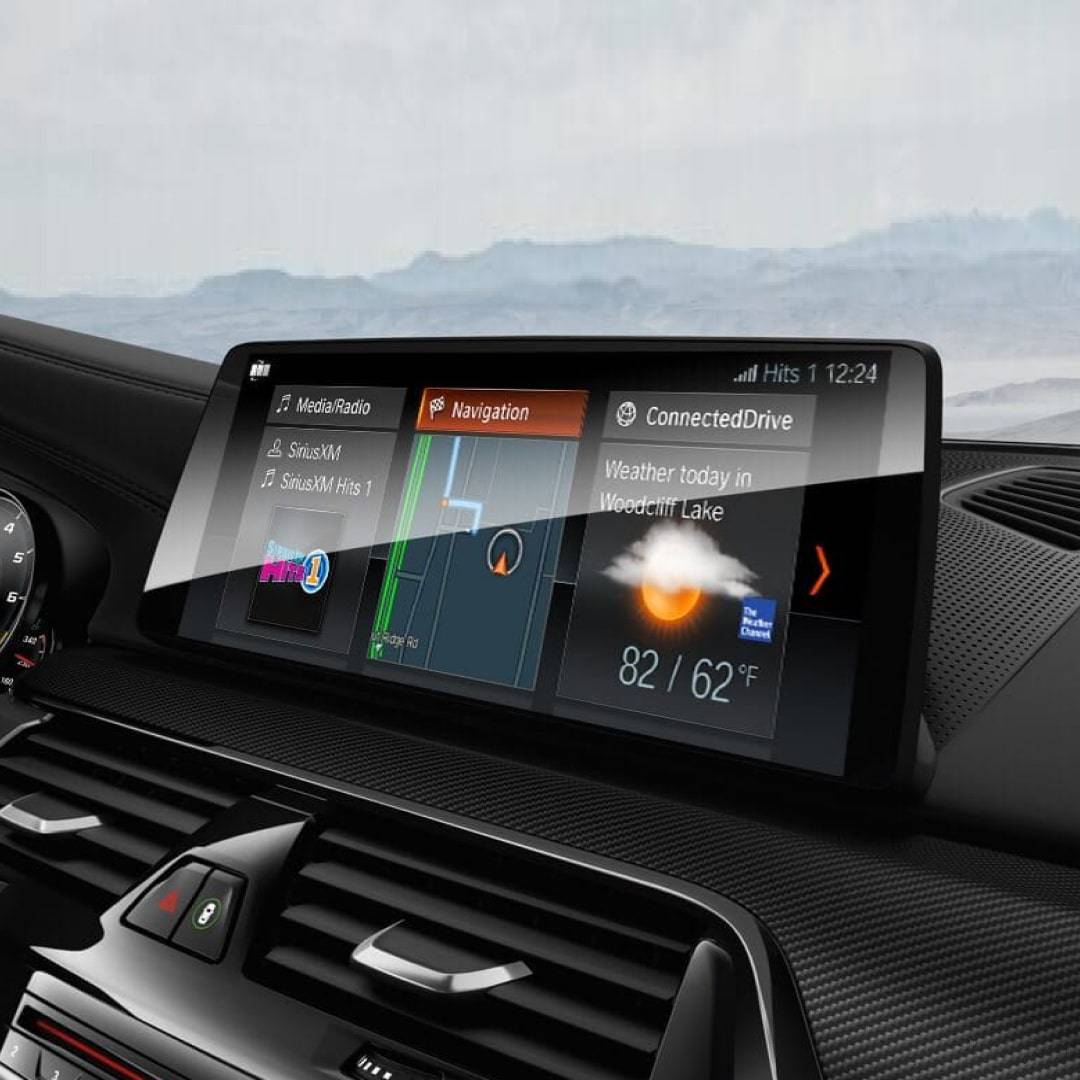
Credit: www.bimmer-tech.net
When To Reset Idrive
Knowing when to reset your BMW iDrive system helps keep it running smoothly. Resetting can fix bugs, glitches, or slow responses. It also clears minor errors and refreshes the system. Resetting is not needed often but can solve many common issues quickly.
Signs Your System Needs Resetting
The screen freezes or stops responding. Menus load very slowly or not at all. Audio or navigation functions act strangely or do not work. The system crashes or restarts on its own. Settings do not save after changes. These signs show the iDrive needs a reset.
Precautions Before Reset
Save any important settings or data first. Know that resetting may erase custom preferences. Turn off the car engine before starting the reset. Avoid resetting while driving for safety reasons. Follow the correct reset steps to prevent damage. Taking these precautions helps avoid problems after reset.
Soft Reset Method
The Soft Reset Method is a simple way to fix minor issues with your BMW iDrive system. It does not erase any data or settings. This reset helps clear temporary glitches and makes the system responsive again. This method is quick and easy. No special tools are needed.
Step-by-step Soft Reset
Start by pressing and holding the volume button on your iDrive controller. Keep holding the button for about 20 seconds. The screen will go black and then restart. Release the button once the BMW logo appears. Wait for the system to fully reboot. The iDrive should now work smoothly.
Effects Of Soft Reset
The soft reset clears small bugs and freezes in the system. It does not delete your saved data or settings. Apps, navigation, and media will stay as they are. The reset restores normal function without losing personalization. It helps improve system speed and responsiveness. Perfect for quick troubleshooting without hassle.

Credit: www.youtube.com
Hard Reset Method
The hard reset method helps fix serious iDrive system issues. It clears all temporary glitches. This method forces the system to restart fully. It can solve frozen screens or unresponsive controls. Use this method only when soft resets fail.
Preparing For Hard Reset
Turn off your BMW engine. Wait for a few minutes. Make sure the car is in park. Check that the battery has enough power. Close all doors and windows. Remove any USB or external devices. These steps avoid interruptions during reset.
Step-by-step Hard Reset
Press and hold the volume button. At the same time, press the power button on the iDrive controller. Keep holding both buttons for about 20 seconds. The screen will go black and then restart. Release the buttons when the BMW logo appears. Wait for the system to fully reboot.
After Reset Setup
Once the system restarts, check all settings. Reconnect Bluetooth and Wi-Fi if needed. Adjust display and sound preferences. Test the iDrive controller to see if it works smoothly. If problems persist, consult your BMW dealer for help.
Resetting Via Vehicle Settings
Resetting the iDrive system through your BMW’s vehicle settings is a straightforward method. It allows you to clear system glitches and restore default settings without external tools. This method is safe and keeps your car’s core functions intact.
Follow clear steps to access the reset option within the iDrive system. It takes just a few minutes and can improve system performance.
Accessing System Menu
Start your car and turn on the iDrive system. Use the controller knob to navigate to the main menu. Look for the “Settings” option and select it. Inside Settings, find the “System” tab. This tab contains options for system management and reset. Make sure you scroll carefully to avoid missing the reset option.
Factory Reset Option
Within the System menu, locate the “Factory Reset” or “Restore Factory Settings.” Select this option to begin the reset process. The system may ask for confirmation to avoid accidental resets. Confirm your choice to proceed. The iDrive will then clear custom settings and return to default.
What Resets And What Stays
The reset clears navigation destinations, audio preferences, and system customizations. Personal data like saved radio stations and Bluetooth pairings will be erased. Important vehicle settings such as tire pressure monitoring or service intervals remain unchanged. This approach fixes software bugs while keeping safety features intact.
Troubleshooting Post-reset
After resetting your BMW iDrive system, some issues might appear. This section helps you spot and fix common problems. Knowing what to do saves time and frustration. Follow these tips to keep your iDrive running smoothly after a reset.
Common Post-reset Issues
Sometimes, the iDrive screen may freeze or respond slowly. This can happen if the system needs a few minutes to restart fully. Settings might return to factory defaults, causing personalized options to disappear. Audio or navigation features may not work right away. Bluetooth connections might drop or need re-pairing. These problems usually clear up after a short wait or by restarting the car.
When To Seek Professional Help
If the iDrive system stays unresponsive after a reset, it might need expert attention. Persistent screen freezes or error messages mean a deeper issue. Problems with software updates or hardware faults require a technician. Visit a BMW service center or certified mechanic for reliable repairs. Early professional help prevents bigger issues later on.
Tips To Maintain Idrive Performance
Keeping your BMW iDrive system running smoothly takes some care. Simple steps help keep the system fast and reliable. These tips save time and avoid frustration. Follow these habits for better iDrive performance.
Regular Updates
Check for iDrive software updates often. Updates fix bugs and improve features. Use a USB drive or the BMW Connected app to install updates. Staying current protects your system from errors. Updates keep navigation maps accurate and user interface sharp.
Safe Usage Practices
Avoid pressing too many buttons at once. Let the system process each command fully. Use the iDrive controller gently to prevent damage. Do not turn off the car while the system updates. Keep the screen clean to avoid touch errors. Safe habits extend the life of your iDrive system.

Credit: www.reddit.com
Frequently Asked Questions
How Do I Reset My Bmw Idrive System?
To reset your BMW iDrive, press and hold the volume button for about 20 seconds. The screen will go black and then reboot, restoring the system without affecting your settings.
What Causes The Bmw Idrive To Freeze?
The iDrive may freeze due to software glitches or outdated firmware. Restarting or updating the system usually resolves freezing issues quickly.
Can I Reset Idrive Without Losing Saved Settings?
Yes, a soft reset via the volume button reboot doesn’t erase personal settings or preferences. It only refreshes the system’s operation.
How Often Should I Update Bmw Idrive Software?
Update your iDrive software whenever updates are available. Regular updates improve performance, fix bugs, and add new features.
Conclusion
Resetting your iDrive BMW system is simple and quick. Follow the steps carefully to avoid any issues. A reset can fix glitches and improve system performance. Regular resets help keep your system running smoothly. Try these tips next time your iDrive acts up.
Stay confident driving with a responsive BMW system. You now know how to reset your iDrive easily.
As an Amazon Associate, I earn from qualifying purchases.