

Are you struggling to figure out how to calculate a ratio in Excel? You’re not alone.
Ratios are everywhere—from comparing sales numbers to tracking expenses—and mastering them can make your data clearer and more powerful. Imagine instantly seeing the relationship between two numbers without confusion or extra steps. You’ll discover simple, step-by-step methods to calculate ratios in Excel quickly and accurately.
By the end, you’ll handle your data like a pro, saving time and making smarter decisions. Ready to unlock this skill? Let’s dive in.
Basics Of Ratios
Ratios show how two or more numbers relate to each other. They help compare amounts in a simple way. Understanding ratios makes it easier to analyze data and solve problems. Excel can calculate ratios quickly and clearly.
Knowing the basics of ratios is important before using Excel for calculations. This section explains what a ratio is and how it is commonly used.
What Is A Ratio
A ratio is a way to compare two quantities. It tells how many times one number contains another. For example, a ratio of 3:1 means the first quantity is three times the second. Ratios can be written with a colon, fraction, or as a decimal.
Ratios help us see relationships between numbers clearly. They are simple but powerful tools in math and everyday life.
Common Uses For Ratios
Ratios are used in many fields and daily tasks. They help in cooking by comparing ingredients. In business, ratios show profit or expenses. Schools use ratios to compare test scores or student numbers.
Many sports use ratios to show player stats or team performance. Ratios also help in finance, like comparing income and costs. They provide clear and quick insights in many situations.
Credit: www.myexcelonline.com
Preparing Your Data
Preparing your data is the first step in calculating a ratio in Excel. Clean and well-organized data helps avoid errors and saves time. It also makes the ratio calculation clear and simple. Take time to set up your spreadsheet before starting any formulas.
Organizing Data In Excel
Place related numbers in the same column or row. Use clear headers to label each data group. Keep your data consistent, such as dates in one column and values in another. Avoid mixing text and numbers in the same cell. This helps Excel understand the data and calculate ratios correctly.
Ensuring Data Accuracy
Check your numbers for mistakes before calculating ratios. Review each cell to confirm the values are correct. Remove any extra spaces or symbols that might cause errors. Use Excel’s built-in tools like spell check and error checking. Accurate data gives reliable ratio results every time.
Simple Ratio Calculation
Simple ratio calculation in Excel helps compare two numbers easily. It shows how many times one number contains another. Excel can do this quickly using basic math functions. This saves time and avoids manual errors.
Let’s explore how to calculate ratios using division and how to format the results for clarity.
Using Division For Ratios
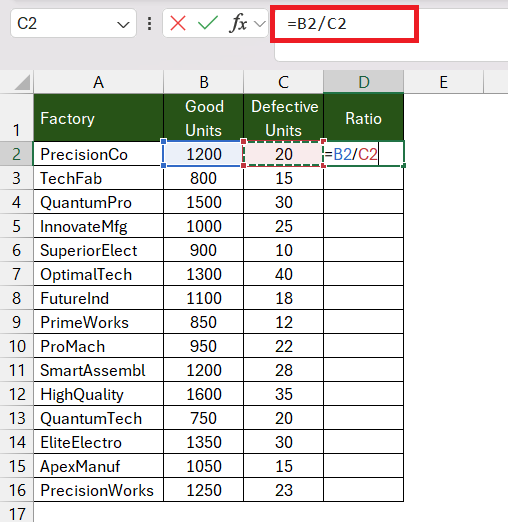
Start by typing your two numbers in separate cells. For example, place 8 in cell A1 and 4 in B1. To find the ratio, click on a blank cell. Enter the formula =A1/B1. Press Enter. Excel will show the result as 2, meaning 8 is twice 4.
This method uses division to express the relationship between two numbers. It is simple and works for any numbers in Excel.
Formatting Results
Excel shows the ratio as a decimal by default. You can format it to make it clearer. Select the cell with the ratio. Right-click and choose Format Cells. Pick Number and set decimal places to 2. This rounds the result for neat display.
You can also show the ratio as text, like “2:1”. Use the formula =TEXT(A1/B1,”0″) & “:1”. This creates a readable ratio format.
Using Excel Formulas
Using Excel formulas to calculate ratios makes the process quick and precise. Excel allows you to write simple formulas that show relationships between numbers. These formulas save time and reduce errors compared to manual calculations. Understanding how to create and apply these formulas helps you work faster.
Creating Ratio Formulas
To create a ratio formula, start with the division symbol (/). For example, to find the ratio of value in cell A1 to B1, type =A1/B1. This gives a decimal number representing the ratio.
For better readability, you can format the result as a fraction. Use Excel’s fraction format from the number formatting options. This shows the ratio in a common ratio style like 3/4 instead of 0.75.
Applying Absolute And Relative References
Excel uses two types of cell references: relative and absolute. Relative references change when you copy formulas to other cells. For example, copying =A1/B1 from row 1 to row 2 changes it to =A2/B2.
Absolute references keep the cell fixed. Add a dollar sign ($) before the column and row, like $A$1. Use this when you want part of the formula to stay constant during copying.
Combine both types to control how your ratio formula adjusts. For example, =A1/$B$1 divides A1 by a fixed cell B1. This helps when comparing many values to the same base number.
Displaying Ratios Clearly
Displaying ratios clearly in Excel helps readers understand data fast. A clear ratio shows the relationship between two numbers in an easy way. Excel offers simple tools to present ratios neatly. This makes your data look professional and easy to read. Below are two effective methods to display ratios.
Using Text And Concatenation
Excel lets you join text and numbers to show ratios clearly. Use the CONCATENATE function or the ampersand & to combine values. For example, write =A1 & ":" & B1 to display a ratio like 3:5. This method keeps the ratio simple and easy to read. It also allows you to add extra text if needed.
Custom Number Formatting
Custom number formatting lets Excel display ratios without changing the actual data. Use a format like ?/? to show ratios as fractions. This format keeps your cells clean and professional. You can also create formats to add colons or other symbols. Custom formats are a neat way to present ratios quickly.
Handling Complex Ratios
Handling complex ratios in Excel can be tricky. Simple ratios compare two numbers. Complex ratios involve many numbers or steps. Excel offers tools to make these calculations easier. You can break down large problems into smaller parts. This helps find accurate results quickly.
Calculating Ratios From Multiple Values
Some ratios come from more than two numbers. For example, you may want the ratio of sales in three regions. First, add the numbers you want to compare. Then, divide each number by the total sum. This gives the proportion for each part.
Use Excel functions like SUM to add values fast. Then, divide each cell by the SUM result. This method works well for complex data sets. It helps you see the share of each value clearly.
Using Helper Columns
Helper columns make complex ratio calculations simple. Create extra columns to hold intermediate results. For example, put totals in one column. Then, calculate ratios in another column.
This method keeps your sheet organized. You avoid long formulas in a single cell. Helper columns also make it easy to check your work. You can spot mistakes quickly by looking at each step.
Common Errors And Fixes
Calculating ratios in Excel can be simple, but errors may occur. These mistakes often stop your formulas from working. Knowing common errors helps you fix them fast. This section covers usual problems and their solutions.
Avoiding Division By Zero
Division by zero is a common Excel error. It happens when the bottom number in a ratio is zero or empty. Excel shows an error message like DIV/0! in this case. To avoid this, always check if the denominator is zero before dividing.
You can use the IF function to prevent this error. For example, =IF(B1=0, "N/A", A1/B1) checks if B1 is zero. If yes, it shows “N/A” instead of dividing. This keeps your sheet clean and error-free.
Troubleshooting Formula Issues
Formula errors occur from wrong cell references or typing mistakes. Double-check your cell addresses to ensure they point to the correct numbers. Even one wrong cell can give wrong results.
Check for extra spaces or incorrect symbols in your formula. Use Excel’s formula auditing tools to trace errors. The “Evaluate Formula” feature helps you see calculation steps. This makes finding problems easier.

Credit: www.contextures.com
Tips For Accuracy
Getting the ratio right in Excel is key to clear data analysis. Small errors can lead to wrong results. Use these tips to keep your calculations accurate and reliable.
Double-checking Calculations
Always review your formulas carefully. Check the numbers you enter for any typos. Compare results with manual calculations to confirm accuracy. Repeat the process if you make changes.
Using Excel’s Built-in Tools
Excel offers tools to help verify your work. Use the Formula Auditing feature to trace and spot errors. The Error Checking tool highlights common mistakes. These tools save time and reduce mistakes.
Credit: exceljet.net
Frequently Asked Questions
How Do I Calculate Ratio In Excel Easily?
To calculate a ratio in Excel, divide one number by another using the formula =A1/B1. Format the result as a ratio by selecting the cell, right-clicking, choosing Format Cells, and selecting Fraction or Custom format.
Can Excel Show Ratios In Simplest Form?
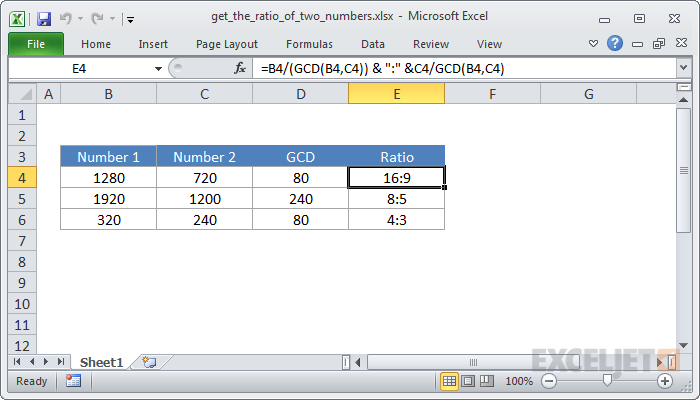
Yes, Excel can simplify ratios by dividing both numbers by their greatest common divisor using formulas or VBA code. Alternatively, use helper columns to calculate and display the simplified ratio.
How To Calculate Ratio From Percentages In Excel?
Convert percentages to decimal numbers by dividing by 100. Then use the formula =A1/B1 to get the ratio. Format the result as needed to display it properly.
What Excel Function Helps Calculate Ratios Automatically?
Excel doesn’t have a direct ratio function. Use formulas like =TEXT(A1/GCD(A1,B1), “0”) & “:” & TEXT(B1/GCD(A1,B1), “0”) to calculate and display ratios automatically.
Conclusion
Calculating a ratio in Excel is simple with the right steps. You just need to enter your numbers and use basic formulas. This helps compare values clearly and quickly. Practice a few times to get comfortable with the process. Excel saves time and reduces mistakes.
Keep these tips in mind for your next project. Ratios become easy to understand and use. Try it yourself and see how useful it can be.
As an Amazon Associate, I earn from qualifying purchases.
