

Have you ever needed to print something important, only to realize you don’t know your printer’s IP address? Finding this number can seem tricky, but it’s actually easier than you think.
Knowing your printer’s IP address helps you connect it to your devices, troubleshoot issues, and manage your printing tasks smoothly. You’ll discover simple, step-by-step ways to find your printer’s IP address quickly—no tech jargon, no confusion. Keep reading, and you’ll be ready to print with confidence in no time.
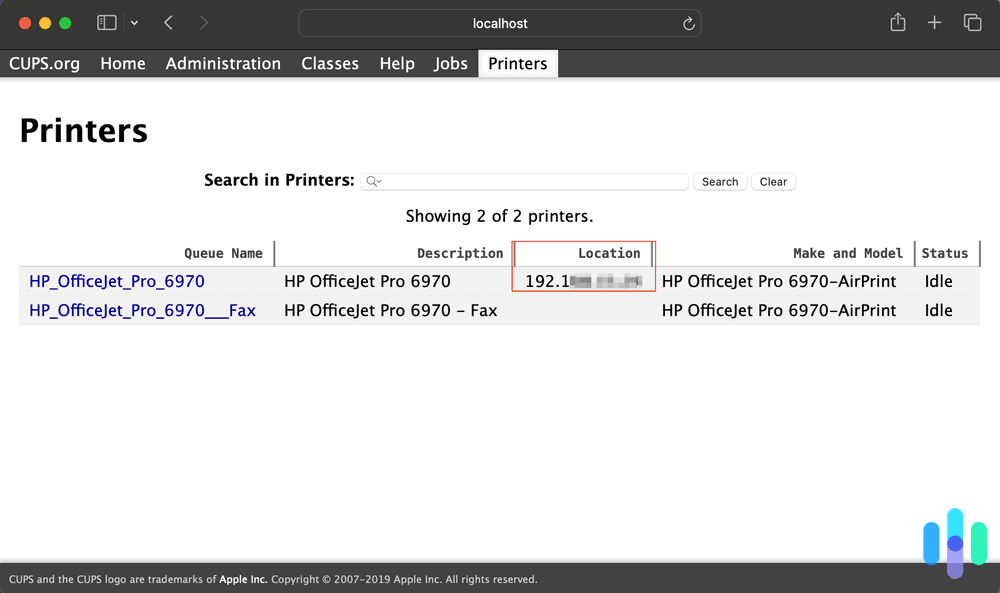
Credit: www.security.org
Check Printer Display
Checking the printer display is a quick way to find its IP address. Most modern printers have a small screen showing important information. You can use this screen to see the printer’s network details without extra tools. Follow simple steps on the display to get your IP address fast.
Navigate Printer Menu
Start by turning on your printer. Look for a button labeled “Menu” or “Settings.” Press it to open the main menu. Use the arrow keys to move through options. Find the section related to network or wireless settings.
Locate Network Settings
Inside the menu, search for “Network” or “Wireless Setup.” Select this option. The printer shows network details here. This section contains the IP address and connection type. Keep scrolling if needed to see all details.
Find Ip Address
Look for the line marked “IP Address” or “IPv4 Address.” The printer displays a series of numbers separated by dots. This number is your printer’s IP address. Write it down or take a photo for future use.

Credit: www.wikihow.com
Use Printer Configuration Page
The printer configuration page helps you find your printer’s IP address fast. It shows details about your printer’s network settings. This page is easy to print directly from your printer. No need for a computer or special software.
Most printers have a button or menu option to print this page. It lists the IP address clearly. This method works well for all printer brands and models. It is a reliable way to get the exact IP address your printer uses.
Print Network Configuration
Start by turning on your printer. Find the control panel or menu button. Look for “Network” or “Settings” options. Choose “Print Network Configuration” or “Print Configuration Page.”
The printer will print a page with network details. This page includes the IP address, subnet mask, and gateway. It may also show Wi-Fi status if you use wireless printing.
Identify Ip Address On Page
Look at the printed page carefully. Find the section named “IP Address” or “IPv4 Address.” The IP address looks like four groups of numbers separated by dots. For example, 192.168.1.10.
Write down this number. It is your printer’s unique address on the network. Use this address to connect your computer or devices to the printer.
Access Router Settings
Accessing your router settings is a common way to find your printer’s IP address. The router keeps a list of all devices connected to your network. By checking this list, you can spot your printer’s IP easily. This method works well for most home and office networks.
Start by logging into your router. Then, find the section showing connected devices. Finally, look through the list for your printer’s name or IP address. Follow these steps carefully to get the information you need.
Login To Router
Open a web browser on a device connected to your network. Type your router’s IP address in the address bar. Common addresses are 192.168.1.1 or 192.168.0.1. Press Enter to go to the login page.
Enter your router’s username and password. These are often on a sticker on the router or in its manual. After logging in, you will see the router’s settings dashboard.
Find Connected Devices
Look for a menu option called “Connected Devices,” “Device List,” or “Attached Devices.” It shows all devices linked to your network. This list updates automatically as devices connect or disconnect.
Sometimes, this section is under “Status,” “Network,” or “LAN” settings. Take your time to explore the router interface to find it. The goal is to see all device names and their IP addresses.
Spot Printer Ip
Scan the connected devices list for your printer’s name or model number. The list will show the IP address next to each device. Write down the IP address assigned to your printer.
If the printer name is unclear, check the MAC address on the printer label. Match this to the MAC address in the device list. This confirms the correct IP address for your printer.
Credit: nordvpn.com
Use Command Prompt
Using Command Prompt is a quick way to find your printer’s IP address. This method works well on Windows computers. It uses simple commands to scan your network and show connected devices. You do not need extra software or tools. Just follow the steps below.
Open Command Prompt
Press the Windows key on your keyboard. Type “cmd” in the search box. Click on the Command Prompt app to open it. You will see a black window with a blinking cursor. This is where you enter commands.
Run Ip Scan Commands
Type the command arp -a and press Enter. This lists all devices connected to your network. You can also use ipconfig to check your computer’s IP settings. Look for the “Default Gateway” address; it helps identify your network range.
Identify Printer Ip
Scan the list from arp -a for unfamiliar IP addresses. Look for entries labeled as “dynamic” or with the manufacturer name matching your printer. Another way is to ping IP addresses one by one using ping [IP address]. The printer usually responds quickly. This helps you find your printer’s IP address easily.
Check Printer Software
Checking your printer software is a simple way to find your printer’s IP address. Most printers come with software that helps you manage settings. This software often shows detailed network info, including the IP address.
Using the printer software saves time. No need to search through menus on the printer itself. Just open the software on your computer and find the IP address quickly.
Open Printer Utility
Start by opening the printer utility software on your computer. This tool usually installs with your printer drivers. You can find it in the Start menu or on your desktop.
The printer utility lets you control printer settings. It offers a user-friendly interface to check network details. Look for options like “Device Settings” or “Network Configuration.”
View Network Information
Inside the printer utility, find the section for network information. This area shows the printer’s connection details. The IP address should be listed clearly here.
Note the numbers carefully. The IP address looks like four groups of numbers separated by dots, such as 192.168.1.100. Write it down for easy reference later.
Use Mobile Apps
Using mobile apps is a simple way to find your printer’s IP address. Many printer brands offer free apps for smartphones. These apps connect your phone to the printer and show important details, including the IP address. You do not need special technical skills to use these apps. Just follow a few easy steps.
Install Printer App
Download the official app for your printer brand from the app store. For example, HP has the HP Smart app, Canon offers Canon PRINT, and Epson provides Epson iPrint. Install the app on your mobile device. The app will help you manage the printer and find its IP address.
Connect To Printer
Make sure your phone is on the same Wi-Fi network as your printer. Open the app and look for your printer model. The app may ask you to add or connect to the printer. Follow the on-screen instructions to complete the connection. This step links your phone and printer securely.
Find Ip Address
After connecting, open the printer settings in the app. Look for network or printer information. The IP address usually shows under network details. Note down the IP address for future use. This address helps you access the printer from other devices.
Frequently Asked Questions
How Can I Find My Printer’s Ip Address On Windows?
Go to Control Panel > Devices and Printers. Right-click your printer, select Properties, then click on the Ports tab. Your printer’s IP address appears next to the selected port. This method works for most network printers on Windows systems.
How To Locate Printer Ip Address On Mac?
Open System Preferences and click Printers & Scanners. Select your printer, then click Options & Supplies. The printer’s IP address is listed under the Location or General tab. This helps you identify the network address of your printer on Mac.
Can I Find My Printer’s Ip Via The Printer’s Display?
Yes, many modern printers show the IP address on their control panel. Navigate to the network settings or wireless menu on the printer display. The IP address is usually listed under network or wireless status information.
What If My Printer Ip Address Is Not Showing?
Restart your printer and router to refresh network settings. Ensure your printer is connected to the same network as your computer. If still missing, print a network configuration page from the printer’s menu for detailed IP info.
Conclusion
Finding your printer’s IP address is easier than it seems. You can check it directly on the printer’s display or print a network report. Another option is using your computer’s settings to find connected devices. Knowing this address helps you manage your printer better.
It also makes troubleshooting simpler and faster. Keep these simple steps in mind next time you need your printer’s IP. This small detail can save you a lot of time and effort.
As an Amazon Associate, I earn from qualifying purchases.
