

Have you ever needed to quickly scan a document but didn’t have a scanner nearby? What if your iPhone camera could do the job for you?
Imagine turning your phone into a powerful scanner anytime, anywhere. You’ll discover how easy it is to scan documents using your iPhone camera—and why it might become your new favorite tool for staying organized. Keep reading to unlock simple tips that save you time and effort.
Credit: support.apple.com
Scan Documents Using Iphone Camera
Using your iPhone camera to scan documents is simple and fast. It saves paper and helps keep your files organized. Your iPhone comes with tools to scan documents without needing extra devices. This makes capturing receipts, notes, or contracts easy wherever you go.
Scanning documents with an iPhone is helpful for work, school, or home use. The camera turns your paper into a clear digital copy. Below are ways to scan documents using your iPhone camera.
Built-in Scanner In Notes App
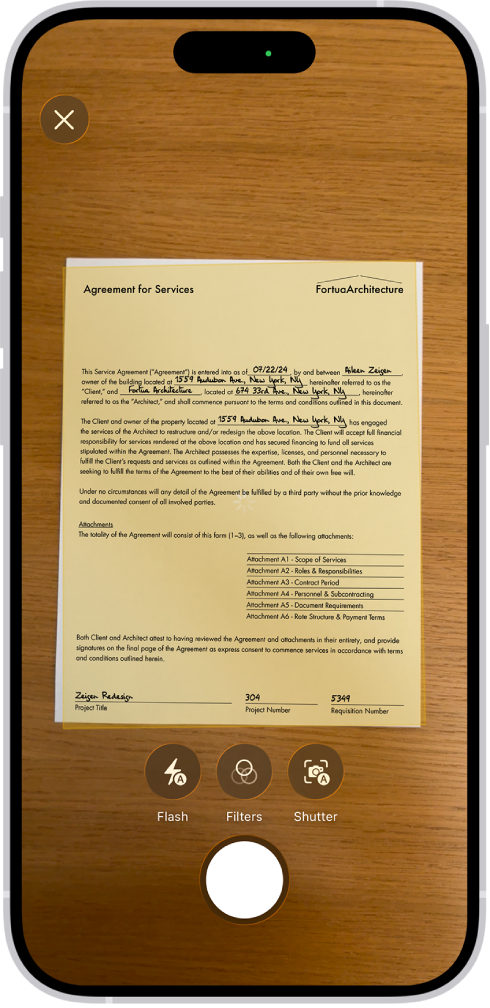
The Notes app has a built-in scanner that works well. Open the app and create a new note. Tap the camera icon and select “Scan Documents.” Hold your iPhone over the paper. The app detects edges and takes a photo automatically. You can adjust the corners if needed. Save the scan in your note or share it as a PDF.
Using Files App For Scanning
The Files app also lets you scan documents easily. Open Files and tap the three dots icon. Choose “Scan Documents” from the menu. Position your iPhone camera over the document. The app captures the image and cleans it up. Name the file and save it directly to your iCloud or local storage.
Third-party Scanning Apps
Several third-party apps add more features for scanning. Apps like Adobe Scan and Microsoft Lens offer text recognition and editing. They help convert images to text or PDF formats. These apps often provide better image quality and cloud support. They are free or low cost and can be downloaded from the App Store.
Step-by-step Scanning Process
Scanning documents with an iPhone camera is easy and fast. You do not need extra tools or apps. The built-in scanner works well for most documents. Follow these simple steps to scan your paper with your iPhone.
Opening The Scanner
Start by opening the Notes app on your iPhone. Tap the “New Note” icon at the bottom right. Then tap the camera icon above the keyboard. Choose “Scan Documents” from the menu. The scanner will open and your camera will be ready.
Capturing The Document
Place your document on a flat surface with good light. Hold your iPhone steady above the paper. The scanner will detect the edges automatically. It takes the picture by itself or you can tap the shutter button. Capture all pages if you have more than one.
Adjusting And Cropping
After capturing, you can adjust the corners of the scan. Drag the edges to fit the document perfectly. Use the preview to check the quality. You can also retake the scan if needed. This step ensures your scan looks clear and neat.
Saving And Sharing Scans
Tap “Save” to add the scan to your note. You can find it anytime in the Notes app. Share your scan by tapping the share icon. Send it via email, messages, or save it to files. Your document is now digital and easy to use.
Tips For Better Scans
Scanning documents with your iPhone camera can be easy and effective. Small changes improve the quality a lot. These tips help you get clear and sharp scans every time.
Focus on lighting, holding the phone steady, and avoiding glare or shadows. These steps ensure your scanned documents look professional and easy to read.
Lighting And Background
Good lighting is key to clear scans. Use natural light if possible. Avoid dim or uneven light that causes dark spots. A plain background helps the camera focus on the document. Choose a flat surface with a solid color to avoid distractions.
Holding The Iphone Steady
Keep your iPhone steady while scanning. Hold it with both hands for better control. Rest your elbows on a table to reduce shaking. A steady phone captures sharp text and details without blur.
Avoiding Glare And Shadows
Glare and shadows can ruin your scan. Tilt the iPhone slightly to prevent light reflection. Check the light source and move if glare appears. Shadows make parts of the document hard to read. Use even lighting for the best results.
Editing Scanned Documents
After scanning documents with your iPhone camera, editing them is the next step. Editing helps make scanned files clearer and more useful. You can add notes, change the format, or organize files easily. The iPhone offers simple tools for these tasks.
Annotating And Marking
Adding notes or highlights to scanned documents is simple. Use the built-in markup tools to draw, write, or highlight text. This helps point out important parts quickly. You can circle dates, underline names, or add comments.
Annotations stay saved with the document. This makes sharing clearer. It is perfect for work or school papers.
Converting To Pdf
Scanned images can turn into PDF files. PDFs keep the layout clean and easy to read. The iPhone lets you save scans directly as PDFs. This format works well for printing or emailing.
PDFs also support multiple pages in one file. Combine several scans into one document. This keeps related files together and tidy.
Organizing Scanned Files
Keeping your scanned documents organized saves time. Use folders or tags to sort files by topic or date. The iPhone’s Files app helps manage scanned documents easily.
Rename files with clear titles. This makes searching faster. You can also move files to cloud storage for backup and access on other devices.
Security And Privacy
Scanning documents with an iPhone camera is handy and fast. But security and privacy must be a priority. Sensitive information can be exposed if not handled carefully. Protecting your data means taking steps to keep it safe from unwanted access.
Protecting Sensitive Documents
Always scan documents in a private space. Avoid public Wi-Fi networks when uploading or sharing scans. Use apps that offer encryption to protect your files. Avoid storing scans in apps that do not have strong security. Delete scans from your phone if you no longer need them.
Secure Storage Options
Choose secure cloud services with two-factor authentication. Store scans in password-protected folders or apps. Regularly back up important documents in safe locations. Avoid saving sensitive files in open folders on your phone. Use apps that encrypt data both in storage and during transfer.

Credit: www.youtube.com
Common Issues And Fixes
Scanning documents with an iPhone camera is simple, but issues can occur. These problems can affect scan quality and usability. Understanding common issues and their fixes helps you get better results. Here are some typical problems and easy solutions.
Blurry Scans
Blurry scans happen when the camera is not steady. Hold your iPhone firmly and keep it close to the document. Avoid moving while scanning. Clean the camera lens to remove dirt or smudges. Good lighting improves focus and sharpness.
Scanner Not Detecting Document
The scanner may fail to detect the document’s edges. Place the document on a flat surface with a clear background. Avoid patterns or colors that confuse the scanner. Adjust the angle of your phone to face the document directly. Restart the scanning app if needed.
App Crashes During Scanning
App crashes can interrupt your work. Close other apps running in the background to free memory. Update the scanning app to the latest version for better stability. Restart your iPhone to clear temporary bugs. If crashes continue, reinstall the app.
Future Features In Ios 2025
The future of document scanning on the iPhone looks promising with iOS 2025. Apple plans to add new features that make scanning easier and more powerful. These updates will help users scan documents faster and with better accuracy. The focus is on improving the way the iPhone camera captures and processes scanned files.
New tools will make scanned documents simpler to edit and share. The experience will be smoother, especially for those who scan documents often. Let’s explore some key features expected in iOS 2025 that will enhance document scanning.
Enhanced Ocr Capabilities
Optical Character Recognition (OCR) will become more accurate. The iPhone will better recognize handwritten and printed text. This means scanned documents will be easier to convert into editable text. Users can quickly search and copy text from scans. The OCR will support more languages too, helping global users.
Integration With Cloud Services
iOS 2025 will offer deeper links to popular cloud platforms. Scanned documents can save directly to services like iCloud, Google Drive, or Dropbox. This makes accessing documents from any device simple. Users can also share scans with others without extra steps. Automatic backups will protect scanned files from loss.
Ai-based Scan Improvements
Artificial Intelligence will boost scan quality and speed. The iPhone will detect document edges more precisely. It will correct angles and improve lighting automatically. AI will remove backgrounds and enhance text clarity. This results in cleaner, more professional scans with less effort.

Credit: www.mbsdirect.com
Frequently Asked Questions
Can I Scan Documents Using My Iphone Camera?
Yes, you can scan documents with your iPhone camera using the built-in Notes app or third-party apps. It captures clear, high-quality scans quickly and easily.
How To Scan Documents On Iphone Without Extra Apps?
Open the Notes app, create a new note, tap the camera icon, and select “Scan Documents. ” Position your document, and the iPhone automatically scans it.
Are Iphone Scanned Documents Editable And Shareable?
Yes, scanned documents on iPhone can be edited, saved as PDFs, and shared via email, messages, or cloud storage services instantly.
Does Iphone Scanning Support Multiple Pages In One File?
Yes, the iPhone Notes app allows scanning multiple pages into a single PDF file, making it convenient for organizing multi-page documents.
Conclusion
Using an iPhone camera to scan documents is simple and effective. The built-in tools help capture clear images quickly. Scanned files can be saved as PDFs or images easily. This method saves time and reduces paper clutter. Anyone with an iPhone can do it without extra equipment.
It’s a handy way to digitize important papers on the go. Try it yourself and see how easy scanning can be. No special skills needed, just your phone and a steady hand.
As an Amazon Associate, I earn from qualifying purchases.
