

Want to watch your phone’s videos or see your photos on a bigger screen? Connecting your phone to your TV with just a USB cable might sound tricky, but it’s simpler than you think.
If you’ve been searching for an easy way to share your favorite content without extra gadgets or complicated setups, you’re in the right place. Keep reading, and you’ll learn exactly how to make this connection happen quickly and smoothly—no tech skills needed.
Your big-screen experience is just a few steps away!
Credit: vixencomposites.com
Requirements For Usb Connection
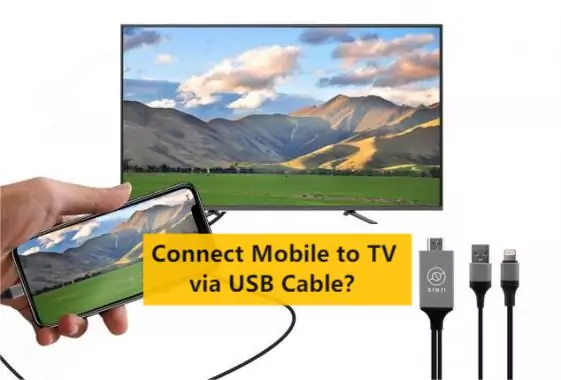
Connecting your phone to a TV using a USB cable requires a few important things. You need to check if your devices can work together. Also, you must have the right cables and adapters. Knowing the type of USB port on your TV helps too. These details make the connection smooth and easy.
Compatible Devices
Not all phones and TVs support USB connection for display. Most Android phones can connect via USB. Some iPhones need special adapters or do not support this method. TVs with USB ports may allow media playback from a phone. Check your phone and TV manuals for USB support. Compatibility ensures your connection will work well.
Necessary Cables And Adapters
A USB cable is essential for this connection. Usually, a USB-A to USB-C or USB-A to Micro-USB cable works. Some phones use USB-C, while older ones use Micro-USB. If your TV has a different port, you might need an adapter. Ensure the cable supports data transfer, not just charging. A proper cable and adapter help send video and audio to the TV.
Tv Usb Port Types
TVs have different USB port types. Most TVs have USB-A ports, the standard rectangular shape. Some newer models may include USB-C ports. USB ports on TVs often support media playback from storage devices. Not all TV USB ports support video input from phones. Confirm the port type and its function before connecting your phone.
Credit: www.youtube.com
Preparing Your Phone And Tv
Getting your phone and TV ready is the first step to connect them using a USB cable. This preparation ensures a smooth and clear connection. Both devices need specific settings turned on or adjusted. Follow these easy steps to prepare your phone and TV for connection.
Enabling Usb Debugging On Phone
USB debugging allows your phone to communicate with other devices. To enable it, open your phone’s Settings. Go to “About Phone” and tap “Build Number” seven times. This unlocks Developer Options. Return to Settings and find Developer Options. Turn on “USB Debugging” here. This step helps your phone connect properly with the TV.
Setting Tv Input Source
Turn on your TV and find the input or source button on the remote. Press it to see a list of input options. Select the USB input or the port where you will plug in the cable. Setting the TV to the correct input lets it read your phone’s data. This step is important for the TV to show your phone’s screen or files.
Checking File Transfer Mode
Connect your phone to the TV using the USB cable. A notification appears on your phone about the USB connection. Pull down the notification shade and tap it. Choose “File Transfer” or “Media Transfer” mode. This mode lets your TV access your phone’s files. Without this, the connection will not work as expected.
Step-by-step Connection Process
Connecting your phone to a TV with a USB cable is simple and quick. Follow these steps carefully to view your phone’s content on the big screen. This guide helps you set up the connection without extra tools or apps.
Connecting The Usb Cable
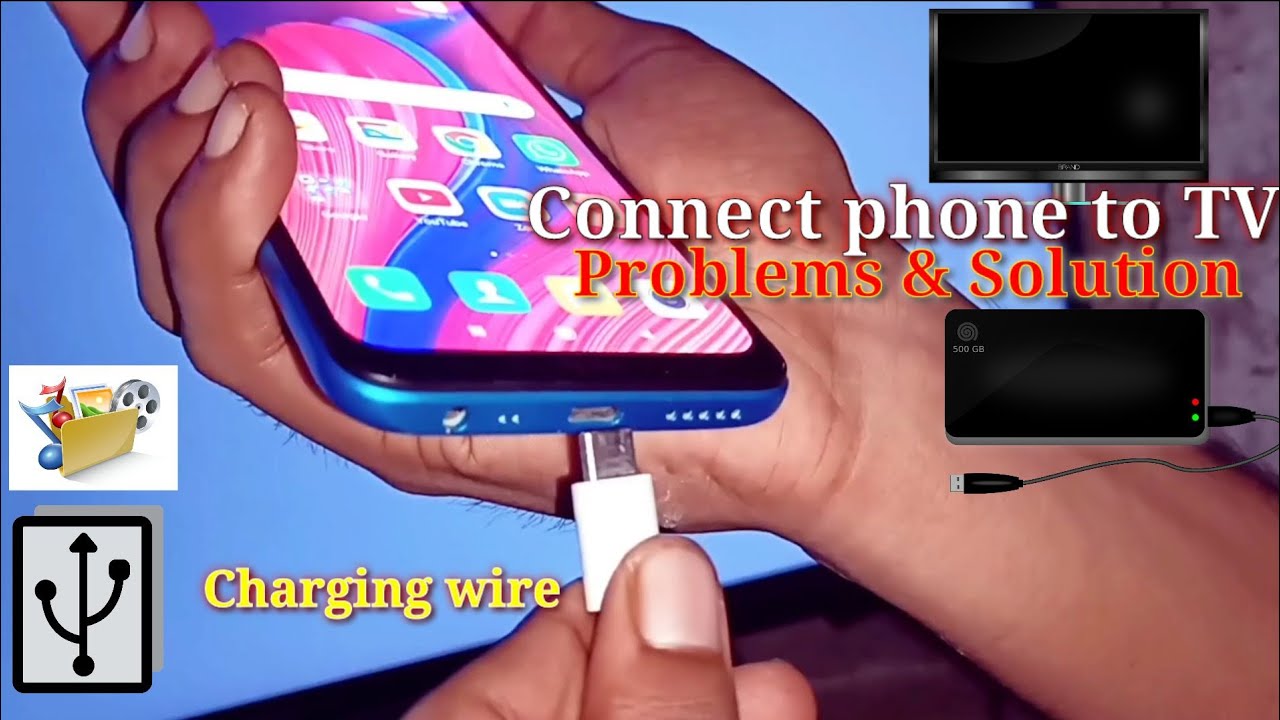
Start by plugging one end of the USB cable into your phone. Use the charging port on your device. Then, connect the other end to the TV’s USB port. Make sure the cable is secure at both ends. The TV usually has USB ports on the side or back.
Selecting Usb Mode On Phone
After connecting, unlock your phone. A notification will appear about the USB connection. Tap it and select the USB mode that allows file transfer. This mode may be called “File Transfer,” “Media Transfer,” or “MTP.” Choosing this option lets the TV access your phone’s files.
Accessing Phone Content On Tv
Use your TV remote to open the USB input source. Look for an option like “USB,” “Media Player,” or “File Explorer.” Browse the folders on your phone using the TV screen. Select photos, videos, or music to play. Enjoy your phone’s content on a larger display.

Credit: www.wikihow.com
Troubleshooting Common Issues
Connecting your phone to a TV using a USB cable can sometimes cause problems. These issues stop your device from working correctly. Troubleshooting helps fix these problems quickly. Follow the steps below to solve common connection issues.
Phone Not Recognized By Tv
Check if the phone is unlocked. Locked phones may not connect properly. Try using a different USB port on the TV. Restart both the phone and the TV. Make sure the phone is set to file transfer mode. Sometimes, the phone defaults to charging only. Enable USB debugging in the phone settings if available.
No Display On Tv Screen
Ensure the TV input source matches the USB port used. Some TVs require manual input selection. Check if the phone screen is mirrored or extended. Not all phones support video output through USB. Test the cable with another device. Restart both devices to refresh the connection.
Usb Cable Compatibility Problems
Use a USB cable that supports data transfer, not just charging. Cheap or damaged cables often cause connection failure. Try a different cable certified by your phone brand. Avoid using very long cables to reduce signal loss. Inspect the cable for bent pins or frayed ends. Replace the cable if damage is visible.
Alternatives To Usb Connection
Connecting your phone to a TV using a USB cable is common. Yet, not all USB connections work well for video or screen sharing. Some phones and TVs do not support video output through USB. Alternatives exist that can help you share your phone’s screen or media with your TV easily.
These options might offer better picture quality or simpler setup. They include wired methods like HDMI or MHL cables and wireless screen mirroring. Each choice has pros and cons depending on your devices and needs.
Using Hdmi Or Mhl Cables
HDMI cables provide a direct connection for high-quality video and audio. Many phones need an adapter to connect to HDMI ports on TVs. MHL cables combine power and video into one, supporting older phones. They offer stable, lag-free streaming without Wi-Fi.
Using these cables is simple. Connect your phone to the TV’s HDMI port. Change the TV input to the correct HDMI source. Your phone screen should appear on the TV instantly. This method works well for watching videos or playing games.
Wireless Screen Mirroring Options
Wireless screen mirroring lets you display your phone screen on the TV without cables. Technologies like Miracast, Chromecast, or AirPlay make this possible. They work through Wi-Fi, so both devices must be on the same network.
Mirroring is easy to start from your phone’s settings or a dedicated app. The TV will show exactly what your phone screen displays. This option is convenient for sharing photos, presentations, or apps wirelessly.
Frequently Asked Questions
Can I Connect My Phone To Tv With Only A Usb Cable?
Yes, some phones support video output via USB to TV. You need a compatible USB cable and TV port. Not all phones or TVs support this feature, so check your device specifications before trying.
Does Usb Connection Transmit Video To Tv From Phone?
In many cases, USB cables transmit data and power but not video. Phones with USB-C ports and TVs with USB-C or HDMI adapters may support video output via USB.
How To Enable Phone’s Usb Video Output To Tv?
Connect your phone to TV via USB cable. On your phone, select “File Transfer” or “USB Video” mode if prompted. Your TV should detect the phone as a media device or display screen mirroring.
What If My Tv Doesn’t Detect Phone Via Usb?
If your TV doesn’t recognize your phone through USB, try a different USB cable. Also, check if your phone supports USB video output or use alternative methods like HDMI adapters.
Conclusion
Connecting your phone to a TV with a USB cable is simple and quick. Just use the right cable and ports. Your phone’s screen will show on the TV, making it easy to watch videos or view photos. No extra tools or apps are needed.
This method works well for many phones and TVs. Try it yourself and enjoy your phone’s content on a bigger screen. It saves time and uses things you already have. A clear and easy way to connect, without any hassle.
As an Amazon Associate, I earn from qualifying purchases.

