Are you trying to connect your Vizio TV to a new network or set up parental controls? To do that, you need your TV’s MAC address.
But where do you find it? Don’t worry—finding the MAC address on your Vizio TV is easier than you think. This guide will walk you through simple steps so you can quickly get the information you need. Keep reading, and by the end, you’ll have your MAC address ready without any hassle.
Credit: www.hofstra.edu
Locate Network Settings
Locating the network settings on your Vizio TV is the first step to find the MAC address. These settings show all the details about your TV’s connection. You can check whether the TV uses Wi-Fi or Ethernet. The network settings also provide the MAC address you need.
Accessing network settings is easy and quick. The steps are similar on most Vizio TV models. Follow the guide below to find the right menu on your TV.
Open The Vizio Tv Menu
Press the “Menu” button on your Vizio remote control. The main menu appears on the screen. This menu contains all the TV’s settings and options.
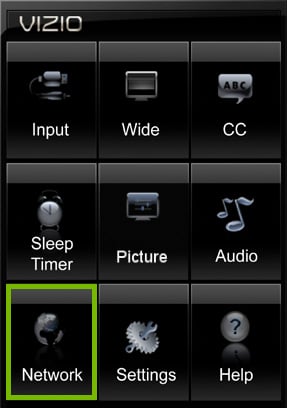
Select The Network Option
Use the arrow keys to scroll through the menu. Find and select “Network” or “Network Settings.” This section controls how your TV connects to the internet.
Choose Your Connection Type
Pick either “Wireless” for Wi-Fi or “Wired” for Ethernet. This depends on how your TV connects to the internet. The MAC address will be listed based on the selected connection.
View The Mac Address
Look for “MAC Address” or “Physical Address” in the network settings. The MAC address is a string of letters and numbers. Write it down or take a photo for easy reference.
Credit: www.tvsbook.com
Access Tv Menu
Accessing the TV menu is the first step to find the MAC address on your Vizio TV. The menu holds all the settings and information you need. Navigating it is simple and quick. This section guides you through the process clearly.
Turn On Your Vizio Tv
Start by powering on your Vizio TV. Use the remote control or the power button on the TV. Make sure the TV is fully on and showing the home screen.
Press The Menu Button On Remote
Locate the Menu button on your Vizio remote. Press it once. The main menu will appear on the screen. This menu lets you access settings and network details.
Navigate To System Or Network Settings
Use the arrow buttons on the remote to scroll through the menu. Find “System” or “Network” settings. Press OK to enter that section. This is where network information is stored.
Navigate To System Info
Start by opening the TV menu and selecting the Settings option. Then, go to System Info to see details like the MAC address. This section shows your Vizio TV’s network information clearly.
Access The Tv Menu
Start by turning on your Vizio TV. Press the Menu button on the remote. The main menu will appear on the screen. This is where you control settings and view information.
Open The System Settings
Use the arrow keys on the remote to scroll down. Find the System option and select it. The System menu holds important details about your TV.
Select System Info
Inside the System menu, look for System Info. Choose it to see details like the MAC address. This section shows network and device information.
Locate The Mac Address
In System Info, find the entry labeled MAC Address. This is your TV’s unique network identifier. Write it down or keep it for reference.
Identify Mac Address
Every Vizio TV has a unique MAC address. This address helps networks recognize your device. Finding it is simple and quick. Knowing the MAC address helps with network setup and troubleshooting.
This section explains how to locate the MAC address on your Vizio TV. Follow the steps carefully to get the exact address you need.
Access Tv Settings Menu
Start by turning on your Vizio TV. Use the remote to press the “Menu” button. The settings menu appears on your screen. Navigate to the “Network” option using arrow keys. Press “OK” to open network settings.
Find Network Status
Inside the network settings, select “Network Status.” This shows your TV’s current connection details. Wait a few seconds for the info to load. Your MAC address will be displayed here.
Locate Mac Address Details
Look for the line labeled “MAC Address.” It usually shows a series of letters and numbers. This code is your TV’s unique identifier. Write it down or take a picture for future use.
Using Remote Control Shortcuts
Using remote control shortcuts is a quick way to find the MAC address on your Vizio TV. These shortcuts let you access important network details fast. No need to dig through multiple menus. Just a few button presses on your remote will do the job.
This method works on most Vizio smart TVs. It helps you see the MAC address clearly on the screen. Perfect for setting up your network or troubleshooting connection issues.
Accessing The Info Menu
Press the “Menu” button on your Vizio remote. Navigate to the “Network” section using arrow keys. Select “Info” to display network details. The MAC address appears on this screen. Note down the address for your records.
Using The Input Button Shortcut
Hold the “Input” button for a few seconds. A hidden menu will appear on the screen. Select “Network” from this menu. The MAC address shows up along with other network info. This shortcut saves time and effort.
Viewing The Mac Address Via Settings
Press the “Menu” button and go to “Settings.” Choose “Network” and then “Status.” The MAC address is listed under “Network Information.” Use the arrow keys to scroll if needed. This method is simple and direct.
Check Router For Mac Address
Checking your router is a simple way to find the MAC address of your Vizio TV. The MAC address is a unique code that identifies your TV on the network. Most routers have a list of connected devices, including their MAC addresses. This method does not require you to navigate the TV menus.
To begin, access your router’s settings page. You can do this using a web browser on your phone, tablet, or computer. Enter the router’s IP address into the address bar. Common IP addresses include 192.168.0.1 or 192.168.1.1. You may need the router’s username and password to log in.
Locate The Connected Devices Section
After logging in, look for a section labeled “Connected Devices” or “Device List.” This section shows all devices connected to your network. Names of devices may appear here, but not always clearly. Each device entry usually has a MAC address listed.
Identify Your Vizio Tv
Find the device that matches your Vizio TV. Sometimes the device name shows as “Vizio” or “Smart TV.” If names are unclear, check the list while your TV is turned on and connected. The new device that appears is likely your TV. Note the MAC address next to it.
Use The Mac Address For Network Settings
Use this MAC address to set up network filters or allow your TV to connect to the internet. Some routers require MAC address filtering to improve security. Enter the MAC address exactly as shown to avoid connection problems. This ensures your Vizio TV works smoothly on your network.
Why Mac Address Is Important
The MAC address is a unique code assigned to your Vizio TV’s network adapter. It helps identify your device on a network. This small string of numbers and letters plays a big role in how your TV connects to the internet and other devices.
Knowing your MAC address can solve many connection issues. It also helps with network security. Some networks only allow devices with specific MAC addresses to connect. Your MAC address acts like an ID card for your TV.
What Is A Mac Address?
A MAC address is a hardware identifier. It is fixed to your Vizio TV’s network card. Each MAC address is unique. No two devices have the same one. It has 12 characters made up of numbers and letters.
How Mac Address Helps In Network Security
Network owners use MAC addresses to control access. They can block or allow specific devices. This keeps unwanted devices out. It helps protect your home or office Wi-Fi.
Why Mac Address Is Needed For Troubleshooting
When your TV has trouble connecting, the MAC address helps. Support teams use it to check your device on the network. It makes solving internet issues faster and easier.
Mac Address And Parental Controls
Some parents use MAC addresses to control internet access. They can block the TV during certain hours. It helps manage screen time for kids.
Troubleshooting Mac Address Issues
Troubleshooting MAC address issues on your Vizio TV can fix many connection problems. The MAC address is a unique code that helps your network recognize your TV. Sometimes, the TV may not connect to Wi-Fi because of MAC address errors. Understanding common problems helps you solve them quickly.
Errors like incorrect MAC address entry or network restrictions may cause issues. Some routers block devices by their MAC addresses. Checking your TV’s MAC address and network settings can clear these blocks. Follow simple steps to identify and fix problems fast.
Checking Your Tv’s Mac Address
First, find the MAC address on your Vizio TV. Go to the settings menu, then select “Network.” Choose “About” or “Advanced Settings” to see the MAC address. Write it down carefully. Make sure you use the right MAC address for Wi-Fi or Ethernet connection.
Resetting Network Settings
If the MAC address is correct but the TV still won’t connect, try resetting network settings. Go to the network menu and select “Reset Network.” This clears old data and lets the TV get a fresh connection. After reset, reconnect to your Wi-Fi and enter the password.
Checking Router Mac Filtering
Some routers block devices by their MAC addresses. Access your router’s settings through a browser. Look for “MAC Filtering” or “Access Control.” Make sure your TV’s MAC address is allowed. If it is blocked, remove it from the blacklist or add it to the whitelist.
Restarting Your Devices
Restart both your Vizio TV and your router. Turn off the TV and unplug it. Power off the router, wait 30 seconds, then turn it back on. After both devices restart, reconnect your TV to the network. This simple step often solves MAC address conflicts.
Credit: www.hofstra.edu
Frequently Asked Questions
How Do I Locate The Mac Address On My Vizio Tv?
To find your Vizio TV’s MAC address, go to Settings > Network > About. The MAC address appears under “Wi-Fi MAC Address” or “Ethernet MAC Address. ” This unique identifier helps with network setup and troubleshooting.
Can I Find The Mac Address Without Remote Control?
Yes, you can find the MAC address on the Vizio TV label. Check the back or side of your TV for a sticker showing the MAC address and serial number. This method is useful if the remote is unavailable.
Why Is The Mac Address Important For My Vizio Tv?
The MAC address identifies your TV on a network. It is essential for connecting to Wi-Fi, securing your network, and troubleshooting connectivity issues. Some routers require MAC filtering, making this address crucial.
Does The Mac Address Change If I Reset My Vizio Tv?
No, the MAC address is a hardware identifier and does not change after resetting your TV. It remains constant unless the network card is replaced. This ensures consistent network recognition.
Conclusion
Finding the MAC address on your Vizio TV is simple and quick. Just follow the steps clearly. This address helps with network setup and troubleshooting. Keep it handy when connecting to Wi-Fi or security settings. Now, you can easily check your TV’s MAC address anytime.
No need to call support or guess. This small info makes your tech life easier. Try it today and see how smooth it goes.
As an Amazon Associate, I earn from qualifying purchases.