

Are you wondering how to calculate DPI and why it matters for your images or prints? Understanding DPI can feel confusing, but it’s simpler than you think.
Knowing how to find the right DPI helps you get clear, sharp pictures whether you’re printing photos or working on digital designs. You’ll learn exactly what DPI is, why it’s important, and step-by-step how to calculate it easily. By the end, you’ll have the confidence to handle any project that involves DPI, ensuring your work looks professional every time.
Let’s dive in and make DPI calculation a breeze for you!
What Is Dpi
DPI stands for Dots Per Inch. It measures the number of dots in one inch of a printed image. DPI shows the detail level in a print. Higher DPI means sharper and clearer images.
Understanding DPI helps you choose the right settings for printing or scanning. It affects the quality and size of your printed pictures.
What Does Dpi Mean?
DPI is the count of dots in a linear inch on a printed page. Printers use tiny dots of ink to create images. More dots fit into an inch means better image detail.
Why Is Dpi Important?
DPI controls print sharpness and clarity. Low DPI prints look blurry or pixelated. High DPI prints show fine details and smooth edges.
How Is Dpi Different From Ppi?
PPI means Pixels Per Inch. It measures digital image resolution on screens. DPI refers to printed dots on paper, not screen pixels.
Why Dpi Matters
DPI stands for Dots Per Inch. It measures the sharpness of an image.
Understanding DPI helps you create clear and detailed prints.
It affects the quality of photos, graphics, and text on paper.
Impact On Print Quality
Higher DPI means more dots per inch on a page.
This creates sharper and clearer images.
Low DPI can make prints look blurry or pixelated.
Choosing The Right Dpi For Your Project
Different projects need different DPI settings.
Photos usually require at least 300 DPI for good quality.
Text documents can look fine at 150 DPI or lower.
Dpi And Screen Vs. Print
Screens use pixels, not dots, so DPI is different there.
Print needs higher DPI to keep images sharp on paper.
Knowing this helps you prepare images correctly for print or web.
Tools Needed For Dpi Calculation
Calculating DPI (dots per inch) is simple with the right tools. These tools help measure how many dots fit in an inch. The result shows image or print clarity. Each tool plays a key role in accurate measurement.
Ruler Or Measuring Tape
A ruler or tape measures length in inches. It helps find the size of an image or print area. Use it to measure the width or height precisely. This measurement is necessary for calculating DPI.
Magnifying Glass Or Loupe
This tool helps count the dots clearly. Dots can be very small and hard to see. Magnifying glass makes dots visible for counting. It ensures you count the correct number of dots.
Image Editing Software
Software like Photoshop shows image size in pixels. It also helps count the dots digitally. You can zoom in to check dot density. This software makes DPI calculation easier and more accurate.
Calculator
A calculator helps do the math quickly. Divide the number of dots by the length in inches. The calculator ensures no errors in the DPI number. It speeds up the calculation process.
Measuring Physical Dimensions
Measuring physical dimensions is a key step in calculating DPI. You need to know the actual size of the image or screen area. This helps compare the number of pixels to the real-world size. Accurate measurements give you a precise DPI value.
Use simple tools to get the width and height in inches or centimeters. These numbers are important for the DPI formula. Let’s explore how to measure these dimensions correctly.
Measuring Width And Height
First, find the total width of the image or screen. Measure from one edge to the other straight across. Next, measure the height from the top to the bottom edge. Use the same units for both measurements. Inches work best for DPI calculations.
Write down the width and height. These values represent the physical size of the area you are checking. Small errors can affect the final DPI, so measure carefully.
Using A Ruler Or Caliper
A ruler is a simple tool for measuring width and height. Place it carefully along the edge. Read the number at the other edge. Use a ruler with clear markings for accuracy.
A caliper gives even more precise measurements. It can measure tiny dimensions down to millimeters. Calipers work well for small screens or images. Hold the caliper firmly and note the reading.
Both tools help you get exact physical sizes. Use these measurements in the DPI formula to find dots per inch accurately.
Counting Pixels
Counting pixels is the first step in calculating DPI. Pixels are tiny dots that make up an image or screen. To find DPI, you need to know how many pixels are in a certain space. This helps measure image clarity and print quality.
Understanding pixel count gives you control over image size and sharpness. It also helps when you want to print images at the best quality. Let’s explore how to find the pixel count from images and screens.
Finding Image Resolution
Image resolution shows the total pixels in an image. It usually appears as width x height in pixels. For example, 1920 x 1080 means 1920 pixels wide and 1080 pixels tall.
To find this, right-click the image file and select Properties or Get Info. Check the Details or Summary tab for pixel dimensions. This tells you how many pixels the image contains.
Checking Screen Resolution
Screen resolution is the number of pixels on your display. It affects how sharp images and text look. To check it, go to your computer’s display settings.
On Windows, open Settings, then System, and Display. Look for Resolution to see pixel dimensions. On Mac, go to System Preferences, then Displays. The resolution shows the pixel count horizontally and vertically.
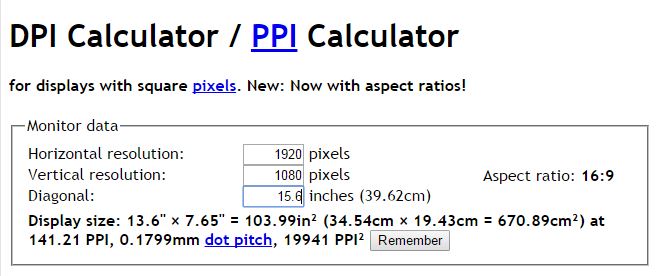
Credit: www.addictivetips.com
Calculating Dpi Step-by-step
Calculating DPI is easier than it sounds. It means figuring out how many dots fit in one inch of a printed image or screen. This number shows the image’s sharpness and detail.
Knowing how to calculate DPI helps you check image quality before printing or using it online. Follow these simple steps to get the right number.
Formula For Dpi
The formula to calculate DPI is simple. Divide the total number of dots by the length in inches.
DPI = Number of dots / Length in inches
This formula shows how many dots fit into one inch.
Example Calculation
Imagine an image that is 3000 dots wide. The image width is 10 inches.
Use the formula: DPI = 3000 dots / 10 inches
This means the image has 300 dots in every inch, which is good quality for printing.
Common Mistakes To Avoid
Calculating DPI can seem simple, but many make mistakes. These errors can cause wrong print sizes or blurry images. Knowing what to avoid saves time and frustration. Here are common mistakes to watch out for.
Not Understanding Dpi Versus Ppi
DPI means dots per inch, while PPI means pixels per inch. Confusing these terms leads to wrong calculations. DPI relates to print output, PPI to screen display. Mixing them up affects image quality and size.
Using Incorrect Image Dimensions
Always check the image size in pixels before calculating DPI. Using wrong pixel dimensions gives incorrect DPI results. Measure the actual pixel width and height for accurate calculations.
Ignoring Final Print Size
DPI depends on the desired print size. Forgetting the final print size leads to wrong DPI values. Decide the print size first, then calculate DPI using image pixels and print inches.
Relying On Default Software Settings
Many programs show default DPI values that may not match your needs. Do not trust automatic settings blindly. Always verify DPI manually for precise control over output quality.
Forgetting To Convert Units Properly
Use the same units for all measurements. Mixing centimeters and inches causes errors. Convert all values to inches before calculating DPI to avoid mistakes.
Improving Dpi Accuracy
Improving DPI accuracy is key to getting precise results. DPI, or dots per inch, measures how many dots fit into one inch. Accurate DPI helps in printing, scanning, and digital imaging.
Small errors in measurement can cause big problems. Using the right tools and methods can reduce these errors. It makes your DPI calculations reliable and consistent.
Using Software Tools
Many software tools help measure DPI with ease. They analyze images and calculate dots per inch automatically. These programs reduce human mistakes during manual calculations.
Some tools offer zoom and grid views. This helps in counting dots more clearly. Choose software that matches your device and image type.
Calibrating Measurement Devices
Calibration ensures devices measure accurately. Over time, devices can lose precision. Regular calibration fixes these errors and improves accuracy.
Use calibration charts or test patterns. Follow the device’s instructions for proper calibration. Accurate devices lead to better DPI measurement and results.
Dpi In Printing Vs Digital Screens
DPI means dots per inch. It measures how many dots fit in one inch. DPI works differently for printing and digital screens. Knowing these differences helps to get the best quality for your images.
Dpi In Printing
Printing uses physical dots of ink on paper. More dots mean sharper and clearer images. Printers need a high DPI to make photos look good. Common print DPI ranges from 300 to 600 dots per inch. Low DPI prints can look blurry or pixelated.
Dpi On Digital Screens
Digital screens show pixels, not dots. Pixels are tiny colored squares that form images. Screens use PPI, pixels per inch, but people often say DPI. Screen DPI is lower than print DPI. Most screens have 72 to 150 DPI. Higher DPI screens show sharper images.
Why Dpi Matters Differently
Printing needs more dots because ink spreads on paper. Screens light up each pixel directly. This changes how sharp images appear. Using the right DPI avoids blurry prints or screen images. Always check DPI based on the device or medium.
Credit: carta.com
Credit: www.wallstreetprep.com
Frequently Asked Questions
What Is Dpi And Why Does It Matter?
DPI stands for dots per inch. It measures image resolution or print quality. Higher DPI means sharper, clearer images. It matters for printing, scanning, and digital displays to ensure detail and clarity.
How Do I Calculate Dpi For Images?
To calculate DPI, divide the image’s pixel dimensions by its physical size in inches. For example, 3000 pixels divided by 10 inches equals 300 DPI. This shows the image resolution per inch.
What Tools Can Help Calculate Dpi Easily?
You can use image editing software like Photoshop or online DPI calculators. These tools automatically calculate DPI based on your image size and resolution inputs. They save time and improve accuracy.
How Does Dpi Affect Printing Quality?
Higher DPI results in better print quality with finer detail. Most printers require 300 DPI for professional prints. Low DPI prints look pixelated or blurry, reducing overall image sharpness.
Conclusion
Calculating DPI is easier than it seems. Just divide the total pixels by the size in inches. This number tells you how sharp or clear an image will look. Knowing DPI helps you choose the right settings for printing or screens.
Keep practicing with different images to get comfortable. Now you can check DPI quickly and make better decisions for your projects. Simple steps lead to better results every time.
As an Amazon Associate, I earn from qualifying purchases.
