

Are you worried about your privacy when using public Wi-Fi or browsing on your phone? Setting up a VPN on your smartphone can be the simple solution you need to keep your data safe and your online activity private.
But how do you get started? In this guide, you’ll learn exactly how to set up a VPN step-by-step—no confusing tech talk, just clear instructions you can follow right now. Keep reading, and you’ll unlock the power to browse securely, protect your information, and take control of your digital life with ease.
Credit: www.youtube.com
Choosing The Right Vpn
Choosing the right VPN for your smartphone is important. It affects your privacy, speed, and how easy it is to use. Not all VPNs work the same. Some cost money, while others are free. Some have many features, and others only the basics. Your phone must also support the VPN app. This section helps you pick the best VPN for your needs.
Free Vs Paid Vpns
Free VPNs may seem good at first. They do not cost any money. But many have limits. They may slow your internet or show ads. Some keep logs of your activity. Paid VPNs usually have better speed and security. They do not show ads and protect your privacy better. Spending a little money can make a big difference.
Features To Look For
Look for strong security. It should use good encryption to keep data safe. A no-log policy is also important. This means the VPN does not save your browsing history. Fast connection speeds help stream videos or browse smoothly. Check if it has a kill switch. This stops internet if the VPN drops, keeping you safe.
Compatibility With Smartphones
Not all VPNs work on every phone. Check if the VPN has an app for your phone’s system, like iOS or Android. The app should be easy to use. Some VPNs support multiple devices with one account. This is useful if you have more than one phone or tablet. Make sure the VPN updates often to fix bugs and improve security.
Credit: www.security.org
Preparing Your Smartphone
Before setting up a VPN on your smartphone, preparation is key. This ensures the process goes smoothly. Taking a few steps now saves time and prevents issues later. Let’s look at how to prepare your device.
Checking Operating System Version
First, check your phone’s operating system version. VPN apps need a certain OS to work well. Go to Settings, then About Phone or System. Find the software version number. If it is outdated, update your phone. This keeps your device secure and compatible with VPN apps.
Ensuring Internet Connection
Make sure your phone has a strong internet connection. A weak or unstable connection can cause VPN setup problems. Use Wi-Fi or mobile data with good signal strength. Test the connection by opening a website or app. This step helps avoid interruptions during the VPN setup.
Backing Up Important Data
Backing up your data protects your information. VPN setup rarely causes data loss, but it is safe to prepare. Save contacts, photos, and documents to cloud storage or a computer. This way, your data stays safe if anything goes wrong. Backup takes only a few minutes and adds peace of mind.
Installing The Vpn App
Installing the VPN app on your smartphone is the first step to secure your online activities. This process is simple and fast. It ensures you have the right tools to protect your privacy on the go. Follow these clear steps to get started.
Finding The Official App
Search for the VPN app by its exact name. Use trusted sources to avoid fake apps. Check the developer’s name to confirm authenticity. Look at user reviews and ratings for reliability. Official apps often have many downloads and positive feedback.
Downloading From App Store
Open the app store on your smartphone. Type the VPN app name in the search bar. Tap the correct app from the list. Press the download or install button. Wait a few moments for the app to download fully. Avoid downloading from unknown websites to keep your device safe.
Granting Necessary Permissions
After installation, open the VPN app. The app will request permissions to work properly. These may include network access and notifications. Allow these permissions for the best experience. Without permissions, the VPN might not function correctly. Always read what each permission means before allowing it.
Configuring Vpn Settings
Configuring VPN settings is a key step in protecting your smartphone’s online activity. This process lets you control how your VPN works. It also helps you get the best connection for your needs. Setting up is simple and quick. Follow these steps to get started.
Creating An Account
First, download the VPN app from your app store. Open the app and select “Sign Up” or “Create Account.” Enter your email and create a strong password. Some VPNs offer free trials or paid plans. Choose the option that fits you best. Verify your email if needed. This step unlocks all VPN features.
Choosing A Server Location
Pick a server location next. Servers are spread across many countries. Select one near your real location for faster speed. Or choose a country where you want to appear online. This helps you access region-restricted content. Most apps show a list or a map. Tap your choice to connect instantly.
Adjusting Security Preferences
Set your security preferences after connecting. Look for options like protocol type or kill switch. A kill switch blocks internet if VPN drops. Choose protocols like OpenVPN or WireGuard for better security. Some apps let you enable features like ad blocking. Adjust these to match your privacy needs. Save your settings before leaving the menu.
Connecting To The Vpn
Connecting to a VPN on your smartphone keeps your data safe and private. It also lets you access content from different locations. Setting up the connection is simple. Follow these steps to start using your VPN quickly.
Enabling The Vpn
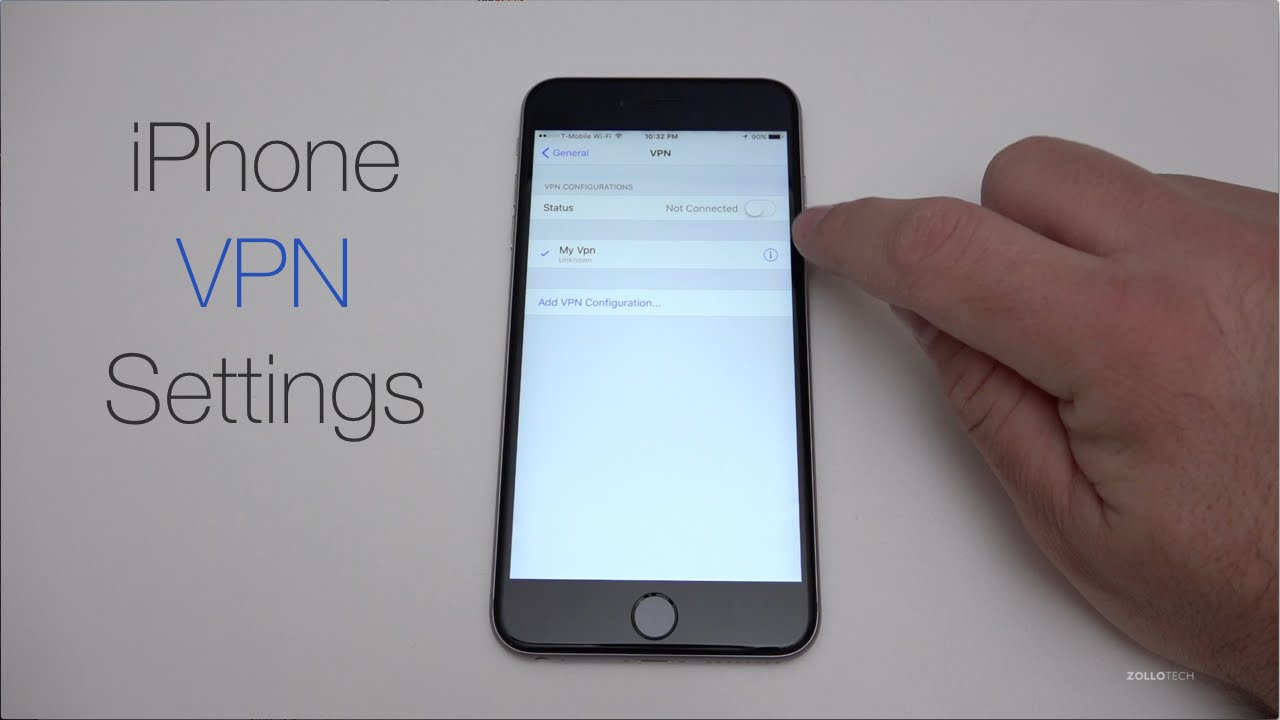
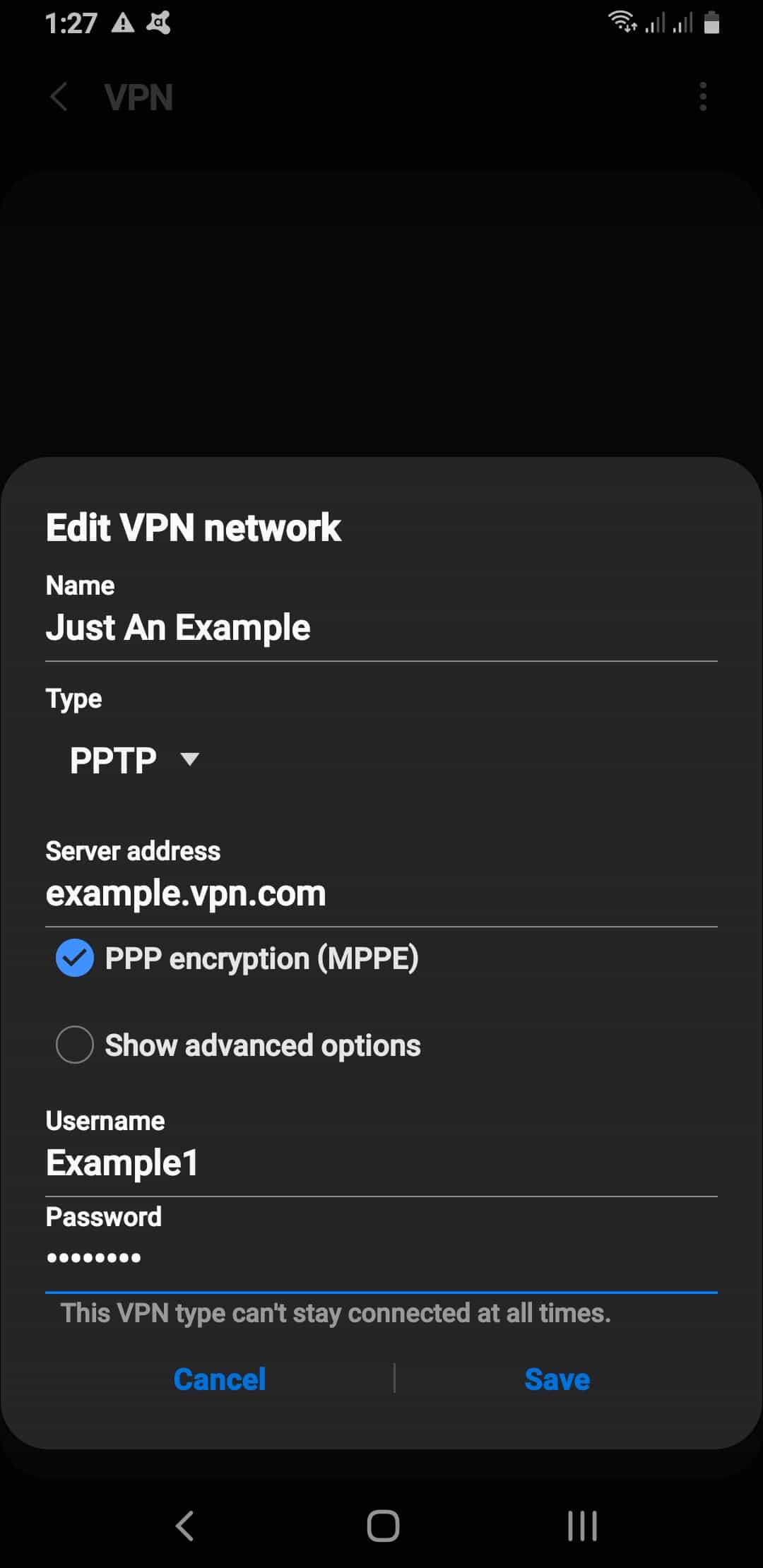
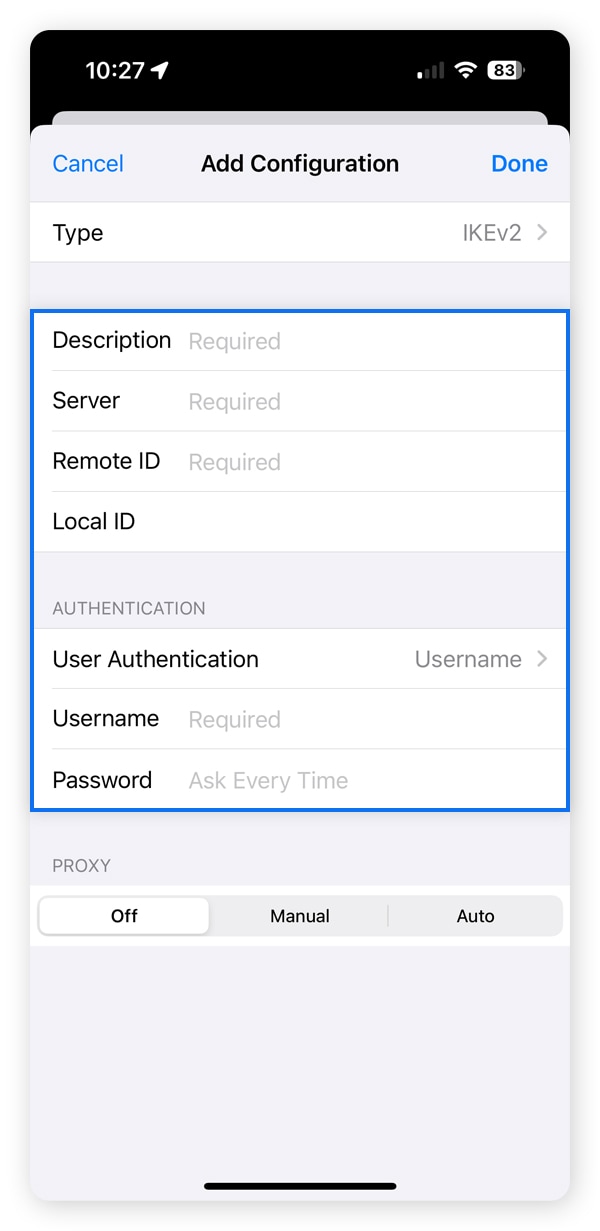
Open the VPN app on your smartphone. Enter your username and password if needed. Tap the connect button. Wait a few seconds. The app will show a message when connected. Some phones also have VPN settings in their main menu. You can enable the VPN there by entering the server details.
Verifying Connection Status
Check the VPN icon on your phone’s status bar. This icon means your VPN is active. Open your browser and visit a site that shows your IP address. It should show the VPN server location, not your real location. This confirms your connection is working correctly.
Troubleshooting Common Issues
Connection problems are common but easy to fix. Restart the VPN app and try again. Check your internet connection. Switch to another VPN server if one does not connect. Update your VPN app to the latest version. Restart your smartphone if needed. If problems continue, contact your VPN provider for help.
Advanced Tips
Advanced tips help you use your VPN more safely and easily. These tips make your phone secure all the time. They also help manage your connection without extra effort. Using these features helps protect your data and privacy better.
Setting Up Auto-connect
Auto-connect turns on your VPN automatically. It starts when you use Wi-Fi or mobile data. This stops you from forgetting to connect. Your phone stays protected on all networks. Set this up in your VPN app’s settings. Choose trusted networks where auto-connect works.
Using Kill Switch Feature
The kill switch stops internet if VPN drops. This stops data from leaking outside the VPN. It keeps your browsing private at all times. Enable the kill switch in your app settings. It runs in the background without you noticing.
Managing Multiple Devices
You can use one VPN on many devices. Manage all devices from your VPN account online. Check which devices are connected and control access. This keeps your whole family or work team safe. Use apps or web portals for easy management.
Credit: us.norton.com
Frequently Asked Questions
What Is The Easiest Way To Set Up A Vpn On A Smartphone?
The easiest way is to download a trusted VPN app from your app store. After installation, open the app, sign in, and follow the setup instructions. Most apps offer one-click connection to secure servers, making VPN setup quick and user-friendly.
Can I Set Up A Vpn Without Technical Skills?
Yes, many VPN apps are designed for beginners. They provide simple interfaces and step-by-step guides. You don’t need to configure settings manually. Just install the app, log in, and connect to a server with one tap.
Which Vpn Protocols Work Best On Smartphones?
OpenVPN and IKEv2 are widely recommended for smartphones. They offer strong security and good speed. Most VPN apps automatically select the best protocol for your device, ensuring reliable and safe connections.
Do I Need A Paid Vpn Service For Smartphone Security?
Paid VPNs generally offer better security, faster speeds, and reliable connections. Free VPNs may have data limits and weaker privacy policies. Investing in a paid service enhances your smartphone’s online protection and browsing experience.
Conclusion
Setting up a VPN on your smartphone protects your online privacy. It helps keep your data safe on public Wi-Fi networks. The process is simple and takes only a few minutes. Choose a trusted VPN app, install it, and follow the setup steps.
Once connected, your internet traffic stays private and secure. Regular use of a VPN boosts your online safety. Give it a try today for safer browsing and peace of mind.
As an Amazon Associate, I earn from qualifying purchases.