Are you wondering if you can use your PlayStation controller to play games on Xbox Cloud Gaming? If you’ve got a PlayStation controller lying around and want to jump into Xbox’s vast game library without buying new gear, this question is probably on your mind.
Using the right controller can make all the difference in your gaming experience. Keep reading, and you’ll discover exactly how to connect your PlayStation controller to Xbox Cloud Gaming, what works, what doesn’t, and tips to get the best performance.
Don’t miss out on unlocking your gaming potential with gear you already own!
Xbox Cloud Gaming Basics
Understanding Xbox Cloud Gaming basics helps you enjoy games smoothly. This service lets you play Xbox games on many devices without a console. It streams games from Microsoft’s servers to your screen. You can start playing quickly and without downloads. Knowing the basics prepares you for using different controllers and devices.
What Is Xbox Cloud Gaming
Xbox Cloud Gaming is a service by Microsoft. It streams Xbox games to your device over the internet. You do not need an Xbox console to play. Games run on powerful servers in data centers. You control the game on your device through the internet. This allows access to many games anytime and anywhere.
Supported Devices And Controllers
Many devices work with Xbox Cloud Gaming. These include Windows PCs, Android phones, tablets, and some smart TVs. Apple devices also support the service through web browsers. For the best experience, a good internet connection is important.
Xbox Cloud Gaming supports various controllers. Official Xbox controllers connect easily. Many Bluetooth controllers also work well. Some devices allow touch controls on screen. Compatibility depends on the device and controller model. Using a compatible controller gives better gameplay control.

Credit: www.youtube.com
Playstation Controller Compatibility
Many gamers ask if PlayStation controllers work with Xbox Cloud Gaming. The answer depends on the type of controller and how the service supports it. Understanding compatibility helps avoid connection issues and improves gameplay.
PlayStation controllers have different models. Each model offers unique features and connection options. Knowing these differences is key to using them with Xbox Cloud Gaming.
Types Of Playstation Controllers
There are several PlayStation controllers on the market. The DualShock 4 is the main controller for PlayStation 4. It connects via Bluetooth or USB cable. The newer DualSense controller supports PlayStation 5. It also uses Bluetooth or USB for connection. Both have different button layouts than Xbox controllers.
Native Support On Xbox Cloud Gaming
Xbox Cloud Gaming does not natively support PlayStation controllers. It mainly works with Xbox controllers or those recognized as Xbox devices. PlayStation controllers may need extra software or adapters to function properly. Without these, some buttons might not work as expected. Using a USB cable can improve connection stability over Bluetooth.
Connecting Playstation Controllers
Connecting a PlayStation controller to Xbox Cloud Gaming can enhance your experience. This allows you to enjoy games on various devices using your favorite controller. The process involves simple steps for wired and wireless connections. Understanding these methods helps you get started quickly.
Wired Connection Methods
Use a USB cable to connect your PlayStation controller to your device. Plug one end into the controller and the other into your PC or Xbox console. The system should recognize the controller automatically. No extra software is usually needed. This method provides a stable connection with low input delay. It is ideal for gaming sessions that require quick responses.
Bluetooth Pairing Steps
Turn on the Bluetooth on your device first. Hold the PlayStation controller’s Share button and the PS button together. Keep holding until the light bar starts flashing. This signals the controller is in pairing mode. On your device, look for the controller in the Bluetooth settings. Select it to pair and connect. Once connected, the controller works wirelessly for Xbox Cloud Gaming. This method offers freedom of movement and less clutter.

Credit: www.amazon.com
Using Adapters And Third-party Tools
Using adapters and third-party tools can help connect a PlayStation controller to Xbox Cloud Gaming. These devices act as bridges, making the controller work with Xbox systems. This solution is popular for gamers who want to use their favorite PlayStation controller on the Xbox platform.
Adapters often come with software that lets you customize button mapping. This helps match the PlayStation controller layout with Xbox games. Some tools also improve connection stability and reduce input lag for better gameplay.
Popular Adapters For Compatibility
Several adapters work well for PlayStation controllers on Xbox Cloud Gaming. The Titan One and Cronus Zen are top choices. They support many controllers and offer easy setup. Another option is the Brook Super Converter, designed for smooth compatibility. These adapters often support both wired and wireless connections.
Choosing the right adapter depends on your budget and needs. Look for devices with good reviews and firmware updates. Reliable brands provide better support and fewer connection issues.
Setup And Configuration Tips
Start by connecting the adapter to your Xbox device. Follow the manufacturer instructions carefully. Plug in your PlayStation controller to the adapter using a USB cable or Bluetooth.
Use the adapter’s software to map buttons correctly. This step ensures the controller works smoothly with Xbox games. Test your setup with a simple game first. Adjust settings if any buttons don’t respond right.
Keep adapter firmware updated for best performance. Regular updates fix bugs and add features. Also, avoid using cheap or untested cables. They may cause connection problems or lag during gameplay.
Potential Issues And Fixes
Using a PlayStation controller for Xbox Cloud Gaming may cause some issues. These problems can affect your gaming experience. Knowing common issues helps you fix them quickly. This section covers two main problems and their solutions.
Input Lag And Responsiveness
Input lag means a delay between pressing a button and action on screen. PlayStation controllers might have more lag on Xbox Cloud Gaming. This happens because the controller is not fully compatible. Lag can make games feel slow and less fun.
Fix input lag by using a wired connection instead of Bluetooth. A cable reduces delay and improves response time. Also, close other apps to free up system resources. Lower your game’s graphics settings for smoother play. These steps help reduce input lag and improve control.
Button Mapping Challenges
Button mapping means which button does what in the game. PlayStation and Xbox controllers have different button layouts. Using a PlayStation controller on Xbox Cloud Gaming may confuse buttons. For example, the X button on PlayStation is different from Xbox.
Fix button mapping by using software that remaps buttons. Some apps let you customize button functions easily. Check if Xbox Cloud Gaming offers controller settings. Adjust buttons to match your PlayStation controller layout. This makes gameplay easier and more natural.
Alternatives To Playstation Controllers
PlayStation controllers do not work well with Xbox Cloud Gaming. Gamers need other options to enjoy smooth gameplay. Many controllers offer good compatibility and comfort. Choosing the right controller can improve your gaming experience.
Recommended Xbox Controllers
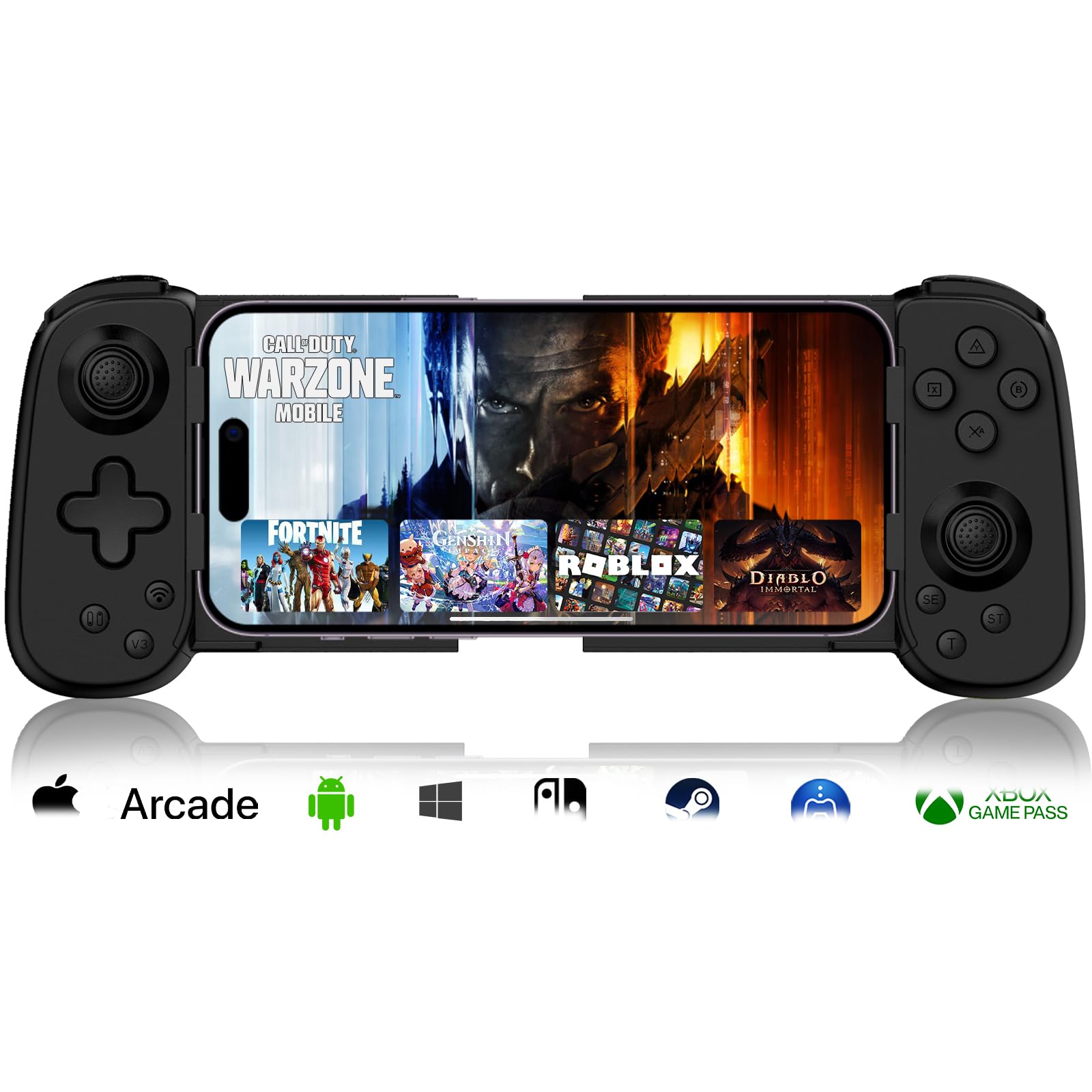
The official Xbox Wireless Controller is the best choice. It connects easily with Xbox Cloud Gaming. This controller has good build quality and responsive buttons. It supports Bluetooth, making wireless play simple. The Xbox Elite Controller Series 2 offers advanced features. It has customizable buttons and triggers. Both controllers work well on PC and mobile devices.
Other Compatible Gamepads
Many third-party gamepads support Xbox Cloud Gaming. The PowerA Enhanced Wired Controller is affordable and reliable. It has a solid design and extra programmable buttons. The Razer Wolverine V2 is another strong option. It offers great precision and comfort. Look for controllers with Xbox compatibility and Bluetooth. These ensure smooth connection and gameplay on various devices.
Optimizing Your Gaming Experience
Optimizing your gaming experience is key to enjoying Xbox Cloud Gaming with a PlayStation controller. Small changes in settings can improve control and reduce lag. A smooth and responsive game feels better and helps you play longer without frustration.
Adjusting Settings For Smooth Play
Start by connecting your PlayStation controller properly. Use a wired connection if possible. This lowers input delay. Check the Xbox Cloud Gaming app settings to make sure the controller is recognized. Adjust the controller sensitivity to match your style. Lower sensitivity for precise aiming. Higher for faster movements. Set the display resolution to balance quality and speed. Lower resolution can reduce lag. Test different settings to find what feels best.
Troubleshooting Common Problems
Controller not working? Restart the app and reconnect the controller. Make sure your controller firmware is up to date. Check Bluetooth or USB connections for stability. If the controller buttons don’t respond correctly, recalibrate the controller in settings. Lag or stuttering? Close other apps running in the background. Ensure your internet connection is stable and fast. Clear cache or reinstall the Xbox Cloud Gaming app if problems persist.
Credit: www.esseg.eu
Frequently Asked Questions
Can I Connect A Playstation Controller To Xbox Cloud Gaming?
Yes, you can connect a PlayStation controller to Xbox Cloud Gaming via Bluetooth or USB. However, some button mappings may differ.
Does Xbox Cloud Gaming Support Playstation Controller Natively?
Xbox Cloud Gaming doesn’t officially support PlayStation controllers natively. You may experience limited functionality or need third-party software.
How To Fix Playstation Controller Issues On Xbox Cloud Gaming?
To fix issues, update your controller firmware and check Bluetooth connection. Using third-party mapping tools can improve compatibility.
Are All Playstation Controller Models Compatible With Xbox Cloud Gaming?
Most PlayStation DualShock 4 and DualSense controllers work, but earlier models may not connect properly.
Conclusion
PlayStation controllers can work with Xbox Cloud Gaming, but with limits. Some games may not recognize all buttons. Wireless connection might cause delays. Using a wired connection helps reduce lag. Always check game compatibility before playing. This setup can offer a decent experience.
Experiment to see what works best for you. Enjoy your gaming time with the controller you have. Simple steps can improve your play. Keep your controller updated for better performance.
As an Amazon Associate, I earn from qualifying purchases.