Are you wondering if your trusty PlayStation controller will work with Xbox Cloud Gaming? If you’ve invested in a PlayStation controller and want to enjoy Xbox games without buying new gear, this question is probably on your mind.
Using the right controller can make or break your gaming experience, and the last thing you want is frustration from compatibility issues. You’ll discover exactly how to connect your PlayStation controller to Xbox Cloud Gaming, what works, what doesn’t, and tips to get the best performance.
Keep reading to unlock smooth gameplay without switching controllers!
Compatibility Basics
Playing games on Xbox Cloud Gaming can be fun with the right controller. Choosing the correct controller affects your experience. Not all controllers work the same with Xbox Cloud Gaming. Understanding basic compatibility helps avoid frustration. This section explains how PlayStation controllers and Xbox Cloud Gaming work together.
Xbox Cloud Gaming Controller Support
Xbox Cloud Gaming supports many controllers. Xbox controllers work perfectly without extra setup. Other controllers may connect but need configuration. The service accepts Bluetooth and USB controllers. It checks for common standards like XInput. Controllers that use XInput usually work well. Some features may not work on non-Xbox controllers. Button labels might not match the Xbox layout. Still, gameplay remains smooth and responsive.
Playstation Controller Types
PlayStation offers several controllers. The most popular are DualShock 4 and DualSense. DualShock 4 works via Bluetooth or USB. It connects easily to most devices. DualSense is newer with advanced features. It also connects via Bluetooth or USB. Both controllers use different input standards from Xbox. This causes some compatibility issues. Basic functions like movement and buttons work fine. Advanced features like adaptive triggers do not. Using PlayStation controllers is possible but not perfect.
Connecting Playstation Controllers
Connecting a PlayStation controller to Xbox Cloud Gaming is possible and simple. It lets you enjoy cloud games with a familiar controller. This section explains how to connect your PlayStation controller using both wired and wireless methods. Follow the steps below to get started quickly.
Wired Connection Setup
To connect your PlayStation controller with a wire, use a USB-C cable. Plug one end into the controller and the other into your device. Your device should recognize the controller automatically. No extra software is needed for most systems.
After connecting, open your browser and start Xbox Cloud Gaming. The controller will work for navigation and gameplay. Wired connection offers a stable and lag-free experience. It is ideal for long gaming sessions without battery concerns.
Wireless Connection Setup
For wireless play, connect the PlayStation controller via Bluetooth. First, activate Bluetooth on your device. On the controller, press and hold the PlayStation button and Share button together until the light flashes.
Find the controller on your device’s Bluetooth list and select it. Once paired, the controller works with Xbox Cloud Gaming. Wireless connection gives freedom to move and play from a distance. Keep the controller charged to avoid interruptions.
Configuring Controllers For Xbox Cloud
Configuring controllers for Xbox Cloud Gaming is essential for a smooth experience. Xbox Cloud supports various controllers, but some setup is required for non-Xbox devices. Proper configuration ensures your controller works well with the games and the platform.
Using a PlayStation controller on Xbox Cloud might need extra steps. The system may not recognize it immediately. Adjusting settings or using software can help make the controller compatible.
Using Built-in Settings
Xbox Cloud Gaming can detect many controllers through built-in settings. Connect your PlayStation controller via Bluetooth or USB. The platform often recognizes it as a generic controller.
Check the controller settings on your device. Make sure the PlayStation controller is set as the default input device. Some games allow manual controller selection in their menus.
Restart the app or browser after connecting the controller. This action helps the system to refresh and detect the device correctly. Test the controller with simple games first to confirm it works.
Third-party Software Options
Third-party software can improve compatibility between PlayStation controllers and Xbox Cloud. Tools like DS4Windows or InputMapper translate PlayStation inputs into Xbox signals.
Install the software on your PC before launching Xbox Cloud Gaming. Follow setup instructions to map buttons correctly. This step ensures all controls respond as expected.
Some software allows customization of controller settings. Adjust sensitivity, button layout, and vibration to match your preferences. Keep the software updated for the best performance.

Credit: www.amazon.com
Common Issues And Fixes
Using a PlayStation controller on Xbox Cloud Gaming can bring some challenges. Many users face problems that stop their gameplay or make it less smooth. Understanding common issues helps fix them fast. This section covers frequent troubles and easy solutions.
Controller Not Recognized
Sometimes the Xbox Cloud Gaming does not detect the PlayStation controller. Check if the controller is properly connected via USB or Bluetooth. Try unplugging and plugging it back in. Restart your browser or app. Make sure your device supports the controller input. Updating your device drivers can also help.
Input Lag Problems
Input lag means a delay between pressing a button and the action on screen. This can ruin your gaming experience. Use a wired connection instead of Bluetooth to reduce lag. Close other apps that use internet or processing power. Lower the streaming quality in Xbox Cloud Gaming settings. This reduces data and improves response time.
Button Mapping Conflicts
PlayStation and Xbox controllers have different button layouts. This can cause confusion while playing. Some games or apps may not recognize PlayStation buttons correctly. Use third-party software to remap buttons to match Xbox controls. Check the game settings for custom button options. Adjusting these settings makes gameplay easier and more natural.
Performance Tips
Using a PlayStation controller on Xbox Cloud Gaming can be smooth with the right setup. Performance matters a lot for a good gaming experience. Small changes can reduce lag and improve control response. This section covers tips to help you get the best performance.
Optimizing Connection Quality
Strong internet is key for cloud gaming. Use a wired connection if possible. Wi-Fi can cause delays and dropouts. Place your router close to your device. Avoid other devices using the internet at the same time. Close background apps that use bandwidth. Check your speed regularly to ensure it stays stable. A speed of at least 10 Mbps is good for most games.
Best Practices For Gameplay
Make sure your controller is fully charged before playing. Connect the controller directly to your device with a cable for less lag. If using Bluetooth, keep the controller close to the device. Update your controller’s firmware to fix bugs and improve compatibility. Adjust in-game settings to lower graphics if you face lag. Turn off vibration to save battery and reduce input delay. Practice with the setup to get used to the feel and timing.
Credit: www.esseg.eu
Alternatives To Playstation Controllers
PlayStation controllers do not work well with Xbox Cloud Gaming. Many players want a smooth gaming experience. Choosing the right controller can improve gameplay. There are good alternatives to PlayStation controllers for Xbox Cloud Gaming. These options work better and connect easily. You can find controllers that suit your style and budget. Below are some popular alternatives to consider.
Official Xbox Controllers
Official Xbox controllers offer the best compatibility. These controllers connect easily to Xbox Cloud Gaming. They have buttons and features designed for Xbox games. The Xbox Wireless Controller is a top choice. It works with PCs, Xbox consoles, and cloud gaming. The design fits well in most hands. It also supports Bluetooth for wireless play. Using an official controller reduces connection problems and lag.
Other Compatible Gamepads
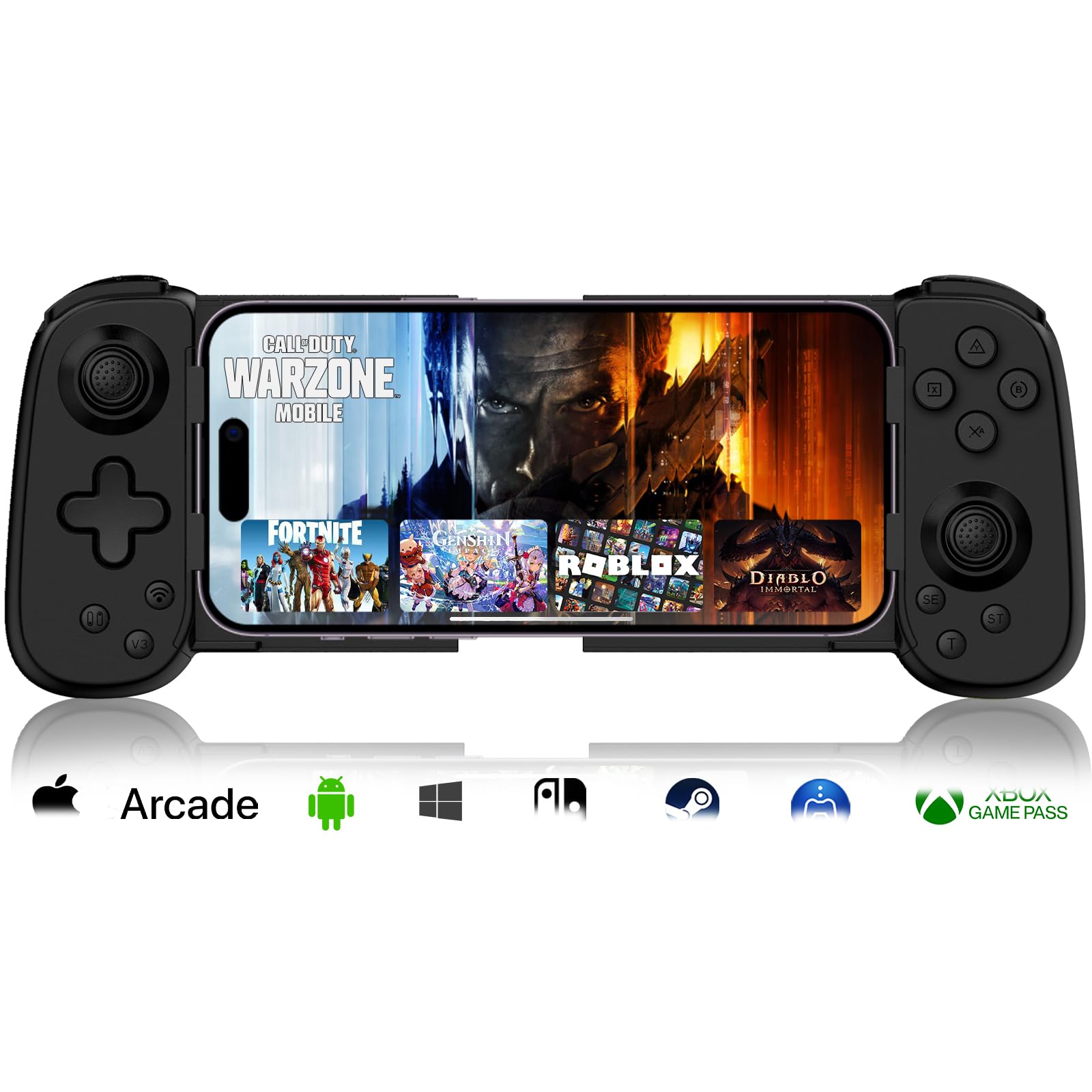
Several other gamepads also work with Xbox Cloud Gaming. Brands like Logitech and Razer make popular options. These controllers offer good build quality and comfort. Many support Bluetooth or USB connections. They usually come with customizable buttons. Some even have extra features like back paddles. These gamepads provide more choices for gamers. Check if they list Xbox Cloud Gaming compatibility before buying.

Credit: www.youtube.com
Frequently Asked Questions
Can I Connect A Playstation Controller To Xbox Cloud Gaming?
Yes, you can connect a PlayStation controller to Xbox Cloud Gaming. Use Bluetooth or a USB cable for a seamless connection. However, some button mappings may differ from an Xbox controller.
Does Xbox Cloud Gaming Support Playstation Controller Features?
Xbox Cloud Gaming supports basic PlayStation controller functions. Advanced features like adaptive triggers and haptic feedback may not work. Compatibility depends on the game and controller model.
How Do I Pair A Playstation Controller With Xbox Cloud Gaming?
To pair, enable Bluetooth on your device and hold the PlayStation controller’s share and PS buttons. Select the controller from your device’s Bluetooth list to connect it successfully.
Are Playstation Controllers Fully Compatible With Xbox Games?
PlayStation controllers work for Xbox Cloud Gaming but lack full compatibility. Button layouts and vibration feedback may vary. Xbox controllers offer the best user experience for Xbox games.
Conclusion
Using a PlayStation controller on Xbox Cloud Gaming is not fully supported. Some buttons may not work correctly or at all. Xbox controllers provide the best experience and full compatibility. Still, you can try a PlayStation controller if you want to test it out.
Remember, the cloud gaming service is designed for Xbox hardware. Choosing the right controller helps avoid frustration during play. Keep these points in mind when deciding which controller to use. Enjoy your gaming with the setup that fits you best.
As an Amazon Associate, I earn from qualifying purchases.