Are you wondering if your PS5 controller can work with Xbox Cloud Gaming? You’re not alone.
Many gamers want to use their favorite controllers across different platforms to get the best experience. But does the PS5 controller really play nice with Xbox’s cloud service? If you want to know how to connect them, what works, and what doesn’t, keep reading.
This guide will clear up the confusion and help you get the most out of your gaming setup.
Ps5 Controller Compatibility
The PS5 controller works with Xbox Cloud Gaming but with some limits. It is not made for Xbox devices, so compatibility is partial. You can still play many games using this controller. Understanding how to connect and what features work helps you use it better.
Connection Methods
You can connect the PS5 controller to your PC or mobile device via Bluetooth. A USB-C cable also works for a wired connection. Bluetooth is easy but may have slight input delay. USB connection gives a stable and fast response. Both ways let you use the controller with Xbox Cloud Gaming.
Supported Features
The basic buttons and sticks on the PS5 controller work well. You can move, jump, shoot, and perform all usual game actions. The controller’s vibration also works to add feel. Xbox Cloud Gaming recognizes these inputs correctly. You get a smooth gaming experience with most games.
Limitations On Xbox Cloud
Advanced PS5 features like adaptive triggers and motion controls do not work on Xbox Cloud. The controller’s light bar is also inactive. Some games may not show correct button icons on screen. The controller will not update firmware through Xbox Cloud Gaming. These limits are normal with cross-platform use.
Setting Up Ps5 Controller
Setting up your PS5 controller for Xbox Cloud Gaming lets you enjoy games on a new platform. The process is simple and quick. You can use either a wired or wireless connection. Both methods work well. Follow the steps below to get started.
Wired Connection Steps
First, connect your PS5 controller to your device using a USB-C cable. Make sure the cable supports data transfer. Plug one end into the controller and the other into your PC or Xbox device. Your system should detect the controller automatically. Open Xbox Cloud Gaming and check if the controller works. If it does not respond, try another USB port or cable. This method ensures a stable connection with low latency.
Wireless Pairing Guide
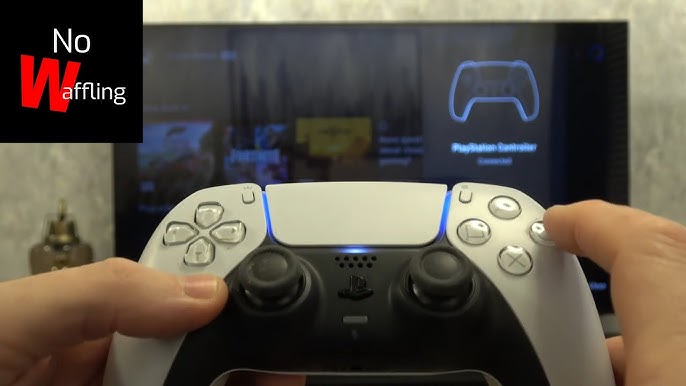
Turn on your PS5 controller by pressing the PlayStation button. Hold the Create button and the PlayStation button together until the light bar flashes. This puts the controller in pairing mode. On your PC or Xbox, open Bluetooth settings. Select “Add a device” and choose the PS5 controller from the list. Once paired, the light bar will stay on. Open Xbox Cloud Gaming and test the controller. Wireless connection offers more freedom but may have slight delays.
Troubleshooting Common Issues
If the controller does not connect, restart your device and try again. Check that your Bluetooth drivers are up to date. Use a different USB cable if wired connection fails. Make sure the controller battery is charged. Reset the controller by pressing the small reset button on the back. Avoid interference from other wireless devices. These steps fix most common problems quickly.
Xbox Cloud Gaming Essentials
Xbox Cloud Gaming lets you play Xbox games on many devices. It streams games from Microsoft’s servers to your screen. No need to own an Xbox console. You only need a compatible device and good internet.
To enjoy smooth gameplay, knowing the basics is key. Controllers, platform needs, and internet speed all matter. This section breaks down these essentials for you.
Supported Controllers List
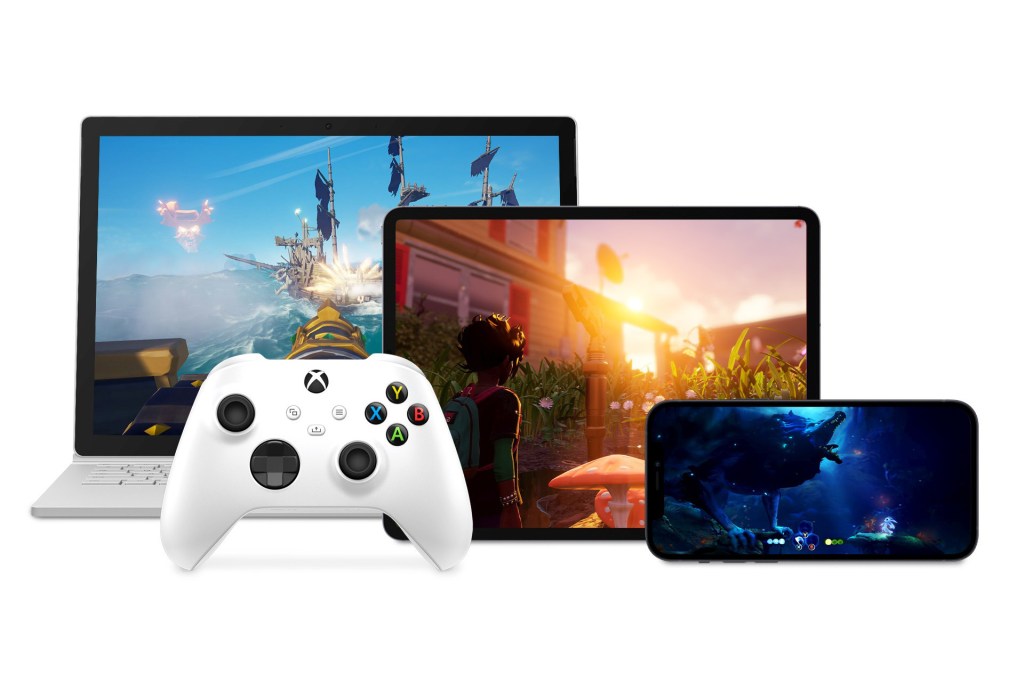
Xbox Cloud Gaming works best with official Xbox controllers. These include Xbox Wireless Controller and Xbox Elite Controller. Many third-party controllers also work if they match Xbox specs.
PS5 controllers are not officially supported. You can try using adapters or apps, but results vary. The safest bet is to use Xbox controllers for seamless play.
Platform Requirements
Xbox Cloud Gaming runs on Windows PCs, Android phones, and tablets. It also supports iPhones and iPads through the web browser. Xbox consoles naturally support it too.
Your device should have the latest operating system updates. Use a browser like Edge, Chrome, or Safari for best results. A stable Wi-Fi or wired internet connection is essential.
Latency And Performance
Latency affects how quickly your controller inputs reach the game. Low latency means fast, smooth gameplay. High latency causes delays and lag, which ruin the experience.
Use a wired controller or connect via Bluetooth close to your device. Strong internet with at least 10 Mbps speed helps reduce lag. Close background apps to improve performance.
Credit: www.stuff.tv
Using Ps5 Controller On Xbox Cloud
Using a PS5 controller on Xbox Cloud Gaming is possible with a few simple steps. This lets you enjoy Xbox games with a familiar controller. It also saves you from buying a new controller for cloud play.
The setup process is easy and quick. You just need to connect your PS5 controller to your device. Then, adjust some settings to make sure it works well with Xbox Cloud Gaming.
Step-by-step Setup
First, connect your PS5 controller to your PC or mobile device. Use a USB cable or Bluetooth for wireless play. Turn on the controller by pressing the PS button. On your device, open Bluetooth settings and pair the controller if using wireless. After connecting, open your browser or Xbox app to start Xbox Cloud Gaming.
Optimizing Controller Settings
Check the controller layout in the Xbox Cloud Gaming settings. Some buttons may not match exactly with Xbox controls. Customize button mappings if the option is available. Adjust sensitivity and vibration settings for better gameplay. Keep your controller firmware updated for best performance.
Game Compatibility Tips
Most Xbox Cloud games support the PS5 controller. Some games may show Xbox button icons, which can be confusing. Practice with the controller to get used to the layout. Games that rely on Xbox-specific features might not work perfectly. Stick to standard games for the best experience.
Alternatives And Workarounds
Playing Xbox Cloud Gaming with a PS5 controller is not straightforward. The PS5 controller does not natively support Xbox Cloud Gaming on many devices. But several alternatives and workarounds exist. These options help you enjoy cloud games without switching to an Xbox controller.
Third-party Adapter Options
Adapters let you connect a PS5 controller to Xbox Cloud Gaming. These small devices convert signals between the controller and Xbox servers. Brands like Brook and Cronus offer reliable adapters. They require simple setup and provide good compatibility. Some adapters also add extra features like button remapping. Adapters work well on Windows PCs and some mobile devices. They offer a hardware solution without complex software tweaks.
Software Solutions
Software tools can help your PS5 controller work with Xbox Cloud Gaming. Programs like DS4Windows or reWASD remap controller inputs. They make your PC recognize the PS5 controller as an Xbox controller. This trick helps cloud games accept the controller signals. Software solutions need installation and configuration. They mostly work on Windows systems and might add input lag. Still, they offer a budget-friendly way to use your PS5 controller.
Using Other Controllers
Other controllers naturally support Xbox Cloud Gaming. Xbox controllers are the easiest choice. They connect seamlessly to all Xbox platforms and cloud services. Some third-party controllers also work well. Brands such as Razer and PowerA make Xbox-compatible controllers. These controllers avoid extra setup steps. Using an Xbox controller or a compatible one guarantees smooth play. It saves time and reduces connection issues.

Credit: www.wikihow.com
Future Updates And Expectations
The question of using a PS5 controller on Xbox Cloud Gaming sparks many thoughts about future updates. Both Microsoft and Sony are aware of gamers’ needs. They keep improving their systems and expanding support. Expect more features and better compatibility soon.
Microsoft’s Controller Support Plans
Microsoft aims to support more controllers on Xbox Cloud Gaming. They want players to use their favorite devices. Support may expand beyond Xbox controllers. This helps gamers enjoy games with familiar gear. Updates could bring easier setup and better response.
Sony’s Cross-platform Moves
Sony shows interest in cross-platform play and device use. They improve how PS5 controllers work with other platforms. Sony may offer updates to boost controller compatibility. This could include better connection options and new features. It benefits players who use multiple gaming systems.
Upcoming Features In 2026
2026 promises exciting features for Xbox Cloud Gaming users. Expect wider controller support and smoother gameplay. New software updates may allow easier pairing of PS5 controllers. Cloud gaming services could become more flexible and user-friendly. These changes will enhance gaming across platforms.
Credit: www.youtube.com
Frequently Asked Questions
Can I Connect A Ps5 Controller To Xbox Cloud Gaming?
No, Xbox Cloud Gaming does not natively support PS5 controllers. You need an Xbox controller for seamless compatibility and performance.
Does Xbox Cloud Gaming Recognize Ps5 Controller Inputs?
No, PS5 controller inputs are not recognized directly by Xbox Cloud Gaming. Xbox controllers are optimized for the platform.
Can I Use Adapters To Connect Ps5 Controllers To Xbox Cloud Gaming?
Yes, some third-party adapters claim to enable PS5 controller use. However, performance and compatibility may vary and are not guaranteed.
Why Doesn’t Xbox Cloud Gaming Support Ps5 Controllers?
Xbox Cloud Gaming is designed to work with Microsoft hardware. PS5 controllers use different protocols, causing compatibility issues.
Conclusion
Using a PS5 controller on Xbox Cloud Gaming is tricky. The controller may not work right away. You might need extra software or adapters. Xbox Cloud Gaming supports certain controllers better. Choosing the right controller helps avoid connection issues. Testing your setup before playing is a good idea.
This keeps your gaming smooth and fun. Enjoy your games with the best tools you have. Keep checking for updates to improve compatibility. Gaming should always be easy and enjoyable.
As an Amazon Associate, I earn from qualifying purchases.