
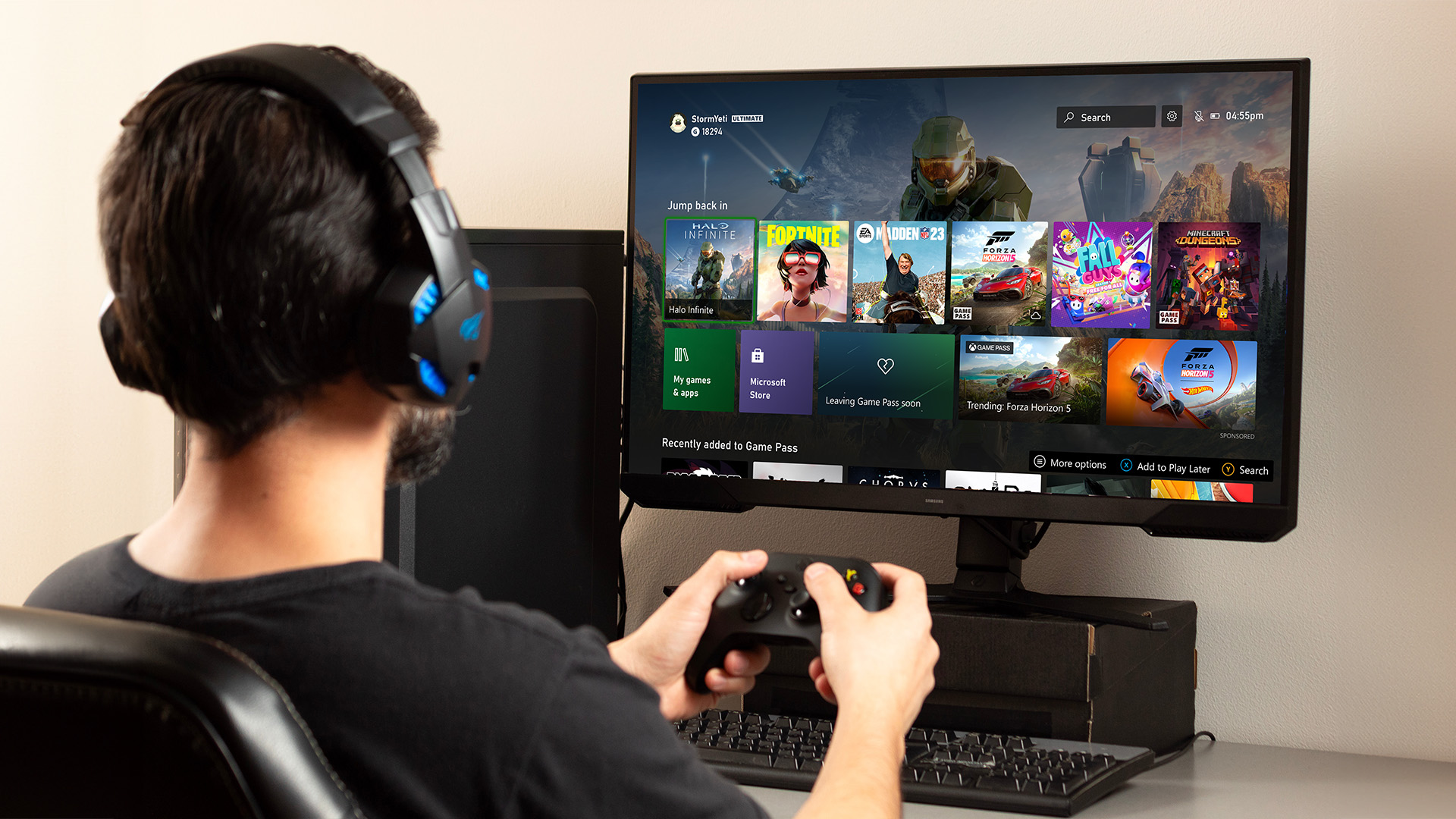
Are you wondering if you can connect your Xbox to a computer monitor? Maybe you want a bigger screen, sharper picture, or just a cleaner setup without a TV taking up space.
The good news is, yes—you can! But there are a few things you need to know to make sure it works smoothly. You’ll discover exactly how to connect your Xbox to your monitor, what cables you’ll need, and some tips to get the best gaming experience possible.
Keep reading to unlock your Xbox’s full potential on your computer monitor.
Credit: www.laptopoutlet.co.uk
Choosing The Right Monitor
Choosing the right monitor for your Xbox is important for a good gaming experience. The right screen shows clear images and fast motion. It also fits your gaming space and budget. Different monitors have different features. Knowing what to pick helps you enjoy games more.
Monitor Types Compatible With Xbox
Most Xbox consoles work well with LED and LCD monitors. OLED monitors offer better colors but cost more. Some older monitors may not support Xbox signals. Check if the monitor has HDMI ports. Xbox uses HDMI for video and sound. Avoid monitors with only VGA or DVI inputs.
Resolution And Refresh Rate Considerations
Xbox Series X supports 4K resolution for sharp pictures. Xbox One works well with 1080p monitors. Choose a monitor with at least 60Hz refresh rate. Higher rates like 120Hz give smoother gameplay. Fast refresh rates reduce screen blur during action scenes. Match your monitor’s resolution and refresh rate with your Xbox model.
Input Ports To Look For
HDMI is the main port for Xbox connection. Look for HDMI 2.0 or higher for better quality. Some monitors include DisplayPort but Xbox does not use it. USB ports can help connect accessories but are not for video. Ensure the monitor has enough HDMI ports for other devices. Check for audio output if you want to use headphones or speakers.
Credit: kdfoundation.org
Connecting Xbox To Monitor
Connecting an Xbox to a computer monitor is simple and often better for gaming. A monitor can offer a sharper image and faster response times than a TV. Many monitors have HDMI ports, making the connection easy.
Choosing the right method to connect your Xbox ensures the best picture and sound. This section explains the common ways to connect your Xbox to a monitor.
Using Hdmi Connection
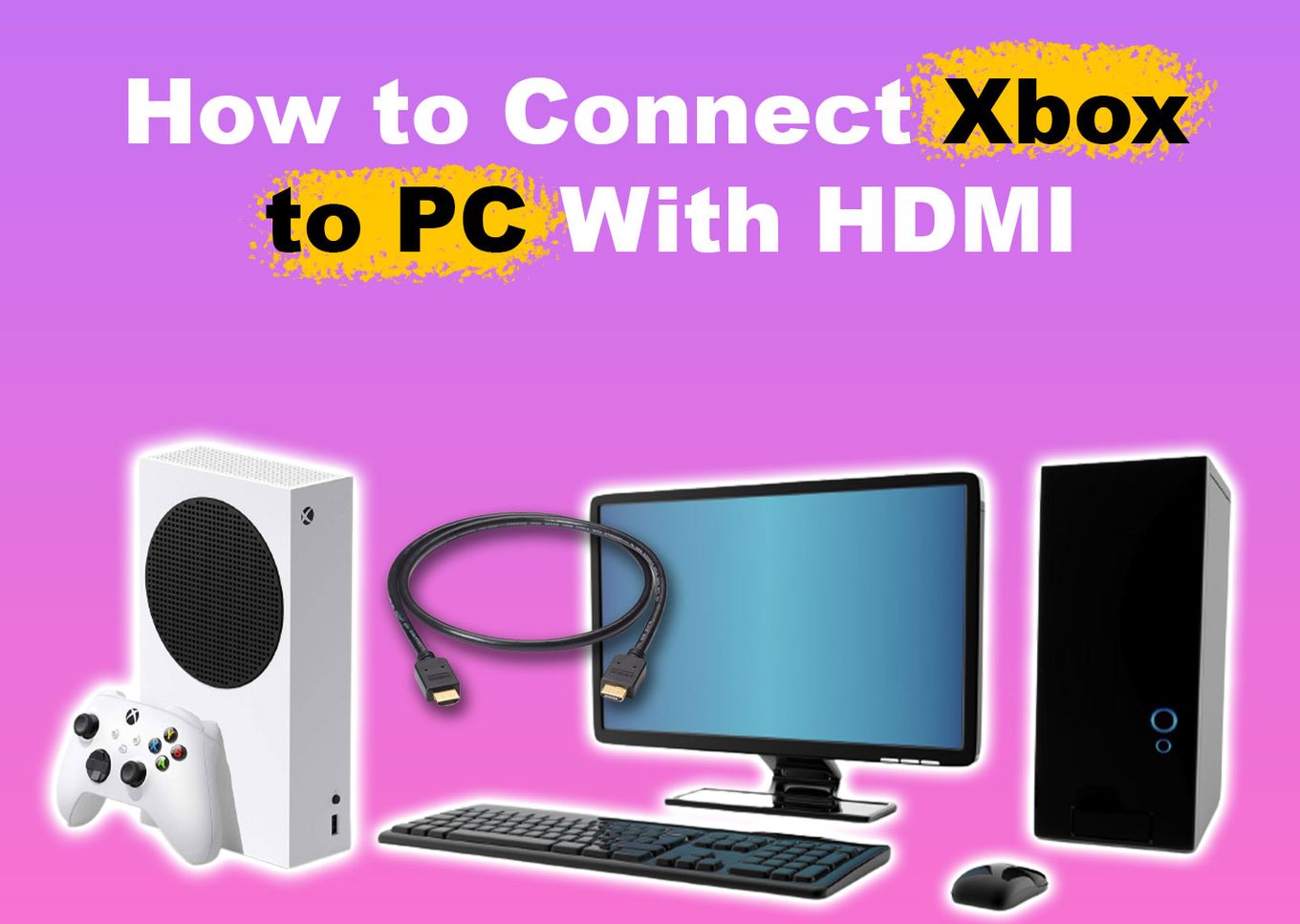
Most Xbox consoles use HDMI to send video and audio. Monitors with HDMI ports allow direct connection. Just plug one end of the HDMI cable into the Xbox. Connect the other end to the monitor’s HDMI port.
This method supports high-definition video and sound. It is the easiest and most common way to connect. Make sure the monitor input is set to the right HDMI channel.
Adapters And Converters
Some monitors lack HDMI ports but have DisplayPort or DVI. Use an adapter to connect the Xbox HDMI to these ports. Active converters may be needed for some connections. Check that the adapter supports audio if you want sound.
Adapters vary in quality. Choose one that supports the resolution and refresh rate you want. Cheap adapters might cause lag or poor picture quality.
Cable Quality And Length
Good cables deliver clear video and sound without interruptions. Use high-speed HDMI cables for best results. Keep the cable length short to avoid signal loss. Long cables may reduce picture quality or cause lag.
Invest in cables from trusted brands. Low-quality cables can cause flickering or no signal. Always check the cable rating before buying.
Setting Up Display Settings
Setting up the display settings is key to a great gaming experience on your Xbox and monitor. Correct settings make images clear and smooth. You can change resolution, color, brightness, and refresh rate to suit your screen.
These tweaks help your games look better and feel more responsive. Take time to adjust these settings for the best view.
Adjusting Resolution On Xbox
Start by turning on your Xbox and monitor. Press the Xbox button on your controller. Go to Settings > General > TV & display options. Choose the right resolution for your monitor. Common options include 720p, 1080p, and 4K.
Pick the highest resolution your monitor supports. This gives you sharper images and better details. If the screen looks strange, try a lower resolution.
Calibrating Color And Brightness
Good color and brightness make games look natural. Go to Settings > General > TV & display options > Video modes. Use the Xbox’s calibration tool for color and brightness. Adjust the sliders until the picture looks right.
Make sure dark areas are clear but not too bright. Colors should look vivid but not fake. Proper calibration reduces eye strain too.
Optimizing Refresh Rate
Refresh rate controls how smooth motion appears. Higher rates reduce blur and lag. On Xbox, go to Settings > General > TV & display options > Refresh rate. Choose 60Hz or 120Hz if your monitor supports it.
Pick 120Hz for fast-paced games. Choose 60Hz for normal use. This setting improves gameplay and makes actions feel instant.
Credit: www.youtube.com
Audio Options With Monitor Setup
Connecting an Xbox to a computer monitor often raises questions about audio options. Most monitors focus on video quality and may not offer great sound. Understanding how to get good audio can improve your gaming experience. This section explains the common audio setups with a monitor.
Using Monitor Speakers
Some monitors have built-in speakers. These speakers usually have basic sound quality. They work fine for casual gaming or quick sessions. The volume might be low and sound less clear. Check if your monitor has audio input or HDMI with audio support. This setup is simple but may not satisfy serious gamers.
Connecting External Audio Devices
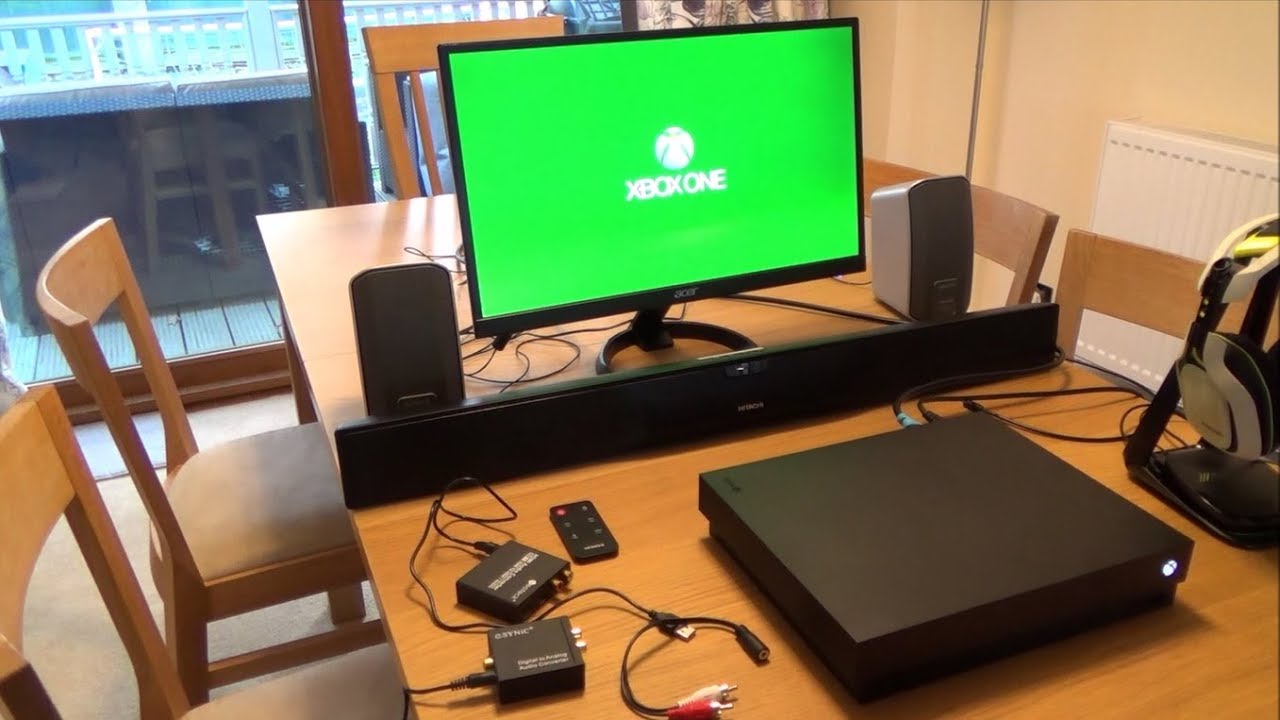
For better sound, use external speakers or headphones. Connect them directly to the Xbox controller’s headphone jack. Another option is to use a soundbar or speakers with an audio input. Some monitors have an audio out port to connect speakers. This method gives clearer and louder sound than monitor speakers.
Audio Output Settings On Xbox
The Xbox allows changing audio output settings. Go to Settings, then Audio. Choose the right audio format, like Stereo uncompressed or Dolby Atmos. Adjust the volume and chat mixer settings for balance. Proper settings help avoid sound delays or low volume. This step is important for a smooth audio experience.
Troubleshooting Common Issues
Troubleshooting common issues is key when connecting an Xbox to a computer monitor. Small problems can stop your setup from working well. Fixing these quickly lets you enjoy your games without delay.
No Signal On Monitor
Check the HDMI cable connection first. Make sure both ends are plugged in tightly. Try a different HDMI port on your monitor. Sometimes the monitor needs to be set to the right input source. Use the monitor’s menu buttons to select HDMI. Restart your Xbox and monitor to reset the connection. If the problem stays, try a new HDMI cable to rule out damage.
Display Flickering Or Lag
Flickering or lag often comes from a loose cable. Reconnect the HDMI cable securely. Lower the resolution settings on your Xbox. High resolutions can cause flicker on some monitors. Check the refresh rate on your monitor menu. Set it to 60Hz for better stability with Xbox. Updating your Xbox system software also helps fix display problems.
Audio Problems
Many monitors do not have built-in speakers. This can cause no sound from your Xbox. Use external speakers or headphones connected to your Xbox controller. Check the audio output settings on your Xbox. Ensure the correct audio device is selected. If using a monitor with speakers, increase the volume from the monitor controls. Restart the Xbox to reset audio settings if needed.
Enhancing Gaming Experience
Connecting an Xbox to a computer monitor can improve your gaming experience. Monitors often provide sharper images and faster response times. These features help you enjoy games with better visuals and less delay. Small changes can make a big difference in how you play and feel.
Choosing the right settings and tools enhances your gameplay. Adjusting your monitor and using the right accessories helps you play smoothly. These tips help you get the most out of your Xbox and monitor setup.
Using Monitor With Low Input Lag
Input lag is the delay between pressing a button and seeing the action. Low input lag means faster response, which is key for fast games. Look for monitors labeled with low input lag for better control. A good monitor reduces delay and improves your reaction time.
Enabling Game Mode
Many monitors have a Game Mode setting to boost performance. Game Mode reduces extra processing to lower input lag. Turning on Game Mode makes the picture clear and smooth. This setting helps your games run better and feel more natural.
Using External Controllers
External controllers offer comfort and better handling. Wireless or wired controllers connect easily to your Xbox and monitor. Choose controllers with good grip and responsive buttons. Using the right controller can make your gaming more fun and precise.
Alternative Display Options
Connecting an Xbox to a computer monitor is common. Yet, other display options exist for different needs. These alternatives can improve your gaming experience or add new features. Explore ways to use your Xbox with other screens and tools.
Connecting To A Tv Instead
Most Xbox consoles work well with TVs. TVs often have bigger screens than monitors. They support HDMI, which Xbox uses for video and sound. Many TVs offer better colors and contrast for games. They also include built-in speakers for audio. This setup is simple and popular among gamers.
Using Capture Cards For Streaming
Capture cards let you record and stream Xbox gameplay. They connect between your Xbox and your computer. This setup lets you play on a TV or monitor. The capture card sends the video to your PC. You can then stream on platforms like Twitch or YouTube. Capture cards help create content while gaming.
Dual Monitor Setup
A dual monitor setup uses two screens with one computer. You can play Xbox on one screen. The other screen shows chat, guides, or apps. This setup helps multitask during gaming sessions. You need a capture card or Xbox app for this. Dual monitors improve control and comfort.
Frequently Asked Questions
Can You Connect An Xbox To A Computer Monitor Directly?
Yes, you can connect an Xbox directly to a computer monitor using an HDMI cable. Most modern monitors support HDMI input, allowing easy connection. Ensure your monitor has built-in speakers or use external audio options, as many monitors lack audio output.
Do All Monitors Support Xbox Video And Audio Output?
Not all monitors support both video and audio from an Xbox. While video usually works via HDMI, many monitors lack built-in speakers. To get audio, use external speakers or headphones connected to the Xbox or monitor’s audio output.
What Cable Is Needed To Connect Xbox To A Monitor?
An HDMI cable is the standard and most compatible choice to connect an Xbox to a monitor. It carries both video and audio signals. For older monitors without HDMI, an adapter or converter may be required, but HDMI is best for quality.
Can I Use A Computer Monitor As A Gaming Display For Xbox?
Yes, a computer monitor can serve as a gaming display for Xbox. Monitors often have lower input lag and higher refresh rates, which enhance gaming performance. Just connect via HDMI and adjust settings for optimal display quality.
Conclusion
Connecting an Xbox to a computer monitor is simple and effective. Most monitors support HDMI, which works perfectly with Xbox consoles. This setup offers clear visuals and quick response times for gaming. Remember to check your monitor’s ports before buying extra cables or adapters.
With the right connection, you can enjoy your favorite games without needing a TV. It saves space and can improve your gaming experience. So, using a monitor with your Xbox is both practical and easy. Give it a try and see the difference yourself.
As an Amazon Associate, I earn from qualifying purchases.

