Are you wondering if you can connect your Xbox to a computer monitor? Maybe you want a bigger screen, sharper graphics, or just a better gaming setup.
The good news is, yes—you can! But there are some important details you need to know to make it work smoothly. Keep reading, and you’ll discover exactly how to set up your Xbox with your monitor, what equipment you might need, and tips to get the best gaming experience.
Don’t miss out on turning your gaming space into something amazing!
Check Monitor Compatibility
Before connecting your Xbox to a computer monitor, check if the monitor is compatible. Some monitors work well with gaming consoles. Others may not support the right settings. Ensuring compatibility helps you get a clear and smooth display. It also prevents connection problems and poor picture quality.
Two main factors affect compatibility. One is the type of ports your monitor has. The other is its resolution and refresh rate. Both are important for a good gaming experience.
Identify Monitor Ports
Look at the back or side of your monitor. Check the ports available for video input. Most Xbox models use HDMI cables. So, your monitor should have an HDMI port. Some older monitors only have VGA or DVI ports. These do not work well with Xbox without extra adapters.
If your monitor has HDMI, it is easier to connect. If not, check if you can use an adapter. Keep in mind that adapters might reduce video quality.
Verify Resolution And Refresh Rate
Check your monitor’s resolution. Xbox consoles support up to 4K resolution. If your monitor only supports lower resolutions, the picture may look less sharp. Most monitors support 1080p, which works fine for Xbox gaming.
Next, check the refresh rate. This is how many times the screen updates per second. Xbox usually outputs at 60Hz. If your monitor supports 60Hz or higher, gameplay will be smooth. Monitors with lower refresh rates can cause flickering or lag.
Knowing these details helps you pick the right monitor for Xbox. It ensures a better and more enjoyable gaming session.
Credit: kdfoundation.org
Gather Required Accessories
Connecting an Xbox to a computer monitor needs more than just the console and screen. You need the right accessories to ensure a smooth setup. Gathering these items before starting saves time and avoids frustration.
Choose The Right Hdmi Cable
HDMI cables carry both video and audio signals from the Xbox to the monitor. Use a high-speed HDMI cable for the best quality. Check the cable length to fit your setup comfortably. Avoid old or damaged cables as they can cause poor image or sound.
Consider Adapters And Converters
Some monitors do not have HDMI ports. In this case, adapters or converters become necessary. For example, a DisplayPort to HDMI adapter lets you connect the Xbox to a DisplayPort monitor. Ensure the adapter supports both video and audio. Choose reliable brands to avoid signal loss or lag.
Connect Xbox To Monitor
Connecting an Xbox to a computer monitor is simple and saves space. Many monitors support HDMI, which Xbox consoles use to send video and sound. This setup gives a clear picture for gaming without a large TV.
Follow these steps to connect your Xbox to a monitor and start playing quickly.
Power Off Devices
Turn off both your Xbox and monitor. This step protects the devices during connection. It also helps the monitor detect the Xbox properly once powered on.
Plug In Hdmi Cable
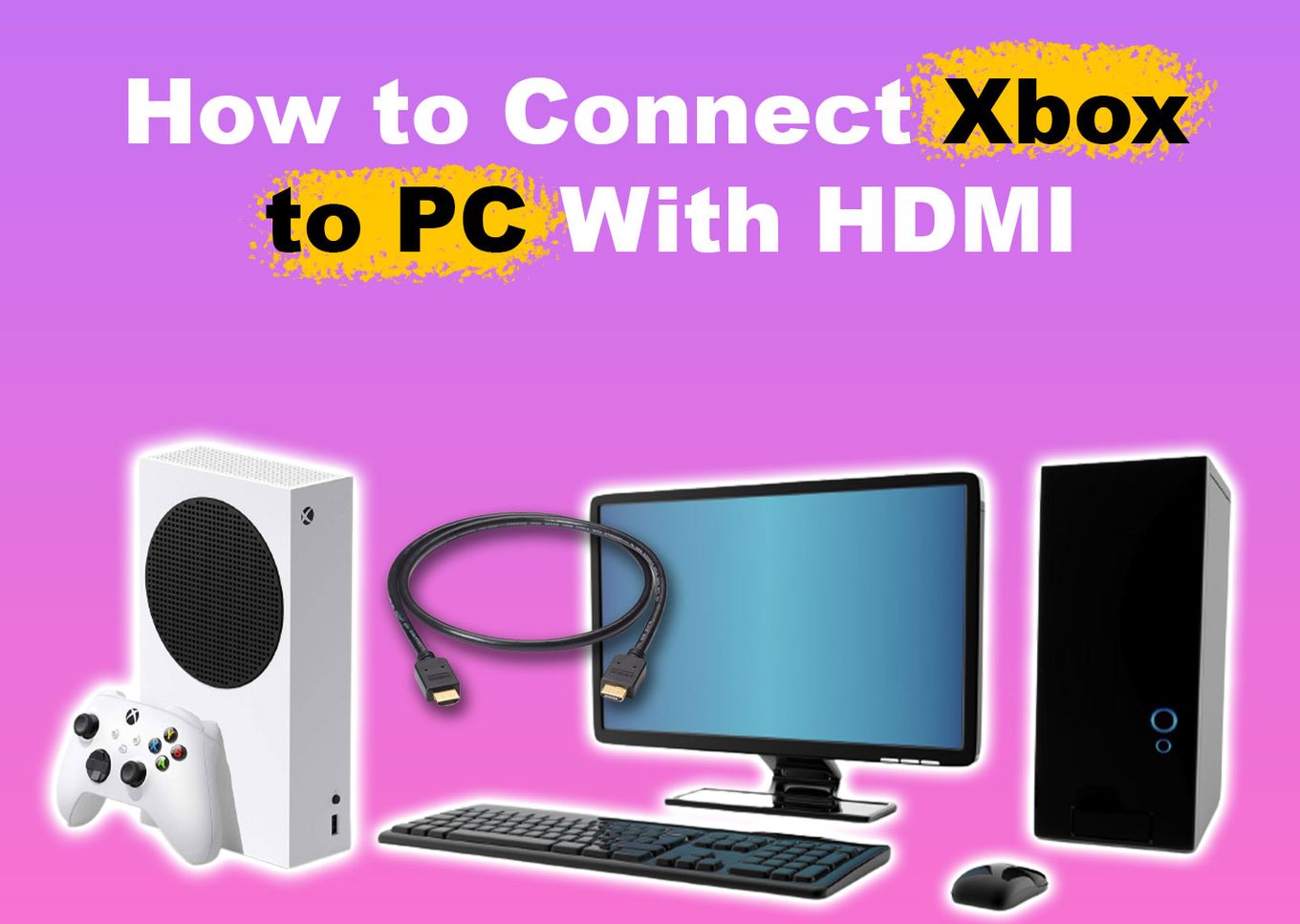
Take a high-quality HDMI cable and connect one end to the Xbox. Plug the other end into the monitor’s HDMI port. Ensure the cable fits snugly to avoid connection issues.
Turn On And Select Input
Power on your monitor first, then your Xbox. Use the monitor’s input or source button to select the HDMI port. The Xbox screen should appear on the monitor within seconds.
Adjust Display Settings
Adjusting display settings is key to a clear and sharp picture on your monitor. It helps the Xbox and monitor work well together. Proper settings improve your gaming experience and reduce eye strain.
Two main areas need attention: the Xbox resolution and the monitor settings. Both affect how the image looks on the screen. Small tweaks can make a big difference in quality and performance.
Set Resolution On Xbox
Turn on your Xbox and go to the settings menu. Find the Display & Sound section. Select Video Output to see resolution options. Choose the highest resolution your monitor supports. Common options are 720p, 1080p, and 4K.
Pick the resolution that matches your monitor’s native resolution. This ensures the clearest image without stretching or distortion. Save your choice and test the display. Adjust if the picture looks off or blurry.
Configure Monitor Settings
Access your monitor’s menu using the buttons on its frame. Look for Picture or Display settings. Adjust brightness, contrast, and sharpness for a balanced image. Set the input source to HDMI or DisplayPort, matching your Xbox connection.
Check for a game mode or low latency option. This reduces input lag and improves response time. Fine-tune color settings if the picture looks dull or too bright. Save settings and exit the menu.
Add Audio Solutions
Connecting an Xbox to a computer monitor often means no built-in speakers. This can make gaming audio a challenge. Adding sound solutions improves your gaming experience. There are simple ways to get good audio while using a monitor.
Use External Speakers
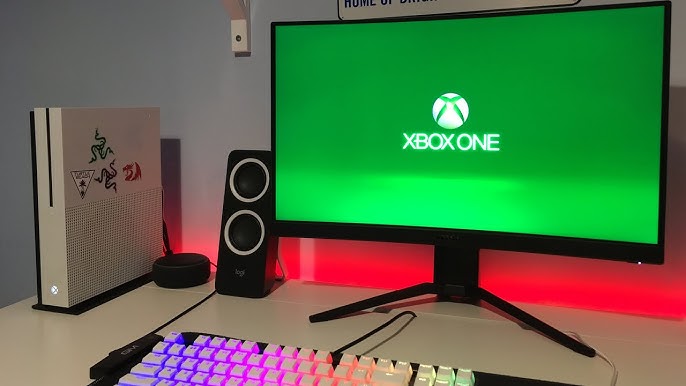
Many computer monitors lack sound systems. External speakers bring clear sound to your setup. You can connect speakers directly to the Xbox’s audio output. Some monitors have audio-out ports for speaker connection. This setup is easy and offers better sound quality. Choose speakers that fit your space and budget.
Explore Headphone Options
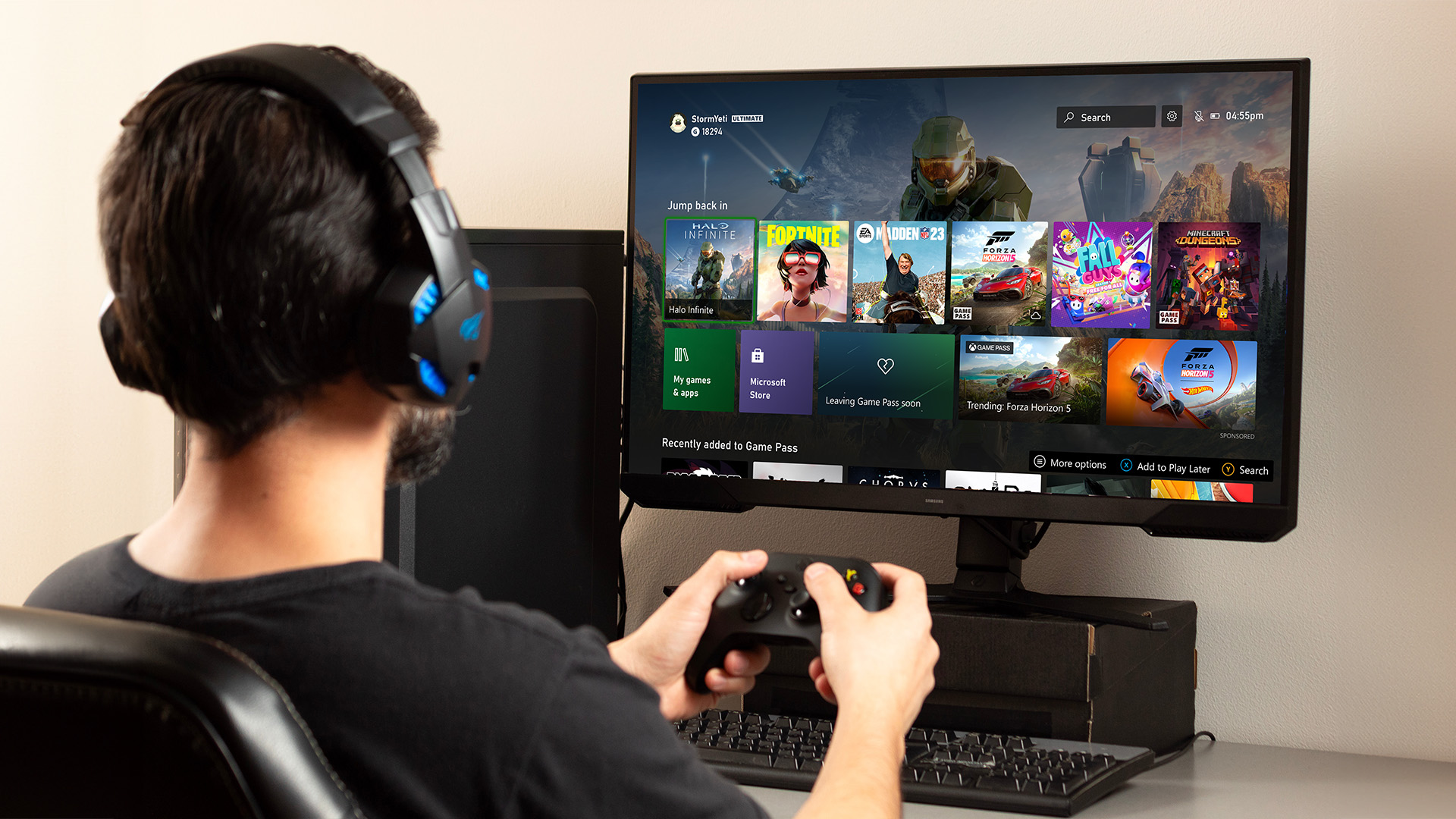
Headphones provide private and immersive sound. Xbox supports wired and wireless headphones. You can plug headphones into the controller’s jack. Wireless headsets connect via Bluetooth or Xbox Wireless. Headphones reduce noise and improve game focus. This option works well in shared spaces.
Credit: www.youtube.com
Troubleshoot Common Issues
Connecting your Xbox to a computer monitor can sometimes cause issues. These problems can stop your gaming experience. Troubleshooting common problems helps fix these quickly. Understanding simple fixes saves time and frustration.
No Signal On Monitor
Check if the HDMI cable is plugged in tightly. Try using a different HDMI port on the monitor. Make sure the monitor is set to the correct input source. Restart both the Xbox and the monitor. Test the HDMI cable with another device to confirm it works.
Poor Display Quality
Set the Xbox resolution to match the monitor’s native resolution. Use a high-quality HDMI cable to avoid signal loss. Adjust the monitor’s brightness, contrast, and sharpness settings. Turn off any image-enhancing features that distort the picture. Update your Xbox software to support better display options.
Audio Problems
Check if the monitor has built-in speakers or needs external ones. Adjust the Xbox audio output settings to match your setup. Use an HDMI cable that supports audio transmission. Connect external speakers or headphones directly to the Xbox if needed. Test the audio with other devices to find the problem.
Optimize Gaming Experience
Connecting your Xbox to a computer monitor can improve your gaming. You get better picture quality and faster response times. To get the most from your setup, adjust some settings on both the monitor and Xbox. Small changes can make a big difference in gameplay and visuals.
Optimizing these settings helps reduce lag and improves color accuracy. You will enjoy smoother and more immersive gaming sessions. Follow these simple tips to enhance your experience with your Xbox and monitor.
Enable Game Mode On Monitor
Many monitors have a Game Mode setting. This reduces input lag and sharpens the image. Turn on Game Mode in your monitor’s menu. It helps the screen react faster to your Xbox commands. This setting also improves motion clarity. Your games will look smoother and feel more responsive.
Adjust Xbox Performance Settings
Xbox consoles offer performance options for games. You can choose between higher resolution or faster frame rates. Go to your Xbox settings and open Video & Display options. Select the resolution that matches your monitor for the best picture.
Set the Refresh Rate to 60Hz or higher if your monitor supports it. Enable the Performance Mode in games that offer it. This mode prioritizes smooth gameplay over graphics quality. Lower graphics settings can reduce lag and improve response time. These adjustments help your games run better on a monitor.
Credit: www.laptopoutlet.co.uk
Frequently Asked Questions
Can I Connect Xbox To Any Computer Monitor?
Yes, you can connect Xbox to most computer monitors with an HDMI port. If your monitor lacks HDMI, use an adapter.
Do I Need Special Cables For Xbox To Monitor?
Typically, a standard HDMI cable suffices to connect Xbox to a monitor. Use adapters only if your monitor lacks HDMI input.
Will Xbox Work Without Speakers On A Monitor?
Monitors usually lack speakers, so you’ll need external speakers or headphones for audio during Xbox gaming sessions.
Can I Use A Vga Monitor With Xbox?
You can use VGA monitors with an HDMI-to-VGA adapter, but video quality may reduce, and audio requires separate connection.
Conclusion
Connecting an Xbox to a computer monitor is simple and useful. You just need the right cable, like HDMI, and a compatible monitor. This setup can save space and offer a clear, sharp display for gaming. Make sure your monitor supports the Xbox’s resolution and refresh rate.
This way, you get smooth gameplay without lag or delay. Enjoy your games with better focus and less distraction. It’s a practical choice for many gamers wanting a clean and efficient setup. Give it a try and see how it works for you.
As an Amazon Associate, I earn from qualifying purchases.